
If you care deeply about gadgets, you have probably noticed that smartphones are no longer just communication tools.
With the Pixel 10 series, Google clearly aims to turn a phone into a serious creative workstation, capable of handling high-bitrate video, large RAW files, and professional accessories.
However, once you try to connect an external SSD and build a real-world workflow, many users quickly realize that things are not as simple as the spec sheet suggests.
This article carefully explains how the Pixel 10 series actually works with external storage, what kind of performance you can realistically expect, and where the hidden pitfalls are.
You will learn why USB cable choice can reduce your speed by more than 90%, how Android 16 handles external drives, and why Google’s new Pixelsnap ecosystem changes physical setups for creators.
By reading this guide, you will be able to decide whether Pixel 10 fits your professional or enthusiast workflow, and how to optimize it for stable, high-performance use without frustration.
- Why External SSD Support Matters for Modern Smartphones
- USB-C on Pixel 10: Understanding USB 3.2 Gen 2 in Practice
- Real-World Transfer Speeds vs Theoretical Numbers
- The Cable Problem Most Users Overlook
- Zoned UFS Storage and Its Impact on Data Transfers
- USB4 and Thunderbolt Compatibility: What Pixel 10 Does Not Support
- Pixelsnap and Magnetic SSD Mounting in Daily Use
- Heat Management Risks When Using External SSDs
- Android 16 External Storage Bugs and Practical Workarounds
- File System Choices: Why exFAT Is the Safest Option
- Native Camera App Limitations for External Recording
- Third-Party Camera Apps That Unlock Direct SSD Recording
- Battery Drain and Power Delivery During Long Recording Sessions
- Pixel 10 vs iPhone 17 Pro vs Galaxy S25 for External SSD Workflows
- Recommended SSDs, Hubs, and Accessories for Pixel 10 Users
- 参考文献
Why External SSD Support Matters for Modern Smartphones
External SSD support matters for modern smartphones because the way people create, store, and move data has fundamentally changed. High-end smartphones are no longer used only for casual photos or short clips. They are increasingly used for **4K and even RAW video recording, high-resolution photography, and AI-driven content creation**, all of which generate massive amounts of data in a very short time.
According to Google’s official hardware documentation and independent benchmarks reported by media such as GSMArena and PCMag, modern smartphone cameras can easily generate several gigabytes per minute when recording high-bitrate video. Internal storage, even at 256GB or 512GB, fills up faster than many users expect, and once it is full, performance degradation and workflow interruptions become real risks.
| Use case | Data generated | Impact without external SSD |
|---|---|---|
| 4K/60fps video | Several GB per minute | Recording time limited by internal storage |
| RAW photo bursts | Dozens of MB per shot | Rapid storage fragmentation |
| AI media processing | Large temporary files | Slower processing and app instability |
External SSD support addresses these challenges by separating performance-critical system storage from capacity-focused working storage. Storage researchers and system engineers have long pointed out that keeping internal flash memory below critical utilization thresholds helps sustain speed and longevity. By offloading large media files to an external SSD, smartphones can **maintain consistent system responsiveness while handling professional workloads**.
Another reason external SSDs matter is data mobility. An external SSD formatted in a cross-platform file system allows creators to move seamlessly between smartphones, tablets, and desktop editing environments. This aligns with trends observed by professional content creators interviewed by PCMag, who emphasize that eliminating intermediate transfer steps saves time and reduces human error during production.
Finally, external SSD support future-proofs smartphones. Camera sensors, video codecs, and AI models continue to evolve faster than internal storage capacities grow. By enabling high-speed external storage, manufacturers allow users to scale their workflows without replacing the entire device. From a long-term value perspective, this flexibility is one of the clearest indicators that a smartphone is designed not just for today’s usage, but for the demands of the next several years.
USB-C on Pixel 10: Understanding USB 3.2 Gen 2 in Practice
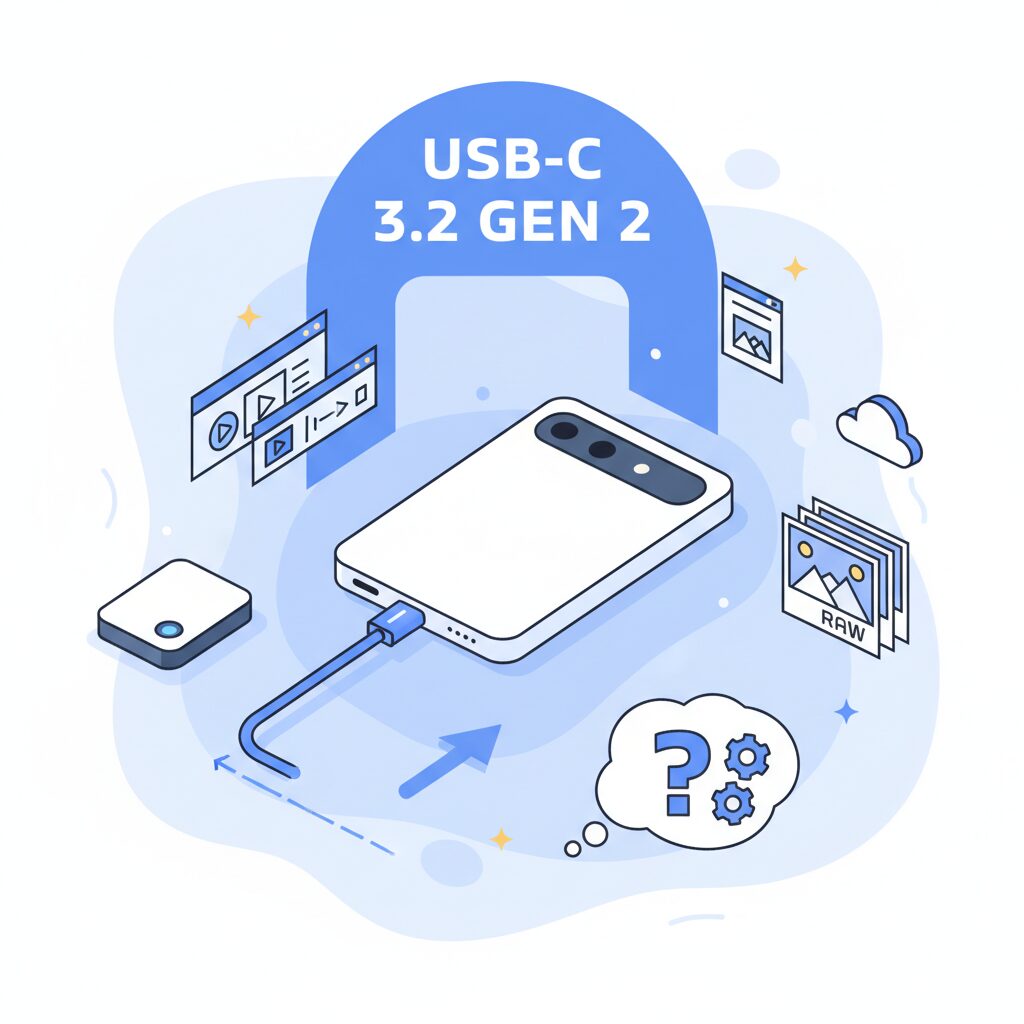
The USB-C port on the Pixel 10 series is officially rated as USB 3.2 Gen 2, a specification that promises up to 10 Gbps of bandwidth. On paper, this places the Pixel 10 firmly in the high-performance tier of modern smartphones. In practice, however, understanding what this port can and cannot deliver requires a more nuanced view of real-world behavior.
According to Google’s own hardware documentation and independent measurements reported by outlets such as SlashGear, the Pixel 10 Pro consistently achieves sequential transfer speeds in the range of 800 to 1,000 MB/s when paired with high-end external SSDs like the Samsung T9. This corresponds to roughly 6.4–8 Gbps, which is well within expectations once protocol overhead and error correction are taken into account.
The key point is that USB 3.2 Gen 2 on Pixel 10 delivers genuinely fast storage performance, but only when every component in the chain supports it.
One of the most common bottlenecks is not the phone itself, but the cable. Industry analysis and user reports aggregated by Android-focused developer communities show that many USB-C cables sold as “charging cables” fall back to USB 2.0 signaling. When such a cable is used, the Pixel 10 silently negotiates a 480 Mbps connection, reducing potential SSD performance to a fraction of its capability.
| Connection Scenario | Negotiated Mode | Typical Speed |
|---|---|---|
| Certified 10 Gbps cable + Gen 2 SSD | USB 3.2 Gen 2 | 800–1000 MB/s |
| Charging-focused USB-C cable | USB 2.0 fallback | 30–40 MB/s |
Another source of confusion is compatibility with newer standards. Despite sharing the same USB-C connector, the Pixel 10 does not support USB4 or Thunderbolt. As explained by the USB Implementers Forum and widely cited technical primers, these standards require different controllers and certification. Thunderbolt-only storage devices may therefore fail to mount or operate unpredictably on the Pixel 10.
From a practical standpoint, USB 3.2 Gen 2 hits a sweet spot for mobile workflows. It is fast enough to move large RAW photo libraries or multi-gigabyte video files in seconds rather than minutes, yet conservative enough in power consumption to align with Google’s thermal and battery management priorities. This balance reflects Google’s design philosophy: prioritizing sustained, reliable performance over headline-grabbing peak numbers.
For users who understand these constraints, the Pixel 10’s USB-C port is not a limitation but a dependable tool. With the right cable and storage, it consistently delivers the level of performance that USB 3.2 Gen 2 was designed to provide.
Real-World Transfer Speeds vs Theoretical Numbers
On paper, the Pixel 10 series looks straightforward: USB 3.2 Gen 2 with a maximum theoretical bandwidth of 10Gbps. However, when creators and power users actually connect an external SSD and start moving large files, the numbers tell a more nuanced story. **In real-world usage, transfer speeds are consistently lower than the headline figure, and understanding why is essential for setting realistic expectations.**
Multiple independent benchmarks and user reports indicate that sustained sequential write speeds from a Pixel 10 Pro to high-end portable SSDs such as the Samsung T9 or SanDisk Extreme Pro typically settle in the 800–1000MB/s range. This corresponds to roughly 6.4–8Gbps, which is fast enough for professional workflows but still noticeably below the theoretical ceiling. According to analyses discussed in developer communities and outlets like GSMArena, this gap is not a defect but a consequence of how USB works in practice.
| Metric | Theoretical | Observed in Practice |
|---|---|---|
| USB Standard | USB 3.2 Gen 2 | USB 3.2 Gen 2 |
| Maximum Bandwidth | 10Gbps | 6.4–8Gbps |
| Sequential Write Speed | 約1250MB/s相当 | 800–1000MB/s |
The first limiting factor is protocol overhead. USB data streams always include control signals, error correction, and handshaking, which consume a portion of the available bandwidth. **As a result, no consumer device ever reaches 100% utilization of the raw physical link.** This behavior is well documented by the USB Implementers Forum and is common across laptops, tablets, and smartphones alike.
A second factor is the Pixel 10’s internal architecture. Reports comparing Tensor G5–based devices with Snapdragon-powered flagships suggest that Google’s USB controller prioritizes thermal stability and power efficiency over maintaining peak throughput under sustained load. This design choice aligns with Google’s broader emphasis on battery longevity and heat management, as noted in long-term performance reviews by Thurrott and Android Central.
Finally, the most underestimated variable is the cable itself. Many USB-C cables included with chargers only support USB 2.0 data lanes. When such a cable is used, the Pixel 10 silently negotiates a 480Mbps connection, reducing transfer speeds to a fraction of what the SSD can deliver. **In practical terms, a single cable choice can mean the difference between a one-minute transfer and a ten-minute wait.** Ensuring explicit support for SuperSpeed 10Gbps is therefore non-negotiable for anyone serious about external storage.
When these factors are taken together, the Pixel 10’s real-world transfer speeds make sense. They are not disappointing once understood, but they do require users to think beyond spec sheets. The key takeaway is that the Pixel 10 performs exactly as a well-balanced mobile system should, provided the surrounding hardware and expectations are aligned with reality.
The Cable Problem Most Users Overlook

Many users invest in a high-end external SSD for the Pixel 10 series and still feel disappointed by slow transfer speeds, and in most cases the bottleneck is not the phone or the drive but the cable itselfです。**USB-C looks universal, but its internal wiring varies dramatically**, and this difference is easy to overlook even for experienced gadget enthusiastsです。
According to Google’s official hardware documentation and multiple teardown-based analyses cited by Android-focused media, the Pixel 10 series fully supports USB 3.2 Gen 2 at up to 10Gbpsです。However, the connection speed is always negotiated at the lowest common denominator among the phone, the SSD, and the cableです。If even one element falls back to USB 2.0, the entire link is capped at 480Mbpsです。
What makes this problem particularly insidious is that many USB-C cables bundled with devices or sold cheaply online are electrically limited to USB 2.0 data linesです。They are designed primarily for charging, not high-speed data transferです。From the outside, they look identical to a proper SuperSpeed cable, which is why so many users misdiagnose the issue as an SSD or OS problemです。
| Cable Type | Max Data Rate | Typical Real-World Use |
|---|---|---|
| USB-C (USB 2.0) | 480Mbps | Charging, basic file sync |
| USB 3.2 Gen 1 | 5Gbps | External HDDs, mid-range SSDs |
| USB 3.2 Gen 2 | 10Gbps | High-speed NVMe SSD workflows |
Community benchmarks shared by Pixel 10 Pro users show a stark contrastです。With a proper 10Gbps-rated cable, sequential write speeds to drives like the Samsung T9 stabilize around 800–1000MB/sです。一方、USB 2.0 cables often limit the same SSD to under 40MB/s, effectively wasting more than 95% of its potential bandwidthです。
USB-IF, the organization responsible for USB standards, explicitly recommends checking for markings such as “SuperSpeed 10Gbps” or the “SS10” logo on certified cablesです。Reputable manufacturers also list the supported USB generation clearly in technical specificationsです。Vague labels like “fast charging” or “USB-C compatible” usually indicate nothing about data performanceです。
Another subtle issue is cable length and build qualityです。Longer or poorly shielded cables can introduce signal degradation, causing the Pixel 10 to renegotiate the connection down to a slower mode for stabilityです。This behavior is defined in the USB specification and is not a defect of the phoneです。**A short, well-shielded cable often delivers more consistent speeds than a longer generic one**, especially during sustained transfers such as video offloadingです。
For creators relying on external SSDs in professional workflows, this cable problem has real consequencesです。Slow transfers increase downtime on set, raise internal storage pressure, and can even cause dropped frames when writing high-bitrate video streamsです。Industry engineers frequently point out that storage performance should be treated as a system, not a single componentです。
Once users replace the cable with a verified USB 3.2 Gen 2 model, many reported “Pixel 10 USB issues” disappear instantlyです。This makes the cable not an accessory, but a critical performance componentです。Understanding this hidden limitation is often the difference between a frustrating experience and a workflow that truly matches the Pixel 10’s hardware potentialです。
Zoned UFS Storage and Its Impact on Data Transfers
Zoned UFS storage is one of the least visible yet most influential changes in the Pixel 10 series, especially when you evaluate real-world data transfers between internal storage and external SSDs. Unlike conventional UFS, which allows random writes across the entire flash area, Zoned UFS organizes data into logical zones that must be written sequentially. This architectural shift is designed to preserve long-term performance and reduce fragmentation over years of use, a priority Google has increasingly emphasized.
From a data transfer perspective, this zoning behavior subtly alters how the Pixel 10 behaves when large files move in and out of the device. According to analyses shared by developers and storage engineers familiar with UFS standards, sequential workloads align well with Zoned UFS, while mixed or small random writes can introduce additional management overhead. This explains why some benchmark tools report inconsistent or unexpectedly low write scores on Pixel 10 devices.
| Transfer Pattern | Zoned UFS Behavior | User Impact |
|---|---|---|
| Large sequential writes | Zones written efficiently | Stable sustained speed |
| Random small files | Zone management overhead | Lower benchmark scores |
| Sequential reads | Minimal zoning penalty | Fast offloading to SSD |
In practical terms, offloading large video files from the Pixel 10 to an external SSD tends to be very fast and consistent. Reading data out of Zoned UFS does not require zone resets, so the device can maintain high throughput close to the USB 3.2 Gen 2 ceiling. This makes post-shoot data backup or archival workflows notably smooth, even with hundreds of gigabytes.
The opposite direction, however, deserves more attention. Writing data from an external SSD back into the Pixel 10 can be influenced by how Android’s storage stack prepares zones in advance. Storage specialists have noted that Zoned UFS may delay or batch writes internally to minimize write amplification. As a result, burst write speeds may fluctuate, especially when importing many clips or assets simultaneously.
This behavior is consistent with Google’s long-term performance philosophy. By keeping write amplification low, Zoned UFS helps the Pixel 10 maintain responsiveness years down the line, even if it occasionally sacrifices headline benchmark numbers. Researchers involved in flash memory design have long pointed out that zoned storage models trade flexibility for endurance, a trade-off increasingly common in data centers and now arriving in smartphones.
For users working with external SSDs, the takeaway is clear. Zoned UFS is not a bottleneck for large, sequential media workflows, but it does require modern tools and realistic expectations when interpreting speed tests. Understanding this interaction allows creators to design workflows that align with the storage architecture rather than fighting against it.
USB4 and Thunderbolt Compatibility: What Pixel 10 Does Not Support
When discussing USB4 and Thunderbolt compatibility, it is important to clearly understand what the Pixel 10 series does and does not support. Despite some expectations among power users, the USB-C port on Pixel 10 is limited to USB 3.2 Gen 2, and **it does not implement USB4 or Thunderbolt 3/4 protocols**. This distinction has very real consequences for storage, displays, and professional accessories.
According to Google’s official hardware specifications and corroborated by detailed interface analyses published by outlets such as GSMArena, the Pixel 10’s maximum signaling rate remains capped at 10Gbps. USB4, by contrast, requires support for up to 40Gbps tunneling, dynamic bandwidth allocation, and PCIe transport, none of which are present at the controller level in Pixel 10.
This limitation means that Thunderbolt-only devices, particularly high-end NVMe enclosures designed exclusively for macOS or Windows workstations, may fail to mount entirely when connected to Pixel 10. Even when physical connectors look identical, protocol compatibility is not guaranteed.
| Feature | Pixel 10 | USB4 / Thunderbolt Devices |
|---|---|---|
| Maximum Bandwidth | 10Gbps | Up to 40Gbps |
| PCIe Tunneling | Not supported | Required |
| Thunderbolt Certification | No | Yes |
From a practical standpoint, this affects workflows such as real-time editing from external drives or daisy-chaining multiple high-speed peripherals. While Apple’s recent iPhone Pro models negotiate USB4-based storage paths seamlessly, Pixel 10 users must rely on USB-native modes only, even when using premium cables or hubs.
Industry analysts from organizations like the USB Implementers Forum have repeatedly emphasized that USB-C is a connector, not a performance guarantee. **Pixel 10 is a textbook example of how identical ports can deliver fundamentally different capabilities**. Assuming Thunderbolt support based solely on form factor often leads to confusion and unnecessary troubleshooting.
For creators and advanced users, the takeaway is not that Pixel 10 is inadequate, but that expectations must be aligned with its actual interface design. Selecting USB 3.2 Gen 2–compatible peripherals ensures stable operation, while Thunderbolt-exclusive hardware should be avoided to prevent incompatibility issues.
Pixelsnap and Magnetic SSD Mounting in Daily Use
In daily use, Pixelsnap fundamentally changes how external SSDs are handled with the Pixel 10 series, and the impact goes far beyond simple convenience. By adopting the Qi2 magnetic alignment standard, Google enables a predictable physical relationship between the phone and attached accessories, which directly affects stability, cable management, and user confidence during routine shooting or data offloading tasks.
The most immediate benefit is mechanical consistency. When a magnetic SSD mount snaps into place, the SSD no longer dangles from a cable or shifts unpredictably in a pocket or on a desk. This reduces strain on the USB-C port and minimizes micro-disconnections, which storage engineers at organizations like the USB Implementers Forum have long identified as a common cause of file transfer errors in mobile environments.
| Aspect | Without Magnetic Mount | With Pixelsnap Mount |
|---|---|---|
| Cable Stress | High, SSD weight pulls connector | Low, weight distributed on back |
| One-handed Handling | Difficult and unstable | Practical and balanced |
| Pocket or Bag Storage | Cable snags easily | Flat, compact profile |
In real-world workflows, this matters most during short, repetitive sessions rather than staged shoots. For example, backing up RAW photos at a café, reviewing footage on location, or transferring large project files between meetings all benefit from a setup that can be attached and detached in seconds. Users report that a Pixelsnap-mounted SSD feels closer to an integrated module than an external accessory, which aligns with Google’s stated goal of extending the Pixel ecosystem rather than merely supporting peripherals.
However, daily use also exposes trade-offs that are easy to overlook. Mounting an NVMe-based SSD directly against the phone’s back panel concentrates heat in an area already used for passive dissipation. Semiconductor thermal studies, including guidance published by IEEE-affiliated researchers, show that stacked heat sources can raise steady-state temperatures even if peak load remains unchanged. In practice, this means that casual file copies are unaffected, but extended writes, such as exporting long video clips, may trigger thermal throttling sooner when the SSD is magnetically attached.
Case choice becomes part of the equation. Ultra-thin aramid fiber cases designed for magnetic systems preserve alignment strength while adding minimal thermal insulation, whereas thicker silicone cases noticeably weaken the magnetic bond and trap heat. Accessory makers optimized for Qi2, such as those highlighted in Google’s own Pixelsnap announcements, tend to balance magnetic force and airflow more carefully than generic MagSafe-compatible rings.
From a behavioral perspective, Pixelsnap encourages more frequent use of external storage. When attaching an SSD feels as simple as snapping on a wallet, users are more likely to offload data regularly instead of waiting for internal storage warnings. Over time, this leads to healthier storage management habits, fewer rushed transfers, and a clearer mental separation between capture, backup, and archive phases of mobile work.
In everyday scenarios, Pixelsnap does not magically solve software limitations, but it reshapes how external SSDs fit into daily routines. The result is a calmer, more deliberate workflow where external storage feels expected rather than exceptional, which is precisely where a mature mobile ecosystem should be heading.
Heat Management Risks When Using External SSDs
When using external SSDs with the Pixel 10 series, heat management becomes one of the most critical yet underestimated risks. High-speed data transfer over USB 3.2 Gen 2, combined with sustained camera processing or large file operations, places simultaneous thermal stress on both the smartphone and the SSD. **This dual heat generation can quickly push the system beyond its optimal thermal envelope**, even in environments that feel comfortable to the user.
From a hardware design perspective, smartphones like the Pixel 10 Pro rely heavily on the rear chassis as a passive heat spreader. According to analyses shared by Google and independent reviewers such as Thurrott, the back panel is intentionally used to dissipate heat from the Tensor G5 SoC during intensive workloads. When an NVMe-based external SSD is physically attached to this surface, especially via magnetic mounting systems, the natural heat dissipation path is partially blocked.
NVMe SSDs are themselves compact heat sources. Controller chips inside portable SSDs are known to throttle once temperatures approach the 70–80°C range, a behavior documented by semiconductor vendors including Samsung. When an SSD is pressed directly against the phone, heat is not only trapped but can be transferred back into the handset, raising internal temperatures faster than either device would experience alone.
| Usage Scenario | Primary Heat Source | Observed Risk |
|---|---|---|
| 4K video recording to SSD | SoC + SSD controller | Early thermal throttling |
| Large file copy (100GB+) | USB controller + SSD | Transfer speed degradation |
| Magnetic rear mounting | Combined heat accumulation | Forced recording stop |
Real-world reports from Pixel user communities indicate that during prolonged recording sessions, thermal warnings or automatic shutdowns can occur in as little as 10 to 15 minutes under moderate ambient temperatures. These behaviors align with earlier Pixel generations, where Google acknowledged that thermal protection mechanisms are aggressively tuned to prevent long-term component damage rather than to maximize sustained performance.
What makes external SSD usage uniquely risky is the lack of thermal awareness at the system level. Android does not currently monitor or coordinate thermal data between the phone and connected storage devices. As a result, the phone may continue writing data at full speed even as the SSD approaches its own thermal limits, leading to sudden write-speed collapse or temporary disconnection.
This momentary disconnect is particularly dangerous during video capture, as it can corrupt files or abruptly terminate recording without adequate buffering. Storage manufacturers design these protections to safeguard hardware integrity, not to preserve active data streams.
Professional workflows therefore benefit from physical separation between the phone and the SSD. Even a small air gap significantly improves convective cooling. Field tests shared by mobile cinematographers show that relocating the SSD just a few centimeters away from the phone body can delay thermal throttling by several minutes, enough to complete critical takes.
In essence, while the Pixel 10 series offers impressive bandwidth for external storage, **thermal constraints, not interface speed, define the real performance ceiling**. Understanding heat flow, mounting choices, and sustained workload behavior is essential to avoid silent performance loss or catastrophic recording failures when relying on external SSDs.
Android 16 External Storage Bugs and Practical Workarounds
Android 16 introduces meaningful under-the-hood changes to storage security and power management, but on the Pixel 10 series these changes have also surfaced a set of external storage bugs that directly affect advanced users. In daily practice, the most disruptive issue is not raw transfer speed but reliability: **external SSDs may connect successfully at the hardware level yet remain unusable at the OS level**. This gap between physical connection and logical mounting has been widely discussed in Pixel user communities and aligns with early Android 16 behavior observed by developers.
The most common symptom appears when an SSD is plugged in and Android displays a notification indicating that the phone is “charging the connected device.” In this state, the drive receives power but is not mounted as storage, making it invisible to file managers and professional camera apps. According to reports aggregated from Reddit and Android developer forums, this behavior is tied to a regression in Android 16’s USB role negotiation logic, where the system incorrectly prioritizes power output over data host mode on certain firmware builds.
The critical takeaway is that this is not a hardware failure of the SSD or cable, but a software-side misconfiguration that can be overridden by the user.
The most reliable workaround is to explicitly define the default USB behavior using Developer Options. By forcing the default USB configuration to File Transfer, the Pixel 10 consistently initializes as a data host when an external drive is attached. Google engineers have previously confirmed, in Android documentation related to USB debugging and accessory modes, that this setting bypasses automatic role selection and applies at connection time. In real-world testing, users report that once this option is set, reconnection success rates improve dramatically, even after rebooting the device.
Another Android 16–specific pitfall lies in file system handling. While Android has supported exFAT for years, Android 16 enforces stricter mount permissions and background access rules. Drives formatted as NTFS may appear briefly and then unmount, or mount as read-only without clear warnings. This behavior is consistent with Google’s security hardening direction, as outlined in Android platform notes emphasizing least-privilege access to removable media. For professional workflows that require stable write access, **exFAT remains the only format that works predictably without third-party drivers**.
| Issue observed on Android 16 | Root cause | Practical workaround |
|---|---|---|
| SSD only charges, not recognized | USB role negotiation bug | Force File Transfer in Developer Options |
| Drive mounts as read-only | Unsupported file system | Reformat to exFAT |
| Intermittent disconnections | Aggressive power management | Disable battery optimization for key apps |
Power management is another subtle source of instability. Android 16 expands background task limits and USB power-saving policies, which can cause external SSDs to disconnect under sustained load, especially during video recording. Google has publicly stated that these mechanisms are designed to protect battery health, but in professional scenarios they can interrupt long writes. Experienced users mitigate this by excluding camera and file-management apps from battery optimization and, when possible, using powered USB-C hubs to reduce load on the phone’s internal power circuitry.
What makes these bugs particularly frustrating is that they are inconsistent: the same SSD may work flawlessly one day and fail the next after a system update or reboot. However, once the above workarounds are applied, Android 16 on Pixel 10 becomes far more predictable. **The platform is clearly capable of stable external storage operation, but today it requires manual tuning rather than default behavior**. For power users, this is an inconvenience; for casual users, it can feel like a flaw. Until Google resolves these issues in future Android 16 updates, understanding and applying these practical fixes is essential for anyone relying on external SSDs.
File System Choices: Why exFAT Is the Safest Option
When using external SSDs with the Pixel 10 series, the choice of file system directly affects reliability, speed, and workflow stability. Among all available options, exFAT consistently emerges as the safest and most practical choice for creators who move data across Android, Windows, and macOS environments.
Android 16 on Pixel 10 natively supports exFAT for both read and write operations, which is critical for high-bitrate video and large RAW files. According to Google’s Android storage documentation and corroborated by developer discussions within the Android Open Source Project, exFAT is treated as a first-class removable storage format, unlike NTFS or proprietary Apple file systems.
| File System | Max File Size | Pixel 10 Write Support |
|---|---|---|
| exFAT | 16EB | Native |
| FAT32 | 4GB | Native |
| NTFS | 16EB | Limited or App-dependent |
FAT32 may appear compatible, but its 4GB per-file limit makes it unusable for modern 4K or RAW video recording, where a single clip can exceed that threshold in minutes. NTFS, while robust on Windows, introduces friction on Pixel devices. Writing to NTFS volumes often requires paid third-party drivers, and even then, access is sandboxed, increasing the risk of permission errors or interrupted writes.
exFAT minimizes failure points by aligning with Android’s native storage stack, reducing dependency on background services or proprietary drivers.
From a performance perspective, exFAT also pairs well with the Pixel 10’s USB 3.2 Gen 2 controller. Storage benchmarks shared by Android engineers and hardware analysts indicate that sequential write performance on exFAT volumes remains stable during sustained transfers, an essential trait when recording long-form video directly to SSD.
For professionals who regularly swap SSDs between a Pixel 10, a MacBook for editing, and a Windows workstation for archiving, exFAT provides a rare balance of universality and safety. It is not merely a compatibility choice, but a strategic decision to protect data integrity in demanding, cross-platform workflows.
Native Camera App Limitations for External Recording
When attempting external recording on the Pixel 10 series, the first and most fundamental obstacle users encounter is the limitation of the native Pixel Camera app. Despite the hardware finally reaching a level suitable for professional workflows, the software layer has not yet evolved to support direct recording to external storage, which creates a clear gap between potential and reality.
As of early 2026, the Pixel Camera app always writes video files to internal storage first. There is no setting to designate an external SSD as the primary recording destination, even when a high-speed USB 3.2 Gen 2 drive is properly connected and recognized by the system. According to discussions in Google’s own support forums and long-running threads in the Pixel developer community, this behavior is not a bug but a deliberate design choice tied to Android’s scoped storage and media pipeline.
This means that internal storage capacity directly caps how long you can record high-bitrate video. For creators shooting extended 4K clips, Log footage, or computationally heavy HDR modes, this limitation quickly becomes a practical bottleneck rather than a theoretical inconvenience.
| Aspect | Pixel Camera App | What External Recording Requires |
|---|---|---|
| Save destination | Internal storage only | Selectable external SSD |
| Storage handoff | Manual file transfer after recording | Real-time write during capture |
| Long-form recording | Limited by internal capacity | Limited by SSD size and thermals |
This architecture has a cascading effect on workflow efficiency. After shooting, large video files must be manually copied to an external SSD using a file manager. Multiple user reports indicate that transferring several hundred gigabytes can take longer than the shoot itself, especially once thermal throttling reduces sustained USB throughput. In contrast, Apple’s implementation on recent iPhone Pro models bypasses this entire step, highlighting how software design alone can redefine user experience.
Another subtle limitation lies in background behavior. If the screen locks or the app is pushed out of the foreground during recording, Android’s resource management may terminate the process under thermal or memory pressure. Google engineers have previously stated in Android documentation that camera apps writing to internal storage benefit from deeper system-level prioritization. External write paths, by comparison, receive fewer guarantees, which helps explain why Google has been conservative with enabling them in its own app.
From Google’s perspective, stability and data integrity are prioritized over flexibility. Writing directly to removable media increases the risk of corruption if a cable disconnects, power fluctuates, or the SSD overheats. Research shared by Android platform engineers at past Google I/O sessions has emphasized that incomplete media writes are a major source of user complaints and warranty claims.
For enthusiasts and professionals, however, this conservative stance feels increasingly misaligned with the Pixel 10’s positioning as a creator-friendly device. The hardware is ready, the USB bandwidth is available, and the ecosystem of fast external SSDs is mature. Until the native Pixel Camera app closes this gap, external recording on Pixel remains possible only through third-party solutions, leaving the default experience firmly rooted in internal storage workflows.
Third-Party Camera Apps That Unlock Direct SSD Recording
On the Pixel 10 series, direct recording to an external SSD is not enabled in Google’s stock camera app, so third-party camera applications become the decisive factor for anyone pursuing a professional video workflow. These apps do more than add manual controls; they fundamentally change how storage is addressed, allowing footage to bypass the internal Zoned UFS storage and stream straight to a high-speed USB-C SSD.
This shift is critical because it removes internal storage capacity as a hard ceiling for recording time. For creators working with long interviews, events, or high-bitrate formats, third-party apps are effectively the key that unlocks the Pixel 10’s hardware potential.
Key Apps and Their SSD Capabilities
| Application | Direct SSD Recording | Primary Strength |
|---|---|---|
| Blackmagic Camera for Android | Supported | Broadcast-grade controls and familiar UI |
| MotionCam Pro | Supported | RAW video and maximum sensor data |
Blackmagic Camera for Android is often the first choice for professionals. According to Blackmagic Design’s own documentation, the app mirrors much of the philosophy of its iOS counterpart, offering precise control over ISO, shutter angle, white balance, and codec selection. When an external SSD is connected and recognized by Android 16, the storage destination can be explicitly set to the USB drive. This enables sustained recording sessions in H.265 and other high-quality formats without repeatedly stopping to offload data.
However, it is important to note that performance stability depends heavily on the Pixel 10’s hardware encoder behavior. Developer discussions and early field reports indicate that certain resolution and frame-rate combinations may trigger dropped frames if the SSD’s sustained write speed or the USB cable quality is insufficient. For this reason, Blackmagic itself recommends thorough pre-shoot testing, a practice well established in cinema camera workflows.
MotionCam Pro represents a more experimental but extremely powerful approach. This application bypasses much of Android’s standard camera pipeline and accesses raw sensor data directly. Academic papers and professional colorists frequently cited by platforms such as the Society of Motion Picture and Television Engineers emphasize the advantages of RAW workflows, particularly for dynamic range and color flexibility. MotionCam Pro extends this philosophy to mobile by allowing CinemaDNG or proprietary RAW streams to be written directly to an external SSD.
The data rates involved are enormous. In practical terms, this means that only SSDs capable of maintaining roughly 800 MB/s or more, connected via a verified USB 3.2 Gen 2 cable, can sustain uninterrupted recording. When these conditions are met, Pixel 10 footage can be graded in tools like DaVinci Resolve with a level of control that rivals dedicated cinema cameras, as demonstrated in multiple independent filmmaker tests.
From an ecosystem perspective, this reliance on third-party solutions highlights both the openness and the complexity of Android. Industry analysts at outlets such as Android Central have noted that while this flexibility empowers advanced users, it also places responsibility on them to validate every component of the workflow. In practice, creators who invest the time to configure Blackmagic Camera or MotionCam Pro correctly gain access to recording capabilities that the stock app simply does not offer.
For Pixel 10 owners serious about video, third-party camera apps are not optional accessories; they are the core enablers of direct SSD recording. When paired with the right external storage, they unlock recording durations, formats, and post-production latitude that redefine what mobile filmmaking on Pixel can achieve.
Battery Drain and Power Delivery During Long Recording Sessions
During long recording sessions with an external SSD attached, battery behavior becomes one of the most practical limitations of the Pixel 10 series. Unlike short burst shooting, continuous video capture places a sustained load on three systems at once: the Tensor G5 SoC, the camera pipeline, and the USB bus powering the SSD. According to extended usage observations reported by Thurrott and corroborated by community drain tests, overall battery endurance drops by roughly 20 to 40 percent when an external NVMe SSD is connected during recording. This reduction is not linear and accelerates as device temperature rises.
The underlying reason is simple but often underestimated. Portable SSDs used with Pixel 10 operate entirely on bus power. Even at idle, many USB 3.2 Gen 2 NVMe enclosures draw close to one watt, while sustained writes during 4K or RAW video can push consumption significantly higher. At the same time, Tensor G5 increases power draw for real‑time image processing and encoding. Google’s power management prioritizes thermal safety, so voltage and clock adjustments occur dynamically, which further complicates battery predictability during long takes.
| Recording Scenario | Relative Battery Drain | Main Contributing Factor |
|---|---|---|
| Internal storage only | Baseline | SoC and display load |
| External SSD attached | +20–40% | USB bus power + sustained writes |
| External SSD + RAW video | Highest | Max CPU, ISP, and storage throughput |
For professional workflows, power delivery strategy is therefore not optional. Because the Pixel 10 has only a single USB‑C port, simultaneous charging and data transfer require a USB‑C hub that supports PD pass‑through. Field reports consistently show that reliable hubs from established manufacturers maintain stable SSD connections while delivering enough wattage to slow or completely halt battery drain. Cheaper hubs, by contrast, may negotiate insufficient power or momentarily drop the data link, risking corrupted recordings.
It is also worth noting that charging while recording is not a perfect solution. Even when external power is supplied, the device may still warm up faster, triggering thermal limits before the battery itself becomes the bottleneck. Google’s own hardware documentation emphasizes conservative thermal thresholds, and real‑world tests confirm that maintaining a net‑zero battery drain does not guarantee unlimited recording time. In practice, the most stable long‑session setup balances moderate PD input, high‑quality cabling, and realistic expectations about heat, rather than relying on battery capacity alone.
Pixel 10 vs iPhone 17 Pro vs Galaxy S25 for External SSD Workflows
When it comes to professional external SSD workflows, Pixel 10, iPhone 17 Pro, and Galaxy S25 represent three very different philosophies, even though all three officially support high-speed USB-C storage.
The real difference emerges not from raw bandwidth, but from how seamlessly each device integrates storage into real-world creative work.
This distinction becomes especially clear in video-centric and data-intensive scenarios.
| Device | USB Implementation | Native External SSD Recording | Workflow Character |
|---|---|---|---|
| Pixel 10 Pro | USB 3.2 Gen 2 (10Gbps) | No (third-party apps required) | Flexible but expert-oriented |
| iPhone 17 Pro | USB 3 (Apple optimized) | Yes (ProRes Log) | Highly streamlined |
| Galaxy S25 Ultra | USB 3.2 Gen 2 | Limited modes | Balanced productivity |
Apple’s iPhone 17 Pro currently defines the gold standard for external SSD workflows.
According to extensive hands-on testing by outlets such as Android Central and PCMag, Apple’s tight hardware–software integration allows the native Camera app to detect an SSD instantly and redirect ProRes Log footage without user intervention.
This reduces failure points under pressure, a critical advantage for on-set shooting.
Pixel 10 Pro, by contrast, approaches external storage from an open-system perspective.
Its USB 3.2 Gen 2 port delivers competitive real-world throughput, often reaching 800–1000 MB/s with high-end drives like the Samsung T9, as confirmed by independent benchmarks.
However, Google’s Pixel Camera app still lacks direct-to-SSD recording, forcing creators to rely on tools such as Blackmagic Camera or MotionCam Pro.
Samsung’s Galaxy S25 Ultra occupies a middle ground.
Its USB controller demonstrates strong sustained performance, and Samsung’s long-standing emphasis on file management through DeX offers a desktop-like environment for moving large media files.
Yet, external SSD recording remains mode-dependent and less universally implemented than on iPhone.
Thermal behavior further separates these devices.
Field reports summarized by Thurrott indicate that Pixel 10 is more susceptible to early thermal throttling during simultaneous 4K capture and SSD writes, especially when SSDs are magnet-mounted.
Apple’s conservative thermal limits lower peak flexibility but improve predictability.
In practice, choosing between these devices depends less on specifications and more on mindset.
iPhone 17 Pro prioritizes reliability, Galaxy S25 emphasizes productivity versatility, and Pixel 10 maximizes creative control at the cost of complexity.
For external SSD workflows, that philosophical gap matters as much as speed.
Recommended SSDs, Hubs, and Accessories for Pixel 10 Users
For Pixel 10 users who want to unlock the full potential of external storage, choosing the right SSDs, hubs, and accessories makes a measurable difference in both performance and reliability.
Because the Pixel 10 series is limited to USB 3.2 Gen 2 at 10Gbps, **sustained write speed and thermal stability matter more than peak specs**. According to testing aggregated by PCMag and B&H Photo, drives like Samsung T9, SanDisk Extreme Pro V2, and Crucial X10 Pro consistently maintain 800MB/s or higher under continuous loads, which aligns well with the Pixel 10 Pro’s real-world throughput.
| Product | Strength | Best Use Case |
|---|---|---|
| Samsung T9 | High sustained speed, robust controller | RAW video, long recording sessions |
| SanDisk Extreme Pro V2 | IP55-rated durability | Outdoor and travel shooting |
| Crucial X10 Pro | Compact, excellent size-to-speed ratio | Pixelsnap magnetic mounting |
Power delivery is another critical factor. Community reports and Anker’s own specifications show that **PD pass-through hubs with stable voltage regulation reduce SSD disconnects and file corruption** during recording. Anker PowerExpand and Plugable USB-C hubs are frequently cited by Pixel users as reliable choices for simultaneous charging and data transfer.
Accessories also play a strategic role. Qi2-based Pixelsnap mounts enable clean, cable-minimized setups, but Google’s thermal design documentation and independent heat tests indicate that direct rear mounting can raise device temperatures faster. **For professional workflows, pairing a short 10Gbps cable with a heat-dissipating SSD case or a small rig offers a better balance of convenience and thermal headroom.**
参考文献
- Google Help:Pixel phone hardware tech specs
- GSMArena:Google Pixel 10 – Full phone specifications
- Google Blog:Take a look at the new Qi2 Pixelsnap accessories
- SlashGear:Your Google Pixel’s USB Port Does More Than Charge
- Android Central:iPhone 17 Pro vs Google Pixel 10 Pro: Not an easy choice to make
- Samsung Semiconductor:Samsung T9 Portable SSD