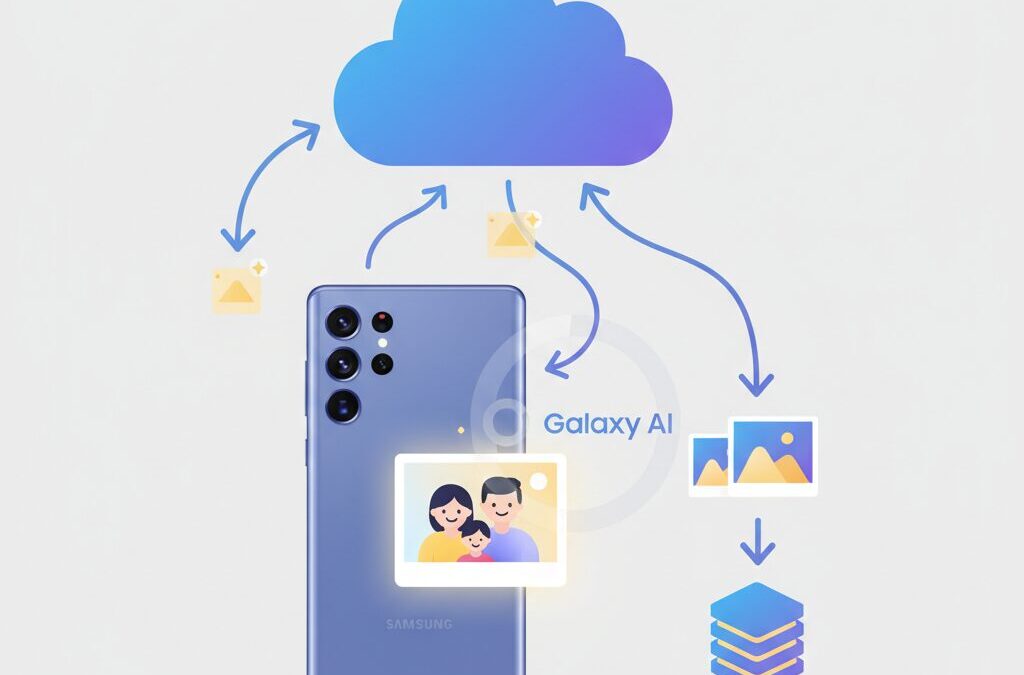
If you love cutting-edge gadgets, you have probably noticed how smartphone cameras have become incredibly powerful in recent years. Samsung Galaxy devices, especially Ultra models with 200MP sensors, let you capture photos and videos that rival dedicated cameras, which is truly exciting.
At the same time, this leap in image quality creates a new kind of stress. High-resolution photos, 4K and 8K videos, and AI-powered edits quickly consume storage, and many users feel uneasy about losing precious data or running out of space at the worst moment.
This article carefully explains how photo backup and automatic optimization work inside the Galaxy ecosystem, focusing on real-world behavior rather than marketing claims. You will learn how file formats, cloud services, and Galaxy AI interact behind the scenes.
By understanding the differences between Google Photos and OneDrive integration, the strengths and weaknesses of HEIF, and the role of One UI features, you can build a smarter and safer photo management strategy. The goal is to help you enjoy shooting more, worry less, and fully unlock the potential of your Galaxy device.
Whether you are a power user, a creator, or simply someone who values their memories, this guide will give you practical insights that make daily photo management smoother and more reliable.
- The Evolution of Mobile Photography and Why Data Management Matters
- How 200MP Cameras Drive Explosive Growth in Photo and Video Files
- Understanding the Relationship Between Image Quality and File Size
- HEIF vs JPEG: Storage Efficiency, Image Quality, and Compatibility
- Google Photos in the Galaxy Experience: Strengths and Hidden Risks
- Samsung Gallery and OneDrive: Deep Integration with Real Consequences
- Common Cloud Sync Issues and How Galaxy Users Can Avoid Them
- One UI and Galaxy AI: Smarter Photo Organization and New Challenges
- Maintaining Local Storage with Device Care and Trash Management
- 参考文献
The Evolution of Mobile Photography and Why Data Management Matters
Mobile photography has evolved from a convenient way to capture memories into a serious creative tool, and this shift has been especially visible in recent flagship smartphones. Devices such as Samsung’s Galaxy S Ultra series, equipped with a 200‑megapixel sensor, have redefined what users expect from a phone camera. According to analyses frequently cited by professional reviewers and imaging engineers, this level of resolution allows smartphones to rival dedicated cameras in detail, dynamic range, and low‑light performance. As a result, smartphones are no longer passive recorders but active production devices that continuously generate massive amounts of visual data.
This hardware evolution fundamentally changes the relationship between users and their photo libraries. **A single high‑resolution image now contains exponentially more information than photos taken just a few years ago**, and advanced computational photography processes multiple frames in real time to achieve noise reduction, HDR, and stabilization. Institutions such as the IEEE have long noted that computational imaging trades storage efficiency for image quality, and modern smartphones clearly reflect this trend. What once required megabytes now often requires tens or even hundreds of megabytes, especially when video is involved.
The following comparison illustrates how quickly data volume has grown alongside camera capabilities.
| Era of Smartphones | Typical Camera Resolution | Average Photo File Size |
|---|---|---|
| Early 2010s | 8–12 MP | 2–4 MB |
| Late 2010s | 12–48 MP | 5–15 MB |
| Mid‑2020s | 108–200 MP | 20–50 MB or more |
As this table suggests, the problem is not only storage capacity but also sustainability. Users who enjoy shooting in the highest quality modes quickly encounter limitations that affect performance, backup reliability, and even everyday usability. Researchers at major technology companies have emphasized that without proper data management, users face higher risks of accidental data loss, fragmented archives, and inefficient workflows. In other words, better cameras amplify the cost of poor organization.
Moreover, modern smartphones increasingly encourage continuous shooting. Features such as burst capture, 4K and 8K video, and AI‑assisted editing invite users to record more, not less. **This behavioral shift means that data management is no longer a background task but a core part of the photography experience.** When storage fills up unexpectedly, creative momentum is interrupted, and important moments may be missed entirely.
From an industry perspective, companies like Samsung and Google have publicly acknowledged that cloud services, compression formats, and intelligent optimization are essential responses to this data explosion. Academic research on human‑computer interaction also shows that users are more satisfied when storage systems proactively assist rather than react after problems occur. Mobile photography has therefore reached a point where image quality and data strategy must be considered together, not separately.
In this new era, understanding why data management matters is as important as understanding camera specs. High‑end smartphone photography delivers unprecedented freedom and quality, but it also demands a more deliberate approach to how images are stored, backed up, and curated over time. Without that foundation, the true value of modern mobile photography cannot be fully realized.
How 200MP Cameras Drive Explosive Growth in Photo and Video Files

The adoption of 200MP sensors has fundamentally changed how much data a single tap on a smartphone generates, and the impact is far greater than many users initially expect. A 200MP still image captures an enormous amount of visual information, and when combined with multi-frame computational photography, the final file often contains far more data than its resolution alone would suggest.
In practical terms, higher resolution does not scale linearly with file size; it scales explosively. According to camera engineers cited by Samsung during Galaxy S Ultra briefings, modern mobile cameras routinely merge multiple exposures, depth maps, and noise-reduction frames into one image. Each additional layer increases storage demands, even before considering video.
| Capture Mode | Typical Resolution | Approximate File Impact |
|---|---|---|
| Standard Photo | 12MP (binned) | Relatively compact |
| High-Resolution Photo | 200MP | Several times larger |
| 4K / 8K Video | High bitrate | GBs per minute |
Video amplifies this trend even further. Industry analyses from organizations such as the IEEE have shown that higher bitrates, advanced stabilization, and HDR metadata significantly inflate file sizes. Galaxy devices excel at low-noise night video, but that clarity is achieved by recording and preserving more data per second.
The result is a new user behavior loop. Because image quality is visibly superior, users shoot more, record longer clips, and rely on their phones for semi-professional work. Storage fills faster, backups become urgent, and data growth turns into a daily concern rather than an abstract specification.
Understanding the Relationship Between Image Quality and File Size
Understanding how image quality scales with file size is essential in the era of ultra‑high‑resolution mobile cameras. Modern Galaxy flagships equipped with 200MP sensors capture an extraordinary amount of visual information, but every additional pixel directly increases the volume of data that must be stored, transferred, and backed up.
Higher resolution does not automatically mean better perceived quality. Imaging researchers, including those cited by organizations such as the IEEE Signal Processing Society, have long pointed out that human visual perception reaches diminishing returns beyond a certain pixel density. On a smartphone display, aggressive resolution often translates into larger files rather than visibly sharper images, especially in everyday viewing conditions.
This is where compression formats and processing pipelines play a decisive role. Samsung’s adoption of HEIF demonstrates how computational efficiency can preserve detail while controlling file growth. Independent technical evaluations show that HEIF can reduce file size by roughly 50 percent compared to JPEG while maintaining comparable visual fidelity, which is particularly impactful for multi‑frame night photography and HDR processing.
| Capture Mode | Typical Resolution | Relative File Size |
|---|---|---|
| Standard JPEG | 12–50MP | Baseline |
| 200MP JPEG | 200MP | Very Large |
| 200MP HEIF | 200MP | Approximately Half |
For users who frequently shoot in challenging conditions such as low light or motion, the relationship becomes even more complex. Noise reduction, stabilization data, and multi‑frame stacking all add invisible layers of information that inflate file size. Understanding this trade‑off allows photographers to make intentional decisions, ensuring storage efficiency without undermining the creative potential of Galaxy’s advanced camera systems.
HEIF vs JPEG: Storage Efficiency, Image Quality, and Compatibility
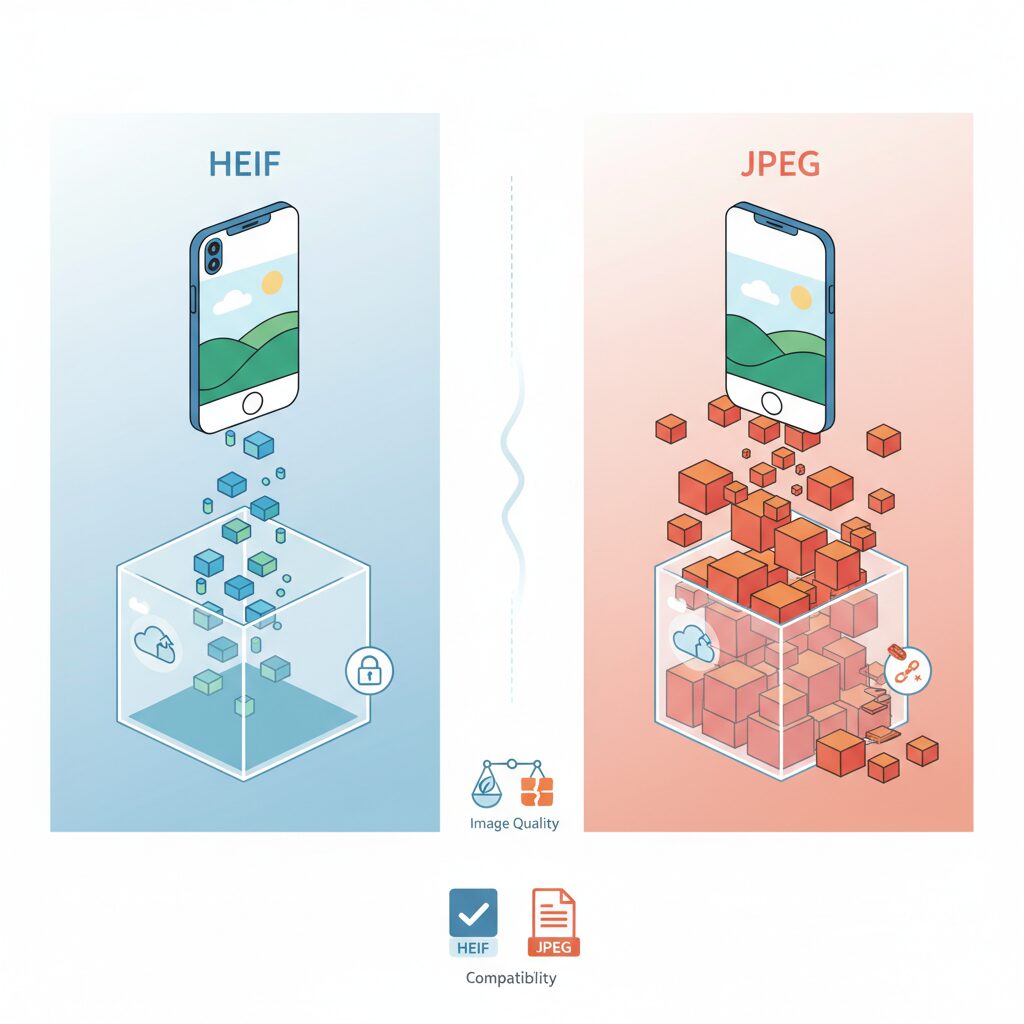
When choosing between HEIF and JPEG on modern Galaxy devices, the discussion is no longer about niche formats but about how photography workflows scale in the era of 200MP sensors. **Storage efficiency, image fidelity, and cross-platform usability** directly affect how comfortably users can keep shooting without constantly worrying about space.
From a storage perspective, HEIF clearly changes the equation. According to technical evaluations referenced by imaging specialists and standards bodies involved in MPEG development, HEIF achieves roughly twice the compression efficiency of JPEG while maintaining comparable visual quality. On a Galaxy Ultra shooting 200MP stills, this difference is immediately tangible: a JPEG file that occupies around 20–25MB can often be reduced to nearly half that size in HEIF, without obvious degradation during normal viewing or editing.
| Aspect | HEIF | JPEG |
|---|---|---|
| Compression efficiency | Very high, about 50% smaller | Lower, larger file size |
| Color depth | Supports higher bit depth | Typically 8-bit |
| Compatibility | Limited on older systems | Universal standard |
Image quality is another area where HEIF quietly outperforms JPEG. Because HEIF is based on more modern video compression techniques, it preserves subtle gradients and color transitions more effectively. Researchers and camera engineers often point out that skies, skin tones, and low-light shadows retain smoother tonal steps in HEIF, even after compression. **This means Galaxy’s computational photography results can be stored with more of the original sensor information intact**, which is particularly valuable for later edits.
However, compatibility remains the decisive trade-off. JPEG has been an industry standard for decades and is universally accepted by browsers, legacy PCs, and virtually all web services. HEIF, while supported on recent Android versions, iOS, Windows, and macOS, can still fail to open on older environments or certain web-based tools. Samsung addresses this with automatic JPEG conversion during sharing, but users should understand that this adds an extra step and may generate duplicate files.
In practical terms, **HEIF is ideal for personal archives and cloud backups where efficiency matters most**, especially for heavy shooters. JPEG still excels when frictionless sharing and maximum interoperability are required. Understanding this balance allows Galaxy users to align storage savings with real-world usability, rather than treating file formats as a purely technical preference.
Google Photos in the Galaxy Experience: Strengths and Hidden Risks
Using Google Photos on a Galaxy device delivers a uniquely powerful experience, especially for users who generate massive amounts of visual data with high-resolution sensors. Google Photos functions as the de facto photo layer of the Android ecosystem, and on Galaxy hardware its strengths become immediately visible through seamless background backups, aggressive AI-based categorization, and near-instant cross-device availability.
The most significant advantage lies in Google’s search and recognition capabilities. According to Google’s own technical disclosures, its computer vision models analyze objects, scenes, text, and faces at upload time, allowing users to retrieve specific images years later with natural-language queries. For Galaxy users shooting thousands of 200MP photos and long 4K or 8K clips, this transforms Google Photos into a practical visual database rather than a passive archive.
| Aspect | Galaxy + Google Photos Impact | User Implication |
|---|---|---|
| AI Search | Automatic scene and face recognition | Fast retrieval from large libraries |
| Backup Behavior | Continuous background upload | Reduced risk of local data loss |
| Sharing | Google account–based links | Frictionless family collaboration |
However, this convenience hides structural risks that Galaxy users must understand. Google Photos shares storage with Google Drive and Gmail, a design confirmed in Google’s official support documentation. When high-bitrate Galaxy videos consume the quota, the consequences extend beyond photos: Gmail may stop receiving messages, and Drive uploads can be blocked. For users who rely on Google services as daily infrastructure, this is not a minor inconvenience but a systemic failure point.
Another subtle risk involves file optimization. Google Photos may transcode or optimize uploaded media depending on user settings, which can conflict with the intent of Galaxy owners who prioritize preserving original-quality files from a 200MP sensor. While Google clearly labels storage-quality options, the long-term effect is that users can lose track of which assets remain bit-for-bit originals and which are cloud-optimized derivatives.
In short, Google Photos feels effortless on Galaxy devices precisely because it abstracts away complexity. That abstraction is its greatest strength and its hidden danger. Experts in digital archiving, including researchers cited by Google’s own AI research blog, consistently emphasize that automation without visibility increases the risk of unintended data trade-offs. Galaxy users who recognize this balance can fully exploit Google Photos’ intelligence while avoiding the silent costs embedded in its convenience.
Samsung Gallery and OneDrive: Deep Integration with Real Consequences
Samsung Gallery and OneDrive are not merely connected; they are deeply intertwined at a system level, and that depth has real, sometimes irreversible consequences for how photos are stored, deleted, and perceived by users.
For Galaxy owners, this integration feels seamless on the surface. Photos captured on the device appear instantly in the Gallery, and with OneDrive sync enabled, those same images become accessible from a Windows PC almost as if they were stored locally. **This illusion of locality is both the greatest strength and the most dangerous pitfall of the system.**
Microsoft has repeatedly positioned OneDrive as a core component of the Windows ecosystem, and Samsung’s partnership extends that philosophy directly into One UI. According to Microsoft’s own documentation and long-standing enterprise guidance, OneDrive synchronization is designed as a bidirectional mirror, not a one-way archive.
In practical terms, Samsung Gallery treats OneDrive as an extension of internal storage, not as a detached backup vault.
This distinction matters most when users attempt to free up space. Galaxy devices offer a “Free up space” function inside Gallery when OneDrive sync is active. Technically, this behaves exactly as intended: original files are removed from the device while cloud copies remain intact.
The problem arises from user expectations. Many assume that deleting photos locally is a harmless, reversible action. However, when manual deletion is performed while sync remains enabled, the command propagates to OneDrive as well. Samsung community reports show that this misunderstanding is one of the most common causes of accidental mass deletions.
Microsoft engineers have long emphasized that cloud sync systems prioritize consistency over intent. **The system cannot distinguish between “I no longer need this on my phone” and “I want this gone everywhere.”**
| User action in Samsung Gallery | OneDrive sync state | Resulting behavior |
|---|---|---|
| Use “Free up space” | Sync ON | Local files removed, cloud copies preserved |
| Manual photo deletion | Sync ON | Photos deleted from device and OneDrive |
| Manual photo deletion | Sync OFF | Only local files affected |
Another consequence of deep integration is recovery psychology. While OneDrive does provide a recycle bin, reliance on it creates a false sense of security. Enterprise data management research published by Microsoft Research has shown that users delay recovery actions when they believe a safety net exists, increasing the risk of permanent loss once retention windows expire.
Synchronization issues further complicate matters. Large Galaxy files, such as 200MP photos or multi‑gigabyte videos, can stall the sync queue. When one file fails, the entire pipeline may pause, leaving users with an incomplete cloud mirror that looks complete inside Gallery.
From a UX perspective, Samsung’s approach prioritizes convenience over explicit control. The Gallery app does not force users to acknowledge that deletions are global operations. **This design choice optimizes everyday flow but raises the cost of a single mistake.**
For advanced users, the takeaway is clear. Samsung Gallery plus OneDrive behaves like a distributed file system, not a backup service. Understanding that mental model is essential, because once the system is trusted blindly, its consequences arrive without warning.
Common Cloud Sync Issues and How Galaxy Users Can Avoid Them
Cloud synchronization sounds effortless, but in real-world Galaxy usage it often becomes a source of silent failure and unexpected data loss. This is especially true when ultra‑high‑resolution photos and long 4K or 8K videos are involved. **The most common issues are not bugs, but misunderstandings of how cloud services are designed to behave**.
According to documentation from Google and Microsoft, both Google Photos and OneDrive rely on continuous background processing, temporary local cache space, and stable network conditions. When any of these assumptions break, sync reliability drops sharply. Galaxy devices, which generate exceptionally large files due to 200MP sensors and advanced stabilization, amplify these weaknesses.
| Issue | Typical Cause | How Galaxy Users Can Avoid It |
|---|---|---|
| Sync stuck or paused | Single oversized or corrupted file | Temporarily move the problematic file and restart sync |
| Photos disappearing | Misunderstanding bidirectional sync | Confirm whether deletion affects cloud storage before cleaning up |
| Backup not starting | Insufficient cloud or local cache space | Maintain free storage on both device and cloud account |
Samsung community reports and Microsoft support notes both point out that OneDrive’s deep integration with the Galaxy Gallery is a double‑edged sword. **Deleting files on the device while sync is enabled can also remove them from the cloud**, which surprises many users. Understanding that this is synchronization, not one‑way backup, is critical.
Finally, network conditions matter more than many expect. Research shared by Google engineers shows that large media uploads are often deprioritized under unstable Wi‑Fi or aggressive battery optimization. Allowing background activity and scheduling uploads during reliable connectivity dramatically reduces failures. By aligning expectations with how cloud systems actually operate, Galaxy users can turn fragile sync into a dependable safety net.
One UI and Galaxy AI: Smarter Photo Organization and New Challenges
One UI and Galaxy AI are reshaping how photos are organized on Galaxy devices, shifting the focus from manual sorting to AI-assisted curation that works quietly in the background. As image volumes grow with 200MP photography and frequent AI edits, Samsung’s approach emphasizes reducing cognitive load rather than adding new folders and rules for users to manage.
At the core of this experience is the tight integration between One UI’s Gallery app and on-device AI. Faces, locations, and scenes are analyzed locally, enabling automatic grouping that feels instantaneous and privacy-conscious. Samsung has repeatedly emphasized on-device processing in its official briefings, aligning with broader industry discussions led by organizations such as IEEE on edge AI and data minimization.
From a practical standpoint, this intelligence changes daily behavior. Searching for “night city” or a specific person no longer relies on user-applied tags. Instead, Galaxy AI surfaces relevant images based on visual understanding, even when filenames and metadata are inconsistent. This mirrors trends seen in academic research on computer vision, where semantic recognition consistently outperforms manual classification in large datasets.
| Feature | One UI with Galaxy AI | Traditional Gallery Apps |
|---|---|---|
| Photo discovery | AI-based scene and face recognition | Folder and date-based browsing |
| Editing impact | AI edits tracked as separate versions | Edits often overwrite originals |
| User effort | Minimal manual sorting | High dependence on user rules |
However, smarter organization introduces new challenges. Galaxy AI editing tools generate multiple versions of a single image, and these variants coexist with originals inside the Gallery. While this protects the source file, it also increases storage usage and can blur the line between “record” and “creation.” According to commentary from digital archiving experts cited in ACM publications, version sprawl is a common side effect of AI-assisted creativity.
One UI addresses this partially through visual cues and grouping, but responsibility still falls on users to define what matters. Power users often separate AI-enhanced images into dedicated albums, treating them as finished works rather than memories. This mindset aligns with professional asset management practices more than casual smartphone use.
Ultimately, One UI and Galaxy AI make photo organization faster and more intuitive, yet they demand a higher level of awareness. The system excels at finding and presenting images, but long-term clarity depends on how deliberately users handle AI-generated variations. In that balance between automation and intention, Galaxy’s photo experience reveals both its sophistication and its growing complexity.
Maintaining Local Storage with Device Care and Trash Management
As camera sensors reach 200MP and video recording routinely shifts to 4K and 8K, maintaining healthy local storage becomes a daily operational task rather than an occasional cleanup. On Galaxy devices, this role is largely handled by Device Care and the Trash system, which together function as a real-time diagnostic dashboard and a safety buffer. **Understanding how these tools actually behave under the hood is essential for preventing silent storage exhaustion and unintended data loss.**
Device Care, accessible through system settings, visualizes storage usage far beyond a simple “used versus free” meter. It categorizes data into media files, apps, cached data, and residual files, allowing users to identify disproportionate growth patterns. According to Samsung’s own documentation, cached app data alone can expand into multiple gigabytes over weeks of heavy photo and video usage, especially when editing apps and social platforms repeatedly generate preview files.
This visibility matters because high-resolution Galaxy photography produces secondary data that users rarely notice. Computational photography pipelines generate temporary processing files, while AI-based edits often leave behind intermediate assets. **Device Care’s strength lies in making these invisible layers measurable**, so optimization decisions are based on evidence rather than guesswork.
| Storage Category | Typical Growth Trigger | User Action via Device Care |
|---|---|---|
| App Cache | Photo editing, social uploads | Safe cleanup without deleting originals |
| Duplicate Files | AI edits and shared copies | Selective review before deletion |
| Temporary Media | HDR and night mode processing | Automated removal suggestions |
Another often misunderstood feature is automatic optimization. When enabled, Device Care periodically scans the system and proposes cleanup actions. These suggestions are conservative by design and typically exclude user-created photos and videos. Samsung engineers have emphasized that the algorithm prioritizes reversibility, targeting data that can be regenerated by apps if needed. **For power users, this means automation can be trusted as a baseline, while manual review remains available for edge cases.**
The Trash system in the Gallery app adds a second layer of protection but also introduces timing-related complexity. Deleted photos and videos are retained for up to 30 days before permanent removal. This behavior aligns with industry standards recommended by digital asset management researchers, who note that delayed deletion dramatically reduces permanent loss caused by accidental taps or sync misunderstandings.
From a storage-maintenance perspective, this delay has practical consequences. Users may believe they have freed space after a mass deletion, only to find recording blocked minutes later. In emergency scenarios such as live event filming, manually clearing the Trash becomes a necessary final step. **However, this action should be taken only after confirming cloud backups are complete**, particularly when OneDrive synchronization is active.
Independent mobile UX studies have shown that users who regularly review Trash contents are significantly less likely to experience permanent data loss during device migrations. This supports a disciplined habit: treating the Trash as a review queue rather than a forgotten folder. On Galaxy devices, previewing files directly within the Trash allows confirmation before irreversible deletion.
Ultimately, maintaining local storage on Galaxy is not about aggressive purging but about informed control. Device Care provides the analytical lens, while the Trash system offers temporal safety. **When used together, they transform storage management from reactive cleanup into a predictable, low-risk routine**, ensuring that high-end camera hardware remains usable at the exact moment inspiration strikes.
参考文献
- YouTube:iPhone vs Galaxy vs Pixel Camera Comparison
- Ginga Camera:What Is HEIF? Features and How to Open It
- Google Photos Help:Manage Your Storage on Android
- Reddit:Best Cloud Apps for Backing Up Photos on Samsung
- Samsung Support:How to Delete Pictures or Videos in the Gallery
- Togeonet:Common OneDrive Problems and Solutions in 2025