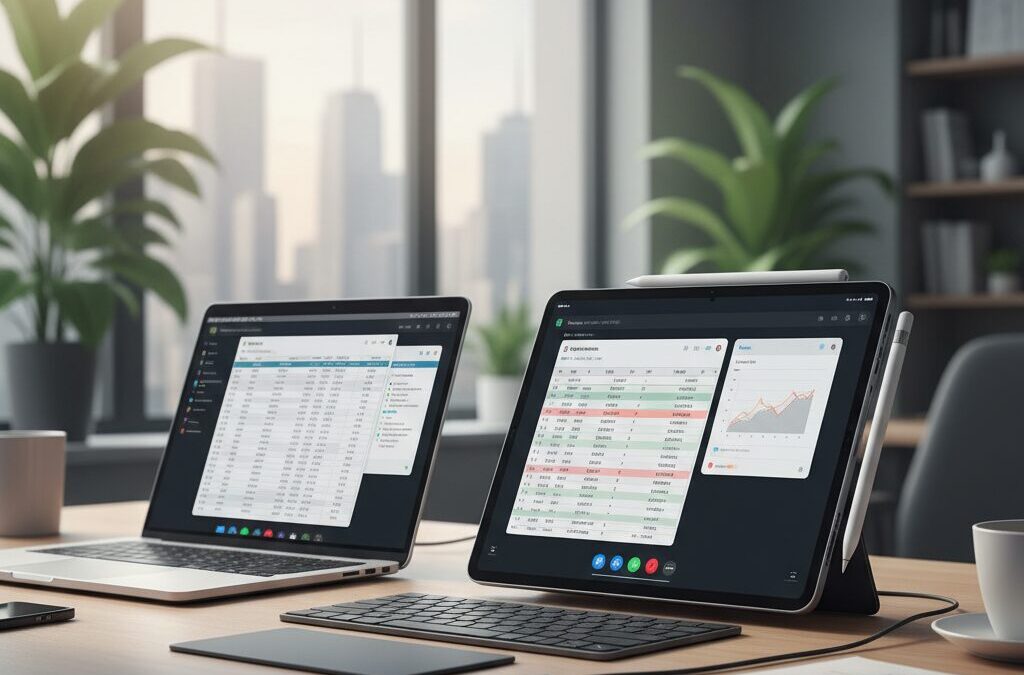
For more than a decade, one question has refused to disappear: can the iPad truly replace a laptop for serious work? In 2026, that debate feels more relevant than ever. With the M4 chip, a 5.1mm ultra‑thin chassis, and Tandem OLED technology delivering up to 1,600 nits of peak brightness, the latest iPad Pro pushes hardware engineering to extraordinary heights.
Yet raw performance is no longer the core issue. Benchmarks show desktop‑class power, and iPadOS 18 continues to refine multitasking with Stage Manager and improved external display support. At the same time, real‑world workflows—Microsoft 365 limitations, file management constraints, and legacy web systems—still shape whether the iPad can function as a primary business machine.
In this article, we examine the M4 iPad Pro and M2 iPad Air from a professional perspective, comparing them with the MacBook Air and exploring creative, executive, field, and office use cases. If you are a gadget enthusiast wondering whether the iPad is finally “mainstream” for business—or still a specialized powerhouse—this deep dive will help you decide with clarity and confidence.
- The Evolution of the iPad as a Post‑PC Device
- M4 iPad Pro Hardware: 5.1mm Design, Tandem OLED, and Desktop‑Class Performance
- M2 iPad Air: Where Performance Meets Practical Pricing
- Magic Keyboard and Apple Pencil Pro: Turning a Tablet into a Workstation
- iPadOS 18 and Stage Manager: How Close Is It to a Desktop Experience?
- File Management, Multitasking Limits, and External Display Support
- Microsoft 365 on iPad: Excel Macros, Licensing Rules, and Workflow Gaps
- Creative Workflows: Photoshop, Lightroom, Final Cut Pro, and DaVinci Resolve
- Coding and Cloud Development: iPad as a Thin Client
- Cost Analysis: iPad Pro Full Setup vs. MacBook Air
- Market Trends and the Rise of the iPad‑Native Generation
- Who Should Choose the iPad as a Primary Business Device?
- 参考文献
The Evolution of the iPad as a Post‑PC Device
When Steve Jobs introduced the iPad in 2010, he described it as a device for the “post‑PC” era. At that time, the idea felt aspirational. Early models were limited by mobile processors and lightweight apps, and most productivity workflows still revolved around traditional laptops.
Fast forward to 2026, and the conversation has fundamentally changed. With Apple silicon—culminating in the M4 chip inside the latest iPad Pro—the performance gap between tablet and laptop has effectively disappeared. According to Apple’s published technical specifications, the M4 delivers desktop‑class CPU and GPU performance in a 5.1mm chassis, a level of engineering density that would have been unthinkable a decade ago.
The evolution of the iPad is no longer about catching up to PCs in raw power. It is about redefining what “personal computing” means.
| Era | Primary Limitation | Strategic Shift |
|---|---|---|
| 2010–2015 | Processing power, app ecosystem | Media consumption & light productivity |
| 2016–2020 | Multitasking & file management | Pro features (Pencil, multitasking) |
| 2021–2026 | OS philosophy vs desktop norms | Apple silicon & desktop‑class workflows |
The introduction of Apple silicon marked the turning point. Once iPad Pro began sharing architectural DNA with the Mac, performance stopped being the bottleneck. Benchmarks and real‑world tests reported by major tech publications consistently show that M‑series iPads rival or exceed many thin‑and‑light laptops in CPU and GPU tasks.
Yet the “post‑PC” label persists not because the iPad replaced the PC, but because it challenged its assumptions. iPadOS evolved with Stage Manager, external display support, and system‑wide AI features in iPadOS 18, gradually adopting elements once exclusive to desktop systems. At the same time, Apple deliberately preserved a touch‑first interface, resisting full convergence with macOS.
This tension defines the modern iPad. It is powerful enough to run complex creative workloads, from multi‑layer Photoshop projects to 4K video timelines, yet it maintains a simplified interaction model centered on direct manipulation. The device does not ask users to manage windows with pixel‑level precision; it encourages focus and contextual task grouping instead.
The post‑PC evolution, therefore, is philosophical rather than technical. Traditional PCs prioritize file hierarchies, overlapping windows, and peripheral control. The iPad prioritizes immediacy, mobility, and tactile interaction. With hardware innovations such as Tandem OLED displays delivering up to 1000 nits full‑screen brightness and 1600 nits peak HDR, as detailed in Apple’s technical documentation, the iPad becomes not just a computer but a visual instrument.
Market data reinforces this trajectory. Research from MM Research Institute shows that iPad maintains roughly 60% share of Japan’s tablet market, and through large‑scale educational deployments, it has become the first computing device for many students. This signals a generational shift: for a growing cohort, touch interaction is not secondary to the mouse—it is primary.
In that sense, the iPad has already succeeded as a post‑PC device. It did not eliminate the PC. Instead, it expanded the definition of mainstream computing, proving that a tablet can stand at the center of serious work when hardware ambition meets a distinct software philosophy.
M4 iPad Pro Hardware: 5.1mm Design, Tandem OLED, and Desktop‑Class Performance
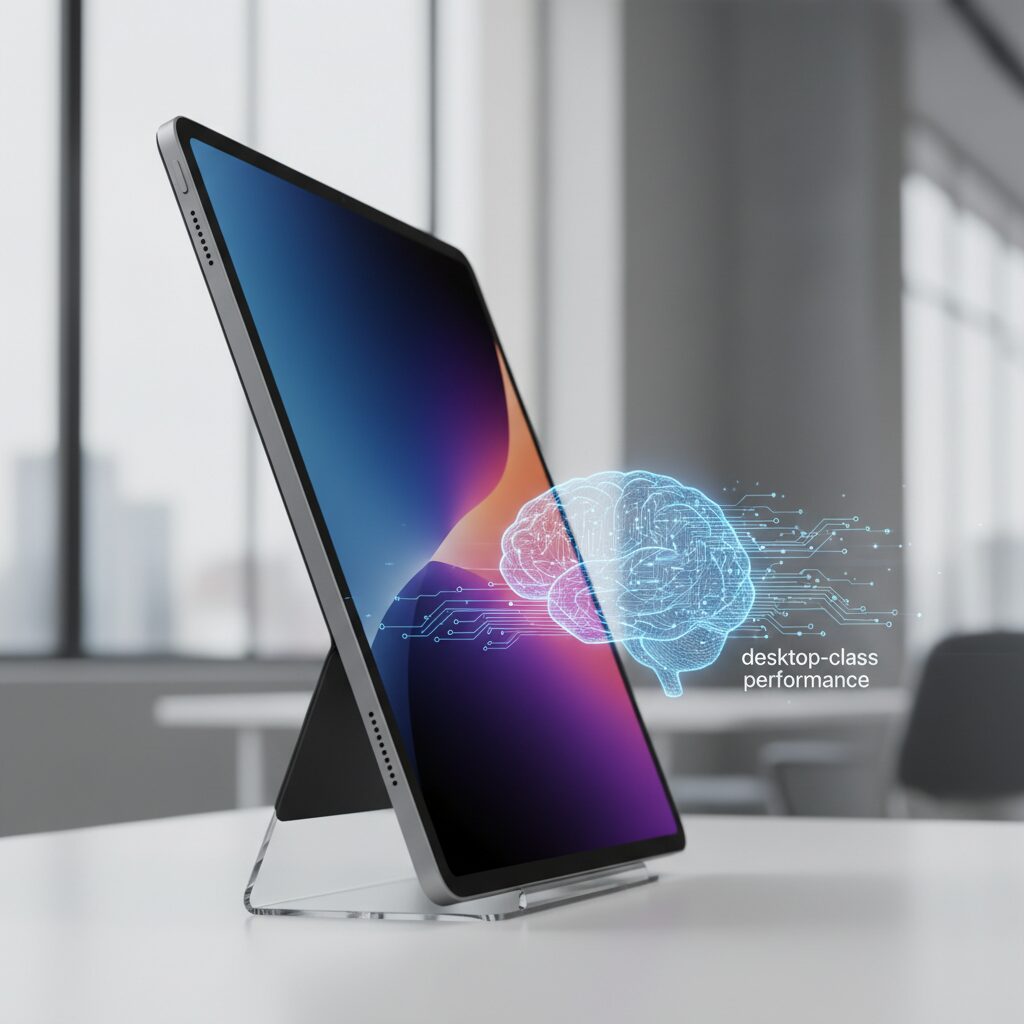
The M4 iPad Pro represents the physical peak of tablet engineering. At just 5.1mm thick on the 13‑inch model, it challenges the structural limits of aluminum enclosure design while integrating desktop‑class silicon and a next‑generation display stack. According to Apple’s official technical specifications, this is the thinnest product the company has ever shipped in its category, yet it is not a compromise device.
What makes this hardware remarkable is not only how slim it feels in the hand, but how much computing density is compressed into that profile. For mobile professionals, thickness is not an aesthetic metric. It directly affects carry weight, bag volume, and fatigue during prolonged handheld use.
Core Hardware Specifications
| Component | M4 iPad Pro (13-inch) | Practical Impact |
|---|---|---|
| Thickness | 5.1mm | Ultra‑portable, reduced carry fatigue |
| Display | Tandem OLED (Ultra Retina XDR) | Higher sustained brightness, deeper contrast |
| Peak Brightness | 1600 nits (HDR) | Outdoor and HDR accuracy |
| Chip | Apple M4 (2nd‑gen 3nm) | Desktop‑class compute and AI processing |
The introduction of Tandem OLED, branded as Ultra Retina XDR, is arguably more significant than the thin chassis. By stacking two OLED emissive layers, Apple addresses a long‑standing limitation of single‑layer OLED panels: brightness longevity and burn‑in risk. The dual‑stack structure distributes electrical load across layers, enabling 1000 nits of full‑screen brightness and up to 1600 nits for HDR highlights. In real workflows, this means architectural plans remain readable outdoors, and HDR video grading gains perceptual accuracy.
Contrast reaches 2,000,000:1, producing near‑absolute blacks. For presentation environments, especially in dim conference rooms, black backgrounds visually disappear into the bezel, creating a floating‑content effect that traditional LCD panels cannot replicate.
Performance is driven by the M4 chip, fabricated using second‑generation 3nm technology. Apple reports up to 1.5× CPU performance compared to M2 and up to 4× rendering performance in certain graphics workloads. Even more notable is the Neural Engine enhancement, positioning the device for on‑device AI tasks without thermal throttling.
Thermal design becomes critical in a 5.1mm enclosure. Apple reengineered internal layout and heat dispersion pathways to sustain performance without a fan. In practical terms, this means 4K and even 8K timeline scrubbing, large PDF rendering, and complex web applications operate without perceptible delay. The absence of active cooling also preserves acoustic silence, which matters in studio or executive settings.
What differentiates this hardware from traditional laptops is not raw benchmark leadership alone. It is the ratio of performance per millimeter. The device delivers desktop‑class throughput in a chassis thinner than many smartphones stacked twice. According to long‑term user reports and teardown analyses, rigidity concerns have been mitigated through internal structural reinforcement, suggesting that thinness no longer implies fragility.
In essence, the M4 iPad Pro’s hardware does not aim to imitate a laptop. It compresses workstation‑level silicon, reference‑grade display technology, and advanced thermal engineering into a form factor that redefines mobility. For users who prioritize visual fidelity and compute density in the lightest possible footprint, this is no longer a compromise tablet. It is precision hardware engineered at the edge of physical constraints.
M2 iPad Air: Where Performance Meets Practical Pricing
The M2 iPad Air occupies a uniquely strategic position in Apple’s lineup. It delivers desktop-class silicon at a price tier that feels attainable for serious users, not just creative professionals. For many gadget enthusiasts evaluating performance per dollar, this balance is precisely where the Air becomes compelling.
Powered by the M2 chip, the same generation previously used in iPad Pro models, the Air offers an 8‑core CPU and 10‑core GPU architecture designed for sustained multitasking and graphics workloads. In practical business scenarios—Microsoft 365 editing, large PDF rendering, browser-based SaaS, and video conferencing—the performance gap between M2 and newer M‑series chips is often negligible. According to multiple performance comparisons published by major tech reviewers such as PhoneArena, real-world productivity tasks rarely saturate the M2’s capabilities.
This means users are not paying for unused headroom. Instead, they are buying into a performance ceiling high enough to avoid friction for years.
| Model | Chip | Display | Biometric |
|---|---|---|---|
| iPad Air (M2) | M2 | Liquid Retina (60Hz) | Touch ID |
| iPad Pro (M4) | M4 | Tandem OLED (120Hz) | Face ID |
The key to understanding the Air’s value lies in identifying what you are not getting—and whether it matters. The 60Hz display lacks ProMotion smoothness, which power users accustomed to 120Hz scrolling may notice. However, for spreadsheet editing, document review, or SaaS dashboards, the difference rarely impacts task completion speed.
Similarly, Touch ID integrated into the top button introduces a small but measurable interaction cost compared to Face ID. In high-frequency unlock workflows, this can add micro-friction. Yet many professionals prefer its reliability in desk-based setups where the device remains stationary.
From a cost-efficiency perspective, this distinction is critical. When paired with Magic Keyboard and Apple Pencil Pro, the Air approaches laptop-level investment. However, compared to equipping a Pro model similarly, the savings can be substantial while preserving identical CPU-class performance.
Apple’s own technical documentation confirms that the M2 iPad Air supports advanced multitasking features such as Stage Manager and external display expansion. This ensures that buyers are not locked out of productivity enhancements introduced in recent iPadOS versions.
For gadget-focused readers evaluating longevity, the M2 architecture still benefits from Apple’s unified memory design and high-bandwidth storage pipeline. These characteristics translate into sustained responsiveness over multi-year ownership, especially under heavy browser tab loads or creative light-editing tasks.
Ultimately, the M2 iPad Air represents a rational middle ground. It avoids the overkill pricing of cutting-edge display technology while retaining the computational muscle that defines modern iPad performance. For users who prioritize capability over prestige hardware elements, it stands as the most pragmatic expression of Apple’s silicon advantage.
Magic Keyboard and Apple Pencil Pro: Turning a Tablet into a Workstation
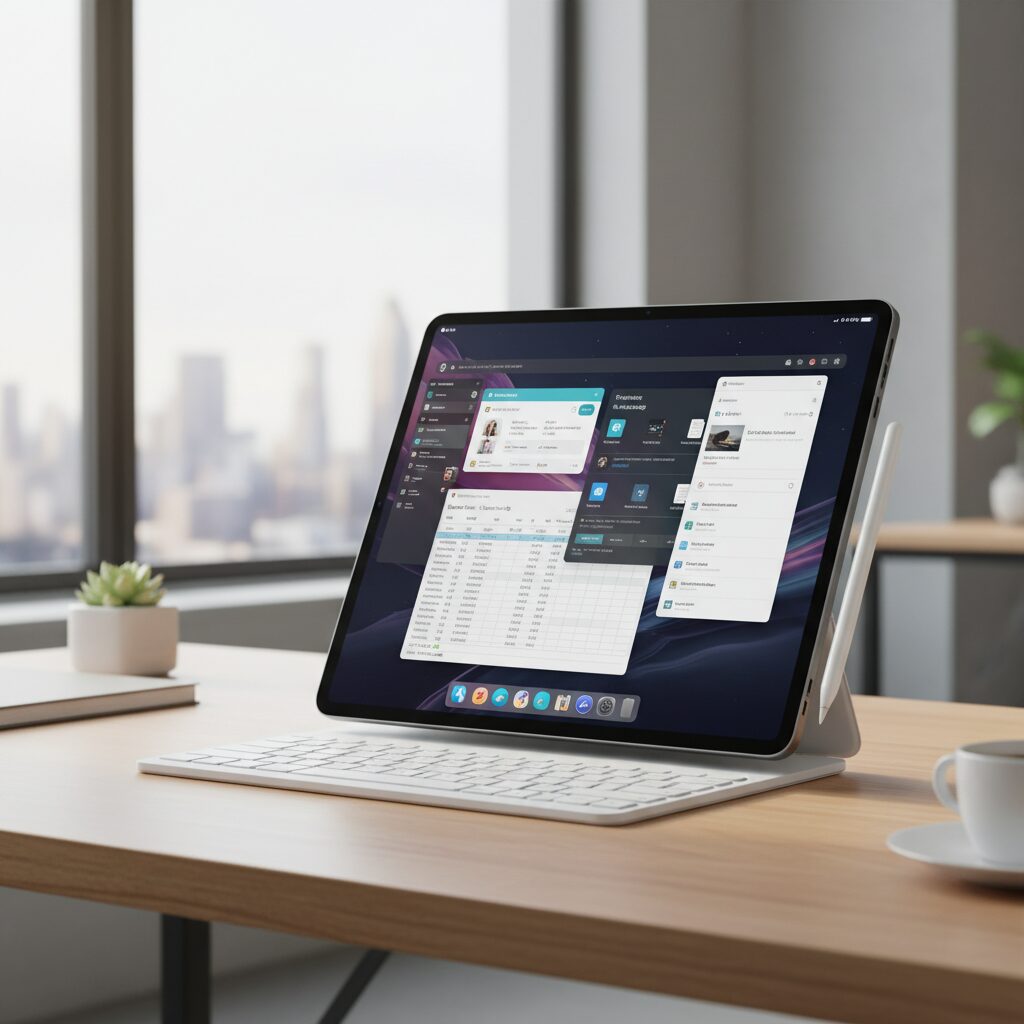
When you attach the Magic Keyboard and pair it with Apple Pencil Pro, the iPad stops feeling like a consumption device and starts behaving like a compact workstation. The transformation is not symbolic. It is structural. Input, navigation, and precision control shift from touch-first to productivity-first in seconds.
This modularity is the iPad’s most strategic advantage over traditional laptops. You can move from laptop-style typing to pure tablet annotation simply by detaching a magnet. That fluid transition changes how meetings, fieldwork, and creative sessions unfold in real time.
Magic Keyboard: From Tablet to Laptop-Class Input
The redesigned Magic Keyboard for M4 iPad Pro introduces an aluminum palm rest, a larger haptic trackpad, and a full function key row. According to Apple’s technical documentation, the trackpad now supports precise cursor control and multi-touch gestures comparable to macOS environments.
This matters more than it sounds. Cursor precision is critical when navigating dense web dashboards, spreadsheet cells, or complex design interfaces. A larger haptic trackpad delivers uniform click feedback across the surface, reducing finger fatigue during long sessions.
| Feature | Workstation Impact | Business Benefit |
|---|---|---|
| Aluminum palm rest | Improved rigidity and comfort | Stable long typing sessions |
| Larger haptic trackpad | Precise cursor control | Spreadsheet & SaaS efficiency |
| Function key row | Quick system adjustments | Reduced workflow interruption |
The addition of function keys is especially practical. Brightness, volume, and media controls no longer require Control Center gestures. Over dozens of daily interactions, this small friction reduction compounds into measurable efficiency.
Importantly, the floating cantilever design keeps the iPad elevated, improving viewing ergonomics during desk use. Combined weight approaches ultralight laptops, but the flexibility remains unmatched because the keyboard is optional rather than permanent.
Apple Pencil Pro: Precision Beyond Drawing
Apple Pencil Pro introduces squeeze gestures, barrel roll rotation, and haptic feedback. Apple describes these as enhancements for creative control, but their workstation implications extend further.
Haptic confirmation reduces cognitive uncertainty. When annotating contracts or marking up architectural drawings, subtle tactile feedback confirms system recognition without visual re-checking. Over extended review sessions, that reduces mental load.
The barrel roll function enables precise tool orientation in supported apps. For illustrators using Procreate or designers adjusting brushes in Photoshop for iPad, rotation-sensitive control mirrors real-world instruments. Creative professionals gain nuance that traditional trackpads cannot replicate.
Even in non-creative workflows, Pencil Pro functions as a high-accuracy selector. Complex PDFs, detailed floor plans, and handwritten client notes become faster to navigate compared to finger input.
Research from human-computer interaction studies published by institutions such as Stanford University has consistently shown that pen-based annotation improves information retention compared to typing alone. In executive environments where decision-making relies on rapid document review, this hybrid interaction model becomes strategically valuable.
The real power lies in seamless switching. You can type a proposal, detach the keyboard to sketch a concept, then reattach it to finalize edits. That workflow fluidity transforms the iPad from a secondary device into a flexible workstation tailored to context rather than constrained by form.
For users who understand this dual-mode philosophy, the combination of Magic Keyboard and Apple Pencil Pro does not merely enhance the iPad. It redefines what a workstation can be.
iPadOS 18 and Stage Manager: How Close Is It to a Desktop Experience?
With iPadOS 18, Stage Manager has matured into Apple’s clearest answer to a long‑standing question: can an iPad truly behave like a desktop computer? The short answer is that it gets surprisingly close in specific workflows, yet it still reflects a fundamentally different philosophy.
Originally introduced in iPadOS 16 and refined through subsequent updates, Stage Manager in iPadOS 18 focuses less on novelty and more on stability and predictability. According to coverage by AppleInsider and user reports on Reddit’s iPadPro community, window handling is smoother, external display support is more reliable, and app grouping feels more intentional than in its early iterations.
At its core, Stage Manager allows multiple overlapping windows, resizable app layouts, and grouped “workspaces” that can be switched instantly. This is a major conceptual shift from traditional Split View and Slide Over.
| Feature | Stage Manager (iPadOS 18) | Typical Desktop OS |
|---|---|---|
| Window Overlap | Yes, limited by system rules | Fully freeform |
| Workspace Switching | App groups via side strip | Virtual desktops / task view |
| External Display | Extended desktop (M-series) | Standard multi-monitor |
| Placement Precision | Snap-guided positioning | Pixel-level control |
The biggest philosophical difference lies in window control. On macOS or Windows, users can place windows at pixel-level precision. On iPadOS 18, windows “snap” into system-defined zones. For some users, this feels restrictive. For others, it reduces visual clutter and cognitive overload.
This design choice is intentional. Apple prioritizes clarity and touch ergonomics over absolute freedom. Even when using a Magic Keyboard and trackpad, the system maintains spacing and scaling rules optimized for finger interaction.
Where Stage Manager shines is contextual switching. You can create a focused set such as Mail + Calendar + Notes, and instantly jump to another set like Safari + Slack + Files. As productivity bloggers have noted, this grouped workflow can feel more deliberate than juggling dozens of minimized windows on a traditional desktop.
External monitor support is another area where iPadOS 18 narrows the gap. On M‑series iPads, connecting to a display enables a true extended workspace rather than simple mirroring. Apps can live independently on the external screen, approaching a dual-monitor desktop experience.
However, background process handling remains more conservative than on macOS. iPadOS aggressively manages memory and may suspend inactive apps. For users accustomed to rendering video while running multiple heavy tasks simultaneously, this difference still matters.
Stage Manager makes the iPad feel like a structured desktop, not a fully liberated one. It delivers controlled multitasking rather than unrestricted window chaos.
Interestingly, when compared to Samsung’s DeX mode, the contrast becomes clearer. DeX transforms the interface into something visually closer to Windows, complete with taskbar metaphors. Stage Manager, by contrast, keeps the iPad identity intact. It scales up the tablet paradigm instead of replacing it.
In daily business use, this means document editing, web research, messaging, and light creative work can coexist efficiently on one screen. The friction appears only when users demand deep system-level control or legacy desktop behaviors.
So how close is it to a desktop experience? In terms of multitasking flexibility and external display support, closer than ever before. In terms of unrestricted system control and process management, it still draws a deliberate line.
Ultimately, Stage Manager in iPadOS 18 does not try to replicate macOS. It proposes a different model: a cleaner, touch-aware, context-driven workspace that can replace a laptop for many professionals—provided they accept Apple’s rules of engagement.
File Management, Multitasking Limits, and External Display Support
When evaluating iPad as a serious business device, three factors often determine real-world usability: how files are handled, how far multitasking can be pushed, and whether external display support truly replaces a desktop workflow.
On paper, iPadOS 18 has evolved significantly, but its architecture still reflects a touch-first philosophy rather than a traditional desktop model. That difference becomes visible the moment complex workflows begin.
File Management: Structured, Secure — but Not Fully Open
The Files app has matured into a capable document hub, supporting iCloud Drive, external SSDs, SMB servers, and major cloud providers. For many professionals, this covers 80% of daily needs.
However, unlike macOS Finder, iPadOS is built around sandboxing. Each app maintains its own protected storage space, and while Files acts as a bridge, the behavior is not always consistent.
For example, some apps open documents directly from external storage, while others import a copy into their sandbox. This can create version confusion in collaborative environments.
| Feature | iPadOS Files | macOS Finder |
|---|---|---|
| App Storage Model | Sandboxed per app | Shared file system |
| Background Transfers | May suspend if inactive | Persistent background tasks |
| External Drive Handling | Supported, app-dependent access | Full system-level access |
Another critical point is background processing. As discussed widely in user communities and technical reviews, iPadOS aggressively manages memory to preserve battery life. If an app becomes inactive for too long, large transfers or renders may pause.
For professionals moving multi-gigabyte video files or archiving project assets, this behavior requires active monitoring rather than passive trust.
Multitasking Limits: Stage Manager’s Structured Freedom
Stage Manager introduced true windowed multitasking, allowing overlapping windows and grouped app sets. According to Apple’s own documentation and productivity analyses, this feature is designed to balance flexibility with visual order.
Unlike macOS or Windows, windows snap into system-defined zones rather than free pixel-level placement. For many users, this reduces clutter and cognitive overload.
However, power users accustomed to precise monitor layouts may find the constraint limiting, particularly when managing spreadsheets, reference PDFs, and communication apps simultaneously.
Memory management also defines practical multitasking ceilings. While M4 hardware is extremely capable, iPadOS still governs how many apps remain actively alive in memory. In most workflows this is invisible, but edge cases—such as switching repeatedly between creative tools—can trigger reloads.
External Display Support: Expansion, Not Transformation
M-series iPads support true extended display mode rather than simple mirroring. When connected to an external monitor, the iPad provides a separate workspace where windows can be moved independently.
This creates a desktop-like setup when paired with a keyboard and trackpad, and for many office scenarios it feels remarkably close to a lightweight PC.
Yet the interface does not transform into a traditional desktop shell. There is no separate taskbar paradigm or macOS-style menu bar adaptation. The UI remains fundamentally iPadOS, scaled for larger resolution.
Compared to Samsung’s DeX, which shifts into a Windows-inspired desktop interface, Apple maintains consistency over mimicry. The advantage is visual coherence and strong color management. The trade-off is reduced familiarity for long-time desktop users.
For presentation-heavy professionals or executives using a 27-inch monitor in the office and tablet mode on the go, this duality works elegantly. For users expecting full desktop window granularity and persistent background workflows, the difference becomes noticeable.
Ultimately, file management, multitasking, and external display support on iPad are powerful—but intentionally shaped. Understanding those intentional boundaries is what separates a seamless productivity experience from daily friction.
Microsoft 365 on iPad: Excel Macros, Licensing Rules, and Workflow Gaps
For many business users, Microsoft 365 is the final checkpoint that determines whether an iPad can function as a true work machine. On paper, Word, Excel, and PowerPoint are fully available on iPadOS. In practice, however, critical differences in macro support, licensing rules, and workflow behavior create structural gaps that you cannot ignore.
The biggest limitation is Excel macro support. According to Microsoft’s official documentation and community responses on Microsoft Learn, Excel for iPad does not support creating or running VBA macros. In Japan, where VBA-driven spreadsheets automate accounting, inventory control, and reporting, this is not a minor omission but a workflow breaker.
An Excel file built around VBA on Windows or macOS will open on iPad, but the macro logic simply does not execute. The spreadsheet becomes a static shell. Microsoft promotes Office Scripts as a modern alternative, yet Office Scripts are based on JavaScript and are not backward-compatible with existing VBA assets, which means migration requires redevelopment.
| Feature | Windows/Mac | iPad |
|---|---|---|
| VBA Macro Creation | Supported | Not supported |
| VBA Macro Execution | Supported | Not supported |
| Office Scripts | Supported (Web) | Limited (Web-based) |
PowerPoint presents a subtler gap. As a presentation device, iPad is excellent: lightweight, instant-on, and visually stunning on Tandem OLED displays. However, complex animations, embedded objects, or rare fonts created on desktop versions may not render identically. Editing advanced slide masters or intricate transition chains can also be restricted compared to the full desktop app.
Word is relatively mature, especially for reviewing documents with track changes. Yet highly structured workflows—such as advanced citation management or intricate cross-referencing—remain more robust on desktop. Microsoft itself acknowledges feature differences between platforms, emphasizing cross-device continuity rather than full parity.
Licensing adds another layer. Microsoft applies the so-called “10.1-inch rule.” Devices with screens larger than 10.1 inches require a paid Microsoft 365 subscription to edit documents. Since iPad Air (11/13-inch) and iPad Pro (11/13-inch) exceed this threshold, editing is locked behind a subscription. For enterprises with volume licensing this is routine, but for freelancers or small businesses it becomes a recurring cost consideration.
Beyond features, there are workflow gaps rooted in iPadOS itself. File handling relies on sandboxed app storage. When exchanging documents between Outlook, Excel, and third-party cloud drives, you sometimes encounter duplicated files or ambiguous save locations. On desktop systems, the file hierarchy is transparent; on iPad, abstraction occasionally introduces friction.
Background processing is another subtle constraint. Large Excel recalculations or bulk uploads may pause if the app is suspended by the system’s memory management. While iPadOS has improved multitasking through Stage Manager, it still does not guarantee the same persistent background behavior as Windows or macOS.
That said, there are scenarios where Microsoft 365 on iPad excels. Reviewing documents on the move, annotating proposals with Apple Pencil, or delivering client presentations with cellular connectivity can be faster and more fluid than carrying a laptop. The touch interface, often criticized in spreadsheet-heavy environments, becomes an advantage in meetings and collaborative discussions.
The conclusion is not that Microsoft 365 on iPad is incomplete, but that it is philosophically different. It prioritizes mobility, touch interaction, and cloud connectivity over legacy automation depth. For macro-centric, desktop-anchored workflows, the gap remains real. For communication, review, and presentation-focused roles, the experience is not just viable—it can be strategically superior.
Creative Workflows: Photoshop, Lightroom, Final Cut Pro, and DaVinci Resolve
For creative professionals, the iPad has evolved from a companion device into a serious production tool. With the M4 chip delivering desktop-class performance and a hardware-accelerated media engine, workflows in Photoshop, Lightroom, Final Cut Pro, and DaVinci Resolve are no longer experimental—they are commercially viable.
What matters is not raw benchmark scores, but whether real projects can move from import to export without friction. In this respect, the current iPad generation performs far beyond what most creatives expect.
Photography: Lightroom and Photoshop in a Touch-First Environment
Adobe Lightroom on iPad offers near parity with its desktop counterpart for RAW development. Exposure adjustments, masking, color grading, and batch synchronization operate smoothly even with high-resolution files, thanks to the M-series architecture and fast unified memory.
Because adjustments are slider-based, the touch interface often feels more direct than a mouse. Dragging highlights or selectively brushing masks with Apple Pencil reduces micro-movements and speeds up iterative edits.
According to Adobe’s own product positioning, the iPad version is designed for professional workflows rather than simplified mobile editing. In practice, color grading, tone curves, and local adjustments are production-ready.
| Task | Lightroom (iPad) | Photoshop (iPad) |
|---|---|---|
| RAW Development | Full adjustment tools | Basic via Camera Raw |
| Layer-Based Editing | Not applicable | Supported (core tools) |
| Precision Masking | Brush/AI masks | Layer masks supported |
Photoshop on iPad has progressed significantly. Core layer workflows, masking, compositing, and retouching are stable and performant. While some advanced desktop-exclusive features remain absent, the majority of commercial retouching tasks can be completed without returning to a Mac.
The real differentiator is Pencil integration. Pressure sensitivity and hover preview enable a natural editing rhythm that traditional laptops cannot replicate.
Video Production: Final Cut Pro and DaVinci Resolve
Video editing is where skeptics expected limits, yet the M4 iPad Pro handles 4K—and even higher resolution—timelines with surprising fluidity. The built-in media engine accelerates playback and scrubbing, minimizing dropped frames during review.
Final Cut Pro for iPad introduces a touch-optimized timeline and a virtual jog wheel, allowing rapid clip trimming with intuitive gestures. This interaction model differs from desktop editing, but once learned, it can be faster for rough cuts.
DaVinci Resolve on iPad brings professional color grading tools to a portable form factor. Primary correction, node-based workflows, and LUT application are fully functional, aligning closely with the desktop philosophy Blackmagic Design is known for.
However, asset management remains the most critical constraint. Large external SSD libraries require disciplined folder structures, and the iPadOS file model demands careful media linking. In high-volume studio environments, desktop systems still provide greater redundancy and plugin flexibility.
In controlled creative workflows—photography sessions, social video production, on-site interviews—the iPad does not feel like a compromise. It feels like a specialized, high-performance creative surface that prioritizes immediacy over legacy complexity.
If your workflow benefits from direct manipulation, mobility, and fast iteration, the iPad is not an alternative—it is an advantage.
Coding and Cloud Development: iPad as a Thin Client
For developers, the iPad is not a self-contained coding workstation, but it becomes surprisingly powerful when treated as a thin client. Instead of compiling locally, you connect to a remote Mac, Linux server, or cloud container and use the iPad as a high-quality terminal and interface.
This shift aligns with the broader industry movement toward cloud-native development. GitHub Codespaces, remote SSH workflows, and browser-based IDEs allow heavy builds and dependency management to run in the cloud, while the iPad focuses on display, input, and mobility.
In this model, the iPad stops being “limited” and starts acting as a secure, always-on gateway to virtually unlimited compute resources.
Apps such as Blink Shell enable robust SSH connections with support for mosh and key management, making remote Linux development stable even over mobile networks. Combined with a Magic Keyboard and trackpad, the experience feels close to a lightweight laptop, but without local environment maintenance.
GitHub Codespaces, according to Microsoft documentation, runs fully configured development containers in the cloud, accessible from a browser. On iPadOS 18, Safari’s improved external display support and Stage Manager make it practical to dedicate one window to the IDE and another to documentation or logs.
| Approach | Where Code Runs | iPad Role |
|---|---|---|
| Local Mac | On-device | Not required |
| Remote Mac via SSH | Office/Home Mac | Terminal + editor |
| Codespaces | Cloud container | Browser-based IDE |
The advantages are clear. First, hardware constraints disappear. Even large builds or containerized microservices run on scalable infrastructure. Second, device replacement becomes trivial. If the iPad is lost or upgraded, the development environment remains intact in the cloud.
Battery efficiency is another overlooked benefit. Because compilation and heavy processing occur remotely, the iPad consumes far less power than a laptop under load. For mobile developers working in transit or on-site, this translates into longer productive sessions.
There are trade-offs. Reliable connectivity is mandatory. While mosh mitigates unstable networks, full offline development is not realistic. Additionally, iPadOS still lacks native Xcode or Docker desktop equivalents, which means purely local iOS or container development workflows remain dependent on external machines.
However, as cloud development becomes standard practice across startups and enterprise teams, the thin-client model grows more practical each year. In this context, the iPad is not competing with a MacBook. It is redefining its role: a secure, ultra-portable control surface for distributed computing environments.
For engineers who already rely on remote repositories, CI/CD pipelines, and containerized environments, the question is no longer whether the iPad can compile locally. The more relevant question is whether local compilation is necessary at all.
Cost Analysis: iPad Pro Full Setup vs. MacBook Air
When evaluating total cost, the key question is not the sticker price of the device alone, but how much it costs to build a truly work-ready environment. In practice, an iPad Pro requires additional accessories to match laptop-level productivity.
Apple’s own pricing structure makes this clear. The iPad Pro becomes a different financial proposition once you add a keyboard and Pencil.
| Device | Configuration | Approx. Total (JPY) | Total Weight |
|---|---|---|---|
| iPad Pro 13 (M4) | 256GB + Magic Keyboard + Pencil Pro | ≈320,000 | ≈1.3kg (with keyboard) |
| iPad Air 13 (M2) | 256GB + Magic Keyboard + Pencil Pro | ≈220,000 | ≈1.3kg (with keyboard) |
| MacBook Air 13 (M3) | 16GB / 512GB | ≈200,000 | ≈1.24kg |
The numbers reveal a striking reality. A fully equipped iPad Pro can cost over ¥100,000 more than a comparably specced MacBook Air. Even the iPad Air, once paired with essential accessories, approaches or exceeds the MacBook Air’s price.
According to Apple’s official specifications and retail pricing, the Magic Keyboard and Apple Pencil Pro together represent a substantial percentage of the total investment. In other words, you are not just buying a tablet—you are assembling a modular workstation.
From a pure cost-performance perspective, the MacBook Air delivers a full desktop operating system, mature file management, and unrestricted software compatibility at a lower entry price. There is no need to budget separately for input devices. The keyboard, trackpad, and optimized macOS workflow are included from day one.
However, price alone does not define value. The iPad Pro offers capabilities the MacBook Air cannot replicate: direct pen input, tablet detachment, rear camera scanning, optional 5G connectivity, and the Tandem OLED display. These features are not marginal—they fundamentally change certain workflows.
For example, a field consultant who relies on cellular connectivity and handwritten annotation may extract measurable productivity gains from the iPad setup. In contrast, an office worker focused on Excel macros or browser-based enterprise systems gains little from paying the iPad premium.
The cost gap is essentially a “flexibility premium.” You are paying extra for hardware versatility—touch, pen, and modular form factor—rather than raw computing capability.
Weight comparisons further complicate the equation. Once the Magic Keyboard is attached, the iPad Pro weighs roughly the same as a MacBook Air. The mobility advantage shifts from “lighter” to “transformable.” Detachability becomes the differentiator, not portability alone.
In financial terms, the MacBook Air is the rational default for general productivity. The iPad Pro full setup is a strategic investment—justifiable only when its unique input methods and mobility features directly enhance revenue-generating work.
Ultimately, the decision is not about which device is cheaper. It is about whether the additional ¥100,000 unlocks capabilities you will actually monetize or leverage daily. If not, the MacBook Air remains the more economically efficient tool.
Market Trends and the Rise of the iPad‑Native Generation
According to MM Research Institute, iPad continues to command roughly 60% of Japan’s tablet shipments as of 2024–2025. This is not a temporary spike but a structural dominance supported by education, enterprise pilots, and consumer demand. The center of gravity in personal computing is quietly shifting toward a tablet-first mindset.
One of the most consequential drivers is the GIGA School initiative, through which many elementary and secondary students received iPads as their primary learning device. For a growing cohort, the iPad is not a secondary screen but their first computer. This has profound implications for how future workers perceive productivity.
Unlike previous generations trained on Windows laptops, this cohort grows up with touch, Pencil input, and cloud-native workflows as defaults. Keyboard shortcuts are learned, but so are gestures, split views, and stylus annotations. The mental model of “what a computer is” is being rewritten in real time.
| Generation | First Device Experience | Productivity Baseline |
|---|---|---|
| PC-native | Windows notebook / desktop | Mouse, file hierarchy, local apps |
| iPad-native | iPad via GIGA program | Touch, cloud storage, app-centric workflow |
This shift influences enterprise IT strategy more than many executives realize. When new hires expect instant-on devices, biometric login, and seamless cloud sync, friction-heavy legacy environments feel outdated. Device expectations are now shaped by iPadOS-level responsiveness and simplicity.
At the same time, market data suggests a bifurcation rather than total replacement. High-end iPad Pro models with M-series chips target premium segments, while iPad Air captures cost-sensitive but performance-conscious users. The market is not asking whether tablets can compute—it is asking how workflows adapt.
Apple’s consistent silicon roadmap, from M2 to M4, reinforces confidence among institutional buyers. When a tablet shares architectural DNA with desktop-class Macs, procurement departments begin evaluating it not as a companion device but as a category peer. This reframes budgeting conversations inside enterprises.
Globally, analysts have long discussed the “post-PC era,” but in Japan the story is more nuanced. The dominance of iPad in shipments, combined with education penetration, suggests a gradual normalization of tablet-first literacy. The rise of the iPad-native generation is less about hardware sales and more about cognitive defaults.
For businesses, this means future productivity tools must assume touch, stylus, and cloud collaboration as primary interfaces. Vendors that design only for desktop metaphors risk alienating emerging professionals. Market trends indicate that adaptation, not resistance, will define competitiveness in the late 2020s.
Who Should Choose the iPad as a Primary Business Device?
Choosing an iPad as your primary business device is not about replacing a laptop by force. It is about aligning your work style with what the iPad is fundamentally designed to do best.
In 2026, with M4-powered iPad Pro models and the maturation of iPadOS 18, the question is no longer whether the hardware is powerful enough. According to Apple’s official technical specifications, the M4 chip delivers desktop-class CPU and GPU performance in a 5.1mm chassis. The real decision depends on workflow compatibility.
The iPad should be your main device only if your core tasks benefit from touch, pen, mobility, or instant-on responsiveness.
| User Type | Why iPad Works | Key Advantage |
|---|---|---|
| Visual Creators | Optimized apps like Procreate and Photoshop for iPad | Apple Pencil precision + Tandem OLED |
| Executives | PDF review, email, decision workflows | Face ID + always-on mobility |
| Field Professionals | On-site presentations, inspections | Lightweight + cellular connectivity |
| Cloud-First Workers | Browser/SaaS-centered operations | Strong battery + silent performance |
For visual creators, the iPad is not a compromise device. With Tandem OLED delivering up to 1000 nits full-screen brightness and precise color reproduction, it becomes a reference-grade canvas. Combined with Apple Pencil Pro’s squeeze and hover features, it enables workflows that traditional laptops cannot replicate.
Executives and decision-makers also benefit disproportionately. If your day revolves around reviewing documents, approving contracts, responding to messages, and joining video calls, the iPad’s instant wake, Face ID authentication, and long battery life reduce friction throughout the day. Apple’s Stage Manager further allows focused app grouping without overwhelming window clutter.
Field professionals such as consultants, architects, or sales representatives gain another advantage: physical flexibility. A 13-inch iPad Pro weighs around 580g before accessories, significantly lighter than most laptops. In face-to-face client settings, a detachable screen feels collaborative rather than barrier-like.
However, this choice assumes limited dependence on legacy desktop software. As Microsoft documentation confirms, iPad versions of Excel do not support VBA macros. If your daily work relies on such features, friction will accumulate quickly.
The ideal primary-iPad user is therefore someone who either creates visually, decides strategically, or operates in motion. In contrast, users who build complex spreadsheet systems, manage legacy enterprise software, or require full desktop OS control will encounter structural constraints.
Ultimately, the iPad excels when work is about interaction rather than system management. If your productivity increases when technology disappears into the background, the iPad can confidently serve as your main business device.
参考文献
- Apple Support:iPad Pro 11‑inch (M4) – Tech Specs
- Apple:iPad Pro – Technical Specifications
- Apple Support:About iPadOS 18 Updates
- Microsoft Learn:Excel and iPad – Microsoft Q&A
- Microsoft Learn:Why isn’t MS 365 full version available on iPad OS?
- PhoneArena:iPad Air M2 (2024) Review: New size, more storage, faster chipset, and more
- ケータイ Watch:MM総研、2025年度上期の国内タブレット出荷台数を発表 iPadが6割を占める