Tablets are no longer just devices for streaming and casual browsing. With iPad Pro powered by Apple silicon, AI-ready Surface models, and increasingly capable Android tablets, many people now expect laptop-level productivity from a thin slab of glass.
As performance has surged, the keyboard has quietly become the most critical upgrade. A poorly chosen keyboard can introduce latency, awkward layouts, and typing fatigue, while the right one can transform your tablet into a serious mobile workstation.
In this guide, you will learn how market data, switch mechanisms, connection standards, AI integration, and ergonomics shape the best tablet keyboards in 2026. By the end, you will be able to choose a model that matches your workflow, protects your device, and maximizes both speed and comfort.
- Why Tablet Keyboards Matter More Than Ever in the Post-PC Era
- Tablet Market Trends in 2025–2026 and Their Impact on Keyboard Design
- Average Selling Prices and the Rise of Premium Keyboard Cases
- Switch Technology Explained: Scissor vs Low-Profile Mechanical
- Connectivity Deep Dive: Smart Connector and Surface Connect vs Bluetooth
- Layout and OS Compatibility: iPadOS, Windows, and Android Challenges
- The AI Shift: Copilot Key and Dedicated Assistant Buttons
- Trackpads, Gestures, and the Evolution of iPadOS Productivity
- Head-to-Head: Apple Magic Keyboard vs Logitech Combo Touch
- Ultra-Portable Standalone Keyboards: Logitech Keys-To-Go 2
- Low-Profile Mechanical Options: Lofree, NuPhy, and the Typing Experience
- Power-User Gear: HHKB Studio and Advanced Input Control
- Ergonomics and Split Keyboards for Long Writing Sessions
- A Strategic Buying Framework for Choosing the Right Tablet Keyboard
- Final Pre-Purchase Checklist: Weight, Key Pitch, and Real-World Usability
- 参考文献
Why Tablet Keyboards Matter More Than Ever in the Post-PC Era
In 2025, tablets are no longer secondary devices for casual browsing or streaming. High-end models such as the iPad Pro with Apple’s M4 chip now deliver performance comparable to many laptops, while Microsoft’s Surface line integrates AI functions directly into hardware keyboards. As processing power has reached PC-class levels, the bottleneck has shifted from performance to input. The way we type increasingly defines what a tablet can become.
According to MM Research Institute, iPadOS accounts for 61.7% of tablet shipments in Japan, maintaining the top position for eight consecutive years. At the same time, 89.0% of shipped tablets feature displays of 9 inches or larger. This data signals a structural change: tablets are being used in productivity scenarios once dominated by laptops. When screen size and computing power scale up, expectations for typing accuracy, speed, and tactile feedback rise accordingly.
| Device Class | Primary Use (Past) | Primary Use (2025) | Keyboard Expectation |
|---|---|---|---|
| Tablet (8″ class) | Media consumption | Light productivity | Compact, optional |
| Tablet (11–13″ class) | Hybrid use | Laptop replacement | Full pitch, precise |
This evolution explains why premium keyboard accessories now command prices approaching entry-level laptops. Apple’s Magic Keyboard sits in the upper price tier, yet demand remains strong. Users are effectively investing not in plastic keys, but in workflow stability. Instant connection via Smart Connector, integrated trackpads with gesture support, and rigid hinge mechanisms transform a slate into a workstation within seconds.
Microsoft’s introduction of the Copilot key—described by industry observers as the first major Windows keyboard change in three decades—illustrates another shift. The keyboard is no longer a passive input grid. It has become a launchpad for AI interaction. Physical keys now trigger cloud intelligence, not just characters. This redefines the keyboard as a strategic interface layer between human intent and machine augmentation.
Post-PC does not mean “after keyboards.” It means after fixed desktops and immovable workflows. Tablets liberated computing from the desk; advanced keyboards restore the precision required for creation. Research in human–computer interaction consistently shows that tactile feedback improves typing accuracy and reduces cognitive load compared to glass typing. When professionals draft proposals in cafés or edit code on trains, micro-delays or unstable connections break concentration.
The modern tablet is powerful enough to replace a laptop. Whether it actually does depends largely on the quality, reliability, and intelligence of the keyboard attached to it.
Tablet Market Trends in 2025–2026 and Their Impact on Keyboard Design

By 2025–2026, the tablet market is no longer driven by casual media consumption but by performance-centric, productivity-focused devices. According to MM Research Institute, domestic tablet shipments reached 3.71 million units in the first half of fiscal 2025, marking a second consecutive period of growth, with iPadOS accounting for 61.7% of the share. This dominance structurally influences how keyboard manufacturers allocate development resources.
When a single ecosystem controls over 60% of the market, accessory innovation naturally concentrates around it. As a result, Smart Connector-based keyboards, precise iPadOS gesture integration, and model-specific form factors receive priority optimization, while other platforms often follow.
Screen size trends reinforce this shift. The same MM Research data shows that 89.0% of shipped tablets measure 9 inches or larger, with 11-inch and 13-inch models becoming mainstream. Larger displays change ergonomic expectations: compact, cramped key layouts are no longer acceptable for users replacing laptops with tablets.
| Market Trend | 2025–2026 Direction | Impact on Keyboard Design |
|---|---|---|
| OS Share | iPadOS 61.7% | Platform-specific connectors and optimized layouts |
| Screen Size | 89% ≥9 inches | Near‑full 19mm key pitch demand |
| Usage Pattern | Laptop replacement | Trackpads and function rows standardizing |
Another structural change is pricing. EC market analysis by Nint indicates rising average selling prices in tablet-related categories, reflecting premiumization. Users investing in high-end devices such as iPad Pro M4 or Surface models increasingly accept keyboards priced in the tens of thousands of yen. This willingness shifts keyboards from optional add-ons to core productivity hardware.
Higher tablet ASPs justify higher keyboard ASPs. Manufacturers respond by integrating aluminum palm rests, haptic trackpads, backlighting, and rigid hinge systems that rival ultrabooks. The keyboard is no longer a thin cover but a mechanical extension of the device’s identity.
AI integration further accelerates redesign. Microsoft’s introduction of the Copilot key—described by major Windows community discussions as the first major keyboard layout change in 30 years—signals a rethinking of physical layouts to accommodate AI-native workflows. When AI access earns a dedicated hardware key, keyboard real estate becomes strategic territory.
At the same time, mobility expectations remain uncompromised. Users demand instant-on connectivity, minimal latency, and reduced cognitive friction. Physical connector solutions such as Smart Connector and Surface Connect respond directly to this expectation by eliminating pairing steps and battery management, aligning with professional use cases.
In short, the 2025–2026 tablet market is defined by platform concentration, larger displays, premium pricing, and AI integration. Each of these macro trends translates directly into keyboard evolution: fuller layouts, deeper integration, higher material quality, and smarter key allocation. Keyboard design is no longer reactive—it is strategically shaped by the structural realities of the modern tablet ecosystem.
Average Selling Prices and the Rise of Premium Keyboard Cases
Average selling prices (ASP) for tablet keyboard cases have been steadily climbing, reflecting a structural shift in how users perceive input accessories.
According to EC market analysis by Nint, while the average selling price of tablet devices themselves hovers around ¥34,151 in Japan, peripheral categories are increasingly driven by higher-value models rather than entry-level volume.
Keyboard cases are no longer treated as optional add-ons but as productivity investments, and pricing trends clearly show that consumers are willing to pay for enhanced functionality.
| Category | Typical Feature Set | Price Positioning |
|---|---|---|
| Basic Bluetooth Keyboard Case | Standard keys, no trackpad, plastic chassis | Low to mid range |
| Premium Integrated Case | Trackpad, backlight, rigid hinge, OS integration | High range |
| Flagship OEM Model | Smart Connector, haptic trackpad, metal palm rest | Ultra premium |
The clearest symbol of this premiumization is Apple’s Magic Keyboard. Retailing in the upper tens of thousands of yen, it approaches the cost of an entry-level tablet.
Yet market behavior suggests strong acceptance. The integration of Smart Connector power delivery, a large haptic trackpad, and a rigid cantilever hinge transforms the accessory into a quasi-laptop base rather than a simple typing tool.
This convergence of protection, input, and structural support justifies higher ASP from a value-per-function perspective.
Logitech’s Combo Touch further illustrates how feature density drives pricing power. By combining a detachable keyboard, full-surface protection, and a multi-angle kickstand, it effectively replaces both a case and a separate keyboard.
From a consumer economics standpoint, bundling these roles into a single premium product reduces decision fatigue and increases perceived utility.
As MM Research Institute data shows that 89 percent of shipped tablets are now 9 inches or larger, the expectation of laptop-grade typing experiences naturally supports higher price tiers.
Another structural driver behind rising ASP is component sophistication. Backlit scissor switches with approximately 1mm key travel, precision trackpads supporting multi-touch gestures, and reinforced aluminum palm rests significantly increase manufacturing complexity.
Compared with early-generation tablet keyboards that prioritized thinness over tactility, today’s premium models emphasize structural rigidity and input consistency.
Consumers are effectively paying for reduced compromise.
The ecosystem effect also plays a critical role. Smart Connector and Surface Connect systems eliminate batteries and pairing friction, offering instant-on reliability.
For professional users, this reliability translates directly into productivity continuity, which increases willingness to absorb higher upfront costs.
As Windows keyboards adopt dedicated Copilot keys and iPadOS deepens trackpad gesture integration, premium hardware increasingly serves as a gateway to advanced software experiences.
In short, rising average selling prices are not merely inflationary artifacts but indicators of functional consolidation.
Tablet keyboard cases now integrate typing, pointing, protection, and structural stabilization into a single engineered platform.
The market is rewarding products that redefine the tablet as a primary computing device rather than a secondary screen.
Switch Technology Explained: Scissor vs Low-Profile Mechanical
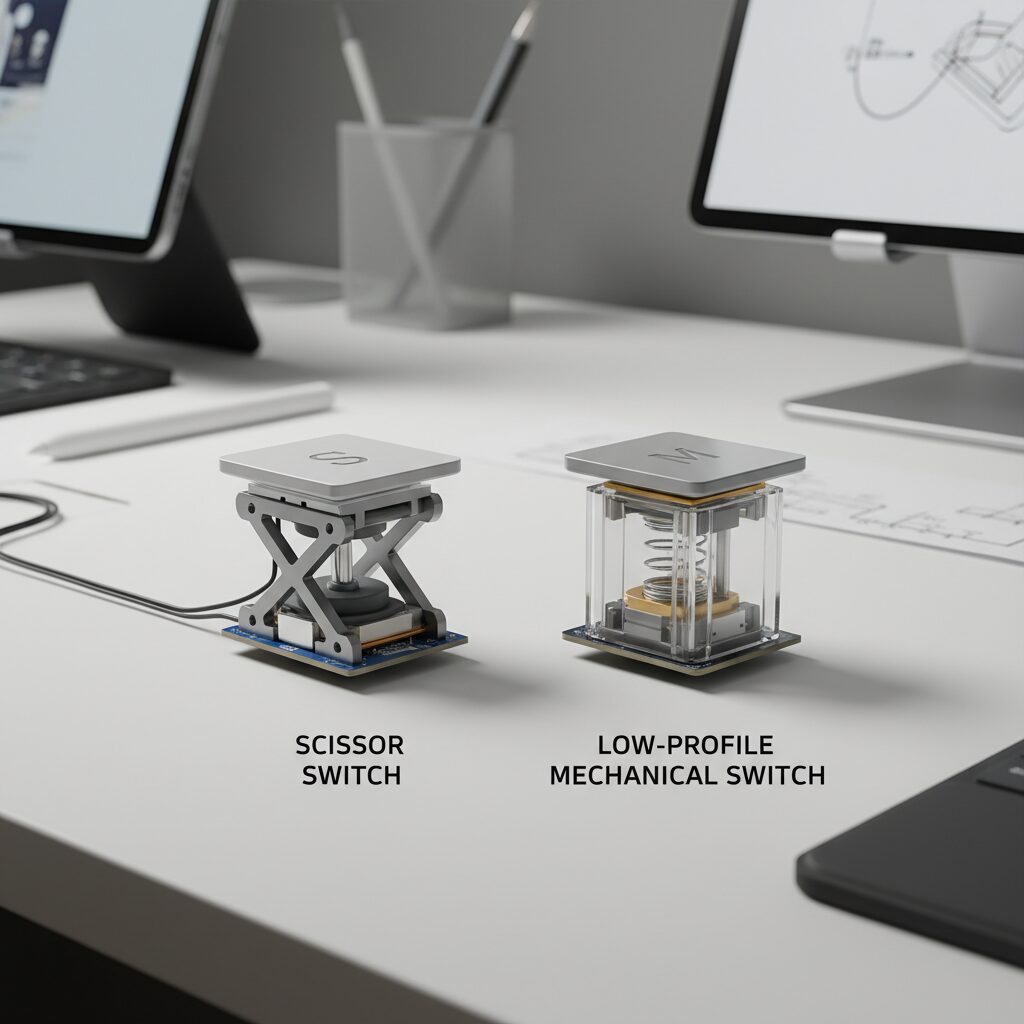
When choosing a tablet keyboard, the switch mechanism is the single most decisive factor in how typing feels. In 2025–2026, the competition is essentially between refined scissor switches and emerging low-profile mechanical switches.
Both aim to balance thinness and tactile clarity, yet they approach the problem from fundamentally different engineering philosophies.
Structural Differences at a Glance
| Aspect | Scissor Switch | Low-Profile Mechanical |
|---|---|---|
| Mechanism | X-shaped stabilizer over rubber dome | Independent mechanical switch housing |
| Typical Travel | 1.0–1.3 mm | 1.2–2.8 mm (low-profile variants) |
| Thickness | Ultra-thin, case-integrated | 10–20 mm standalone keyboards |
| Primary Strength | Portability & stability | Tactile depth & customization |
Scissor switches dominate integrated tablet keyboards such as Apple’s Magic Keyboard and Logitech’s Combo Touch. Apple specifies a 1 mm key travel on its latest iPad Pro Magic Keyboard, matching modern MacBook standards. This short travel is not a compromise but a deliberate calibration: shallow enough for slim chassis integration, yet deep enough to prevent harsh bottoming out.
Microsoft’s Surface keyboards have followed a similar trajectory, evolving from 2.5 mm travel in early generations to around 1.3 mm in recent models. The industry consensus now clusters around the 1–1.3 mm range for premium tablet-class scissor implementations.
The key advantage of scissor switches is uniform stability across the keycap. The X-shaped support structure ensures consistent actuation even when pressing near the edges. For mobile professionals typing on a train or in a café, this stability translates into fewer accidental misfires and greater confidence.
Low-profile mechanical switches, by contrast, pursue typing purity. Brands such as Lofree and NuPhy integrate Gateron or Kailh low-profile switches into slim aluminum chassis. Unlike scissor designs that rely on rubber domes, mechanical switches use independent spring and stem assemblies, delivering more defined actuation points and smoother linear motion.
According to specialized mechanical keyboard reviews, gasket-mounted designs like those used in Lofree Flow models further dampen vibration and distribute typing force more evenly. This construction reduces perceived harshness while preserving mechanical tactility.
However, physics imposes trade-offs. Mechanical housings require more vertical space, which makes seamless case integration with tablets impractical. As a result, mechanical options are almost always separate Bluetooth keyboards, typically weighing 500–600 grams. In contrast, scissor-based case keyboards merge protection and input into a single unit.
Noise profile also differs. Scissor switches tend to be quieter due to rubber dome cushioning. Low-profile mechanical switches vary by type: linear variants can be relatively quiet, while tactile versions produce sharper acoustic signatures.
From a fatigue perspective, shorter travel can reduce finger motion distance over long sessions, but some users report that the clearer actuation of mechanical switches decreases cognitive strain because keystrokes feel more deliberate. This subtle distinction often determines preference among writers and programmers.
Ultimately, the choice is not about superiority but alignment with workflow. If your tablet must transform instantly into a compact laptop, scissor technology remains the most space-efficient solution. If your tablet is a portable workstation and typing feel is paramount, low-profile mechanical switches deliver a depth of interaction that integrated designs cannot fully replicate.
Connectivity Deep Dive: Smart Connector and Surface Connect vs Bluetooth
When choosing a tablet keyboard, connectivity is not just about cables versus wireless. It directly affects latency, power management, and cognitive load during daily work.
Smart Connector on iPad and Surface Connect on Microsoft devices represent a fundamentally different philosophy from Bluetooth. They prioritize physical integration over universal compatibility.
The decision ultimately comes down to reliability versus flexibility.
| Aspect | Smart Connector / Surface Connect | Bluetooth 5.x / LE |
|---|---|---|
| Power Supply | Draws power directly from tablet | Requires internal battery or coin cells |
| Pairing | Instant upon attachment | Manual pairing, reconnection delay possible |
| Latency | Effectively negligible | Low, but environment dependent |
| Compatibility | Device-specific | Multi-device, multi-OS |
Apple’s Magic Keyboard and Microsoft’s Surface Signature Keyboard use physical pogo-pin style contacts. According to Apple’s technical specifications, the Smart Connector enables both data transfer and power delivery without separate charging. The keyboard simply works the moment it is attached.
This zero-step activation eliminates common Bluetooth friction points such as wake delays or battery anxiety. In professional writing or coding sessions, even a brief reconnection lag can interrupt cognitive flow.
Physical connectors minimize that interruption to virtually zero.
By contrast, Bluetooth keyboards rely on internal batteries. Products like Logitech’s MX Keys Mini or Keys-To-Go 2 emphasize long battery life—up to 36 months in the case of coin-cell designs—but power management remains the user’s responsibility.
Bluetooth also introduces environmental variables. Wireless interference, sleep-state reconnection timing, and OS-level input switching can affect responsiveness. While Bluetooth 5.x and LE standards offer low latency in practice, they are not physically deterministic in the same way as direct connectors.
However, Bluetooth delivers something physical connectors cannot: ecosystem freedom.
Multi-pairing support—often up to three devices—allows seamless switching between a tablet, smartphone, and desktop. For users operating across platforms, this flexibility outweighs the marginal latency advantage of wired-style connectors.
Microsoft’s broader accessory ecosystem reflects this trade-off. Surface Connect ensures tight integration within Surface devices, but Bluetooth models extend compatibility beyond Windows hardware.
In short, Smart Connector and Surface Connect optimize for immediacy and stability, while Bluetooth optimizes for versatility and device independence.
Your workflow determines which advantage matters more: uninterrupted single-device focus, or fluid multi-device orchestration.
Layout and OS Compatibility: iPadOS, Windows, and Android Challenges
When choosing a tablet keyboard in 2025–2026, layout and OS compatibility are no longer minor details. They directly determine whether your device feels like a seamless workstation or a constant source of friction.
Each platform—iPadOS, Windows, and Android—interprets physical keyboards differently. Understanding these structural differences helps you avoid costly mismatches.
| Platform | Layout Handling | Typical Challenge |
|---|---|---|
| iPadOS | Optimized for US; JIS supported but device-dependent | Incorrect key mapping on non-certified Bluetooth keyboards |
| Windows | System-level layout switching | Copilot key replacing legacy keys |
| Android | IME-dependent behavior (Gboard, ATOK) | Unstable Japanese input switching |
On iPadOS, the architectural baseline remains US layout. Apple has strengthened JIS support in recent versions, but behavior varies depending on certification. Apple’s own Magic Keyboard and officially supported products are correctly recognized as JIS when applicable.
However, with low-cost generic Bluetooth keyboards, the system may forcibly interpret the hardware as US layout. In practice, this means symbols like “@” or “:” may appear in unexpected positions. For heavy writers, this inconsistency disrupts muscle memory and slows workflow.
The key insight is that iPadOS prioritizes ecosystem control over universal flexibility. Compatibility is excellent inside the certified ecosystem, but unpredictable outside it.
Windows presents a different scenario. Layout switching is deeply integrated at the OS level, and physical keyboards are generally interpreted correctly. According to coverage by major tech media, the introduction of the Copilot key marks the first significant Windows keyboard change in roughly 30 years.
New Surface and third-party keyboards now replace the traditional right Ctrl or Menu key with a dedicated Copilot key. For AI-centric workflows, this offers instant access to Microsoft Copilot.
For power users relying on legacy shortcuts, however, remapping tools such as PowerToys become essential. Windows offers flexibility—but expects users to adapt.
Android remains the most complex environment. Physical keyboard behavior depends heavily on the installed input method editor. With Gboard, user reports and official support discussions indicate issues such as inconsistent Japanese input switching or prediction behavior differing from touchscreen typing.
On devices like Pixel Tablet or LAVIE Tab, users must explicitly select layouts such as “Japanese 109A” within deep system settings. This adds configuration friction that many casual users overlook.
As a result, advanced users often install ATOK for Android Professional, which, according to long-standing evaluations by Japanese tech publications, offers higher conversion accuracy and better physical keyboard optimization. They also disable the on-screen keyboard when a hardware keyboard is connected.
In short, Android provides freedom—but requires manual tuning to achieve stability.
Ultimately, layout compatibility is not just about JIS versus US. It reflects how tightly each OS integrates hardware, software, and ecosystem control. If you frequently switch devices, Bluetooth multi-pairing flexibility may matter more than perfect native mapping.
If you demand zero friction and instant reliability, ecosystem-aligned hardware becomes the safer choice. Understanding these structural differences ensures your keyboard works with your thinking speed—not against it.
The AI Shift: Copilot Key and Dedicated Assistant Buttons
In 2024 and 2025, the most symbolic change in tablet and detachable keyboards is the physical integration of AI. The introduction of the Copilot key in the Windows ecosystem marks the first major alteration to the Windows keyboard layout in roughly 30 years, as multiple industry reports have noted. This is not a cosmetic tweak. It represents a structural shift in how users are expected to interact with their devices.
A dedicated AI key transforms artificial intelligence from a background service into a primary interface layer. Instead of launching an assistant through software menus or shortcuts, users now access it through a single physical press. That subtle change significantly lowers cognitive friction.
| Aspect | Traditional Shortcut | Dedicated AI Key |
|---|---|---|
| Access Method | Key combination or taskbar click | Single physical key press |
| Learning Curve | Requires memorization | Self-evident hardware label |
| Workflow Impact | Interruptive context switch | Immediate assistant invocation |
Microsoft has already embedded the Copilot key into products such as the Surface Pro keyboard and other official accessories. Major peripheral makers are following this direction, releasing Windows keyboards with the Copilot key replacing the right-side Ctrl or Menu key. According to coverage by Windows-focused communities and tech media, this is widely regarded as the most substantial layout revision since the Windows key was introduced in the 1990s.
From a usability standpoint, the implications are profound. When AI assistance becomes physically anchored to the keyboard, it encourages micro-interactions: summarizing a document mid-writing, generating code snippets, or drafting replies without leaving the current window. The assistant stops being a destination and becomes a companion.
However, this evolution is not frictionless. Power users who relied on the right Ctrl or Application key for custom shortcuts now face adaptation costs. Tools like Microsoft PowerToys allow remapping, but the need for remapping itself signals a philosophical shift. The keyboard is no longer neutral hardware; it is opinionated about AI-first workflows.
It is also important to note that dedicated assistant buttons are not exclusive to Microsoft’s ecosystem. Several third-party manufacturers in Japan and globally have introduced “AI” or “Assistant” labeled keys aligned with Copilot functionality. As reported by manufacturers’ press releases in late 2024, even ultra-quiet office keyboards now integrate such keys as a standard feature rather than a premium add-on.
This hardware-level commitment suggests that AI invocation will become as fundamental as copy-and-paste. When a feature earns a permanent keycap, it signals long-term platform intent.
For tablet users operating in hybrid environments—detached, docked, or in keyboard case mode—the presence of a dedicated AI key reshapes expectations. It reduces reliance on touch gestures for assistant access and reinforces keyboard-centric productivity. In practical terms, that means fewer interruptions, fewer mode switches, and a tighter feedback loop between thought and execution.
The AI shift is therefore not about novelty. It is about reassigning physical real estate on the keyboard to prioritize machine collaboration. Once a key is carved into aluminum or molded into polycarbonate, the workflow it represents becomes hard to ignore—and even harder to reverse.
Trackpads, Gestures, and the Evolution of iPadOS Productivity
When discussing iPad productivity in 2025, the conversation no longer centers on key travel alone. The real inflection point is the integration of trackpads and system-wide gestures into iPadOS. What transformed the iPad from a touch-first tablet into a credible laptop alternative is not just hardware power, but the operating system’s deep optimization for pointer input.
Apple’s Magic Keyboard for iPad Pro (M4) exemplifies this shift. According to Apple’s official technical specifications, the keyboard integrates a large trackpad that supports multi-touch gestures native to iPadOS. This is not a simple cursor overlay; it is a context-aware pointer system designed specifically for touch-first UI elements.
Unlike traditional desktop cursors, the iPadOS pointer adapts to buttons, text fields, and app icons. It magnetically snaps to UI targets, subtly reshaping itself. This behavior reduces micro-adjustments and cognitive load, especially during multitasking. The result is a hybrid interaction model that feels purpose-built rather than retrofitted.
Trackpad gestures further accelerate workflow. Three-finger swipes allow instant app switching, mirroring familiar Mac interactions. Pinch gestures enable zoom control in supported applications. Importantly, these gestures work system-wide rather than being confined to select apps, reinforcing consistency across the OS.
| Gesture | Function | Productivity Impact |
|---|---|---|
| Three-finger swipe | Switch between apps | Reduces task-switching friction |
| Pinch in/out | Zoom control | Eliminates reach to touchscreen |
| Two-finger scroll | Vertical/horizontal navigation | Desktop-class browsing feel |
This matters ergonomically. By minimizing the need to repeatedly lift your hand to touch the display, users avoid what ergonomics researchers often describe as “gorilla arm” fatigue. Keeping hands anchored on the keyboard reduces shoulder strain during extended sessions.
Third-party keyboards such as Logitech’s Combo Touch also support multi-touch trackpad gestures via Smart Connector integration. As highlighted in product documentation and hands-on reviews, gesture compatibility is no longer a luxury feature; it is a baseline expectation for serious iPad work.
From a systems perspective, Apple’s Smart Connector plays a subtle but critical role. Because it provides both power and data instantly upon attachment, the trackpad becomes available with zero pairing delay. There is no Bluetooth wake-up lag, which preserves the illusion of immediacy. In productivity environments, milliseconds compound into perceived friction.
What ultimately defines the evolution of iPadOS productivity is the seamless blending of touch, keyboard, and pointer input. Users can tap when intuitive, type when efficient, and gesture when fluid. This multimodal flexibility allows the iPad to adapt to workflow rather than forcing workflow to adapt to hardware constraints.
For power users who frequently juggle split-view apps, browser tabs, and document editors, trackpad-enabled navigation becomes indispensable. The evolution is not about mimicking a laptop. It is about redefining how pointer logic coexists with touch-first computing, creating a distinct and mature productivity paradigm within iPadOS.
Head-to-Head: Apple Magic Keyboard vs Logitech Combo Touch
When choosing between Apple Magic Keyboard and Logitech Combo Touch, you are not simply comparing accessories. You are deciding how your iPad Pro integrates into your daily workflow.
Both products use Apple’s Smart Connector, enabling instant pairing and power delivery without Bluetooth latency or battery management. However, their philosophies diverge sharply in structure, protection, and spatial efficiency.
| Aspect | Magic Keyboard | Combo Touch |
|---|---|---|
| Attachment | Floating cantilever hinge | Detachable keyboard + kickstand |
| Trackpad | Haptic, full-area click | Diving board style |
| Protection | Minimal side protection | Full edge and corner coverage |
| Lap usability | Excellent | Limited |
The Magic Keyboard prioritizes rigidity and laptop-like integration. Apple’s latest M4 version adds an aluminum palm rest and a 14-key function row, addressing long-standing professional demands. According to Apple’s technical specifications, it also features a larger haptic trackpad, delivering uniform click feedback regardless of press location. This matters during precision editing or multi-gesture navigation in iPadOS.
The floating hinge design shifts the center of gravity backward, improving stability on your lap. In practice, this makes it uniquely suited for mobile professionals working in trains, lounges, or conference halls where desk space is unpredictable.
By contrast, Combo Touch embraces modular flexibility. Its detachable keyboard allows you to remove the typing deck while keeping the protective case and kickstand attached. Logitech and Apple product listings confirm adjustable viewing angles from approximately 10 to 60 degrees, enabling low drafting angles that illustrators and note-takers often prefer.
This structural difference reshapes real-world ergonomics. The Magic Keyboard requires lifting the iPad off its magnetic mount to switch modes. Combo Touch lets you simply detach the keyboard panel, preserving your setup. For creators who frequently alternate between typing and Apple Pencil input, this friction difference becomes meaningful.
Protection is another dividing line. Independent comparisons and user reports consistently highlight Magic Keyboard’s exposed edges. While visually minimalist, it leaves corners vulnerable. Combo Touch surrounds the device with full edge coverage, offering greater peace of mind for commuters and students.
However, that protection comes at a spatial cost. The rear kickstand demands additional desk depth, making it less suitable for narrow airplane trays or cramped café tables. In contrast, Magic Keyboard’s hinge design occupies less rear space and feels more self-contained.
Ultimately, this head-to-head comparison is less about specifications and more about environmental context. Your dominant usage scenario—mobile typing versus desk-based creation—should determine which design philosophy aligns with your workflow.
Ultra-Portable Standalone Keyboards: Logitech Keys-To-Go 2
For users who believe a tablet should remain fundamentally light, ultra-portable standalone keyboards represent a radically different philosophy. Logitech Keys-To-Go 2 embodies this approach by prioritizing mobility without completely sacrificing typing integrity.
Unlike case-integrated keyboards that add significant bulk, this model is designed as an independent input device. It slips into a bag alongside a tablet rather than transforming it into a pseudo-laptop.
According to Logitech’s official release materials and retail specifications, the redesign from the original Keys-To-Go is substantial. The first generation used a fabric-like sealed membrane structure that many reviewers criticized for shallow, indistinct feedback. Keys-To-Go 2 adopts a scissor mechanism with an 18mm key pitch and approximately 1mm key travel, bringing it closer to laptop-class ergonomics.
This 18mm pitch is particularly important. While slightly narrower than the 19mm desktop standard, it avoids the cramped feel often found in compact 10–11 inch keyboard cases. For users accustomed to touch typing, that 1mm difference in pitch can significantly reduce error rates during long drafting sessions.
| Specification | Keys-To-Go 2 | Practical Impact |
|---|---|---|
| Weight | Approx. 222g | Minimal bag load |
| Thickness | 4.3–8.9mm | Fits in document sleeve |
| Key Pitch | 18mm | Near full-size feel |
| Key Travel | ~1mm | Clear tactile response |
Battery strategy is another differentiator. Instead of adopting rechargeable lithium packs, Logitech chose dual CR2032 coin cells. The company claims up to 36 months of battery life. In mobile workflows, this eliminates charging anxiety and cable management entirely. For field researchers, journalists, or frequent travelers, the cognitive relief of not tracking yet another battery cycle is meaningful.
Bluetooth connectivity enables multi-device switching, typically up to three devices. This flexibility becomes powerful in mixed-device ecosystems: drafting on an iPad, responding to messages on a smartphone, and toggling to a laptop without re-pairing. While Bluetooth introduces minimal wake latency compared to physical connectors, in practice it remains acceptable for most productivity scenarios.
The integrated protective cover also reflects thoughtful engineering. When closed, it shields the keys from debris inside a bag. When folded back, it subtly tilts the keyboard to improve typing angle. This small mechanical detail improves wrist posture without adding hinges or structural weight.
From a market perspective, ultra-portable standalone keyboards align with the broader tablet trend toward larger screens but lighter workflows. As industry shipment data indicates that most tablets now exceed 9 inches, users increasingly demand real typing comfort without reverting to full laptop mass.
Keys-To-Go 2 does not attempt to replace a workstation keyboard. Instead, it preserves the tablet’s core advantage: mobility first, productivity second—but close behind.
For minimalists, digital nomads, and professionals who treat weight as a strategic constraint, this category offers a compelling alternative to heavier case-based systems. In that sense, ultra-portable standalone keyboards are not compromises. They are precision tools for a deliberately lightweight workflow.
Low-Profile Mechanical Options: Lofree, NuPhy, and the Typing Experience
Low-profile mechanical keyboards have redefined what “serious typing” on a tablet can feel like. Brands such as Lofree and NuPhy prove that you no longer have to choose between ultra-thin portability and the tactile depth traditionally reserved for desktop setups.
Instead of the 3.5–4.0mm travel found in classic mechanical switches, modern low-profile switches from manufacturers like Kailh and Gateron reduce total travel while maintaining distinct actuation points. This results in a thinner chassis without collapsing the mechanical identity enthusiasts expect.
| Model Line | Switch Type | Mount Structure | Typical Weight |
|---|---|---|---|
| Lofree Flow / Flow Lite | Kailh Low-Profile (Linear) | Gasket Mount | Approx. 500–600g |
| NuPhy Air Series | Low-Profile Mechanical | Integrated Plate | Approx. 500g class |
Lofree Flow Lite stands out for its gasket mount design, a structure more commonly seen in premium custom keyboards. By isolating the plate from the case with dampening materials, it absorbs bottom-out shock and reduces high-frequency noise. According to detailed user reviews in enthusiast communities and specialized media, this creates a softer landing sensation that feels remarkably refined for mobile work.
The result is a typing experience that feels closer to a high-end desktop build than to a tablet accessory. When drafting long-form articles or code on an iPad, that cushioning effect noticeably reduces finger fatigue over extended sessions.
NuPhy’s Air series approaches the problem differently. By focusing on ultra-slim construction and multi-device Bluetooth connectivity, it positions itself as a bridge between mechanical purity and everyday mobility. Multi-pairing allows seamless switching between tablet, smartphone, and laptop, which is particularly valuable in hybrid workflows.
From an ergonomic perspective, the reduced key height shortens finger travel distance. While total travel is lower than standard mechanical boards, actuation remains clearly defined. This balance can increase perceived typing speed because the feedback loop between press and confirmation is immediate.
However, weight is the unavoidable trade-off. At roughly half a kilogram, these boards double or triple the mass of ultra-light scissor-switch options. When paired with a large tablet, total carry weight can exceed that of minimalist laptop setups.
Yet for users who prioritize tactile precision, sound profile, and long-session comfort, the value proposition becomes clear. In the post-PC landscape, typing quality is no longer optional—and low-profile mechanical options from Lofree and NuPhy demonstrate that even tablets deserve uncompromised input fidelity.
Power-User Gear: HHKB Studio and Advanced Input Control
For true power users, a keyboard is not just an accessory but a control surface. When paired with a high‑performance tablet, devices like HHKB Studio redefine what “advanced input” means by collapsing typing, pointing, and gesture control into a single, tightly integrated workflow.
HHKB Studio stands out because it eliminates the need to constantly move your hands away from the home row. Developed by PFU (a Ricoh company), it integrates a central pointing stick and side-mounted gesture pads directly into the keyboard chassis. According to PFU’s official product announcement, this design is intended to let users perform cursor movement and scrolling without reaching for an external mouse.
The pointing stick—positioned between the key clusters—enables pixel-level cursor control on iPadOS, Windows, and other Bluetooth-supported systems. Unlike a trackpad, it requires minimal finger travel, which reduces repetitive wrist extension. The gesture pads mounted on the front and sides allow vertical and horizontal scrolling through subtle finger swipes, effectively simulating trackpad gestures while preserving a compact footprint.
From a switch perspective, HHKB Studio employs 45g linear switches designed for quiet operation. This actuation force strikes a balance: light enough for long coding sessions, yet firm enough to avoid accidental keystrokes. Long favored by programmers, HHKB layouts prioritize control efficiency over visual symmetry, removing unnecessary keys and optimizing modifier placement.
| Feature | HHKB Studio | Typical Tablet Keyboard |
|---|---|---|
| Integrated Pointing Device | Pointing stick + gesture pads | Trackpad or none |
| Switch Type | 45g linear (mechanical) | Pantograph (1–1.3mm) |
| Connection | Bluetooth | Smart Connector or Bluetooth |
| Power | AA batteries | Tablet-powered or rechargeable |
Its Bluetooth connectivity allows pairing with multiple devices, making it suitable for users operating across tablet, desktop, and smartphone environments. While it lacks the instant physical connection of Smart Connector systems, it compensates with cross-platform flexibility and deep customization potential.
In practical terms, combining a tablet on a stand with HHKB Studio creates a modular workstation: screen at eye level, keyboard positioned ergonomically, and pointer control embedded within the typing surface. This configuration mirrors the ergonomic recommendations often discussed in human–computer interaction research, where separation of display and input device improves posture and reduces neck strain.
For power users who value input precision, muscle memory, and uninterrupted flow, HHKB Studio represents a deliberate move away from “case-keyboard convenience” toward a fully optimized control ecosystem. It transforms a tablet from a touch-first device into a programmable, keyboard-centric workstation built around efficiency rather than compromise.
Ergonomics and Split Keyboards for Long Writing Sessions
When you write for hours on a tablet, performance is no longer the bottleneck. Your body is. Long-form drafting, coding, or research sessions can quickly expose weaknesses in posture, wrist angle, and shoulder alignment.
According to occupational health guidance frequently cited by institutions such as the Mayo Clinic, neutral wrist positioning and proper screen height are critical to reducing strain. A traditional straight keyboard often forces the wrists inward, creating ulnar deviation that compounds fatigue over time.
This is where ergonomic and split keyboards fundamentally change the equation.
Why Split Layouts Matter for Writers
Split keyboards—such as Logitech’s ERGO K860 or Perixx’s PERIBOARD series—separate the left and right key clusters in a gentle V shape. This allows your forearms to align more naturally with your shoulders instead of angling inward.
The result is not just comfort but sustainability. During multi-hour writing sessions, even small reductions in wrist extension and shoulder tension can translate into noticeably lower fatigue by the end of the day.
Because tablets decouple the screen from the keyboard, you can create a workstation geometry that laptops simply cannot achieve.
| Setup Element | Traditional Laptop | Tablet + Split Keyboard |
|---|---|---|
| Screen Height | Fixed to keyboard | Adjustable via stand |
| Wrist Angle | Often inward | Neutral, outward-aligned |
| Shoulder Position | Compressed | More open posture |
With the tablet elevated to eye level and the split keyboard placed at a relaxed elbow height, you reduce the so-called “tech neck” posture common in mobile computing.
This separation of display and input is the hidden superpower of tablet-based writing rigs.
Curved Surfaces and Integrated Wrist Support
Advanced ergonomic models incorporate curved key wells and padded wrist rests. Logitech’s ERGO K860, for example, integrates a cushioned palm rest designed to maintain a more natural wrist angle during sustained typing.
For writers producing 3,000–5,000 words per session, pressure distribution across the palm area matters. Hard-edged desks combined with flat keyboards can create localized strain points that only become apparent after weeks of use.
Split designs mitigate this by encouraging a lighter, more relaxed typing posture rather than hovering tension.
Trade-Offs You Must Consider
Ergonomic keyboards are typically larger and heavier than ultra-portable tablet keyboards. They are rarely ideal for café hopping or in-transit editing.
There is also an adaptation curve. The first few days may feel slower as your muscle memory recalibrates to the altered key spacing and angle.
However, for dedicated long writing sessions at home or in a co-working space, the reduction in cumulative strain can outweigh the initial inconvenience.
If your tablet has evolved into your primary drafting machine, investing in a split or ergonomic keyboard is less about luxury and more about longevity. Your creativity scales with your comfort, and sustainable posture is an often overlooked performance multiplier.
A Strategic Buying Framework for Choosing the Right Tablet Keyboard
Choosing the right tablet keyboard in 2025 is no longer about picking a convenient accessory. It is about designing your personal input architecture. With iPadOS holding 61.7% of the domestic tablet market according to MM Research Institute, ecosystem constraints and hardware integration must be evaluated before brand or price.
A strategic buying decision starts with three filters: ecosystem compatibility, primary usage scenario, and physical tolerance (weight and layout). Skipping any of these increases the risk of friction after purchase.
Step 1: Ecosystem Lock-In vs Flexibility
| Priority | Recommended Direction | Rationale |
|---|---|---|
| Zero latency & no charging | Smart Connector / Surface Connect | Instant pairing, no battery anxiety |
| Multi-device workflow | Bluetooth 5.x with multi-pairing | Switch between tablet, phone, PC |
Apple’s Magic Keyboard and Microsoft’s Signature Keyboard leverage physical connectors to eliminate pairing delay and battery management. In professional writing or coding environments, this reduces cognitive interruption. Bluetooth keyboards, by contrast, excel when switching across three devices, as seen in Logitech’s multi-pairing models.
Step 2: Usage Geometry
Where you type matters as much as what you type. If you frequently work on your lap or in transit, hinge-based designs offer superior stability. Kickstand models require rear clearance and perform best on desks.
If your workflow includes drawing or note-taking, detachable keyboards provide mode flexibility. This structural distinction often matters more than switch type.
Step 3: Typing Experience Threshold
Key travel around 1.0–1.3mm has become the thin-device standard, balancing feedback and portability. Apple’s latest Magic Keyboard maintains 1mm travel, aligning with modern MacBook feel. If you require deeper tactility, low-profile mechanical options such as those using Kailh or Gateron switches deliver a different acoustic and tactile signature, albeit with added weight.
Define your minimum acceptable key pitch. Compact cases sometimes reduce pitch below the standard 19mm. A 2mm difference can materially affect accuracy for large hands.
Step 4: OS-Level Input Behavior
On iPadOS, certified keyboards ensure correct JIS recognition. Generic Bluetooth models may default to US layout interpretation. On Android, Gboard behavior with physical keyboards can vary, and some users adopt ATOK for more predictable conversion performance, as noted by Japanese software reviewers.
This is not a hardware issue but an input-system alignment issue. Advanced buyers verify layout settings and IME behavior before committing.
Finally, simulate total carry weight. A 13-inch tablet with a premium keyboard can approach ultralight laptop territory. If mobility is your competitive advantage, every 200 grams matters.
By filtering through ecosystem constraints, spatial usage, tactile threshold, and OS behavior, you transform a crowded market into a rational decision tree. The result is not just a keyboard purchase, but a deliberate upgrade to your cognitive throughput.
Final Pre-Purchase Checklist: Weight, Key Pitch, and Real-World Usability
Before you click “Buy Now,” take a moment to simulate your real-world usage. A tablet keyboard is not just about specs on a product page; it is about how weight, key pitch, and daily usability interact in your hands, on your lap, and inside your bag.
The final decision often comes down to grams and millimeters, not marketing slogans.
1. Total Carry Weight: Laptop Replacement or Laptop Rival?
| Configuration | Approx. Combined Weight | Practical Implication |
|---|---|---|
| 11-inch iPad Pro + Magic Keyboard | Just over 1kg | Close to ultraportable laptop territory |
| Tablet + Combo Touch | Around 1kg class | Heavier bag, stronger protection |
| Tablet + Keys-To-Go 2 | +222g for keyboard | Significantly lighter daily carry |
Apple’s own technical specifications show that the Magic Keyboard adds substantial mass to the iPad Pro, bringing the total to over 1kg. At that point, you are approaching MacBook Air territory. If your goal is “lighter than a laptop,” verify the actual combined number, not just the tablet weight.
For commuters or frequent travelers, even a 200–300g difference becomes noticeable over weeks of use. A 222g keyboard like Logitech’s Keys-To-Go 2 fundamentally changes how often you are willing to carry it.
2. Key Pitch: The 2mm That Changes Everything
Full-size desktop keyboards typically use a key pitch of around 19mm. However, some compact tablet keyboards—especially in the 10–11 inch class—shrink this to approximately 17mm.
That 2mm reduction can directly increase typing errors for users with larger hands. Over long writing sessions, this translates into cognitive fatigue: more corrections, more micro-pauses, more friction.
According to manufacturer specifications and retail listings, even highly portable models may retain 18mm pitch with 1mm key travel, as seen in newer scissor-based designs. Do not assume portability automatically means cramped typing—but do confirm the numbers.
3. Real-World Usability: Beyond the Spec Sheet
Open and close behavior matters. Physical connector systems like Apple’s Smart Connector or Microsoft’s Surface Connect provide near-instant activation with no pairing lag. In contrast, Bluetooth keyboards may introduce slight wake delays depending on sleep state and environment.
Battery strategy is equally practical. A coin-cell design rated for up to 36 months, as reported for Keys-To-Go 2, eliminates charging anxiety. Rechargeable models require cable discipline. Ask yourself which friction you tolerate better: rare battery replacement or periodic charging.
Finally, inspect layout details in product photos. Some JIS-labeled keyboards use modified molds where the Enter key shape or Backspace placement differs from standard expectations. Small geometric differences around Enter, Shift, and arrow clusters significantly affect muscle memory.
A tablet keyboard should disappear while you work. If you notice its weight, fight its layout, or hesitate because of wake delay, it is not the right match—no matter how impressive the feature list looks.
参考文献
- Impress Watch:2025年度上期の国内タブレット出荷台数を発表 iPadが6割超
- Nint EC Data Lab:【2025年8〜10月】スマートフォン・タブレット市場|単価増が牽引
- Apple Support:Magic Keyboard for iPad Pro 13‑inch (M4 and M5) – Tech Specs
- Lifehacker:Review: The Logitech Keys-To-Go 2 Is a Total Redesign
- Microsoft Store:Surface Pro 13-inch Keyboard with Slim Pen for Business
- Logitech:Combo Touch Keyboard Case for iPad
- PFU (Ricoh):HHKB Studio 新登場(ポインティングスティック、ジェスチャーパッド搭載)