
Upgrading your smartphone or PC should feel exciting, but for millions of users it ends in frustration and irreversible data loss. Around 30% of smartphone users report experiencing data migration troubles during device changes, and more than 40% say they have lost important data at least once. In an era where our devices store photos, financial credentials, authentication keys, and even transit passes, a failed migration is no longer an inconvenience but a real disruption to daily life.
At the same time, large-scale recovery statistics show that only about 30% of data loss cases are caused by physical hardware failure. The majority now stem from logical errors, software conflicts, and human mistakes. As operating systems like Windows 11 24H2, iOS, and Android become more cloud-dependent and security-focused, complexity is rising faster than user awareness.
In this article, you will discover why modern data migrations fail, how cloud sync can silently overwrite your backups, what OS-level conflicts are emerging in 2025–2026, and which practical strategies can truly safeguard your digital assets before your next upgrade.
- The Alarming Reality: 30% of Users Experience Data Migration Failures
- From Hardware Failure to Human Error: What Recovery Statistics Reveal
- Cloud Sync vs. True Backup: The Dangerous Misunderstanding
- Windows 11 24H2 and the Outlook–OneDrive Conflict Explained
- When Migration Assistants Fail: Permissions, Disk Errors, and Software Interference
- Android to iOS Transfers: Why “Move to iOS” Gets Stuck at One Minute
- Samsung Smart Switch at 99%: The App Compatibility Bottleneck
- HEIC, JPG, and Media Format Incompatibilities Across Platforms
- Quick Start and P2P Wireless Limits: Why Proximity and iOS Versions Matter
- eSIM Quick Transfer and the Authentication Deadlock Problem
- Passkeys and Device Dependency: What Happens If Your Phone Breaks?
- USB-C Cables, Power Interruptions, and Physical Layer Risks
- Cold Backups and Pre-Emptive Migration: A Practical Survival Strategy
- 参考文献
The Alarming Reality: 30% of Users Experience Data Migration Failures
Data migration is often marketed as seamless, automated, and foolproof. However, real-world data tells a different story. According to a survey by MyVoiceCom, around 30% of users have experienced some form of data migration trouble when changing smartphones, and more than 40% report having lost data or tools at some point.
For a process that has become a routine life event—upgrading a phone, replacing a laptop, moving to a new OS—this failure rate is alarmingly high. In most mature industries, a 30% malfunction rate in a core function would be unacceptable. Yet in digital ecosystems, it has quietly become normalized.
The scale of the issue becomes clearer when we look at recovery data. EaseUS, analyzing hundreds of thousands of recovery cases between 2024 and 2026, reports that hardware failure accounts for only about 30% of data loss incidents. The majority stem from logical errors, software conflicts, or human mistakes. In other words, even when your device works perfectly, your data may not survive the transition.
| Metric | Finding | Implication |
|---|---|---|
| Migration trouble rate | ~30% | Common, not exceptional |
| Users with data loss experience | 40%+ | Widespread vulnerability |
| Hardware-caused loss | ~30% | Software & human factors dominate |
These numbers reveal a structural problem rather than isolated accidents. Modern devices store not just files, but identity credentials, financial apps, authentication tokens, and encrypted messaging histories. Migration today means transferring a tightly interdependent digital ecosystem, not simply copying photos.
Compounding the risk is a knowledge gap. Research by MMD Institute on forced device changes following 3G service termination showed that only 10.9% of respondents could correctly answer all technical questions about migration procedures. This suggests that many users are entering high-risk transitions without sufficient understanding of the underlying mechanisms.
The danger is not only that failures happen, but that users underestimate their probability. Marketing narratives emphasize convenience—”Quick Start,” “One-tap transfer,” “Seamless sync”—while edge cases, compatibility mismatches, and authentication lockouts remain largely invisible until something breaks.
For gadget enthusiasts and power users, this 30% figure should not be dismissed as a statistic affecting “others.” It reflects systemic complexity: OS fragmentation, cloud synchronization conflicts, app-specific encryption models, and account-based security dependencies. Each added layer increases the surface area for failure.
When nearly one in three users encounters migration issues, the conversation must shift from optimism to risk management. Data migration is no longer a trivial setup step. It is a high-stakes operation involving personal memory, financial access, and digital identity continuity.
Understanding this reality is the first step toward treating migration as a critical process rather than a routine upgrade ritual. Only by acknowledging the prevalence of failure can users begin to approach device transitions with the caution they truly require.
From Hardware Failure to Human Error: What Recovery Statistics Reveal
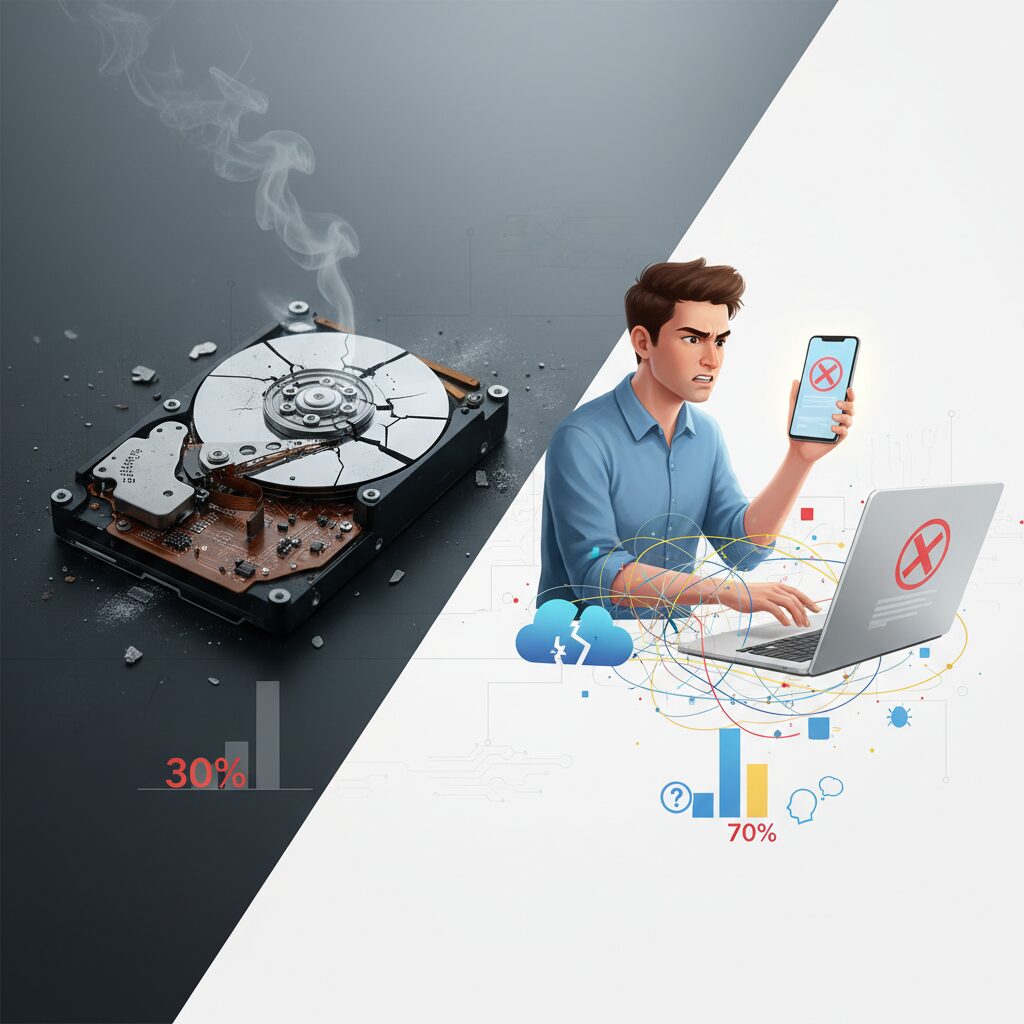
Large-scale recovery statistics reveal a decisive shift in why data migration fails today.
According to EaseUS, which analyzed 496,142 data recovery cases between 2024 and 2026, only about 30% were caused by physical hardware failure, while the majority stemmed from logical errors and human mistakes.
This marks a structural transition from “broken devices” to “broken processes.”
| Primary Cause | Approximate Share | Typical Scenario |
|---|---|---|
| Hardware Failure | ~30% | Drive crash, physical damage |
| Logical / Human Error | ~70% | Accidental deletion, formatting, sync overwrite |
In mature hardware markets, a 30% physical failure rate would signal a crisis. In reality, it shows the opposite: storage media and device durability have improved significantly.
What has grown instead is system complexity. File systems, cloud synchronization engines, and cross-platform migration tools now interact in ways that exceed average user intuition.
Most data is not destroyed by impact or fire, but by a click.
Survey data from MyVoiceCom further supports this behavioral dimension. Over 40% of users report having lost data or digital tools at some point, and roughly 30% experienced trouble during smartphone migration.
This is not a marginal issue affecting only inexperienced users. It reflects a systemic fragility embedded in routine device upgrades.
The problem is amplified by low backup discipline: only about 20% regularly back up their smartphones, with cloud services being the dominant method.
Here lies a critical misunderstanding. Many users equate synchronization with backup.
Google’s documentation on Authenticator, for example, clarifies that when codes are deleted under cloud sync, the deletion propagates across devices. Removing the service from a Google account can erase all associated codes.
Cloud convenience turns single-point mistakes into multi-device losses.
Recovery demand statistics also reveal what people value most. In a dataset of 864,257 users analyzed by EaseUS, 56.15% of recovery requests involved image files, and 33.07% involved videos.
Documents accounted for only 8.06%, yet often carry higher financial stakes per file.
This distribution shows that emotional assets—memories captured as photos and videos—are the primary casualties of migration errors.
Importantly, logical failures are often invisible at the moment they occur. Formatting the wrong partition, overwriting a cloud folder, or interrupting a transfer due to impatience can render data inaccessible without any dramatic warning.
Unlike hardware crashes, which are sudden and obvious, human-induced failures unfold quietly and propagate rapidly.
The statistics do not merely quantify technical faults; they expose cognitive limits in an increasingly automated ecosystem.
For gadget enthusiasts and power users, this shift demands a new mindset. Device reliability is no longer the primary risk variable. Instead, workflow design, backup architecture, and an understanding of sync behavior determine survival.
Recovery statistics are therefore less about failure rates and more about responsibility migration—from manufacturers to users.
In the era of cloud-native ecosystems, the weakest link is rarely silicon. It is assumption.
Cloud Sync vs. True Backup: The Dangerous Misunderstanding
Many tech-savvy users confidently say, “I’m safe. My data is in the cloud.”
However, this belief often rests on a critical misunderstanding: cloud sync is not the same as a true backup.
According to a survey by MyVoice Communications, more than 40% of users have experienced data or tool loss, while only around 20% regularly back up their smartphones.
This gap shows that convenience has replaced strategy, and synchronization is frequently mistaken for protection.
Sync vs Backup: A Structural Difference
| Function | Cloud Sync | True Backup |
|---|---|---|
| Primary Purpose | Keep devices identical | Preserve a point-in-time copy |
| Deletion Behavior | Deletion propagates instantly | Original backup remains intact |
| Error Impact | Mistakes spread to all devices | Errors isolated from backup copy |
With synchronization, the system’s goal is consistency, not safety.
If you delete a photo on Device A, the cloud reflects that change and pushes it to Device B. The system works exactly as designed.
But from a data preservation perspective, that “correct behavior” can be catastrophic.
When human error occurs, sync amplifies it at machine speed.
The risks are not theoretical. Google’s documentation explains that when Google Authenticator is synced to a Google account, removing codes in the app removes them across synced devices. If the Authenticator service is deleted from the account, associated codes can be lost.
Users believe the cloud provides redundancy, yet the architecture performs mirrored state management instead.
EaseUS’s large-scale recovery analysis of hundreds of thousands of cases shows that only about 30% of data loss incidents stem from hardware failure. The majority arise from logical errors or user mistakes.
In other words, drives are no longer the weakest link. Workflow assumptions are.
This distinction becomes critical in scenarios like ransomware or accidental overwrites.
If encrypted files are synced, the encrypted versions overwrite the clean copies everywhere. Without an isolated backup, recovery becomes impossible.
The psychological trap is convenience. Sync feels automatic, modern, and effortless.
Backups, by contrast, require deliberate configuration—external SSDs, versioned snapshots, or cloud services with explicit restore points.
For gadget enthusiasts who constantly upgrade devices, this misunderstanding is particularly dangerous. Migration workflows often rely on cloud-synced folders. If corruption or deletion already exists in the synced environment, the new device inherits the problem flawlessly.
The cloud is a mirror, not a time machine.
Unless versioning or offline copies are intentionally maintained, there is no way to roll back to a clean state.
Understanding this structural difference changes how you design your digital life.
Synchronization ensures continuity between devices. Backup ensures survival when continuity itself becomes the threat.
Windows 11 24H2 and the Outlook–OneDrive Conflict Explained
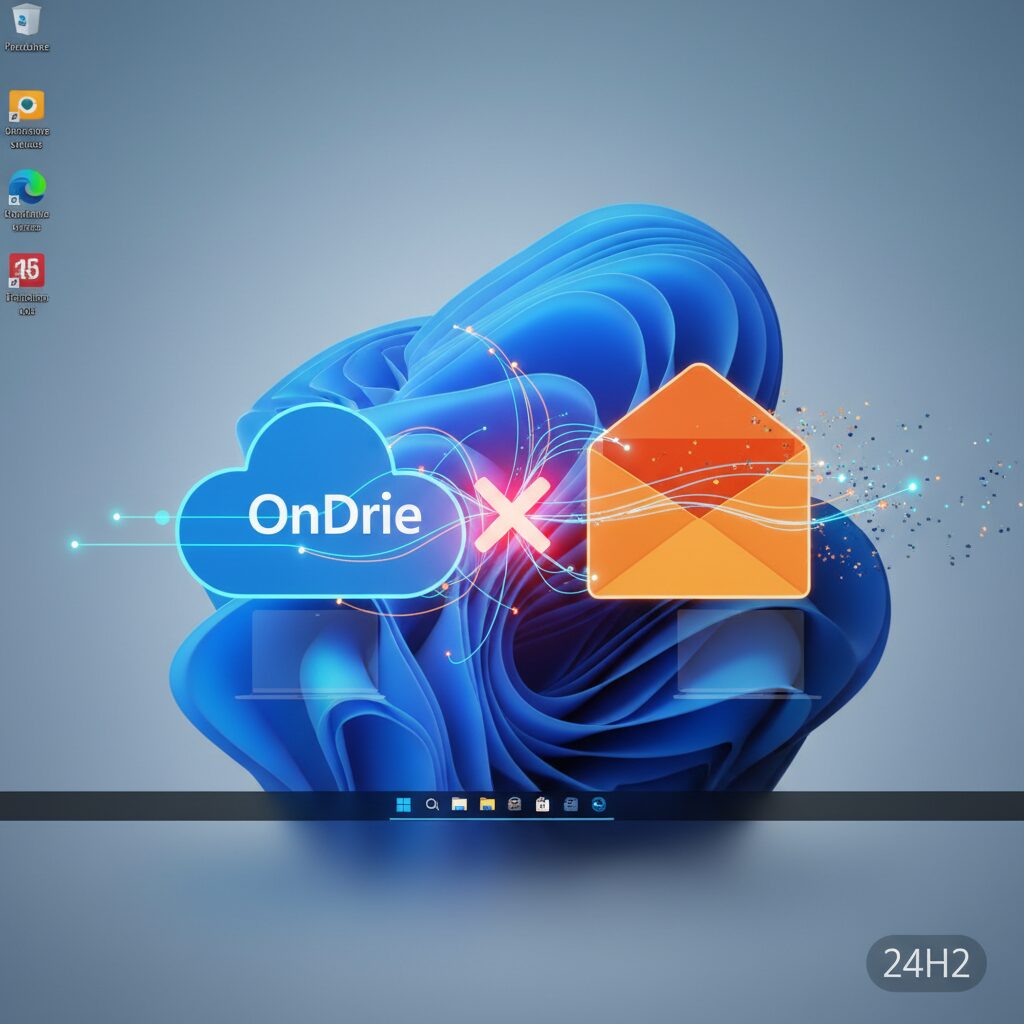
Windows 11 version 24H2 introduced performance enhancements and deeper cloud integration, but it also exposed a structural weakness in how local data files interact with OneDrive.
The most disruptive case involves Microsoft Outlook freezing when its PST file is stored inside a OneDrive-synced folder.
This is not a random glitch but a file-locking conflict rooted in architecture.
How the Conflict Occurs
| Component | Behavior | Conflict Point |
|---|---|---|
| Outlook (PST) | Continuously reads/writes a large database file | Locks file during active use |
| OneDrive Sync Engine | Detects changes and uploads instantly | Attempts parallel access |
PST files function as live databases containing emails, calendars, and attachments. While Outlook is running, the file remains in constant read/write mode.
At the same time, OneDrive’s sync engine monitors the Documents folder and tries to upload modifications immediately.
When both processes attempt to control the same file, I/O operations can stall, leading to application freezes or severe slowdowns.
According to Microsoft’s Windows 11 release health documentation, file handling and sync-related issues have been acknowledged and addressed in staged updates.
However, the root cause often lies in user configuration rather than a pure OS defect.
Many users unknowingly place PST files in OneDrive because Windows setup encourages automatic backup of the Documents folder.
Key Insight: Outlook PST files are not designed for real-time cloud synchronization. They require stable, exclusive local access.
This creates a paradox: cloud backup is meant to protect data, yet in this case, it destabilizes a mission-critical file.
In enterprise environments, the impact is amplified. Email archives often contain years of contractual or financial correspondence.
If Outlook becomes inaccessible during migration or upgrade, business continuity is directly affected.
The situation becomes more complex during PC replacement or OS upgrades.
When a user signs into Windows 11 24H2 and OneDrive auto-restores folders, PST files may be redirected without explicit consent.
What appears to be seamless migration can silently introduce structural instability.
From a systems perspective, this conflict highlights a broader tension between legacy desktop applications and aggressive cloud-first design.
Outlook’s PST architecture predates modern sync paradigms, while OneDrive assumes file-level independence.
Without careful separation of active database files from sync folders, the two systems compete rather than cooperate.
For power users and IT administrators, the lesson is architectural awareness.
Cloud backup should be implemented deliberately, not passively accepted through default folder redirection.
Keeping PST files on a strictly local path and backing them up through scheduled, non-live methods remains the most stable configuration under Windows 11 24H2.
When Migration Assistants Fail: Permissions, Disk Errors, and Software Interference
Even the most polished migration assistants can fail unexpectedly. When that happens, the root cause is rarely “random.” In many cases, the failure can be traced to three technical layers: permissions, disk integrity, and interference from background software.
Understanding these hidden friction points is essential for anyone who takes data seriously. Below are the most common structural triggers behind stalled or aborted migrations.
| Failure Trigger | Technical Cause | Typical Symptom |
|---|---|---|
| Permission mismatch | Insufficient read/write access | Files skipped or access denied |
| Disk errors | Bad sectors or file corruption | Freezing or abrupt stop |
| Software interference | Security tools locking files | Connection or transfer failure |
Permission issues are especially common in long-used systems. Over time, Windows and macOS accumulate layered access controls across user accounts and system folders. If a migration assistant attempts to read protected directories without elevated privileges, it may silently skip files or terminate. Microsoft’s documentation for Windows 11 24H2 resolved issues highlights how file access conflicts can disrupt normal application behavior, and migration tools are not immune to the same constraints.
Disk integrity is another underestimated factor. According to EaseUS’s large-scale recovery analysis of hundreds of thousands of cases, logical errors and file system corruption now account for a significant portion of data loss incidents, surpassing pure hardware failure in many scenarios. When a migration tool encounters unreadable sectors or inconsistent file tables, it may hang indefinitely rather than surface a clear error message. Running disk verification utilities before migration is not optional for aging drives.
Software interference is the most deceptive obstacle. Security suites, endpoint protection tools, cloud sync engines, and automatic updaters constantly monitor file changes. If an antivirus solution scans large PST or media files mid-transfer, or if a sync client attempts to upload the same files simultaneously, file locks can occur. This creates deadlock-like behavior where the assistant appears frozen.
It is also worth noting that enterprise environments amplify these risks. Access policies, encryption layers, and shared drive mappings introduce complexity that consumer-focused migration tools are not designed to interpret perfectly.
When migration assistants fail, the solution is rarely to retry immediately. Instead, verifying administrative privileges, scanning for disk errors, and temporarily disabling non-essential background services provides a far higher probability of success. In modern systems, migration failure is less about broken tools and more about invisible conflicts beneath the surface.
Android to iOS Transfers: Why “Move to iOS” Gets Stuck at One Minute
When transferring data from Android to iPhone, many users encounter a frustrating scenario: the official “Move to iOS” app freezes at “1 minute remaining.” It looks like the process is almost complete, yet it never finishes. This is not a cosmetic glitch. In many cases, it reflects deeper structural issues in how Android handles long, high-load wireless transfers.
According to troubleshooting analyses published by transfer tool vendors and technical support communities, the freeze typically occurs during the final verification and write phase on the iPhone side. Large photo libraries, message databases, and account configurations are already transmitted, but the session handshake between devices fails to close cleanly. The UI continues to show “1 minute” because the estimated time calculation is no longer updating.
| Phase | What Happens | Why It Fails |
|---|---|---|
| Initial Connection | Temporary Wi-Fi network created | Interference or weak signal |
| Bulk Data Transfer | Photos, messages, accounts copied | Memory pressure on Android |
| Finalization | Integrity check and database write | Handshake timeout or background interruption |
The technical root often lies on the Android side. Devices that have not been rebooted for long periods accumulate cached processes and background services. During a heavy transfer session that can last over an hour, these processes compete for memory and network priority. If the system enters aggressive battery optimization or briefly suspends Wi-Fi during screen dimming, packet loss occurs and the session stalls.
Apple’s migration method relies on a direct device-to-device Wi-Fi connection rather than cloud mediation. While this design improves privacy and avoids server bottlenecks, it also makes the process sensitive to environmental instability. Microwave interference, automatic mobile data switching, or VPN services running in the background can disrupt the encrypted tunnel between devices.
Technical guides frequently recommend enabling Airplane Mode on the Android device while manually reactivating Wi-Fi. This isolates the transfer from mobile data interruptions. Disabling battery optimization for the Move to iOS app and setting Wi-Fi to remain active during sleep further reduces risk. These steps are not cosmetic tweaks. They directly address how Android’s power management framework reallocates resources under load.
Another overlooked factor is storage fragmentation. If the Android device has limited free space or corrupted media entries, the export process may hang when indexing certain files. Because the progress indicator is time-based rather than file-based, a single problematic item can freeze the estimate indefinitely.
For gadget enthusiasts who demand reliability, the key insight is this: the issue is rarely about network speed alone. It is about system state stability over extended uninterrupted transfer sessions. A clean reboot, sufficient battery charge on both devices, and a controlled wireless environment dramatically improve completion rates.
Understanding this mechanism transforms the experience from mysterious failure to predictable system behavior. The “one minute” freeze is not random. It is the visible symptom of resource contention, handshake timeout, or power management interference inside Android’s runtime environment.
Samsung Smart Switch at 99%: The App Compatibility Bottleneck
When Samsung Smart Switch freezes at 99%, many users assume the transfer is essentially complete. In reality, this final 1% is often the most fragile phase of the entire migration process.
Up to 99%, Smart Switch typically prioritizes media files such as photos and videos. According to EaseUS recovery statistics, images alone account for 56.15% of recovery requests, followed by videos at 33.07%, which explains why this bulk transfer phase is relatively optimized and stable.
The real bottleneck emerges during the app compatibility and installation stage.
| Phase | Main Data Type | Failure Risk |
|---|---|---|
| 0–99% | Photos, videos, contacts | Low to moderate |
| 99–100% | Apps & app data | High |
During this last stage, Smart Switch attempts not only to reinstall applications but also to restore associated configurations and cached data. Problems arise when the source device runs an older Android version, or when apps installed from outside Google Play no longer meet the target device’s security or API requirements.
If an application version is incompatible with the new Galaxy device’s Android build, the installation process can stall silently. As reported in multiple troubleshooting analyses, including third-party technical breakdowns of Smart Switch behavior, the system may wait indefinitely for a confirmation handshake that never completes.
This creates the illusion of a freeze at 99%, even though the system is technically stuck in an app validation loop.
Another overlooked factor is corrupted cache data. While media files are transferred as static objects, app data often includes temporary files, token-based authentication remnants, and device-specific identifiers. When these elements fail integrity checks on the new device, the restore sequence can halt without presenting a clear error message.
In other words, the bottleneck is not bandwidth—it is software integrity and compatibility verification.
This distinction is critical for advanced users who assume network instability is to blame.
Security hardening in newer Android versions also contributes to this friction. Modern Galaxy devices enforce stricter permission models and runtime validation compared to older Android environments. Apps that previously operated with broad storage access may now trigger restricted installation pathways, slowing or blocking automated migration.
From a systems perspective, this reflects a structural shift: app ecosystems evolve faster than migration tools.
Smart Switch must reconcile package signatures, Play Store availability, and OS-level security policies in real time.
This approach ensures that the latest compatible versions are installed cleanly, while user data synced to cloud services—such as Google accounts or in-app backups—can be restored independently.
For power users managing large app libraries, this may feel less convenient. However, separating “data migration” from “application deployment” reduces the single point of failure that causes the infamous 99% stall.
Ultimately, Smart Switch at 99% is not a progress bar glitch. It is a visible symptom of the modern Android ecosystem’s complexity, where compatibility checks, security validation, and fragmented app lifecycles converge into a narrow technical choke point.
HEIC, JPG, and Media Format Incompatibilities Across Platforms
One of the most underestimated causes of migration failure in 2025–2026 is not network instability or account authentication, but media format incompatibility. When users successfully transfer files yet cannot open them, the psychological impact is almost identical to data loss.
According to EaseUS’s large-scale recovery analysis covering over 800,000 users, images account for more than 56% of requested restorations. This makes photo format compatibility not a minor technical detail, but a critical migration variable.
HEIC vs JPG: Efficiency Meets Fragmentation
| Format | Adoption | Compression Efficiency | Compatibility |
|---|---|---|---|
| HEIC | Default on iOS (since iOS 11) | Up to ~50% smaller than JPG | Limited on older Android/Windows |
| JPG | Universal standard | Larger file size | Near-universal support |
Apple adopted HEIC (High Efficiency Image Container) as the default image format beginning with iOS 11. The advantage is clear: significantly smaller file sizes at comparable visual quality. For users shooting thousands of photos, this directly reduces cloud storage pressure.
However, compatibility remains uneven. As documented in multiple Android support cases and PC repair advisories such as those from Nojima, some Android builds and older Windows environments cannot natively render HEIC files. The result is familiar: black thumbnails, error icons, or “unsupported format” messages.
The migration technically succeeds, but usability fails.
The “Invisible Corruption” Problem
File transfer tools like Send Anywhere typically move HEIC files without automatic conversion unless the user enables a compatibility option. From a protocol standpoint, nothing is broken. Checksums match. File sizes are intact.
Yet to the end user, an unopenable photo is indistinguishable from deletion. This creates what can be described as “invisible corruption” — structurally intact data that is functionally inaccessible.
This phenomenon extends beyond smartphones. When migrating iPhone libraries to Windows PCs, HEIC files may require additional codecs or manual conversion. Without them, enterprise environments with restricted installation privileges can become dead ends for media access.
Video Codecs and Container Mismatch
The issue is not limited to still images. High-efficiency video codecs (such as HEVC) embedded in standard containers may not decode properly on systems lacking licensed codec support. In corporate Windows environments especially, media playback components are sometimes disabled for security or policy reasons.
Again, the files exist. They simply cannot be rendered.
When we connect this to EaseUS statistics showing video files representing over 33% of restoration requests, the structural risk becomes clearer. Modern smartphones prioritize storage efficiency, while cross-platform ecosystems still prioritize backward compatibility.
Behavioral Blind Spots
Many users assume that “cloud equals universal access.” In reality, cloud services store the original format unless explicitly configured to convert on export. If HEIC uploads to cloud storage and is later downloaded onto a non-compatible device, the incompatibility simply reappears at the destination.
Google’s own documentation emphasizes that sync preserves file fidelity, not compatibility transformation. That distinction matters. Synchronization maintains sameness, not accessibility.
In cross-platform migration, accessibility should be prioritized over raw compression efficiency. Enabling automatic conversion to JPG before export, or selecting compatibility-oriented transfer settings, dramatically reduces post-migration friction.
As device ecosystems continue optimizing for performance and storage, format fragmentation is likely to persist. Understanding the difference between successful transfer and successful usability is now a core digital survival skill for gadget-focused users.
Quick Start and P2P Wireless Limits: Why Proximity and iOS Versions Matter
Apple’s Quick Start is often praised as the most seamless way to migrate to a new iPhone. However, behind its minimal UI lies a highly sensitive peer-to-peer architecture. When this process fails, the root cause is rarely “mysterious.” In most cases, physical proximity and iOS version alignment determine success or failure.
Quick Start establishes a temporary P2P connection using Bluetooth for discovery and Wi‑Fi for high‑volume transfer. This direct device-to-device tunnel bypasses conventional cloud backup flows, which makes it fast—but also environment-dependent.
Apple support documentation and multiple repair specialists note that devices must be placed within a few centimeters of each other. This is not a cosmetic instruction. Bluetooth Low Energy initiates the pairing, and signal attenuation increases rapidly with distance or physical obstruction.
Environmental interference plays a measurable role. Microwave ovens, congested 2.4GHz Wi‑Fi channels, and even dense apartment networks can introduce packet loss during the negotiation phase. Because Quick Start relies on continuous authentication between devices, brief instability can cause the process to stall or restart.
| Factor | Impact on Quick Start | Typical Symptom |
|---|---|---|
| Distance over several cm | Weak Bluetooth handshake | Pairing fails |
| Wi‑Fi interference | Unstable P2P transfer | Stuck during data copy |
| Low battery | Process interruption | Unexpected restart |
| Older iOS on new device | Compatibility block | Migration cannot begin |
iOS version mismatch is the second critical limiter. If the new iPhone ships with an earlier iOS build than the source device, Quick Start will not proceed until the target device updates. Apple enforces this because encrypted data structures, system frameworks, and security policies must match or exceed the source environment.
This requirement becomes problematic during high-traffic launch periods. If update servers respond slowly, users may misinterpret the waiting state as a freeze and force-restart the device. Such interruption risks corrupting temporary setup files.
According to multiple consumer repair reports cited in Japanese technical columns, forced restarts during migration are a frequent trigger for extended setup loops. The issue is not the migration engine itself, but interruption during firmware verification.
Battery level is another underestimated constraint. Wireless direct transfer places sustained load on CPU, storage, and radios simultaneously. If either device drops below safe power thresholds, iOS may suspend background tasks, destabilizing the session.
For best results, both devices should be fully charged, connected to stable Wi‑Fi, placed extremely close together, and updated to the latest iOS before initiation. These are not optional tips—they are structural requirements of the P2P framework.
Quick Start feels effortless when conditions are ideal. But it operates within tight physical and software boundaries. Understanding those limits transforms it from a “black box convenience feature” into a controllable, predictable migration method.
eSIM Quick Transfer and the Authentication Deadlock Problem
eSIM Quick Transfer promises a cable‑free, near‑instant migration of your carrier profile between iPhones. In reality, it often exposes a deeper structural flaw: an authentication deadlock where identity verification depends on the very SIM being transferred.
According to multiple carrier support reports and user case analyses in 2025–2026, failures are rarely caused by radio instability alone. Instead, they stem from layered authentication requirements spanning device OS, Bluetooth pairing, carrier servers, and SMS verification.
The paradox is simple but brutal: to activate the new eSIM, you must verify your identity—yet the verification code is sent to the old SIM that may already be inactive or inaccessible.
Apple’s eSIM Quick Transfer uses Bluetooth to initiate the handoff and requires both devices to meet strict conditions: compatible iOS versions, Wi‑Fi connectivity, active Bluetooth, and carrier-side provisioning availability. If any of these layers fail, the process aborts silently.
Carrier infrastructure adds another invisible dependency. As documented in carrier FAQs and community reports, eSIM reissuance is often blocked during maintenance windows, and authentication tokens may expire mid-process. The user only sees “Activation Failed,” but the root cause sits server-side.
| Stage | Dependency | Typical Failure Mode |
|---|---|---|
| Bluetooth handshake | Device proximity, OS version | Transfer cannot initiate |
| Carrier validation | Server uptime, account status | Provisioning rejected |
| Identity verification | SMS to active SIM | Code cannot be received |
| Profile download | Stable Wi‑Fi | Partial activation loop |
The most severe scenario appears when the old device is damaged. Community discussions around Rakuten Mobile highlight cases where SMS-based verification is mandatory for reissuance. If the old device cannot display messages and the new device has no active eSIM yet, users enter a complete authentication loop.
This is not a mere usability flaw. It reflects a security-first design where SIM possession equals identity proof. GSMA specifications emphasize strong subscriber authentication to prevent SIM swap fraud, but the defensive design unintentionally punishes legitimate users during device failure.
Another overlooked factor is multi-device account residue. If a wearable or secondary device still holds an active eSIM profile tied to the same account, carrier systems may interpret the new request as suspicious duplication, triggering automated locks.
The system protects against attackers by assuming device continuity—yet real-world device migration is inherently discontinuous.
For advanced users, the takeaway is procedural rather than technical. Before initiating Quick Transfer, confirm SMS accessibility, remove unused devices from the carrier account, verify OS updates on both devices, and avoid maintenance hours. These steps do not eliminate architectural risk, but they dramatically reduce the probability of falling into an authentication deadlock.
eSIM technology reduces physical friction, yet it increases logical dependency. In the transition from plastic SIM to embedded identity, the weakest point is no longer the chip—it is the verification chain that surrounds it.
Passkeys and Device Dependency: What Happens If Your Phone Breaks?
Passkeys are designed to eliminate passwords, but they also introduce a new kind of device dependency. Instead of memorizing a string of characters, your private key is stored inside the secure hardware of your smartphone, such as Secure Enclave on iPhone or TPM on Android devices. In other words, your phone itself becomes the key.
So what actually happens if that phone breaks, gets lost, or becomes completely unresponsive?
The answer depends on whether cloud synchronization was properly configured before the incident. According to platform documentation from Apple and Google, passkeys can be synchronized through iCloud Keychain or Google Password Manager. However, if synchronization was disabled, incomplete, or tied to a single device only, recovery becomes significantly more complex.
| Scenario | Cloud Sync Enabled | Cloud Sync Disabled |
|---|---|---|
| Device breaks but account access remains | Passkeys restored on new device after login | Passkeys permanently inaccessible |
| Device lost and account locked | Recovery depends on account verification | High risk of account lockout |
The structural risk is clear. Unlike passwords, which can be reset via email, passkeys rely on possession of a trusted device. If that trust chain is broken, service access may be suspended until identity verification is completed. Some services allow fallback methods such as recovery codes, but not all platforms guarantee this path.
In Japan, carrier-linked accounts such as d Account have documented cases where passkey authentication fails and users are instructed to remove registered devices before reconfiguration. The paradox is obvious: if you cannot log in, removing the old device may not be straightforward. This illustrates a transitional friction in the ecosystem rather than a flaw in cryptography itself.
The real danger is not device failure, but lack of redundancy. If your only registered passkey lives on a single smartphone, you have effectively created a single point of failure. Security improves, but resilience decreases.
To mitigate this dependency, security professionals recommend registering multiple trusted devices where possible, enabling encrypted cloud synchronization, and securely storing recovery codes offline. This approach mirrors enterprise security principles: redundancy prevents catastrophic lockout.
Passkeys are fundamentally stronger against phishing and credential stuffing. However, they shift responsibility from memorization to device lifecycle management. When your smartphone becomes your master key, hardware failure is no longer just a repair issue—it becomes an identity continuity risk.
Understanding this shift is essential. Passkeys do not eliminate risk; they redistribute it. The question is no longer “Do you remember your password?” but “Is your digital key backed up before your device fails?”
USB-C Cables, Power Interruptions, and Physical Layer Risks
When data migration relies on a physical cable, the weakest link is no longer the cloud or the OS—it is the wire itself. With the shift to USB-C across flagship smartphones and laptops, more users are choosing direct cable transfers for speed and stability. However, the 2025–2026 migration failure analyses reveal that physical layer issues are an increasingly underestimated cause of data interruption and corruption.
USB-C Is Not One Standard
| Cable Type | Data Support | Typical Speed | Migration Risk |
|---|---|---|---|
| Charge-only USB-C | No | – | Device not recognized |
| USB 2.0 | Yes | Up to 480 Mbps | Slow transfer, timeout risk |
| USB 3.x | Yes | 5 Gbps or higher | Stable if power is sufficient |
USB-C refers only to the connector shape, not the performance standard. Many bundled or low-cost cables support charging only, or are limited to USB 2.0 speeds. During large photo or video migrations—especially considering that images and videos account for over 89% of restoration requests according to EaseUS—bandwidth becomes critical.
If a user unknowingly uses a low-spec cable, the transfer may appear frozen. In reality, it is progressing extremely slowly, increasing the likelihood of user interruption. Prematurely disconnecting a cable during active write operations can corrupt file systems, particularly when databases or system configuration files are being copied.
Power Instability and Battery Drain
Wired migration is computationally intensive. Both source and destination devices maintain active storage reads, encryption processes, and verification checks. This creates sustained CPU load and elevated power consumption.
Repair specialists such as FIREBIRD report that some “dead” iPhones recover after extended charging or forced restart procedures, suggesting that sudden shutdown during heavy processing can leave devices in unstable states. If a battery depletes mid-transfer, partially written system data may trigger boot loops or startup failure.
Using wall power instead of relying solely on battery, avoiding damaged adapters, and preventing cable tension that can momentarily break contact are basic yet often ignored precautions.
Signal Integrity and Physical Interference
Even with high-quality cables, signal degradation can occur. USB-C connectors are compact and reversible, but they are also more sensitive to dust, port wear, and minor connector misalignment. A slightly loose fit can cause micro-disconnections lasting milliseconds—enough to interrupt high-speed transfers.
On the network side, assumptions about “wired equals faster” are not always correct. As reported by Japanese ISP analyses such as eo光, older 100 Mbps USB-LAN adapters or outdated Ethernet cables can bottleneck performance below modern Wi-Fi 6 speeds. Users who expect faster results via wired Ethernet may misinterpret slow progress as system failure and manually abort the transfer.
Physical layer failures are difficult because they leave no obvious error message. There is no warning saying “your cable is inadequate.” Instead, users see stalled progress bars, device recognition errors, or unexplained restarts. In many 2025–2026 migration cases, the root cause was not software incompatibility but invisible hardware constraints at the electrical and signal level.
For advanced users and professionals, this underscores a critical principle: before troubleshooting operating systems or applications, verify the physical layer. Certified high-speed cables, stable power input, clean ports, and controlled disconnection procedures are not minor details—they are foundational requirements for data integrity.
Cold Backups and Pre-Emptive Migration: A Practical Survival Strategy
When data migration fails, it rarely fails gracefully. According to MyVoiceCom, more than 40% of users have experienced data or tool loss, and around 30% have faced trouble during smartphone migration. EaseUS’ large-scale recovery analysis further shows that most losses now stem from logical errors and human mistakes rather than hardware failure. That reality demands a shift in mindset.
Cold backups and pre-emptive migration are no longer optional best practices. They are survival strategies.
| Strategy | What It Means | Risk Mitigated |
|---|---|---|
| Cloud Sync | Real-time mirroring across devices | Convenience, but vulnerable to instant deletion propagation |
| Cold Backup | Offline, versioned copy stored separately | Protection from sync errors, ransomware, account lockouts |
| Pre-emptive Migration | Transfer while old device is still functional | Avoids deadlock during device failure |
Cloud synchronization feels safe because it is automatic. However, as Google’s own documentation on Authenticator explains, deleting a code on one synced device removes it everywhere. Sync propagates mistakes at machine speed. A cold backup does not. It preserves a static snapshot that cannot be silently overwritten.
For high-value assets such as photos and videos—over 56% and 33% respectively of recovery requests in EaseUS data—an external SSD disconnected after backup dramatically reduces systemic risk. Ransomware cannot encrypt what is not mounted. A misconfigured OneDrive folder cannot corrupt what it cannot access.
Equally critical is timing. Many catastrophic failures occur only after the old device becomes unusable: a cracked display blocking LINE QR transfer, a dead motherboard preventing Suica “deposit,” or a broken phone that cannot receive SMS for eSIM reissuance. In these scenarios, users are locked out not by technology alone, but by sequencing errors.
Pre-emptive migration means acting at the first warning signs: battery swelling, unexpected reboots, storage errors, or severe slowdown after OS updates. It means exporting authentication app recovery codes while you can still log in. It means confirming that iCloud Keychain or Google password sync is active before experimenting with passkeys.
Security hardening has increased device dependency. Passkeys store private keys in secure hardware elements; if the device dies without proper cloud synchronization, access may effectively vanish. The stronger the security, the less forgiving the recovery path becomes.
Cold backups also introduce psychological clarity. When you know an immutable copy exists offline, migration becomes a reversible process rather than a leap of faith. That confidence reduces panic-driven mistakes—such as interrupting a slow transfer because it “looks frozen,” a behavior frequently cited in migration failure case studies.
In a landscape where logical errors now outweigh hardware breakdowns, resilience comes from architectural separation: synced working data for convenience, offline copies for permanence, and migrations performed while optional—not urgent. That layered discipline turns fragile digital life into a controlled, testable system.
参考文献
- PR TIMES (MyVoice Communications):Survey on Data Backup: Over 40% Experienced Data Loss; Only 20% Regularly Back Up Smartphones
- EaseUS:EaseUS 2024 Data Recovery Statistics Report (Part 1)
- EaseUS:EaseUS 2024 Data Recovery Statistics Report (Part 2: Photo, Video, Document Recovery Data)
- Microsoft Learn:Resolved Issues in Windows 11, Version 24H2
- Google Support:Get verification codes with Google Authenticator
- MMD Research Institute:2024 Survey on the Termination of 3G Services
- Send Anywhere Support:Photos Sent from iPhone/iPad Cannot Be Displayed on Android Devices