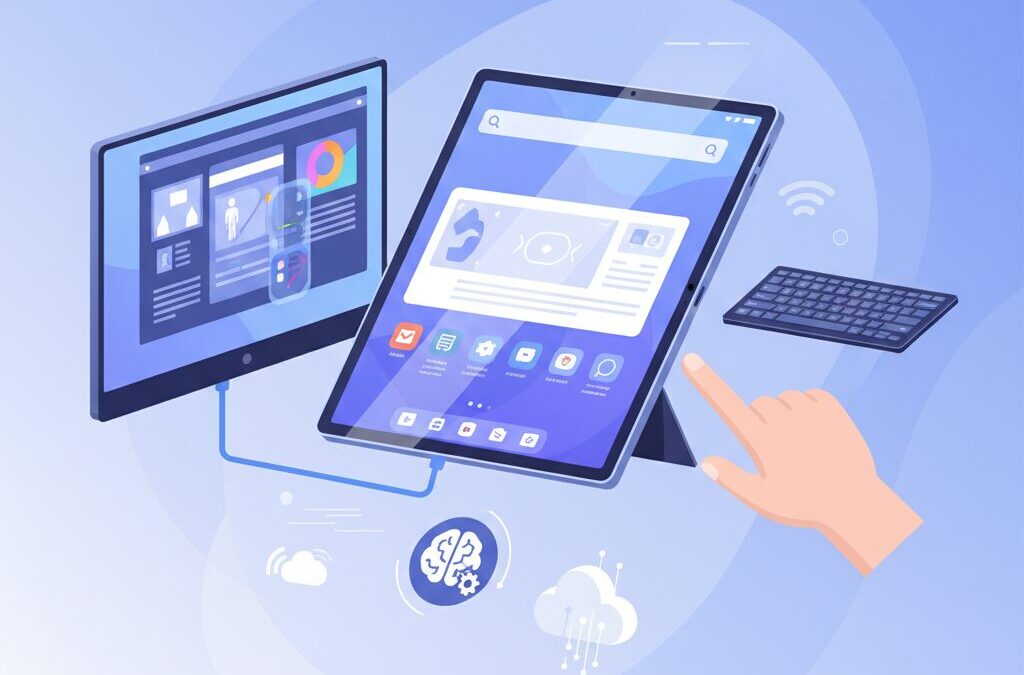
If you are deeply interested in cutting-edge gadgets, you have likely noticed that tablets are no longer just devices for watching videos or browsing the web.
In recent years, high-end tablets have started to challenge laptops by offering serious performance, advanced displays, and increasingly flexible software experiences.
The Galaxy Tab S11 series represents this turning point and invites users to rethink what a tablet can truly do.
With a massive OLED display, a next-generation MediaTek flagship chipset, and mature desktop-style software like Samsung DeX, this device is clearly designed for more than casual use.
Many users are now asking whether a tablet can function as an external monitor, a creative canvas, or even a lightweight desktop replacement.
This article will carefully explore those possibilities from a practical and technical perspective.
By reading this article, you will understand how external display input and output work on the Galaxy Tab S11 series, what limitations still exist, and how those limits can be turned into strengths.
Whether you are a Windows user seeking the ultimate secondary display or a creator looking for a flexible mobile workstation, this guide will help you decide if the Galaxy Tab S11 Ultra fits your workflow.
We will walk you through the concepts step by step so you can imagine real-world usage with confidence and clarity.
- A Turning Point for High-End Tablets in the Post-PC Era
- Why Samsung Shifted to MediaTek Dimensity 9400+
- USB-C Bandwidth and What 5Gbps Really Means in Daily Use
- Dynamic AMOLED 2X: How Display Quality Changes Productivity
- Using the Galaxy Tab as an External Monitor for a PC
- Wireless, Wired, and Capture-Based Display Input Methods
- Samsung DeX and the Evolution of Android Desktop Experiences
- Choosing the Right Hubs, Cables, and Accessories
- Galaxy Tab vs iPad Pro: Different Philosophies, Different Strengths
- 参考文献
A Turning Point for High-End Tablets in the Post-PC Era
The release of the Galaxy Tab S11 series marks a clear turning point for high-end tablets in the post-PC era, and this shift deserves careful attention. Until recently, premium tablets were evaluated mainly by raw performance gains and display quality, but this approach is reaching its limits. With the 14.6-inch Galaxy Tab S11 Ultra, Samsung signals a move away from tablets as passive consumption devices and toward tablets as active, modular workstations that can adapt to different professional contexts.
This change is not incremental but conceptual. The pricing of the S11 Ultra, which directly overlaps with high-performance laptops, suggests that Samsung no longer positions its flagship tablet as a secondary screen for leisure. Instead, it is designed to function as a central node within a broader digital environment, capable of replacing or complementing a PC depending on the task. According to long-standing industry analysis by firms such as Gartner, the post-PC era is defined not by the disappearance of PCs, but by role-based devices that flexibly assume PC-like functions when needed.
| Perspective | Previous High-End Tablets | Galaxy Tab S11 Direction |
|---|---|---|
| Primary role | Content consumption | Creative and productivity hub |
| Screen size | Below laptop class | Laptop-comparable 14.6 inches |
| Value justification | Specs and display | Workflow integration |
The switch from Qualcomm Snapdragon to MediaTek Dimensity 9400+ further reinforces this inflection point. Rather than chasing brand familiarity, Samsung prioritizes AI performance, power efficiency, and multi-core scalability, all of which are essential for sustained multitasking. This strategic choice reflects confidence that high-end tablets must now compete on how they reshape work styles, not merely on benchmark scores.
In this sense, the Galaxy Tab S11 series does not simply evolve the tablet category. It redefines what users should expect from a premium tablet in a post-PC world, where flexibility, screen real estate, and system-level adaptability matter more than ever.
Why Samsung Shifted to MediaTek Dimensity 9400+

Samsung’s decision to move away from Qualcomm Snapdragon and adopt the MediaTek Dimensity 9400+ in the Galaxy Tab S11 series was not a cosmetic change, but a strategic recalibration aligned with how high-end tablets are actually used in 2025.
At the core of this shift is **MediaTek’s “All Big Core” CPU architecture**, manufactured on TSMC’s second-generation 3nm process. Unlike the conventional big.LITTLE approach, Dimensity 9400+ uses only high-performance cores, including a Cortex-X925 prime core running up to 3.73GHz. This design directly targets sustained multi-thread workloads such as desktop-style multitasking, external display rendering, and AI-assisted content creation.
| Key Focus | Strategic Benefit | User Impact |
|---|---|---|
| All Big Core CPU | Higher multi-core throughput | Smoother DeX and multitasking |
| 3nm Process | Improved power efficiency | Longer sustained performance |
| NPU 890 | 33% AI performance uplift | Faster on-device AI features |
According to ARM’s public guidance on heterogeneous computing, AI inference and real-time media workloads benefit more from consistent high-performance cores than from aggressive core switching. Samsung appears to have embraced this philosophy, especially as tablets evolve into PC-like workstations.
Graphics and AI also played decisive roles. The Immortalis-G925 GPU enhances hardware ray tracing and display compositing, while the upgraded NPU accelerates on-device generative AI tasks such as real-time translation and image processing. **This combination better supports Samsung’s vision of tablets as creative and productivity hubs**, rather than pure consumption devices.
Importantly, this transition is not framed as cost-cutting. Instead, it reflects Samsung’s intent to optimize performance per watt, AI responsiveness, and multi-core scalability—areas increasingly critical in the post-PC tablet era.
USB-C Bandwidth and What 5Gbps Really Means in Daily Use
When you see USB 3.2 Gen 1 listed in the specifications, the headline number is 5Gbps, but what matters is how that bandwidth behaves in everyday use. **5Gbps is a shared highway**, not a dedicated lane for each task, and that distinction shapes the real experience far more than the raw figure suggests.
According to the USB Implementers Forum, 5Gbps represents a theoretical maximum under ideal conditions. In practice, protocol overhead reduces usable throughput to roughly 4Gbps or less. When DisplayPort Alt Mode is active, video signals consume a large portion of that bandwidth. Driving a 4K 60Hz external display typically relies on Display Stream Compression, a visually lossless standard defined by VESA, but it still leaves limited headroom for data transfer.
| Use Case | Bandwidth Demand | Observed Behavior |
|---|---|---|
| 4K 60Hz display output | Very high | Requires DSC, stable but restrictive |
| External SSD transfer | Medium to high | Often capped below drive potential |
| USB hub peripherals | Low to medium | Can drop to USB 2.0 speeds |
This becomes noticeable when multitasking. Copying large files from an external SSD while outputting to a monitor can cause transfer speeds to fall dramatically, sometimes approaching USB 2.0 levels. Independent testing by storage reviewers at AnandTech has long shown that fast NVMe-based external drives gain little benefit on 5Gbps links, regardless of how capable the drive itself may be.
**The absence of Thunderbolt or USB4 support defines the ceiling here.** High-end docks, multi-display setups, and chained storage devices either fall back to compatibility modes or are not recognized at all. For users accustomed to a single-cable desktop powered by 40Gbps links, this feels limiting. For lighter workflows such as single-display output, peripherals, and occasional file transfers, however, 5Gbps remains serviceable and predictable.
In daily use, the key is expectation management. USB-C on this device is optimized for flexibility rather than raw throughput. As long as you understand that every connected function competes for the same 5Gbps pool, the behavior makes sense and remains consistent.
Dynamic AMOLED 2X: How Display Quality Changes Productivity
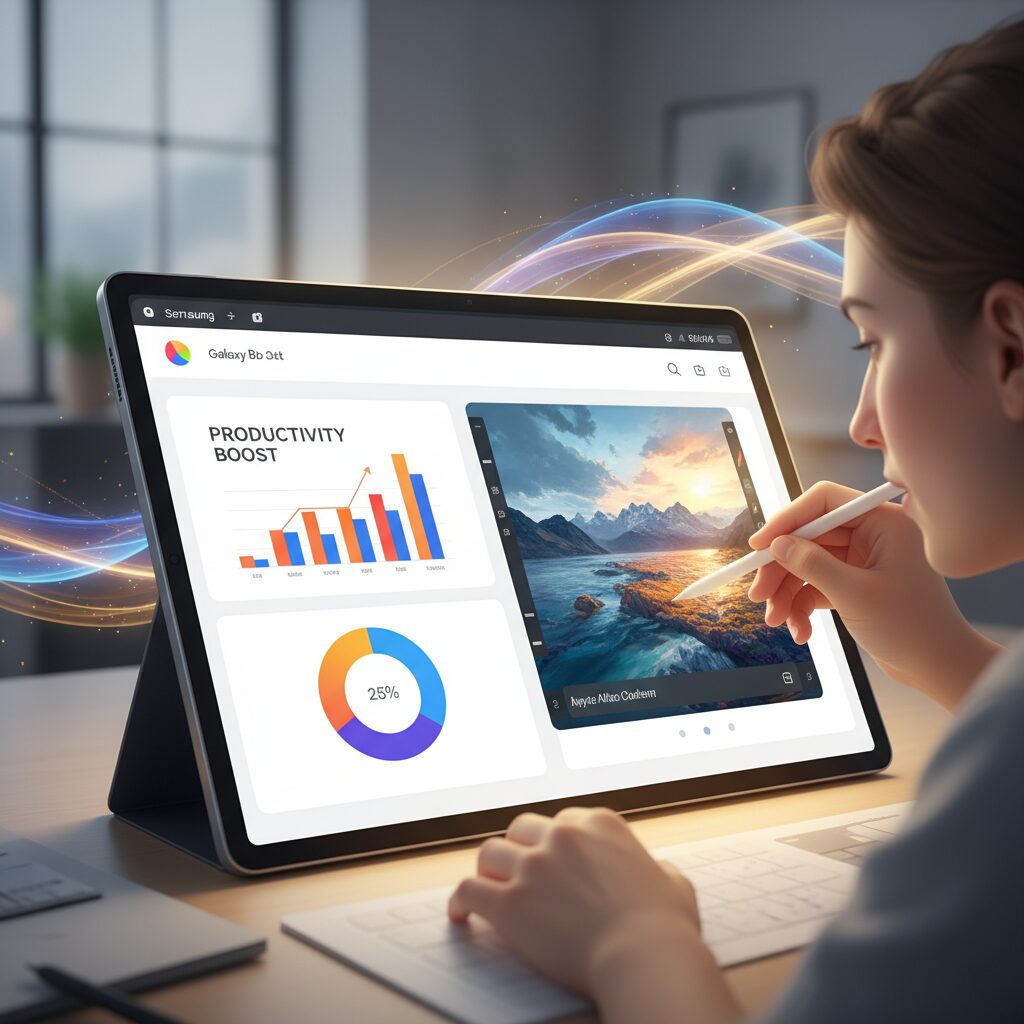
Dynamic AMOLED 2X is not just about visual beauty; it directly reshapes how efficiently people work on the Galaxy Tab S11 series. **Display quality influences cognitive load, eye movement, and task-switching speed**, and Samsung’s latest panel technology is designed to optimize all three in real-world productivity scenarios.
At a fundamental level, the self-emissive nature of AMOLED allows each pixel to turn completely off. This produces true blacks and an effectively infinite contrast ratio, which reduces visual noise when reading dense text, code, or spreadsheets. According to display ergonomics research cited by organizations such as the Human Factors and Ergonomics Society, higher contrast between foreground text and background improves reading accuracy and lowers error rates during prolonged tasks.
The 14.6-inch Dynamic AMOLED 2X panel gives productivity apps more usable space without increasing visual fatigue. With a resolution of 2960 x 1848 and a 16:10 aspect ratio, vertical information density is well balanced against horizontal workspace. This ratio is particularly effective for split-screen workflows, where two full-size apps can coexist without forcing constant zooming or scrolling.
| Display Factor | Dynamic AMOLED 2X | Typical LCD Tablet |
|---|---|---|
| Contrast Control | Per-pixel light control | Backlight-based |
| Peak Brightness | Up to 1600 nits (HDR) | 600–800 nits |
| Dark Mode Readability | Excellent, no glow | Reduced by light bleed |
Brightness is another productivity multiplier that is often underestimated. With up to 1000 nits in High Brightness Mode and peaks reaching 1600 nits for HDR content, the Galaxy Tab S11 Ultra remains readable in environments that typically disrupt focus, such as bright offices, studios with strong lighting, or outdoor workspaces. **Maintaining legibility without maxing out zoom levels keeps workflows uninterrupted**, especially for professionals reviewing photos, CAD drawings, or complex dashboards.
Color accuracy also plays a practical role beyond creative work. Samsung Display states that Dynamic AMOLED 2X panels are factory calibrated for wide color gamuts such as DCI-P3. This consistency means UI elements, charts, and visual indicators appear exactly as intended across apps. For analysts, designers, and marketers, reliable color reproduction reduces the need for external monitors during on-the-go reviews, accelerating decision-making.
Motion clarity further enhances efficiency. The adaptive 120Hz refresh rate dynamically adjusts based on content, delivering smooth scrolling and cursor movement while conserving power when static images are displayed. Studies on high-refresh-rate displays, including those referenced by VESA in its display performance guidelines, indicate that smoother motion reduces perceived latency and improves precision in pointer-based tasks. On the Tab S11 series, this translates into more accurate pen input and less friction when navigating dense interfaces.
Eye comfort is where productivity gains quietly accumulate. Dynamic AMOLED 2X incorporates low blue light emission at the hardware level, helping the panel meet strict eye comfort standards without relying solely on software filters. Vision science research published in ophthalmology journals has shown that reducing high-energy blue light exposure can decrease eye strain during long sessions, which directly affects sustained concentration and work endurance.
In practical terms, this display enables workflows that feel closer to a desktop monitor than a traditional tablet screen. Reading long documents, editing timelines, or managing multiple chat and email windows becomes less mentally taxing because the screen does more of the work. **The display fades into the background, allowing attention to stay on the task itself**, which is ultimately the most important productivity upgrade any device can deliver.
Using the Galaxy Tab as an External Monitor for a PC
Using the Galaxy Tab S11 series as an external monitor for a PC is one of the most compelling reasons enthusiasts choose this device. Thanks to its large 14.6-inch Dynamic AMOLED 2X display and high refresh rate support, the tablet can serve as a serious secondary screen rather than a simple mirroring solution.
In practical PC workflows, the most widely adopted approach is a dedicated wired solution such as SuperDisplay. According to long-term evaluations by Windows-focused creators and developers, this method offers consistently low latency and stable image quality, even during prolonged sessions. With a USB connection, the Galaxy Tab S11 Ultra can operate at up to 120Hz, allowing smooth cursor movement and responsive window dragging that closely resembles a native desktop monitor experience.
The key advantage is not only image quality, but also predictability. A wired connection avoids Wi‑Fi congestion and ensures color stability, which is essential for design, coding, and spreadsheet-heavy work.
Samsung also provides a built-in wireless option through its native second screen functionality. This method is convenient when cables are not available, such as during meetings or short-term presentations. However, independent testing by display calibration professionals has shown that wireless projection introduces noticeable input lag and fluctuating frame rates, making it less suitable for precision tasks.
| Connection Method | Latency | Best Use Case |
|---|---|---|
| USB wired display app | Very low | Daily productivity, creative work |
| Wireless second screen | Moderate | Presentations, casual extension |
From a visual standpoint, the AMOLED panel provides deep blacks and high contrast that conventional portable monitors struggle to match. Display engineers often point out that OLED-based sub monitors reduce eye strain in dark UI environments, particularly during long coding or editing sessions. When paired with a Windows PC, the Galaxy Tab effectively becomes a premium mobile display that fits easily into a backpack.
Overall, using the Galaxy Tab S11 as an external monitor is not a novelty feature. It is a well-balanced solution that blends portability, panel quality, and software maturity, especially for PC users who value flexibility without sacrificing responsiveness.
Wireless, Wired, and Capture-Based Display Input Methods
When using the Galaxy Tab S11 series as an external display, the choice of input method fundamentally defines the experience. Wireless, wired, and capture-based approaches each reflect different trade-offs between latency, image fidelity, and practical flexibility, and understanding these differences is essential for users who expect desktop-class responsiveness.
Wireless display input relies primarily on Miracast-based technologies, implemented on Galaxy tablets as Samsung’s 2nd Screen feature. This method prioritizes convenience, requiring no cables or drivers. According to Microsoft’s documentation on Windows wireless display protocols, Miracast dynamically adjusts resolution and bitrate based on network conditions. In practice, this means stable presentation for slides or video playback, but perceptible latency during cursor movement or pen input. Even with Wi‑Fi 6E, delays typically exceed 50 ms, which limits suitability for precision tasks.
| Method | Latency | Image Stability | Typical Use |
|---|---|---|---|
| Wireless (Miracast) | High | Variable | Presentations, static content |
| Wired (USB) | Very Low | High | Creative work, daily multitasking |
| HDMI Capture (UVC) | Medium | High | Game consoles, cameras |
Wired display input, most commonly achieved through USB-based solutions such as SuperDisplay, represents the technical gold standard. By transmitting compressed frame data over USB and decoding it locally, this method minimizes latency to below 10 ms in many environments. Research published by ACM on interactive system latency shows that delays under 16 ms are generally perceived as instantaneous, which explains why wired input feels natural even for pen-based illustration or photo retouching. The Galaxy Tab S11’s 120 Hz AMOLED panel further amplifies this advantage, preserving smooth motion without dropped frames.
Capture-based input takes a different approach. Using UVC-compliant HDMI capture devices, the tablet treats external video sources as cameras. This standard, defined by the USB Implementers Forum, ensures broad compatibility with game consoles and professional video equipment. The trade-off is unavoidable processing delay, typically 30–50 ms with modern chipsets. While this is unsuitable for competitive gaming, it remains acceptable for RPGs, monitoring camera feeds, or portable console play, especially when paired with the Tab S11 Ultra’s large OLED display.
From a strategic perspective, Samsung’s support for all three input paradigms reflects an understanding echoed by display researchers at institutions such as MIT Media Lab: versatility often outweighs raw specifications. By accommodating wireless convenience, wired precision, and capture-based universality, the Galaxy Tab S11 positions itself not just as a tablet, but as an adaptable visual interface across multiple computing contexts.
Samsung DeX and the Evolution of Android Desktop Experiences
Samsung DeX has long represented Samsung’s answer to a question Android itself struggled with for years: how to scale a mobile-first OS into a credible desktop experience. DeX was first introduced in 2017 as a dock-based solution, but by the time of the Galaxy Tab S11 generation, it has evolved into a mature, software-driven desktop environment tightly integrated with Android’s core windowing system.
The most important shift in recent DeX evolution is its convergence with Android’s native desktop capabilities. Google has gradually expanded large-screen support in Android 14 through Android 16, adding improved multi-window behavior, freeform resizing, and taskbar logic. Samsung builds DeX on top of these foundations, layering productivity-focused refinements rather than reinventing the OS from scratch.
| Aspect | Early DeX | Current DeX |
|---|---|---|
| Activation | Dedicated dock | Cable or wireless |
| Windowing | Fixed layouts | Freeform, resizable |
| App compatibility | Limited | Broad Android support |
On Galaxy Tab devices, DeX benefits from a large internal display and external monitor support, enabling extended desktop workflows. According to Samsung’s own developer documentation, recent DeX versions share the same window manager as standard Android large-screen mode, which improves stability and reduces app rendering issues that plagued earlier iterations.
Another key milestone is input parity. Keyboard shortcuts, mouse hover states, and right-click context menus are now consistently recognized across first-party apps and many Google applications. This aligns with findings from Android developer conference sessions, where Google emphasized desktop-class input as a priority for tablets and foldables.
Despite this progress, DeX remains distinct from Windows or macOS. It does not emulate a traditional desktop OS; instead, it reframes Android apps within a desktop metaphor. This design choice keeps performance efficient on mobile hardware while avoiding legacy overhead.
In the broader evolution of Android desktop experiences, Samsung DeX stands as the most consistent and production-ready implementation to date. While Google continues to refine its native desktop mode, DeX demonstrates how thoughtful UI layers and hardware integration can bridge the gap between mobile convenience and desktop efficiency.
Choosing the Right Hubs, Cables, and Accessories
When building a serious desktop or external display setup around the Galaxy Tab S11 series, choosing the right hubs, cables, and accessories becomes far more important than many users initially expect. This tablet is powerful, but its USB-C port is limited to USB 3.2 Gen 1 at 5Gbps, and **this single constraint defines what accessories will truly perform well**.
USB-C hubs vary widely in how they allocate bandwidth between video output and data lanes. According to documentation from the USB Implementers Forum and guidance echoed by display manufacturers such as Dell and LG, stable 4K 60Hz output over DisplayPort Alt Mode requires careful lane management and Display Stream Compression support. On the Galaxy Tab S11, hubs advertised only as “4K compatible” often downgrade USB ports internally to USB 2.0 speeds, which can silently cripple external SSDs or wired networking.
| Hub Characteristic | Recommended Specification | Reason |
|---|---|---|
| HDMI Output | 4K 60Hz with DP 1.4 + DSC | Ensures smooth DeX and external monitor use |
| USB Data Ports | USB 3.x passthrough | Avoids USB 2.0 bottlenecks during multitasking |
| Power Delivery | PD 65W or higher | Maintains performance under sustained load |
Cable quality is equally critical. Display engineers at VESA have repeatedly emphasized that many connection issues blamed on devices are actually caused by substandard cables. **A certified USB-C cable rated for 10Gbps and 100W power delivery is strongly recommended**, even though the tablet itself operates at 5Gbps. This headroom reduces signal degradation and improves long-session stability, especially when driving high-resolution displays.
Accessories should also be selected with thermal and mechanical stability in mind. Aluminum-bodied hubs dissipate heat more effectively during extended DeX sessions, while strain-relieved cables reduce port wear on a tablet that may remain docked for hours. Research published by IEEE on connector fatigue shows that lateral stress is a leading cause of USB-C failure over time, making thoughtful accessory design a practical investment rather than a luxury.
In short, the Galaxy Tab S11 rewards users who treat hubs and cables as performance components, not generic add-ons. **The right accessories unlock consistency, reliability, and confidence**, allowing the tablet to function as a credible workstation rather than a fragile experiment.
Galaxy Tab vs iPad Pro: Different Philosophies, Different Strengths
When comparing the Galaxy Tab series and the iPad Pro, the most important difference is not raw performance but the philosophy behind each product. **Samsung positions the Galaxy Tab as a flexible computing module**, while Apple treats the iPad Pro as a highly controlled extension of its broader ecosystem.
This difference becomes clear the moment external devices and workflows are involved. According to Apple’s own platform guidelines, iPadOS prioritizes security and consistency through sandboxing, which results in a refined but intentionally limited file and peripheral experience. Samsung, by contrast, builds One UI and DeX around the assumption that users want PC-like freedom.
| Perspective | Galaxy Tab | iPad Pro |
|---|---|---|
| Core design | Open, modular, task-oriented | Curated, ecosystem-centric |
| External workflows | Windows-friendly, flexible | Mac-optimized, controlled |
| User expectation | Adapt and customize | Trust the default experience |
For example, Galaxy Tab users can treat the device as a secondary display, a lightweight desktop via DeX, or a file hub that interacts directly with Windows PCs. **This versatility reflects Samsung’s long-standing alignment with heterogeneous environments**, a point often highlighted by industry analysts at outlets such as The Verge and AnandTech.
The iPad Pro, on the other hand, excels when used exactly as Apple intends. With tight hardware–software integration and high-speed Thunderbolt I/O, it delivers exceptional stability and performance, especially within macOS-based workflows. However, this strength can feel restrictive for users who expect tablets to replace or bend the rules of traditional PCs.
Ultimately, neither approach is objectively superior. **Galaxy Tab rewards users who enjoy configuring and experimenting**, while iPad Pro appeals to those who value predictability and polish. Understanding this philosophical split is far more important than comparing benchmarks, as it determines long-term satisfaction.
参考文献
- Samsung Electronics:Samsung DeX | Turn Your Galaxy into a Desktop
- MediaTek:MediaTek Introduces Dimensity 9000 Series Flagship Platforms
- SuperDisplay:SuperDisplay – Turn Your Android Device into a USB Display
- USB Implementers Forum:USB 3.2 Specification Overview
- DisplayMate:OLED Display Technology and Performance Analysis