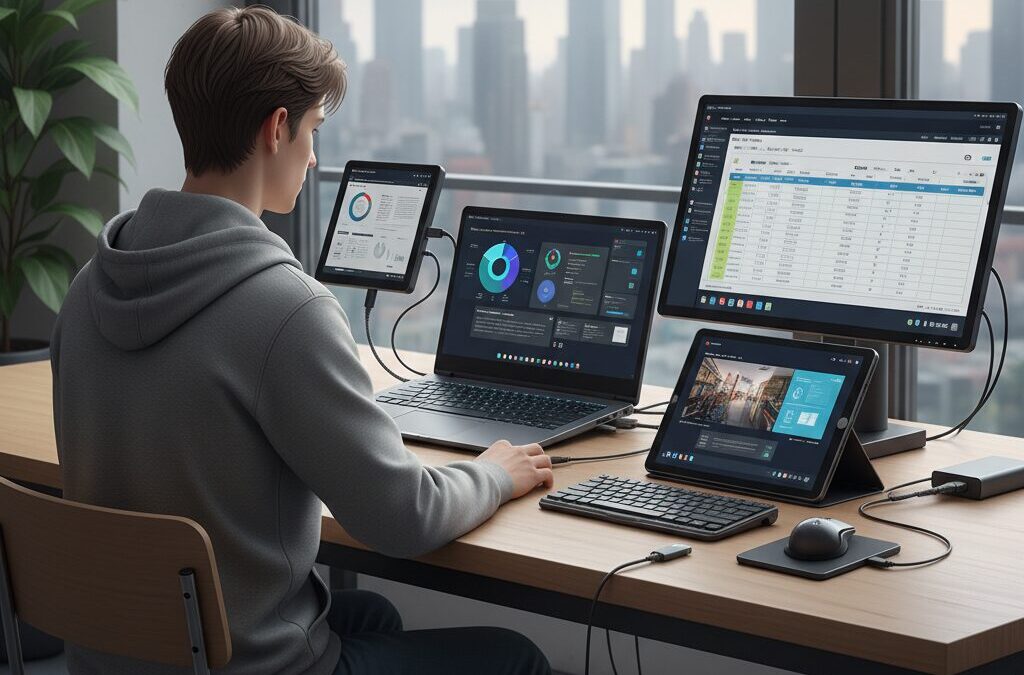
Are you trying to balance portability and performance in the hybrid work era? Many professionals and gadget enthusiasts struggle with the same dilemma: how to carry a lightweight setup without sacrificing the screen real estate that serious work demands.
Research shows that multi-monitor environments can boost productivity by up to 42%, and in some task-specific cases even higher. Yet building a truly mobile dual- or triple-screen workspace requires more than simply buying another display. It demands a clear understanding of ergonomics, connectivity standards, power delivery, and the latest breakthroughs in OLED and E‑ink technology.
In this comprehensive 2026 guide, you will discover how to turn tablets into external monitors, how UVC capture reshaped the iPad ecosystem, why certain Android tablets stand out with HDMI input, and how portable OLED and E‑ink monitors are redefining eye comfort and visual performance. By the end, you will be able to design a mobile workspace that fits your workflow, travel style, and long-term productivity goals with confidence.
- Why Screen Real Estate Defines Productivity in the Hybrid Work Era
- The Science Behind Multi-Monitor Performance: Data, Cognitive Load, and ROI
- Professional Use Cases: From Software Development to Medical Imaging
- Ergonomics in Mobile Setups: Neck Strain, Viewing Angles, and Healthy Layouts
- Turning Tablets into External Monitors: Hardware Limitations and Breakthroughs
- iPadOS and UVC Capture: How HDMI-to-USB Changed the Game
- Software-Based Solutions: Sidecar, Luna Display, and SuperDisplay Compared
- Portable OLED Monitors in 2026: Contrast, Refresh Rates, and Real-World Gains
- The macOS Touch Dilemma and Integrated Solutions Like espresso Display
- E‑ink Monitors for Coders and Writers: Eye Comfort vs. Color Accuracy
- USB-C, Thunderbolt, and Power Delivery: Avoiding Costly Compatibility Mistakes
- Market Growth and the Shift Toward AR Spatial Displays
- 参考文献
Why Screen Real Estate Defines Productivity in the Hybrid Work Era
The hybrid work era has permanently changed how and where we create value. As offices, homes, trains, and cafés become interchangeable workspaces, the limiting factor is no longer CPU power but how much information we can see at once. Screen real estate has quietly become the new currency of productivity.
According to long-term research by Jon Peddie Research, users report an average 42% productivity gain when moving to multi-monitor environments. This is not simply about having a larger display. It is about reducing the cognitive cost of switching contexts.
Every time we press Alt+Tab to toggle between a spreadsheet and a reference document, our working memory is forced to reload information. Microsoft’s research team has shown that even simple tasks such as copy-and-paste operations can see productivity improvements of up to 50% when a second display is present. The gain comes from eliminating micro-interruptions that fragment focus.
The University of Utah has further suggested that larger or dual-monitor setups can save up to 2.5 hours per day compared with small single screens. In a five-day workweek, that approaches the equivalent of one additional workday created from the same time budget. In hybrid environments, where schedules are already compressed, this time recovery becomes strategically significant.
| Configuration | Context Switching | Reported Productivity Impact |
|---|---|---|
| Single Small Screen | Frequent window toggling | Baseline |
| Large Single Screen (24″+) | Reduced overlap | Time savings observed |
| Dual Monitors | Parallel information view | Up to 42%+ reported gain |
The mechanism behind this improvement is deeply human. Our working memory is limited, and when information disappears from view, the brain must reconstruct it. By keeping reference material visible, we effectively extend our cognitive workspace beyond the biological limits of short-term memory.
This effect becomes even more pronounced in hybrid work scenarios. At home, we may have access to large monitors, but in transit or in compact urban apartments, we often revert to 13-inch laptop displays. The abrupt contraction of visible workspace directly translates into slower reasoning and increased mental fatigue.
Consider software development as an example. Developers often need to monitor code, logs, documentation, and debugging tools simultaneously. A natural experiment involving over 100 professional developers found that more than 80% strongly preferred multi-monitor setups, highlighting how visual parallelism sustains flow state.
In medical imaging, the stakes are even higher. Surveys indicate that 75% of radiologists use two or more displays to compare current and prior scans side by side. Accuracy and speed depend on eliminating visual recall errors that occur when images must be swapped on a single screen.
However, more screen space is not automatically better. A systematic review indexed in PubMed notes that while dual monitors improve satisfaction, they may increase neck rotation and non-neutral postures. Productivity defined purely by speed can conflict with long-term ergonomic health if layout is poorly designed.
This insight reframes the discussion. In hybrid work, portability and productivity are often treated as opposites. Yet modern mobile monitors, tablet-based second screens, and even E-ink displays demonstrate that expanded visual workspace can travel with us.
In dense cities such as Tokyo, where living spaces are compact and commuting by high-speed rail is common, the ability to recreate a desktop-class environment in temporary spaces is transformative. A second portable screen effectively restores the cognitive bandwidth lost when leaving the office. The result is not just faster output, but more consistent performance across locations.
There is also a psychological dimension. Visible task segmentation across multiple screens reduces perceived chaos. Instead of stacking windows in layers, we spatially organize work—communication on one side, creation on the other, analytics in a dedicated zone.
Spatial separation mirrors how our brains evolved to process physical environments. By mapping digital tasks onto distinct visual territories, we reduce interference and preserve concentration. This is why screen real estate is less about pixels and more about structured attention.
As hybrid work continues to mature, the competitive advantage will belong to professionals who intentionally design their visual environments. A powerful processor accelerates computation, but a well-designed multi-display setup accelerates thinking itself. In that sense, screen real estate defines productivity not because it looks impressive, but because it directly expands our effective cognitive workspace.
The Science Behind Multi-Monitor Performance: Data, Cognitive Load, and ROI
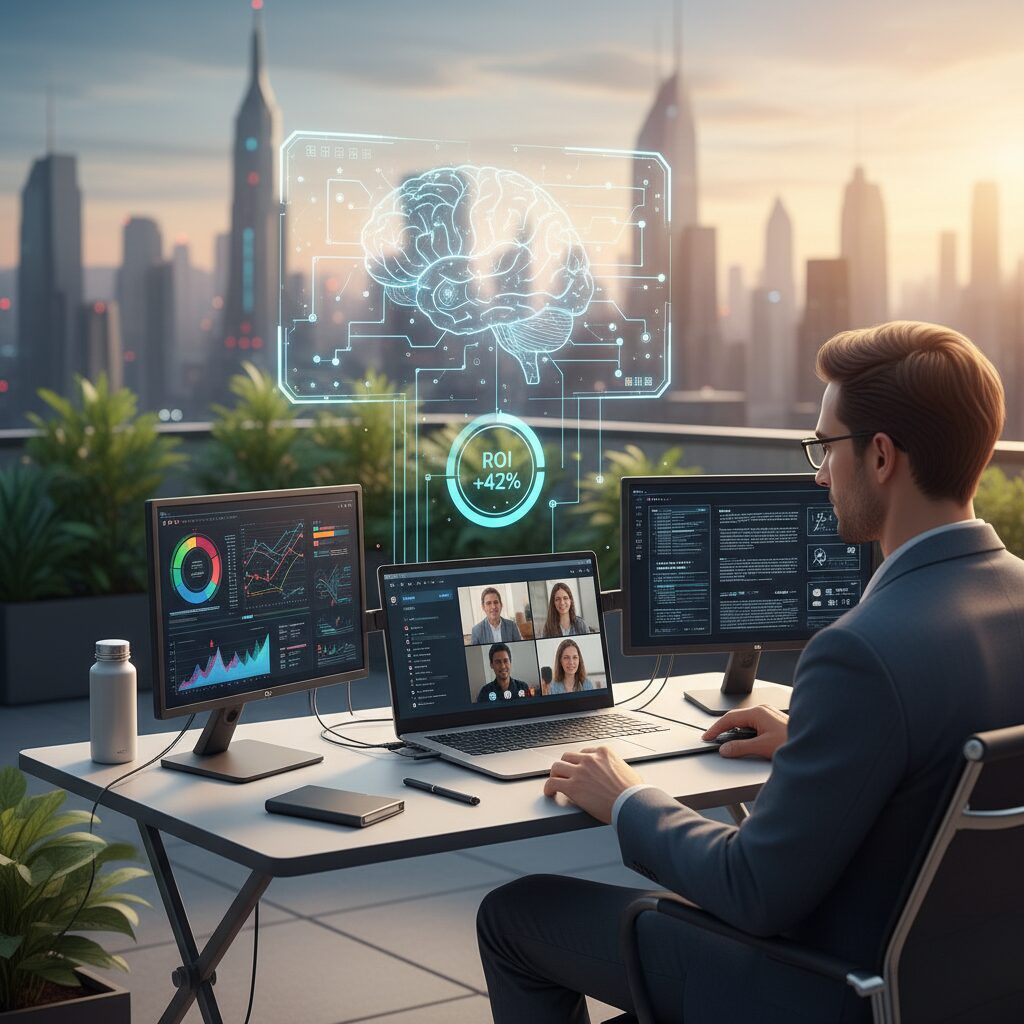
Why do multiple monitors consistently outperform single-screen setups? The answer lies not only in screen size, but in cognitive science.
According to Jon Peddie Research, users report an average productivity increase of 42% when using multiple displays. Microsoft’s research team has also found that even simple tasks such as copy-and-paste operations can see productivity gains of up to 50% when a second monitor is introduced. These numbers are not marketing slogans. They reflect measurable reductions in cognitive friction.
The key mechanism is reduced context switching. Human working memory is limited. When you constantly Alt+Tab between a document and a reference source, your brain must repeatedly reconstruct context. Each switch consumes cognitive energy and increases error probability.
| Factor | Single Monitor | Dual Monitor |
|---|---|---|
| Window Switching | Frequent | Minimal |
| Working Memory Load | High | Reduced |
| Task Completion Time | Longer | Shorter |
The University of Utah has reported that larger or dual-monitor setups may save up to 2.5 hours per day compared to small single displays. Even if real-world savings are lower, the economic implication is substantial. Over a standard five-day workweek, that time compounds into the equivalent of nearly an extra working day.
From an ROI perspective, the math becomes straightforward. If a professional earning $60,000 per year improves effective output by even 10%, the productivity gain quickly exceeds the cost of a $300–$800 monitor. In enterprise environments, Dell’s whitepapers also indicate higher user satisfaction alongside measurable efficiency improvements, reinforcing both quantitative and qualitative returns.
However, productivity gains are task-dependent. A study analyzing 101 professional developers published on arXiv found that over 80% strongly preferred multi-monitor environments, especially for debugging and parallel information processing. In contrast, simpler Tier 1 support tasks may not benefit equally, and excessive screen real estate can introduce distraction rather than clarity.
Cognitive load theory helps explain this. When reference materials remain persistently visible, they shift from volatile working memory to stable visual anchors. This reduces reorientation time and preserves flow state. Developers reviewing logs, radiologists comparing imaging scans, and analysts cross-referencing spreadsheets all benefit from this persistent spatial memory.
That said, performance science also acknowledges physical trade-offs. A systematic review indexed on PubMed notes moderate evidence that dual monitors can increase non-neutral neck postures due to repeated head rotation. If poorly positioned, productivity gains may be offset by fatigue or musculoskeletal strain.
Therefore, the highest ROI does not come from adding screens blindly. It comes from aligning display configuration with cognitive demand and ergonomic optimization. When implemented thoughtfully, multi-monitor setups transform from luxury accessories into measurable performance infrastructure.
Professional Use Cases: From Software Development to Medical Imaging
In professional environments, display real estate is not a luxury but a core productivity tool. Research from Jon Peddie Research reports that multi-display setups can raise expected productivity by 42%, while studies cited by Microsoft show up to 50% gains in simple copy-and-paste workflows when a second monitor is added. These improvements become even more pronounced in knowledge-intensive roles where parallel information processing is essential.
The real advantage lies in reducing cognitive context switching. When professionals can view source material and output simultaneously, they avoid the micro-interruptions caused by window toggling. Over a full workday, these micro-savings compound into measurable performance gains.
| Profession | Display Configuration | Primary Benefit |
|---|---|---|
| Software Developer | Dual or Triple Monitors | Simultaneous code, logs, documentation |
| Radiologist | 2–4 Diagnostic Displays | Image comparison accuracy |
| Customer Support | Dual Displays | Faster multi-system referencing |
In software development, maintaining flow state is critical. A field study involving 101 professional developers found that over 80% strongly preferred multi-monitor environments. Developers typically dedicate one screen to code, another to runtime logs or debugging tools, and sometimes a third to documentation or ticket systems. This configuration minimizes task fragmentation and supports continuous reasoning during complex problem solving.
Medical imaging offers an even clearer example. Surveys indicate that approximately 75% of radiologists use two or more diagnostic monitors. Comparing current MRI or CT scans with historical images requires pixel-level attention to subtle changes. Eliminating window switching directly supports diagnostic speed and accuracy, which can have real clinical consequences.
Customer support and operations teams also benefit, though with nuance. When agents handle CRM systems, knowledge bases, and live chat simultaneously, dual displays improve task completion speed. However, systematic reviews indexed on PubMed suggest that excessive screen sprawl may increase non-neutral neck postures, particularly in side-by-side layouts. Ergonomic alignment therefore becomes part of professional optimization.
Even in mobile contexts, such as consultants working between offices or on high-speed trains, portable OLED monitors or tablet-based secondary displays allow professionals to replicate near-desktop workflows. University of Utah research suggests that larger or dual-monitor setups can save up to 2.5 hours per day in certain productivity scenarios. While results vary by task complexity, the pattern is consistent: roles requiring comparison, synthesis, and monitoring gain disproportionate value.
For professionals, display strategy is workflow architecture. The right configuration does not merely add pixels; it restructures how information is processed, compared, and acted upon in real time.
Ergonomics in Mobile Setups: Neck Strain, Viewing Angles, and Healthy Layouts
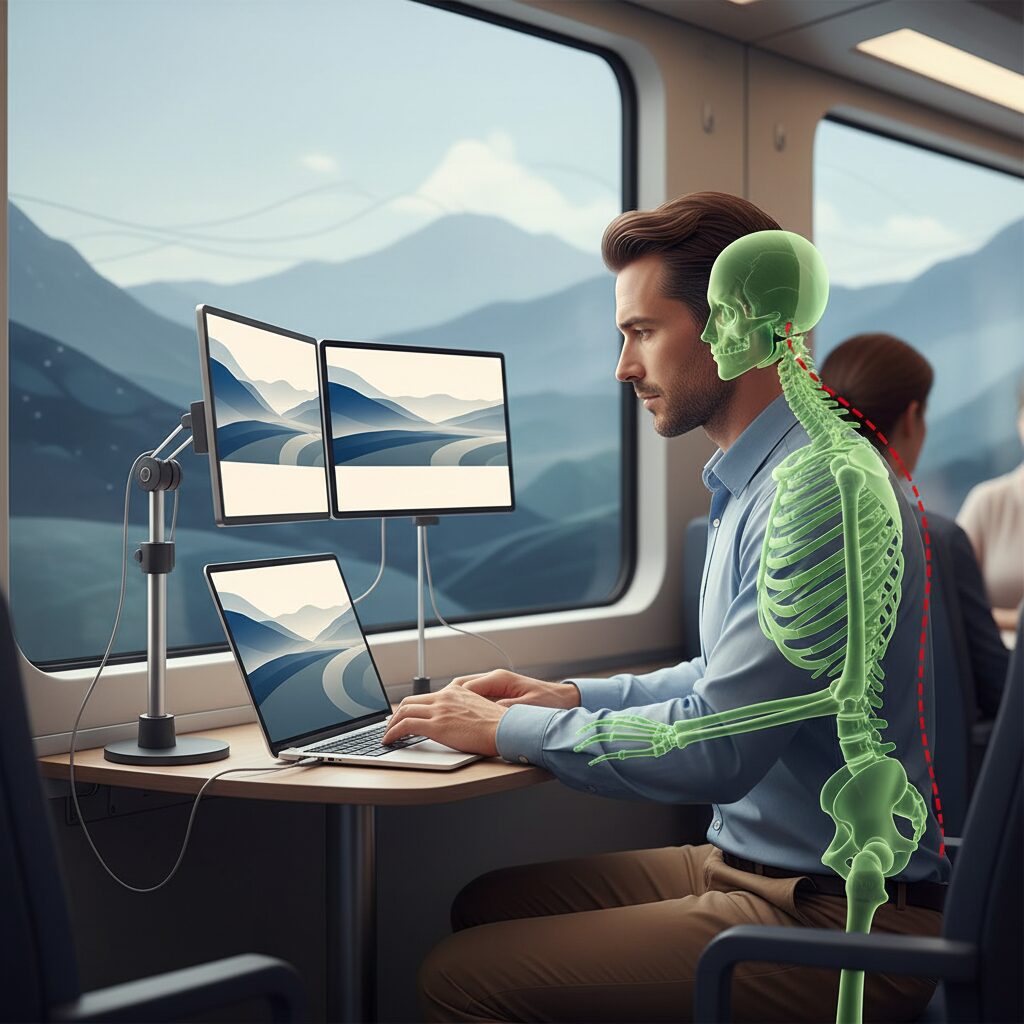
Expanding your mobile workspace can boost productivity, but without proper ergonomics it can also accelerate fatigue and chronic pain. In fact, a systematic review indexed on PubMed reports moderate evidence that dual-monitor setups increase non-neutral neck postures and rotational movements. This is especially critical in mobile environments where desk height and seating are rarely adjustable.
The key challenge is not how many screens you use, but how you position them. Neck strain, eye fatigue, and shoulder tension often stem from small misalignments repeated for hours. In cafés, trains, or compact home desks, these misalignments become amplified.
Common Risk Patterns in Mobile Setups
| Layout Pattern | Typical Issue | Physical Impact |
|---|---|---|
| Laptop low, monitor lower | Excessive neck flexion | “Text neck,” upper back strain |
| Side-by-side wide spacing | Frequent neck rotation | Asymmetrical muscle load |
| Improvised café setup | Unsupported forearms | Shoulder elevation, tension |
Research on office ergonomics consistently recommends that the top of the primary display align roughly at or slightly below eye level. However, mobile monitors are often placed directly on the table, 10–20 cm lower than optimal viewing height. This forces sustained cervical flexion, which increases load on the spine.
When using dual displays, horizontal neck rotation becomes another issue. The PubMed review highlights increased rotational posture with dual-monitor use. If both screens are used equally, centering them symmetrically and angling inward reduces repetitive twisting. If one screen is dominant, placing it directly in front and positioning the secondary display slightly to the side minimizes strain.
Vertical stacking is an underutilized but highly effective strategy. Placing a lightweight monitor above a laptop reduces side-to-side rotation and keeps the head in a more neutral position. Many professionals find this particularly useful in narrow environments like train tray tables, where lateral expansion is limited.
Viewing distance also plays a crucial role. Ergonomic guidelines commonly suggest positioning screens at approximately an arm’s length away. In cramped setups, users tend to pull displays closer, increasing both accommodative eye strain and forward head posture. Even a 5 cm adjustment backward can noticeably reduce tension over multi-hour sessions.
Finally, consider micro-adjustments rather than static perfection. Mobile environments are inherently dynamic. Slightly changing angle, alternating which screen is primary, and incorporating brief posture resets every 30–60 minutes can offset cumulative load. Productivity gains from multi-display setups are well documented by Jon Peddie Research and Microsoft studies, but sustainable performance depends on protecting your neck and eyes.
A high-performance mobile setup is not defined by portability alone, but by how intelligently it supports the human body.
Turning Tablets into External Monitors: Hardware Limitations and Breakthroughs
Turning a tablet into an external monitor sounds simple, but in reality it has long been constrained by hard hardware limits. The core issue is that most tablets are engineered as output devices, not input receivers. Their USB-C ports typically support DisplayPort Alt Mode for video output, yet lack the circuitry required for native HDMI input.
This is not a software toggle that can be unlocked later. It is a board-level design decision involving signal routing, controllers, and HDCP handling. As a result, even high-end Android tablets with OLED panels and flagship chipsets cannot simply accept an HDMI feed from a laptop or console.
One rare exception is the Lenovo Yoga Tab 13, which integrates a Micro HDMI input port with HDCP 1.4 support. Because it behaves like a conventional monitor at the hardware level, it works without drivers or apps. This makes it particularly valuable in enterprise environments where software installation is restricted.
| Device Type | Native HDMI Input | Driver Required |
|---|---|---|
| Typical Android Tablet | No | Yes (app-based) |
| Lenovo Yoga Tab 13 | Yes | No |
| iPad (pre‑iPadOS 17) | No | Yes (Sidecar/app) |
The real breakthrough came not from adding HDMI ports to tablets, but from rethinking the data path. With iPadOS 17, Apple enabled support for UVC (USB Video Class) devices. This allowed iPads to recognize external capture devices as if they were webcams, fundamentally changing their role in a display chain.
By inserting an HDMI-to-USB capture card between a source device and the tablet, the HDMI signal is converted into a UVC stream. According to developer documentation and reviews from outlets such as MacStories, this method enables consoles, PCs, and even cameras to display directly on an iPad screen with surprisingly low latency when paired with USB 3-class hardware.
However, the quality of the experience depends heavily on bandwidth. USB 2.0-based capture dongles often rely on MJPEG compression and can introduce noticeable delay. Higher-end devices using USB 3.2 bandwidth support 4K/60fps input and significantly reduce latency, making interactive tasks more practical.
On the software side, specialized apps such as Orion optimize rendering pipelines and offer scaling features, demonstrating that hardware openness alone is insufficient. Without efficient decoding and display handling, even a compatible UVC feed can feel sluggish.
These developments mark a structural shift. Tablets are no longer limited by the absence of HDMI input ports alone. Instead, the ecosystem now hinges on USB bandwidth standards, capture hardware quality, and OS-level protocol support. For gadget enthusiasts, understanding these layers is the key to transforming a tablet from a passive screen into a genuinely capable external monitor.
iPadOS and UVC Capture: How HDMI-to-USB Changed the Game
When Apple enabled UVC (USB Video Class) support in iPadOS 17, the iPad quietly crossed a line from “tablet with accessories” to a legitimate display endpoint. Until then, turning an iPad into an HDMI monitor required proprietary software or wireless mirroring, both dependent on OS compatibility and network stability.
With UVC, the rules changed. The iPad can now recognize standard USB video devices the same way it recognizes a webcam. That seemingly small shift unlocked a new hardware path: HDMI-to-USB capture.
iPadOS 17 allows iPads with USB-C to accept video input from UVC-compliant capture devices, effectively transforming them into portable HDMI monitors.
The workflow is elegant. An external device such as a laptop, gaming console, or camera outputs HDMI. A capture card converts that HDMI signal into a UVC stream over USB. The iPad receives it as a video source and displays it via a compatible app.
| Component | Role | Key Requirement |
|---|---|---|
| Source Device | Outputs HDMI signal | Standard HDMI output |
| Capture Card | Converts HDMI to UVC over USB | UVC compliant |
| iPad (USB-C) | Displays incoming video | iPadOS 17 or later |
According to coverage and hands-on reports from MacStories, this setup works not only with laptops but also with devices like the Nintendo Switch and mirrorless cameras. That flexibility is crucial. Unlike Sidecar, which is limited to Mac, UVC capture is platform-agnostic.
Performance, however, depends heavily on the capture device. Higher-end options such as Genki’s ShadowCast 2 Pro leverage USB 3 bandwidth to support up to 4K/60fps input, minimizing latency. In contrast, many low-cost USB 2.0 dongles rely on MJPEG compression, which can introduce visible artifacts and delay.
Latency becomes the dividing line between “usable” and “transformative.” For static workflows like document editing or monitoring dashboards, even moderate delay is acceptable. For interactive tasks such as gaming or precise cursor movement, low-latency hardware is essential.
Apps like Orion further refine the experience. Rather than treating the input as a simple camera feed, they optimize scaling, offer fullscreen monitoring, and even apply optional processing features. Early user reviews noted audio limitations in initial versions, but iterative updates have improved reliability.
What makes this breakthrough strategically important is independence. Enterprises that restrict driver installation can still allow HDMI output. A capture card appears as a standard video device, reducing friction in managed IT environments.
In practical terms, this means your everyday iPad can double as a field monitor, a console screen on a train, or a secondary display in a hotel room. HDMI-to-USB did not just add compatibility; it dissolved ecosystem walls.
For gadget enthusiasts and mobile professionals alike, UVC support marks the moment the iPad stopped being limited by software silos and started behaving like modular hardware.
Software-Based Solutions: Sidecar, Luna Display, and SuperDisplay Compared
Software-based display solutions appeal to users who want maximum flexibility without relying on HDMI input hardware or capture cards. Among them, Sidecar, Luna Display, and SuperDisplay represent three distinct philosophies: native ecosystem integration, hardware-accelerated software bridging, and performance-focused cross-platform utility.
The key difference lies not just in compatibility, but in latency behavior, resolution handling, and professional workflow support. Understanding these nuances is essential if you care about color accuracy, pen input, or headless computing.
| Solution | Best For | Connection | Notable Strength |
|---|---|---|---|
| Sidecar | Mac + iPad users | Wired / Wireless | Native low-latency integration |
| Luna Display | Creative pros / Headless Macs | Dongle + App | Full Retina resolution support |
| SuperDisplay | Windows + Android | Wired / Wireless | 120Hz + pen pressure support |
Sidecar remains the cleanest experience for Apple users. Because it is built into macOS and iPadOS, it benefits from system-level optimization. According to user reports and community measurements, wireless latency is noticeably lower than most third-party apps, and wired mode further improves responsiveness. However, battery consumption increases on both devices, with users reporting measurable drain during extended sessions. For mobile professionals, power planning becomes part of the workflow.
Luna Display, developed by Astropad, takes a different approach. Although it requires a small hardware dongle, the rendering pipeline is software-driven and highly optimized. Its support for full Retina resolution without downscaling makes it particularly attractive for photographers and designers. Creative reviewers have emphasized its Headless Mode, which allows a Mac mini to run without a physical monitor attached—transforming an iPad into a primary display. This capability effectively replaces Apple’s discontinued Target Display Mode for many users.
SuperDisplay focuses on Windows-to-Android performance. It supports high refresh rates up to 120Hz and stylus pressure sensitivity, which makes it suitable for illustration and note-taking workflows. Demonstrations within the Android enthusiast community show stable wired performance with minimal perceptible lag. For users pairing devices like a Galaxy Tab or Xiaomi Pad with a Windows laptop, it currently delivers one of the smoothest experiences available.
Ultimately, these tools are not interchangeable. They reflect different assumptions about operating systems, hardware control, and creative demands. Choosing correctly means aligning the software’s strengths with your actual production environment—not just your device lineup.
Portable OLED Monitors in 2026: Contrast, Refresh Rates, and Real-World Gains
In 2026, portable OLED monitors are no longer niche luxury gadgets but serious productivity tools. What sets them apart is not just vibrant color, but near-infinite contrast, ultra-fast response times, and high refresh rates that tangibly change how work feels.
Manufacturers such as ASUS have pushed OLED into the mainstream of mobile displays, with models like ZenScreen OLED variants offering contrast ratios exceeding 1,000,000:1 and response times below 0.1ms. These are not marketing gimmicks. They directly influence clarity, motion handling, and visual comfort in real-world workflows.
| Metric | Typical IPS Portable | Portable OLED (2026) |
|---|---|---|
| Contrast Ratio | 1,000:1 | >1,000,000:1 |
| Response Time | 5–14ms | <0.1ms |
| Refresh Rate | 60Hz | 120–144Hz |
The contrast difference is immediately visible when working in dark mode. Because OLED pixels emit their own light and can turn completely off, black backgrounds are truly black rather than gray. This makes white or colored text appear sharper, especially in dim environments such as late-night coding sessions or train travel.
High refresh rates, once reserved for gaming, now influence business productivity. Brands like UPERFECT and ViewSonic offer 144Hz portable monitors, and users consistently report smoother scrolling and reduced perceived lag. Even in document editing or spreadsheet navigation, fluid motion reduces micro-frustrations that accumulate over hours.
Research cited by ViewSonic and Dell on dual-monitor productivity highlights efficiency gains of up to 42% in multi-display setups. While those studies focus on screen real estate, refresh rate and motion clarity amplify the benefit. Faster visual feedback shortens the loop between input and perception, which is critical in coding, financial trading dashboards, or timeline-based video editing.
Response time under 0.1ms also eliminates motion blur during rapid cursor movement. On IPS panels, fast pointer movements can appear slightly smeared, especially at 60Hz. On OLED at 120Hz or higher, cursor tracking feels almost “attached” to the hand. This subtle improvement contributes to precision in design tools and complex UI environments.
There are trade-offs. OLED panels consume more power at high brightness levels, particularly when displaying large white areas. In mobile setups powered over USB-C, this can accelerate laptop battery drain unless pass-through charging is used. Long-term static UI elements also require awareness of burn-in risk, although modern pixel-shift and compensation technologies mitigate typical office usage scenarios.
In practical terms, portable OLED monitors in 2026 deliver three measurable gains: deeper contrast for eye comfort, higher refresh rates for smoother cognition, and near-instant response for precision work.
For gadget enthusiasts who demand desktop-class visual performance on the move, OLED is no longer about cinematic color alone. It is about compressing a premium, high-refresh, high-contrast workspace into a bag-friendly form factor without sacrificing responsiveness.
When paired with multi-monitor productivity principles documented by Jon Peddie Research and others, portable OLED displays become more than accessories. They become accelerators of focus, clarity, and speed in modern mobile workflows.
The macOS Touch Dilemma and Integrated Solutions Like espresso Display
For years, one question has lingered among Mac users: why doesn’t macOS natively support touch input on external displays?
While Windows has embraced touch-first hybrids, Apple has consistently separated macOS and iPadOS. Craig Federighi has publicly emphasized that macOS is optimized for indirect input such as trackpads and mice, not vertical touch surfaces. As a result, even if you connect a touch-enabled portable monitor to a Mac, multi-touch gestures typically do not function without additional software.
This design philosophy creates a practical dilemma for mobile professionals who want tablet-like interactivity on a MacBook.
| Environment | Touch Support | User Experience |
|---|---|---|
| Standard macOS + generic touch monitor | Limited or single-touch emulation | Mouse-like input only |
| macOS + vendor driver (e.g., vTouch) | Multi-touch enabled | Driver dependent, update risk |
| macOS + espressoFlow | Full gesture integration | Optimized, Mac-centric workflow |
Some manufacturers such as UPERFECT and ViewSonic provide macOS drivers like vTouch to unlock gesture control. This approach works, but it introduces dependency on kernel extensions or background services. When macOS undergoes major updates, compatibility can temporarily break, as reported by users following recent OS upgrades.
For mission-critical workflows, that uncertainty becomes a serious concern.
This is where integrated solutions like espresso Display fundamentally change the equation.
Espresso Displays takes a vertically integrated approach, combining precision hardware with its proprietary espressoFlow software. Rather than merely translating touch into cursor movement, espressoFlow enables pinch-to-zoom, annotation overlays, and fluid gesture navigation that feel closer to iPadOS—while remaining inside macOS.
According to product documentation and independent reviews, the 17 Pro model pairs a slim aluminum chassis with optimized firmware that minimizes latency and ensures accurate palm rejection. The result is not just “touch support,” but a coherent interaction model tailored for Mac users.
Design consistency also matters. Many Mac users prioritize industrial design harmony, and espresso’s unibody aesthetic aligns visually and materially with MacBooks. In mobile setups—client meetings, co-working spaces, or university labs—this cohesion reinforces a professional presence.
The real breakthrough is not adding touch to macOS, but making touch feel native within a non-touch operating system.
There are still nuances to consider. Community discussions have noted power delivery compatibility questions with certain next-generation MacBook ports, underscoring that even integrated ecosystems require firmware refinement. However, active software updates and vendor support mitigate much of this friction.
Ultimately, the macOS touch dilemma is less about technical impossibility and more about philosophical boundaries. Integrated solutions like espresso Display do not attempt to rewrite macOS—they extend it intelligently.
For power users who sketch wireframes, annotate PDFs, or manipulate visual assets directly on screen, that distinction makes all the difference.
E‑ink Monitors for Coders and Writers: Eye Comfort vs. Color Accuracy
For coders and writers who spend eight to twelve hours a day staring at text, the display is not just a tool but a physiological environment. E‑ink monitors fundamentally change that environment by reflecting ambient light instead of emitting it. As highlighted by multiple reviews of the Dasung Paperlike series, users who suffer from chronic eye strain or light sensitivity often report a noticeable reduction in discomfort after switching from LCD or OLED panels.
The core advantage is visual comfort over long sessions. Because E‑ink mimics paper, there is no PWM flicker and no constant backlight shining into your eyes. For developers working in dark-mode IDEs or writers drafting long manuscripts, this reflective characteristic can feel closer to reading a printed book than working on a conventional monitor.
| Aspect | E‑ink Monitor | LCD/OLED Monitor |
|---|---|---|
| Light source | Reflective (ambient light) | Emissive (backlit/self‑lit) |
| Eye comfort (long text work) | Very high | Moderate to high |
| Color accuracy | Limited | High to professional grade |
| Refresh rate | ~33–37Hz (Dasung Turbo) | 60–144Hz+ |
However, this comfort comes with trade‑offs. Even with Dasung’s Turbo technology achieving an effective 33–37Hz and BOOX’s BSR refresh improvements, motion rendering remains inferior to 60Hz or 144Hz IPS and OLED panels. Cursor movement and scrolling are usable for coding and documentation, but fast UI animations feel muted.
Color is the bigger compromise. Kaleido 3 panels, such as those in the BOOX Mira Pro Color, support up to 4096 colors. This enables syntax highlighting in IDEs and basic chart viewing, which was previously impractical on monochrome E‑ink. Yet the saturation is subdued, resembling newspaper print rather than calibrated sRGB output. For tasks demanding precise color grading, UI design validation, or photo editing, E‑ink is objectively unsuitable.
For writers, journalists, and backend engineers who primarily interact with text, logs, and documentation, the equation shifts. The absence of glare and reduced visual fatigue can sustain deeper focus states over multi‑hour sessions. Some long‑form authors describe the experience as closer to drafting on a typewriter with a live preview, rather than battling screen brightness and blue light.
The strategic question is not whether E‑ink is “better,” but whether your workflow prioritizes ocular health over chromatic fidelity. If your day revolves around Markdown, terminal windows, and code reviews, an E‑ink monitor can function as a primary display. If your work oscillates between text and color‑critical assets, a hybrid setup—E‑ink for writing, OLED for color—may offer the most rational balance.
In that sense, E‑ink monitors are less a universal upgrade and more a specialized instrument. For the right professional profile, they represent a decisive shift toward sustainable, low‑strain computing. For color‑dependent creatives, they remain a complementary niche rather than a replacement.
USB-C, Thunderbolt, and Power Delivery: Avoiding Costly Compatibility Mistakes
USB-C has become the universal port of the mobile workspace era, but its convenience often hides critical differences that can cost you money and productivity. Many users assume that “USB-C is USB-C,” yet in reality, the connector shape tells you almost nothing about what the cable or port can actually do.
The biggest compatibility mistakes happen when USB-C, Thunderbolt, and Power Delivery (PD) are treated as interchangeable. Understanding their roles prevents wasted purchases and unstable setups.
USB-C vs. Thunderbolt vs. Power Delivery
| Standard | Primary Function | Key Requirement for Monitors |
|---|---|---|
| USB-C (Connector) | Physical port shape | Must support DisplayPort Alt Mode |
| Thunderbolt 3/4/5 | High-speed data + video + power | Certified cable and compatible host/device |
| USB Power Delivery | Negotiated power transfer | Sufficient wattage for both monitor and laptop |
The most common mistake is buying a USB-C cable that only supports USB 2.0 data and charging. As seen in popular flexible cables like certain 480Mbps-rated models, they physically fit but do not carry DisplayPort Alt Mode video. The result is a blank screen and unnecessary troubleshooting.
For video output to a portable monitor, your cable must support at least USB 3.x with DisplayPort Alt Mode, or be Thunderbolt-certified. Thunderbolt 3 and 4 guarantee high bandwidth and multi-function capability, but only if both the host device and monitor support it.
Power Delivery introduces a second layer of complexity. Many portable monitors consume 10W to 15W themselves. If you connect a 65W charger to a monitor with pass-through charging, the laptop may receive closer to 50W after overhead. Under heavy workloads, this can lead to slow battery drain despite being “plugged in.”
Community reports in USB-C hardware forums frequently highlight “it works on one laptop but not another” scenarios. In many cases, the issue stems from ports that support charging and data but lack DisplayPort Alt Mode, or from cables that cannot handle the negotiated power profile.
Thunderbolt 5, now appearing in the latest high-end laptops, further increases bandwidth but also tightens certification requirements. Using non-certified cables can reduce performance or disable certain features. Compatibility is not just about speed; it is about the integrity of the entire signaling chain.
Before purchasing a monitor, hub, or cable, verify three specifications: whether the host port supports DisplayPort Alt Mode or Thunderbolt, the cable’s data and power rating, and the charger’s wattage headroom. Skipping even one of these checks is how minor assumptions turn into costly returns.
In a mobile workspace where a single cable often carries video, data, and power simultaneously, precision matters. Treat USB-C not as a universal guarantee, but as a flexible framework that only performs as well as its weakest component.
Market Growth and the Shift Toward AR Spatial Displays
The portable display market is no longer a niche playground for gadget enthusiasts; it is becoming a structural pillar of the post-hybrid work economy. According to Persistence Market Research, the global portable monitor market is projected to grow from approximately 336.2 million USD in 2025 to 1.54 billion USD by 2032, representing a remarkable CAGR of 24.1%. This pace significantly outperforms many traditional PC hardware segments, signaling a fundamental shift in how professionals perceive screen real estate.
What is driving this acceleration is not simply remote work, but the normalization of multi-location productivity. Knowledge workers now operate across homes, offices, trains, airplanes, and co-working spaces. In this context, display area has become a portable asset rather than a fixed infrastructure, and investment behavior is reflecting that reality.
Regionally, Asia-Pacific accounts for roughly 37% of the market share as of 2025, supported by strong manufacturing ecosystems and high urban density. In markets like Japan and South Korea, where living and working spaces are compact, the value proposition of lightweight secondary displays is particularly strong. The demand is not only consumer-driven but also enterprise-backed, as companies equip distributed teams with standardized mobile setups.
| Metric | 2025 | 2032 (Forecast) |
|---|---|---|
| Market Size | $336.2M | $1.54B |
| CAGR | 24.1% | |
| Asia-Pacific Share | ~37% | |
However, the more intriguing transformation is not quantitative but qualitative. As hardware matures—with OLED panels, 144Hz refresh rates, and advanced power delivery becoming mainstream—the differentiation frontier is shifting from “better panels” to “new paradigms.” The industry is beginning to pivot from portable flat displays toward AR-based spatial displays.
AR glasses such as XREAL Air and Rokid Max illustrate this transition. Instead of physically carrying a 15- to 17-inch panel, users can project a virtual 100-inch-equivalent display into their field of view. In constrained environments like airplane seats or high-speed rail tables, this eliminates the spatial footprint problem entirely. The limiting factor is no longer desk depth, but compute capability and optical clarity.
This shift mirrors a broader movement toward spatial computing, where screens are detached from physical frames and anchored instead in three-dimensional space. Analysts and industry observers increasingly describe AR displays not as accessories, but as the logical successor to multi-monitor workflows. The appeal is clear: infinite screen scaling without added weight.
From a productivity standpoint, spatial displays address two structural constraints of traditional mobile monitors. First, physical portability has diminishing returns; beyond a certain thinness and weight, usability suffers due to stability and power trade-offs. Second, privacy concerns in public workspaces remain unresolved. AR head-mounted displays inherently solve the second issue by making content visible only to the wearer.
Yet the transition is not immediate. Current AR systems still face limitations in brightness consistency, field-of-view width, and prolonged wear comfort. Battery dependence and thermal management also constrain continuous professional use. As a result, the market is entering a hybrid phase in which portable OLED monitors and AR glasses coexist rather than compete directly.
Importantly, the growth of portable monitors may actually be accelerating AR adoption. Users who have already experienced the cognitive and productivity gains of multi-display environments—validated by research from institutions such as Jon Peddie Research and Microsoft Research—are more likely to seek even more flexible screen expansion solutions. In that sense, today’s dual-screen traveler becomes tomorrow’s spatial computing adopter.
Investment patterns also suggest ecosystem convergence. Semiconductor vendors are optimizing chips for low-latency display streaming, while operating systems are expanding support for extended virtual desktops. The trajectory indicates that screen expansion is evolving from a hardware add-on into a platform-level capability. Portable monitors represent the bridge technology, while AR spatial displays point toward the endpoint.
For professionals and gadget enthusiasts, this means purchase decisions should be framed within a five-year horizon. A high-quality portable monitor remains the most reliable and mature solution today, supported by robust standards like USB-C DisplayPort Alt Mode and Thunderbolt. At the same time, experimentation with AR displays offers insight into the direction of workflow evolution.
The market growth data tells one story of rapid expansion, but the deeper narrative is transformation. As physical constraints dissolve and virtual canvases expand, the definition of a “workspace” continues to detach from desks and rooms. The momentum behind AR spatial displays suggests that the next wave of productivity hardware will not merely be lighter or brighter, but fundamentally less physical.
参考文献
- Jon Peddie Research:Multiple Displays can Increase Productivity by 42%
- ViewSonic:Making The Case For Why Dual Monitors Increase Workplace Productivity
- arXiv:Use and Perceptions of Multi-Monitor Workstations: A Natural Experiment
- MacStories:Using the iPad Pro as a Portable Monitor for My Nintendo Switch with Orion, a Capture Card, and a Battery Pack
- Genki:ShadowCast 2 Pro
- Persistence Market Research:Portable Monitor Market Size & Growth Analysis, 2032