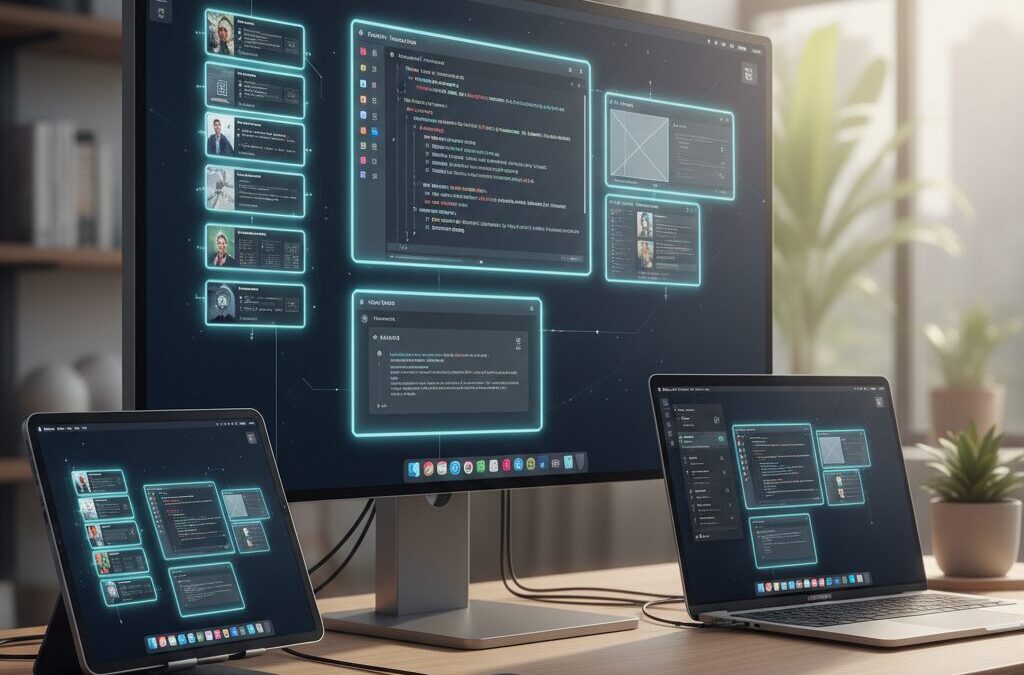
If you care about productivity on Apple devices, Stage Manager is no longer an optional experiment—it is a core part of the experience in iPadOS 26 and macOS 26. What began as a controversial feature in iPadOS 16 has evolved into a powerful window management system that blurs the line between iPad and Mac.
With window tiling, enhanced Exposé, and stable external display support for M‑series iPads, Apple has pushed the iPad closer than ever to a true workstation. At the same time, macOS integrates Stage Manager alongside Mission Control and Spaces, giving power users new ways to manage project-based workflows.
In this guide, you will learn how Stage Manager actually works under the hood, which hardware unlocks its full potential, how to optimize it for writers, developers, and designers, and how to fix real-world issues such as Japanese IME focus bugs and external monitor limitations. By the end, you will be able to design a multitasking environment that matches your device, your workflow, and the future of spatial computing.
- From Experiment to Essential: The Evolution of Stage Manager
- What’s New in iPadOS 26: Window Tiling, Enhanced Exposé, and UI Unification
- macOS 26 and the Optional Power of Stage Manager
- Hardware Requirements Explained: M‑Series vs A‑Series iPads
- Understanding the Core Concept: Stages, App Sets, and Context Switching
- External Displays Done Right: Resolution, Aspect Ratio, and GPU Constraints
- Professional Setups: Recommended Workflows for Writers, Developers, and Designers
- Stage Manager vs Split View: Which Multitasking Model Wins in 2026?
- Japanese IME Focus Bug: Technical Causes and Proven Workarounds
- Troubleshooting External Monitor and Arrangement Issues
- Automating Your Workspace with Shortcuts and Context-Aware Toggles
- The Future of Spatial Computing: Stage Manager and Beyond
- 参考文献
From Experiment to Essential: The Evolution of Stage Manager
When Stage Manager debuted in iPadOS 16 in 2022, it was widely described as ambitious but controversial. Many early users questioned its invisible layout constraints and hardware limitations, and community discussions on MacRumors and Apple Community reflected a clear divide between curiosity and frustration. Yet even at that stage, Apple was signaling a deeper shift: multitasking on iPad and Mac was no longer about simple app switching, but about context management.
The turning point came with the internal “Solarium” initiative, which aimed to unify interface principles across iPadOS and macOS. According to reporting by Thurrott and Apple’s own newsroom statements, the goal was to minimize cognitive friction between devices. Instead of treating iPad and Mac as separate paradigms, Apple began aligning window behaviors, animations, and grouping logic so that moving between them felt natural rather than disruptive.
By the time iPadOS 26 and macOS 26 arrived, several structural limitations had been addressed. iPad gained more flexible window tiling and a strengthened Exposé-style overview, reducing the rigid grid feeling of earlier versions. Overlapping windows became easier to manage, and switching between grouped sets preserved layout fidelity with far greater consistency.
Hardware also played a decisive role in this evolution. Apple Support documentation makes clear that full external display expansion requires M-series chips, marking M1 as a watershed moment. This was not merely a marketing boundary. Rendering up to eight active apps across internal and external displays demands significant unified memory bandwidth and GPU throughput.
| Phase | Core Characteristic | User Perception |
|---|---|---|
| iPadOS 16 Era | Limited layout flexibility, hardware restrictions | Experimental, polarizing |
| iPadOS 26 / macOS 26 | Flexible tiling, stronger grouping logic, external display maturity | Professional-grade, workflow-centric |
On macOS, Stage Manager matured differently. Because macOS already had Mission Control and Spaces, it could not simply replace existing tools. Instead, as Apple Support notes, it became an optional layer that organizes windows into project-based clusters while preserving desktop access. This coexistence strategy helped reposition Stage Manager from redundancy to refinement.
The most profound shift, however, is conceptual. Early multitasking on iPad revolved around two apps side by side. Modern Stage Manager treats a “stage” as a living workspace containing multiple related windows. When switching stages, layout, hierarchy, and spatial relationships persist. That persistence reduces context-switching cost, a principle long emphasized in human–computer interaction research.
Community reassessments on Reddit and developer forums reflect this transformation. Users who once disabled the feature now describe it as indispensable for multi-app workflows, especially when paired with external monitors. What began as an experiment has, through iterative refinement and architectural investment, become a foundational layer of Apple’s spatial computing strategy.
What’s New in iPadOS 26: Window Tiling, Enhanced Exposé, and UI Unification
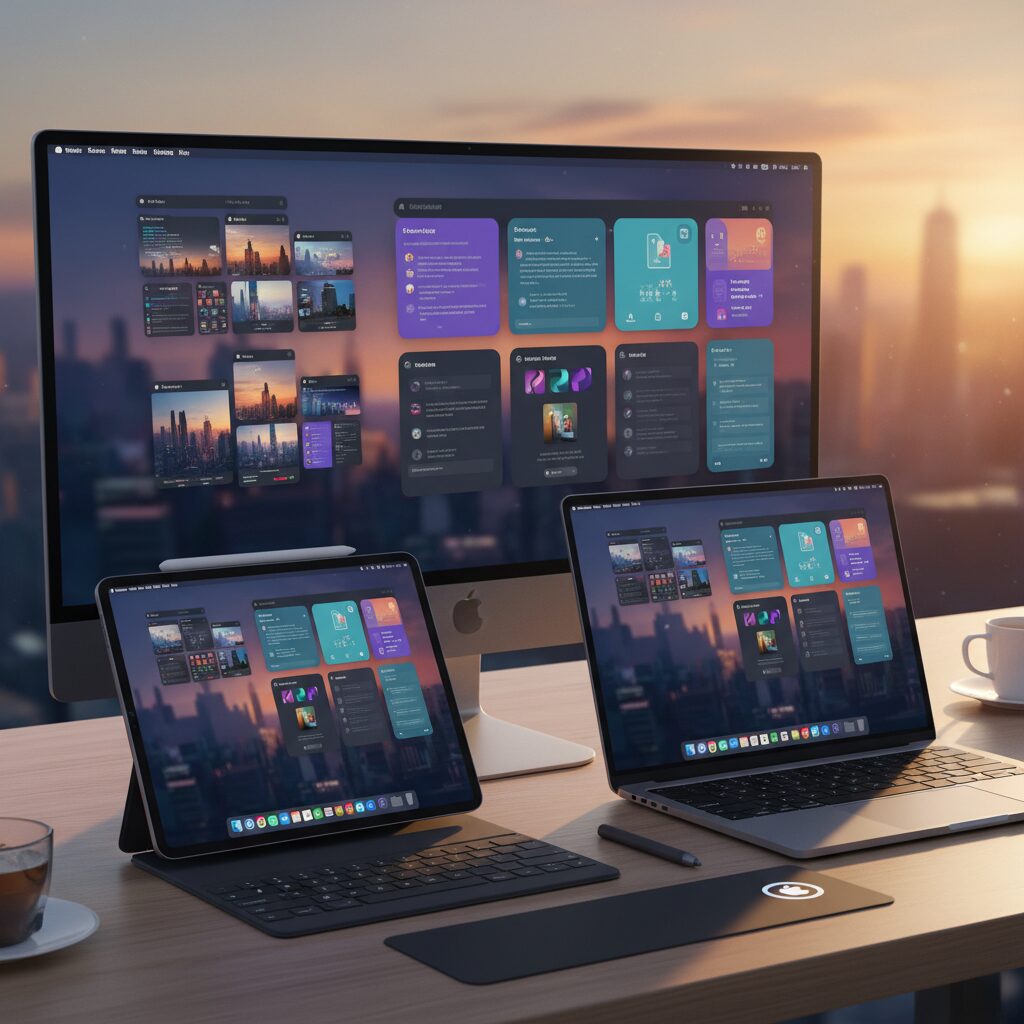
iPadOS 26 marks a turning point for serious multitaskers. With the introduction of window tiling, an enhanced Exposé view, and deeper UI unification under Apple’s internal “Solarium” initiative, the iPad’s window management feels closer to macOS than ever before.
According to Apple’s newsroom announcement, the goal is not to simply add features, but to reduce cognitive load when juggling multiple apps. In practice, that philosophy shows up in three concrete upgrades that reshape daily workflows.
Key Enhancements at a Glance
| Feature | What Changed in iPadOS 26 | Why It Matters |
|---|---|---|
| Window Tiling | Looser grid constraints, flexible placement | More precise layout control |
| Enhanced Exposé | Clear overview of all open windows | Faster context switching |
| UI Unification | Reduced gap between iPadOS and macOS behaviors | Lower learning curve across devices |
Window tiling is the most immediately noticeable shift. Previous versions of Stage Manager imposed invisible grid limits, subtly snapping windows into predefined zones. In iPadOS 26, those constraints are significantly relaxed. You can drag and resize windows with far greater freedom, approximating the fluidity Mac users expect.
This matters especially on 13-inch iPad Pro models or when connected to an external display. Complex layouts—such as a browser overlapping a notes app while a reference PDF floats in the corner—are now practical instead of frustrating. The system feels less like a tablet pretending to multitask and more like a modular workspace.
The enhanced Exposé further reduces friction. With a single gesture, all open windows surface in a clean overview, making layered or partially hidden apps instantly discoverable. As Apple Support documentation explains, Stage Manager organizes windows into sets, but Exposé ensures you never lose track of individual instances inside those sets.
This directly addresses a long-standing pain point: window “blind spots.” When working with four active apps per stage, overlapping layers could previously obscure critical content. The improved overview restores spatial awareness in seconds.
Equally important is UI unification under the Solarium project. Historically, subtle interaction differences between macOS and iPadOS—cursor behavior, window stacking logic, animation timing—created mental overhead for users switching devices. iPadOS 26 narrows that gap.
Drag gestures, resizing handles, and window focus transitions now behave more consistently with macOS 26. For professionals operating across both platforms, this consistency reduces retraining time and improves muscle memory efficiency.
For gadget enthusiasts who demand granular control, these changes are not cosmetic. They represent a structural refinement of multitasking logic. iPadOS 26 no longer treats window management as a secondary layer—it makes it a first-class interface paradigm.
As a result, the iPad feels less constrained, more spatial, and significantly more aligned with professional desktop workflows.
macOS 26 and the Optional Power of Stage Manager
On macOS 26, Stage Manager is not a mandatory paradigm shift but an optional layer you can activate when it truly benefits your workflow. Unlike iPadOS, where Stage Manager reshapes the entire multitasking model, the Mac already has Mission Control, Spaces, and decades of refined freeform windowing. That is precisely why its presence on macOS 26 feels powerful rather than intrusive.
Apple Support documentation explains that Stage Manager on Mac is designed to organize apps and windows while keeping the desktop accessible. In practice, this means you can enable it from Control Center and instantly transform a chaotic desktop into grouped, task-focused clusters—without abandoning the flexibility long-time Mac users rely on.
A defining characteristic on macOS is how respectfully it treats the desktop. When you click the desktop, active windows slide aside, revealing files and folders underneath. This subtle behavior preserves the Mac tradition of using the desktop as a working surface for drag-and-drop operations, something deeply embedded in professional workflows.
The functional contrast becomes clearer when compared to existing macOS features:
| Feature | Primary Unit | Best For |
|---|---|---|
| Cmd + Tab | Single app | Quick app switching |
| Spaces | Virtual desktop | Broad task separation |
| Stage Manager | Window group | Project-based focus |
What makes Stage Manager uniquely compelling is its ability to treat multiple windows as a single contextual unit. For example, you can group Xcode, Simulator, and a specific Finder window into one cluster. When you switch away to a communication set—such as Slack and Safari—and then return, every window reappears in its previous layout. According to discussions among power users on Reddit, this significantly reduces cognitive load during context switching.
Unlike Spaces, which separates entire desktops, Stage Manager keeps everything within reach on a single desktop while visually isolating what matters now. This middle ground is particularly effective for developers, researchers, and marketers juggling tightly related tools.
Another advantage in macOS 26 is coexistence. You are free to enable Stage Manager in one Space and disable it in another. For immersive editing in Final Cut or Photoshop, you might prefer full-screen or traditional window tiling. For email triage or sprint planning, Stage Manager’s grouped layout creates structured clarity.
This optionality is its greatest strength. Rather than forcing a new mental model, macOS 26 allows you to deploy Stage Manager precisely where focused, project-based organization outperforms raw window freedom. For users who once dismissed it, the evolution has turned it into a strategic tool—subtle, adaptable, and increasingly indispensable when used with intent.
Hardware Requirements Explained: M‑Series vs A‑Series iPads
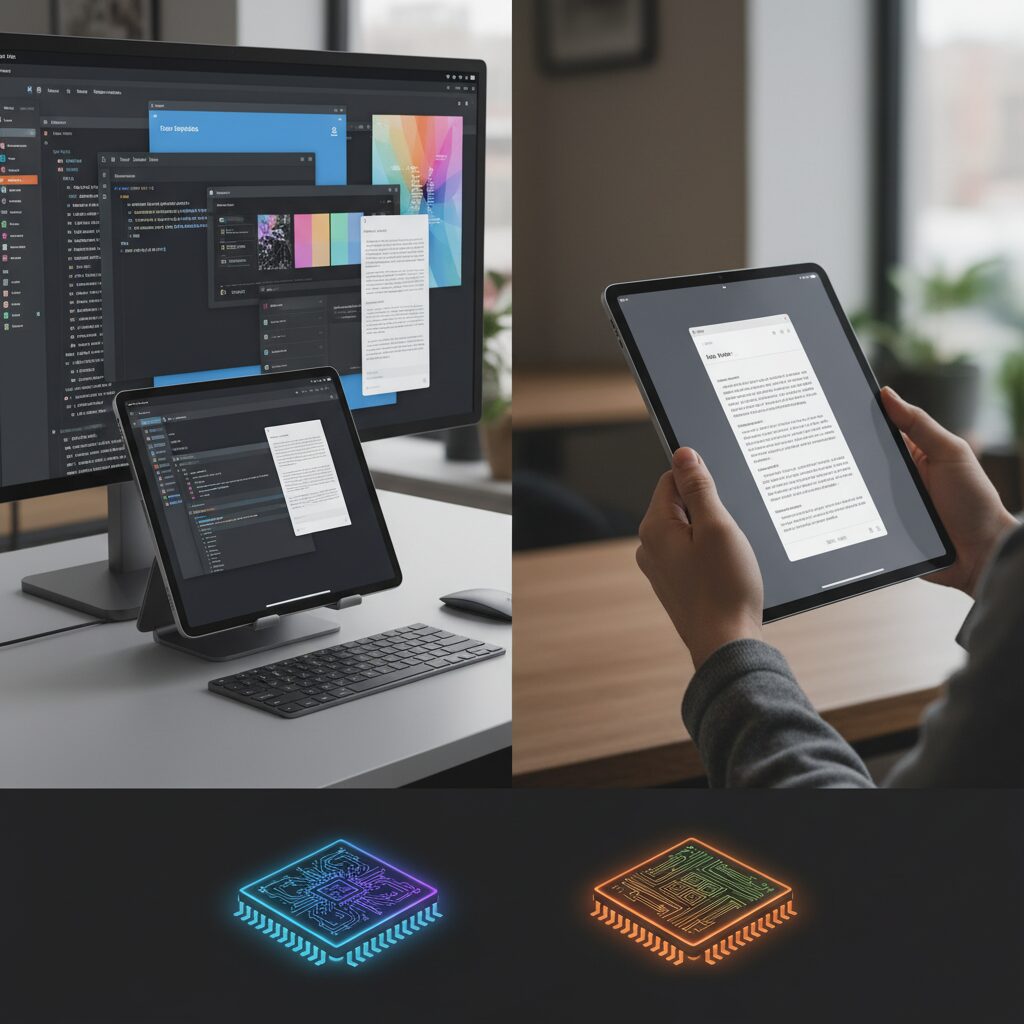
When choosing an iPad for Stage Manager, the real dividing line is not screen size but silicon. The difference between M‑series and A‑series chips directly determines whether you get full external display support or a limited, on‑device experience. According to Apple Support documentation, only specific models unlock the complete feature set, and the gap is architectural rather than cosmetic.
| Chip Family | Stage Manager (On iPad) | External Display Mode |
|---|---|---|
| M1 / M2 / M3 / M4 | Full windowed multitasking | Extended desktop (up to 6K) |
| A17 Pro / A16 / A12X/Z | Supported | Mirroring only |
The reason is technical. M‑series iPads use Apple’s unified memory architecture with significantly higher memory bandwidth and more powerful GPU cores. Stage Manager must render multiple live windows simultaneously, often across millions of pixels on two displays. That workload scales dramatically when driving a 6K external monitor.
MacRumors’ hardware analysis notes that extended display mode requires the system to maintain independent frame buffers for both the iPad and the external screen. This is where the M1 chip became the watershed moment. Earlier A‑series models, even high‑end A12X and A12Z variants, simply were not designed for sustained dual‑display desktop environments.
In practice, this means an M‑series iPad can run up to four active windows on the tablet and four more on an external display. An A‑series iPad can still use Stage Manager, but the experience is confined to the built‑in screen, and external monitors duplicate the same content.
Thermal design also plays a role. M‑series iPad Pro and Air models are engineered for prolonged high‑performance workloads. Driving multiple resizable windows, handling Metal‑accelerated UI layers, and maintaining smooth pointer tracking all increase GPU utilization. Extended desktop mode is as much about sustained performance as peak performance.
Another overlooked factor is memory capacity. Many M‑series iPads ship with 8GB or more of unified memory, which helps prevent window reloads when switching contexts. A‑series devices, typically configured with lower RAM ceilings, may reload background apps more aggressively under heavy multitasking.
For gadget enthusiasts planning a desktop‑class setup with an external monitor, keyboard, and mouse, the conclusion is clear: an M‑series iPad is not a luxury but a requirement. If your workflow stays entirely on the tablet display, however, newer A‑series models still provide a meaningful Stage Manager experience.
The hardware decision ultimately defines your ceiling. M‑series unlocks spatial flexibility; A‑series delivers a contained multitasking layer. Understanding that distinction ensures you invest in capability, not just branding.
Understanding the Core Concept: Stages, App Sets, and Context Switching
To truly master Stage Manager, you need to understand three core elements: Stages, App Sets, and Context Switching. Once these concepts click, the interface stops feeling like a window manager and starts functioning as a task orchestration system.
Apple’s own documentation describes Stage Manager as a way to “organize apps and windows,” but in practice it reorganizes how you think about work itself. The focus shifts from individual apps to grouped workflows.
The Structural Model
| Element | What It Represents | Why It Matters |
|---|---|---|
| Stage | The active workspace in the center | Holds up to four windows arranged for one task |
| App Set | A grouped collection of windows | Preserves layout, size, and position |
| Cast Area | Recent app sets on the left | Enables rapid task switching |
The Stage is your current focus zone. It is not just a foreground window but a curated arrangement of related windows. You can resize, overlap, or tile them depending on your workflow. In iPadOS 26, reduced layout constraints and improved window placement precision make this far more flexible than early versions.
An App Set is where the real power lies. Instead of switching apps one by one, you switch entire working contexts. For example, Safari + Notes + Files can live as one research environment. When you move to Mail + Calendar, you are not launching apps—you are switching cognitive frames.
This distinction is crucial. Traditional multitasking emphasizes how many apps you can see. Stage Manager emphasizes how quickly you can restore a mental state. According to discussions among macOS power users, this grouped restoration reduces friction compared to Cmd + Tab app switching because window relationships remain intact.
The Cast area visually represents recent app sets as thumbnails. These are not static shortcuts; they are live snapshots of task states. Layout geometry, stacking order, and window sizes persist. That persistence minimizes reconfiguration time and supports flow continuity.
Context switching, in cognitive science terms, carries a measurable mental cost. Research cited by productivity experts often notes that task switching reduces efficiency due to reorientation overhead. Stage Manager mitigates this by bundling related windows so that returning to a task requires no spatial rebuilding.
On macOS 26, this becomes even more powerful when combined with desktop interaction. Clicking the desktop temporarily clears the Stage without destroying the set, reinforcing the idea that Stages are transient focus containers rather than permanent desktops.
Ultimately, understanding Stage Manager means recognizing that it is not about windows floating freely. It is about structured task environments. When you deliberately design app sets around roles—research, communication, coding, design—you transform the interface into a modular productivity system.
Once you internalize this model, switching Stages feels less like navigating software and more like stepping between prepared workstations, each waiting exactly as you left it.
External Displays Done Right: Resolution, Aspect Ratio, and GPU Constraints
When Stage Manager meets an external display, resolution and aspect ratio stop being minor specs and become decisive factors. The difference between a seamless desktop-class experience and a frustrating mirrored screen often comes down to pixel count and panel geometry.
According to Apple Support documentation and multiple Apple Community reports, full desktop extension on iPad requires not only an M‑series chip but also a display that meets certain resolution and aspect ratio expectations. If those conditions are not satisfied, iPadOS may fall back to simple mirroring.
An M‑series iPad alone is not enough. The external monitor’s resolution, aspect ratio, and signal compatibility directly determine whether true extended desktop mode is available.
The practical requirements can be organized as follows.
| Factor | Recommended | Common Issue |
|---|---|---|
| Resolution | 1920×1080 or higher | Lower resolutions may force mirroring |
| Aspect Ratio | 16:9 widescreen | 4:3 or 5:4 may show pillarboxing |
| GPU Class | M1/M2/M3/M4 | A‑series limited to mirroring |
Community threads have repeatedly documented that 4:3 displays or older 1280×1024 monitors are frequently recognized only as mirrored outputs, often with black side bars. This is not a random bug but a consequence of how iPadOS negotiates display modes and allocates framebuffer resources.
Ultrawide monitors introduce a different constraint. Resolutions such as 3840×1600 increase horizontal pixel load significantly. On earlier implementations, users reported scaling anomalies or missing native resolution options. With newer M3 and M4 devices, the strengthened display engine and GPU throughput improve compatibility, but not every ultrawide panel behaves identically.
From a technical standpoint, the bottleneck is not just raw GPU power. External display mode requires sustained memory bandwidth to render up to four active windows per display. Apple’s unified memory architecture in M‑series chips enables this by allowing the GPU direct high‑bandwidth access to system memory. A‑series iPads, constrained by different performance envelopes and thermal limits, are intentionally restricted to mirroring.
Signal integrity also matters. Even with a capable iPad and monitor, insufficient cables or hubs can silently downgrade the connection. Apple Support and user diagnostics frequently point to non‑compliant USB‑C hubs that fail proper DisplayPort Alt Mode negotiation, leading the system to disable extended mode.
If you experience missing “Arrangement” options, test with a certified Thunderbolt or full‑spec USB‑C cable before assuming a software bug.
For power users building a workstation around Stage Manager, the optimal setup is therefore predictable: a 16:9 4K display, a direct high‑bandwidth connection, and an M‑series iPad with sufficient unified memory. When these constraints are respected, the experience feels genuinely desktop‑class rather than an enlarged tablet interface.
Understanding these GPU and display boundaries allows you to design your environment deliberately instead of troubleshooting blindly. External displays are not merely accessories in the Stage Manager era; they are architectural components of your workflow.
Professional Setups: Recommended Workflows for Writers, Developers, and Designers
For professionals, Stage Manager becomes truly powerful when it is treated not as a window feature, but as a context engine. Apple Support explains that each stage preserves window size and position as a set, which means your workflow can be designed around repeatable task clusters rather than individual apps. This shift is what enables writers, developers, and designers to build workstation-class environments on iPadOS 26 and macOS 26.
The key is to define one stage per professional objective and minimize cross-context contamination. Instead of piling every open app into one space, you deliberately curate focused environments that mirror how cognitive work actually happens.
Writers: The Research-Production Loop
Academic research and long-form writing demand constant switching between sources and output. According to productivity discussions among advanced users, a two-to-three window stage delivers the highest focus-to-visibility ratio.
| Position | App | Purpose |
|---|---|---|
| Left (Primary) | Safari | Research, statistics, citations |
| Right (Primary) | Ulysses / iA Writer / Obsidian | Main manuscript |
| Floating (Optional) | Notes or PDF viewer | Reference excerpts |
With Stage Manager, dragging text or images directly from Safari into the editor eliminates copy-paste friction. On external displays, writers can dedicate the larger monitor to research tabs while keeping the iPad screen for drafting, effectively separating input and synthesis layers.
This spatial separation reduces cognitive overload, especially during data-heavy writing where multiple references must remain visible.
Developers: Project-Based Window Clusters
On macOS 26, Stage Manager is increasingly used as a lightweight alternative to complex Spaces configurations. As discussed in developer communities, grouping Xcode, Simulator, and a specific Finder window into one persistent stage allows instant restoration of a project state.
For iPad-based workflows, pairing Safari (for GitHub Codespaces or documentation) with Termius or another SSH client creates a functional dual-pane development setup. Communication tools such as Slack remain in the same stage to avoid context switching across unrelated tasks.
The advantage is not more windows, but preserved relationships between them. When switching away and returning, the entire development constellation reappears intact, reducing setup time and mental reorientation.
Designers: Canvas + Reference Architecture
Design workflows benefit most from external display expansion. Apple documentation confirms that M-series iPads can run up to four active apps per display, enabling a true studio configuration.
A common professional layout assigns Procreate or Affinity Designer as the dominant canvas on the iPad itself, leveraging Apple Pencil precision. The external monitor hosts Photos, Pinterest, or tutorial videos, functioning as a persistent reference wall.
This division turns the iPad into a dedicated input surface while the monitor becomes a visual intelligence board. Designers avoid constant app switching and instead glance laterally for inspiration or asset confirmation.
Across all three professions, the unifying principle is intentional staging. Rather than maximizing window count, experts optimize for clarity, task cohesion, and restoration speed. When each stage represents a defined professional role—researcher, coder, or studio artist—Stage Manager evolves from a multitasking feature into a workflow architecture tool.
Stage Manager vs Split View: Which Multitasking Model Wins in 2026?
In 2026, the debate is no longer about which feature is newer, but which model actually fits your workflow. Stage Manager and Split View represent two fundamentally different philosophies of multitasking: one prioritizes flexible windowed environments, the other maximizes focus and screen efficiency.
According to Apple’s official documentation and coverage from AppleInsider, Split View remains a tightly optimized dual‑app system, while Stage Manager evolves into a project-based workspace with up to four apps per stage and external display expansion.
| Aspect | Split View | Stage Manager |
|---|---|---|
| Layout Structure | Fixed ratios (50:50, 70:30) | Resizable, overlapping windows |
| Simultaneous Apps | 2 + Slide Over | Up to 4 per stage |
| External Display | Mirroring only | True extended desktop (M‑series) |
| Best Input Method | Touch-first | Trackpad / Mouse optimized |
Split View still wins in one critical metric: information density per inch. On an 11‑inch iPad, every pixel matters. Because it eliminates side docks and floating layers, it delivers maximum usable canvas. Reddit power users frequently note that on smaller displays, Stage Manager’s margins feel like wasted space.
However, Stage Manager dominates when context switching becomes complex. Instead of toggling app-to-app, you switch stage-to-stage—entire window groups preserved exactly as you left them. As Apple Support explains, window arrangements persist within each stage, reducing cognitive reset when juggling research, communication, and production simultaneously.
External display support is the real turning point. With M1 and later iPads, Stage Manager enables up to four apps on the iPad and four more on an external monitor. Split View simply cannot compete here. If your desk setup includes a 6K monitor, the winner is obvious.
Input style also determines the outcome. Touch-centric users benefit from Split View’s swipe gestures and predictable snapping. Keyboard-and-trackpad users gain a more desktop-like flow with Stage Manager, especially when fine cursor control and window layering are involved.
The true winner depends less on the software and more on your hardware and workflow complexity. In practical terms, many advanced users adopt a hybrid approach—Split View for lightweight tablet sessions, Stage Manager for desk-based production. The multitasking model that wins is the one aligned with how you actually work.
Japanese IME Focus Bug: Technical Causes and Proven Workarounds
Japanese users have reported a persistent input anomaly when using Stage Manager, especially in multi‑window or external display environments. The issue is commonly described as an IME focus bug, where the text cursor appears active but keystrokes are ignored, converted incorrectly, or committed as unintended English characters.
According to multiple threads on Apple Support Communities and developer discussions, the problem tends to surface immediately after switching windows, dragging apps between stages, or clicking rapidly across overlapping views. The reproducibility under these specific UI transitions suggests that the root cause is not the Japanese language engine itself, but the interaction between the window manager and the input subsystem.
Technically, the bug appears to stem from focus desynchronization between the active window layer and the system-level IME overlay. Stage Manager dynamically reassigns foreground priority when users change stages. Meanwhile, Japanese IME relies on a composition window that must remain logically attached to a specific text field. When the OS briefly loses certainty about which window owns keyboard focus, input events may be routed incorrectly.
Typical Trigger Conditions
| Scenario | Observed Behavior |
|---|---|
| Switching stages rapidly | Characters disappear before confirmation |
| Using external display | Keystrokes not recognized despite blinking cursor |
| Language auto-switch active | Japanese input commits as Roman letters |
| Tap-to-click enabled | Cursor focus shifts unexpectedly |
Reports following macOS 26.1 updates indicate that the issue sometimes intensifies after system patches, reinforcing the theory that it is linked to WindowServer focus handling rather than application-level bugs. Community diagnostics shared on Reddit and Apple forums consistently point to window focus arbitration as the unstable layer.
Several workarounds have demonstrated measurable effectiveness in real-world workflows. Disabling “Tap to Click” in trackpad settings reduces ambiguous focus signals because physical clicks generate a clearer hardware event. Users who switched exclusively to a Japanese Romaji keyboard layout and removed additional English layouts also reported fewer unintended input mode transitions.
Another practical mitigation is fixing Dictation language instead of relying on automatic detection. Automatic language inference introduces additional background checks that may interfere with input state management during rapid window switching.
On macOS, force-restarting the WindowServer process—though disruptive—temporarily restores correct focus behavior. This supports the hypothesis that the fault resides in the window compositing layer rather than the IME engine itself.
For professionals who rely heavily on Japanese text entry, a stability-first configuration is advisable: minimize rapid stage switching during composition, standardize input language settings, and prefer deliberate physical clicks over gesture-based focus changes. While not a permanent fix, these adjustments significantly reduce workflow interruptions in high-density multitasking environments.
The IME focus bug is fundamentally a window-management synchronization issue, and stability improves when input context changes are minimized and focus signals are made explicit.
Until Apple further refines focus arbitration within Stage Manager, understanding the technical cause empowers users to operate around the limitation rather than be blocked by it.
Troubleshooting External Monitor and Arrangement Issues
When Stage Manager does not behave as expected on an external monitor, the root cause is often more physical than software-related. In Apple Community reports, many cases initially blamed on iPadOS were ultimately traced back to cable bandwidth limits or monitor compatibility issues.
If the “Arrangement” option disappears or only mirroring is available, your first suspect should be the connection path, not the OS. Especially with M‑series iPads that officially support extended displays, the system will hide layout controls when it fails to negotiate a proper DisplayPort Alt Mode handshake.
Before diving into resets, verify the technical chain end to end.
| Checkpoint | What to Verify | Why It Matters |
|---|---|---|
| USB‑C / Thunderbolt Cable | Thunderbolt 3/4 or full DisplayPort Alt Mode support | Insufficient bandwidth forces mirroring |
| USB‑C Hub | 4K/60Hz certified output | Low-grade hubs fail display negotiation |
| Monitor Resolution | 16:9, 1920×1080 or higher | Unsupported ratios may block extension |
Aspect ratio plays a surprisingly large role. Community findings indicate that older 4:3 or 1280×1024 monitors frequently trigger pillarboxing and lock the system into mirror mode. By contrast, 16:9 displays at Full HD or above are consistently recognized as expandable desktops.
Ultrawide monitors add another layer of complexity. Some 3840×1600 panels may default to scaled output, enlarging UI elements or hiding native resolution options. With M3 and M4 iPads, the strengthened display engine improves compatibility, but manual resolution selection inside Settings may still be necessary.
Arrangement problems are not limited to resolution. Cursor behavior can also disrupt workflow. iPadOS uses magnetic pointer snapping, which may reduce precision when adjusting spreadsheet cells or fine sliders on large displays.
If pointer movement feels inaccurate, adjust Pointer Control settings under Accessibility. Reducing snapping strength or disabling certain animations can make the external monitor feel significantly more “desktop-like.”
When the system fails to detect the monitor correctly, follow a structured reset sequence instead of random troubleshooting. Apple Support documentation recommends power cycling displays in connectivity disputes, and this applies here as well.
Disconnect the cable, fully shut down the iPad, power off the monitor, then reconnect after reboot. In stubborn cases, reversing the order—connecting first, then booting—can reinitialize the display handshake.
Finally, do not overlook monitor firmware. Several manufacturers have released firmware updates to fix USB‑C compatibility quirks. If your hardware theoretically meets specifications but behaves inconsistently, checking the manufacturer’s update utility can resolve unexplained arrangement failures.
External display stability with Stage Manager is ultimately a negotiation between GPU capability, cable bandwidth, and monitor firmware logic. When each layer meets specification, extended desktop mode is remarkably stable; when one link is weak, the system quietly falls back to mirroring.
Automating Your Workspace with Shortcuts and Context-Aware Toggles
Stage Manager becomes dramatically more powerful when you stop treating it as a manual window tool and start treating it as an automation target.
By combining Shortcuts with context-aware toggles, you can transform your workspace from a static layout into a responsive environment that adapts to how and where you work.
The real productivity leap does not come from dragging windows faster, but from eliminating the need to drag them at all.
One of the most practical techniques discussed in power-user communities is building “app cluster” shortcuts. Because Stage Manager does not permanently save window groupings, reopening a project often requires rebuilding the same combination of apps.
Shortcuts solves this by launching a predefined sequence of applications with intentional timing.
A small delay action between launches allows the system animation to complete, increasing the likelihood that apps appear within the same stage rather than separate ones.
| Automation Type | Trigger | Resulting Behavior |
|---|---|---|
| Research Mode | Manual shortcut tap | Safari + Notes launch in sequence |
| Coding Setup | Keyboard connected | Stage Manager toggles on |
| Tablet Mode | Keyboard disconnected | Stage Manager toggles off |
Context-aware toggles are where automation becomes transformative. The Shortcuts app allows Stage Manager to be turned on or off programmatically, which means workspace mode can react to hardware state.
For example, when a Magic Keyboard or Bluetooth mouse connects, Stage Manager can automatically enable itself, shifting the interface toward a cursor-optimized layout.
When detached, it can revert to a touch-first, full-screen environment without any manual intervention.
According to discussions in the Shortcuts community, this hardware-triggered automation significantly reduces friction in hybrid workflows, particularly for users who frequently move between desk setups and mobile use.
This mirrors Apple’s broader Solarium direction of minimizing cognitive transitions between device states.
The workspace should follow your context, not demand that you reconfigure it each time.
Advanced users experiment further by chaining conditions. For instance, a Focus mode activation can trigger a specific app cluster, enable Stage Manager, and silence notifications simultaneously.
While iPadOS 26 does not expose granular window positioning APIs, launch order and delay tuning allow partial layout predictability.
This approach creates a near “scene recall” effect without native layout saving.
Another high-leverage strategy involves pairing automation with external display workflows. When a monitor is detected, a shortcut can launch productivity apps and switch Stage Manager on, effectively turning the iPad into a workstation configuration.
Disconnecting the display can reverse the state, preventing wasted screen margins on smaller built-in displays.
This conditional orchestration reduces transition time between environments to nearly zero.
The key principle is intentionality. Instead of thinking in terms of apps, think in terms of work states: research, writing, reviewing, designing.
Each state can be encoded as a shortcut, attached to a widget, keyboard shortcut, or automation trigger.
When implemented thoughtfully, Stage Manager evolves from a window manager into a programmable workspace engine.
The Future of Spatial Computing: Stage Manager and Beyond
Spatial computing is no longer a speculative concept reserved for head‑mounted displays. With iPadOS 26 and macOS 26, Apple is quietly redefining it through Stage Manager, transforming flat screens into context‑aware workspaces that behave more like adaptive environments than static desktops.
According to Apple’s newsroom briefings on iPadOS 26, the evolution of window tiling and Exposé is not just about convenience. It is about enabling users to arrange digital objects in space with intent. The screen becomes a dynamic stage where tasks, not apps, are the primary unit of organization.
This philosophical shift is central to the internal “Solarium” initiative, which aims to blur the boundary between iPad and Mac. Instead of thinking in terms of device categories, users increasingly operate within spatial contexts that persist across hardware.
| Era | Primary Unit | User Mental Model |
|---|---|---|
| Pre‑Stage Manager | Single App / Split Screen | Switching between tools |
| Stage Manager | Window Group (Stage) | Switching between tasks |
| Spatial Computing Future | Contextual Workspace | Navigating information space |
The introduction of freer window placement in iPadOS 26 is particularly significant. Earlier grid constraints limited how users could express spatial intent. Now, with more fluid resizing and positioning, layouts resemble miniature control rooms tailored to specific cognitive workflows.
On Macs, Stage Manager coexists with Mission Control and Spaces, signaling that spatial computing does not replace established paradigms but layers on top of them. As Apple Support documentation explains, users can fluidly move between modes. This coexistence suggests that the future is modular rather than monolithic.
Industry observers cited by MacRumors note that external display support—up to eight active apps across iPad and monitor on M‑series devices—marks a structural turning point. When an iPad can manage multiple independent window clusters across displays, it stops behaving like a tablet and starts behaving like a spatial node.
Looking ahead, the logical extension is intelligence‑assisted spatial organization. If the system can learn which apps are grouped for writing, coding, or design, it could proactively reconstruct stages. This aligns with Apple’s broader push toward on‑device intelligence, where layout suggestions and context restoration become predictive rather than manual.
There is also a deeper implication for cross‑device continuity. A task stage created on an iPad could theoretically map to a Mac with identical geometry, or even to a three‑dimensional environment in future spatial hardware. The Solarium vision implies that windows are abstractions of intent, not rectangles tied to a screen.
For power users, this means today’s Stage Manager is a transitional interface. It trains users to think in grouped contexts and layered spaces. Each refinement—better tiling, smoother external rendering, tighter input synchronization—pushes computing away from linear app switching and toward navigable information landscapes.
The future of spatial computing is not about adding more windows. It is about giving meaning to their relationships in space. Stage Manager, in its current maturity, offers the clearest preview yet of how Apple envisions that evolution unfolding across the entire ecosystem.
参考文献
- Apple Newsroom:iPadOS 26 introduces powerful new features that push iPad even further
- Apple Support:Turn Stage Manager on or off on your iPad
- Apple Support:Organize windows with Stage Manager on iPad
- MacRumors:Stage Manager on MacRumors
- Apple Support:Organize your Mac desktop with Stage Manager
- AppleInsider:Compared: iPadOS 16 Stage Manager vs. iPadOS 15 Split View multitasking
- Apple Community:Extremely annoying Japanese input bug