The iPad now delivers desktop-class performance with Apple silicon, stunning displays, and pro-grade accessories. Yet for many power users outside Japan, one question still determines whether it can replace a laptop: how well does it handle files?
If you have ever wondered why files seem “hidden,” why duplicates appear after sharing between apps, or why network storage feels slower than on a Mac or PC, the answer lies deeper than user interface design. It is rooted in iPadOS architecture, security philosophy, and the evolution from a mobile-first system to a professional platform.
In this article, you will gain a technical and practical understanding of iPad file management in 2026. We will explore sandbox design, the Files app’s real capabilities in iPadOS 18, external drive formatting, SMB performance constraints, Excel limitations, ZIP encoding issues, and professional third-party solutions. By the end, you will know exactly where the iPad excels, where it still struggles, and how to build a workflow that truly works.
- Why iPad File Management Still Feels Different in 2026
- Inside the Sandbox: How iPadOS Reshapes the Concept of Files
- From “Open In” to “Open in Place”: The Hidden Story Behind File Duplication
- The Evolution of the Files App: From iOS 11 to iPadOS 18
- External Drive Support in iPadOS 18: Native Formatting and Pro Workflows
- UI Refinements, Stability Updates, and What They Mean for Power Users
- ZIP Files and Encoding Pitfalls: Why File Names Break Across Systems
- Excel on iPad vs Desktop: Pivot Tables, VBA, and Real Business Constraints
- SMB and Network Storage: Why NAS Feels Slower on iPad
- Professional Workarounds: FE File Explorer, FileBrowser, and Optimized Network Access
- Beyond the Default: Documents by Readdle as a Power User Hub
- Remote Work Data and Tablet Adoption: Where iPad Truly Fits in 2026 Workflows
- 参考文献
Why iPad File Management Still Feels Different in 2026
On paper, the iPad in 2026 is more powerful than ever. With Apple silicon such as the M4 delivering desktop-class performance, the hardware no longer limits professional workflows.
Yet many advanced users still say the same thing: file management on iPad feels different. Not necessarily worse, but fundamentally unfamiliar.
The reason is not a lack of features, but a clash of mental models.
Traditional desktop operating systems like Windows and macOS are built on a hierarchical file system where files live in shared locations. Applications come and go, but the file path remains the stable reference point.
iPadOS, by contrast, is built on a sandbox architecture. According to technical documentation on iOS security models, each app is placed inside its own isolated container with strictly controlled read and write permissions.
This architectural choice prioritizes security and stability, but it changes how users perceive “where” a file exists.
| Aspect | Desktop OS | iPadOS |
|---|---|---|
| Core model | File-centered | App-centered |
| Storage visibility | Global file tree | App containers |
| Default access | Broad user control | Permission-based |
On a PC, you place a document in a folder and open it with any compatible app. On an iPad, the file often feels like it “belongs” to an app unless explicit sharing mechanisms are enabled.
The Files app helps bridge this gap, but it is not a root-level file explorer in the traditional sense. It surfaces documents that apps choose to expose through specific configuration keys.
This explains the common frustration: saving a file in one app does not always make it universally visible in the way desktop users expect.
Historically, the “Open In” mechanism duplicated files between apps, creating multiple versions. Although “Open in Place” reduced this by allowing direct editing of the original file, support still depends on third-party developers.
That inconsistency reinforces the feeling that behavior changes from app to app.
In other words, predictability—not raw capability—is what still feels different.
There is also a philosophical dimension. Apple’s mobile-first design assumes that most users should not need to see the system’s internal structure.
Security researchers have long noted that sandboxing dramatically reduces the attack surface compared to legacy shared file systems. The trade-off is reduced transparency.
For power users accustomed to navigating absolute paths and system directories, that abstraction can feel like a constraint rather than protection.
By 2026, features like external drive formatting in iPadOS 18 and improved sidebar navigation have narrowed the functional gap. But the underlying architecture has not changed.
The iPad is not trying to replicate Finder or File Explorer one-to-one. It is redefining what “file management” means in a post-PC context.
Until users consciously shift from a file-centric mindset to an app-aware workflow, iPad file management will continue to feel different—even when it is technically capable.
Inside the Sandbox: How iPadOS Reshapes the Concept of Files
When longtime PC users say that file management on iPad feels confusing, the issue is rarely about icons or gestures. It is about architecture. iPadOS is built on an application sandbox model, and that fundamentally reshapes what a “file” means.
On Windows or macOS, files live in a shared hierarchical space. You place a document in a folder, and different apps visit that location. The file has an absolute path, independent of the tool that edits it.
On iPadOS, the relationship is reversed. Apps own their data, and the system strictly enforces those boundaries at the kernel level.
| Concept | Desktop OS | iPadOS |
|---|---|---|
| Primary model | Data-centered | App-centered |
| Access scope | Shared filesystem | Per-app sandbox container |
| User mental model | “Where is my file?” | “Which app owns this?” |
Each iPad app receives its own container directory at installation. Inside it, standard folders such as Documents, Library, and tmp are created automatically, as described in Apple’s security model documentation and developer resources. The app can read and write freely inside this space, but it cannot access another app’s container unless explicitly permitted by the system.
This isolation dramatically improves security and stability. According to enterprise mobility documentation such as MobileIron’s technical guides, sandboxing prevents malicious or compromised apps from exfiltrating data across app boundaries. For a mobile-first device, this is not optional; it is foundational.
However, the trade-off is conceptual friction. There is no single, transparent “shared ground” equivalent to a desktop’s Documents folder. What users see in the Files app is not a god-level file explorer. It is a curated interface that exposes only those app containers whose developers have enabled file sharing capabilities through configuration keys.
If an app does not declare support for document sharing, its internal files remain invisible in Files. This is why users sometimes say, “I saved it, but I can’t find it.” The file exists, but it exists within an app’s private territory.
The historical “Open In” mechanism amplified this confusion. In early iOS versions, opening a file in another app meant duplicating it into the target app’s Inbox directory. Multiple copies accumulated, and users lost track of which version was authoritative. Later, Apple introduced “Open in Place,” allowing direct editing without duplication, but adoption depends on each developer. The result is behavioral inconsistency across apps.
From a usability perspective, this creates a mental model gap. PC users think in paths and folders. iPadOS encourages thinking in workflows and app contexts. The file is not a neutral object floating in space; it is attached to an ownership domain.
Once you internalize this, the system starts to make sense. Instead of asking, “Where is the file stored?” you begin asking, “Which app manages this data, and does it expose it to the system?” That shift in perspective is the key to navigating iPadOS efficiently.
The sandbox is not a limitation by accident; it is a deliberate design decision prioritizing security, predictability, and mobile resilience over raw filesystem transparency. Understanding that design philosophy is essential if you want to master file workflows on iPad rather than fight against them.
From “Open In” to “Open in Place”: The Hidden Story Behind File Duplication
In the early days of iOS, tapping “Open In” felt simple. In reality, it triggered a structural duplication of the file into another app’s sandbox. This was not a bug, but a deliberate consequence of the sandbox security model described in Apple’s platform documentation and security analyses.
Each app lived inside its own isolated container, with its own Documents and Library directories. When you sent a PDF from App A to App B, the system physically copied it into App B’s Inbox folder. The result was multiple independent versions, each unaware of the others.
This design prioritized safety over coherence. By preventing direct cross-app access, iPadOS dramatically reduced the risk of malicious data harvesting. However, it also fragmented the user’s mental model of “one file in one place.”
| Mechanism | Data Handling | User Impact |
|---|---|---|
| Open In | Creates a full duplicate in target app | Version confusion, storage growth |
| Open in Place | Accesses original file without copying | Single source of truth, less duplication |
The shift to “Open in Place” was Apple’s answer to this growing friction. Instead of copying data, the system allows another app to edit the original file directly, provided the developer enables the appropriate keys in the app’s configuration. This relies on coordinated file access APIs and explicit permission declarations.
According to developer discussions and technical documentation around managed Open In controls, the earlier duplication model was tightly coupled with mobile device management and enterprise security policies. Enterprises could restrict document flow precisely because files were copied, not shared dynamically.
With Open in Place, the philosophy subtly changed. The file becomes a shared resource, but only through controlled, system-mediated access. The sandbox remains intact; what changes is the existence of a secure “window” into the original location.
Even in 2026, this transition is incomplete. Some third-party apps still default to duplication because they have not implemented in-place editing. For users, this creates behavioral inconsistency: the same action may duplicate in one workflow and remain singular in another.
From a storage perspective, the difference is tangible. Large video or design files copied multiple times can consume gigabytes unnecessarily. From a cognitive perspective, duplication erodes confidence. Users ask, “Which file is the master?”
Open in Place does not eliminate the sandbox. It reinterprets it. Instead of isolated silos, iPadOS now resembles a cluster of secured rooms connected by guarded corridors. The file no longer travels blindly between rooms; access is temporarily granted.
This evolution marks a quiet but profound architectural compromise. It signals Apple’s recognition that high-performance hardware like the M‑series iPads requires a file model closer to desktop expectations, without abandoning the mobile-first security DNA that defined the platform from the beginning.
The story behind file duplication is therefore not merely historical trivia. It explains why some workflows still feel inconsistent, and why understanding the underlying model empowers users to predict system behavior instead of being surprised by it.
The Evolution of the Files App: From iOS 11 to iPadOS 18
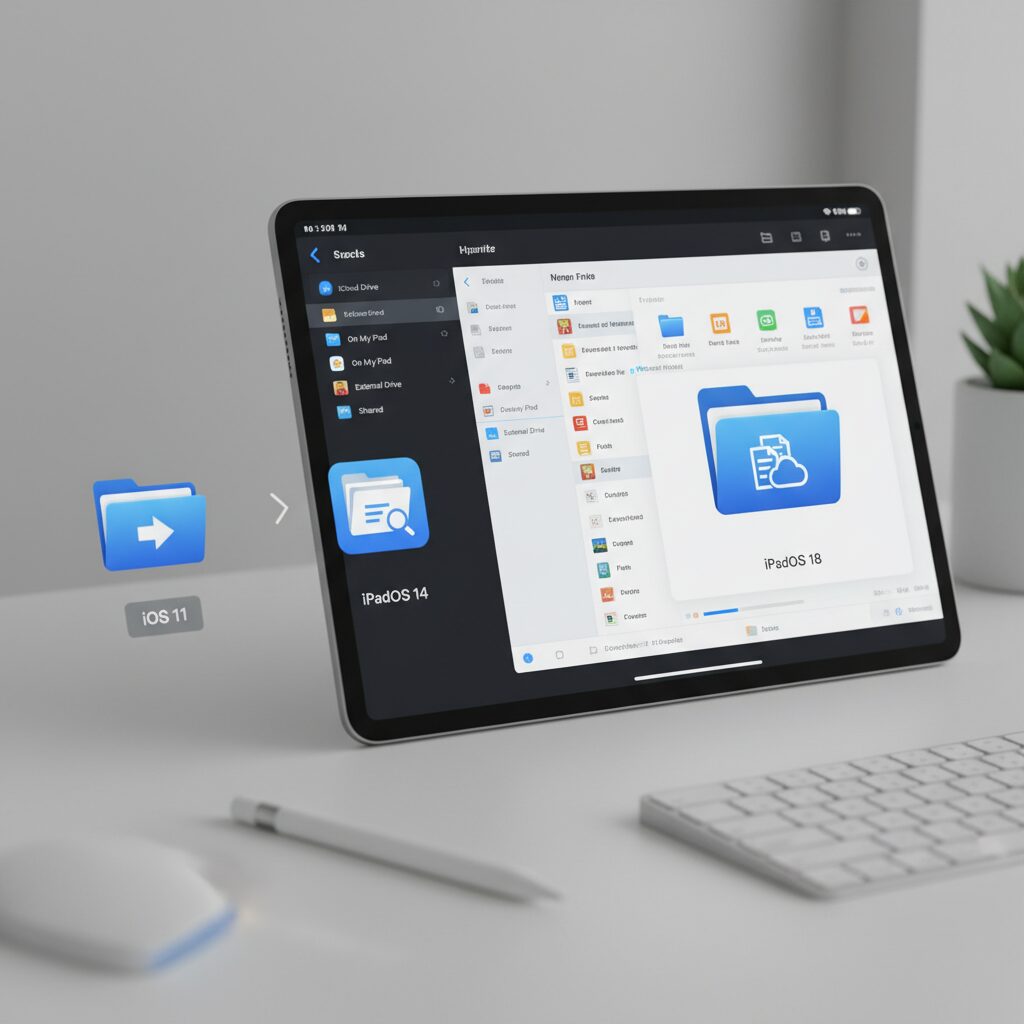
When Apple introduced the Files app in iOS 11 in 2017, it marked a turning point for the iPad. Until then, file management had been fragmented across individual apps and iCloud Drive, with no unified view of local and cloud data. The arrival of Files was Apple’s first official acknowledgment that iPad users needed something closer to a traditional computer workflow.
However, the early version of Files was not a full-fledged file explorer. It functioned primarily as a visual layer on top of each app’s sandbox, exposing only what developers explicitly allowed through File Provider extensions. According to discussions in the Apple developer community at the time, this architectural constraint was intentional, prioritizing security over transparency.
Key Milestones in the Evolution of Files
| Version | Year | Major Advancement |
|---|---|---|
| iOS 11 | 2017 | Introduction of Files app and File Provider extensions |
| iPadOS 13 | 2019 | External drive support via USB-C |
| iPadOS 18 | 2025 | Native external drive formatting within Files |
The second major leap came with iPadOS 13 in 2019. For the first time, users could connect USB drives, SSDs, and SD cards directly to the iPad Pro and manage them inside Files. This was especially transformative for photographers and videographers, who could ingest and review media on-site without a Mac. Even so, formatting and deeper disk management still required a separate computer.
That final dependency began to disappear with iPadOS 18. Apple added native formatting capabilities directly inside the Files app, allowing users to erase and reformat external drives as APFS, ExFAT, or MS-DOS (FAT). This seemingly modest addition significantly reduced reliance on macOS utilities and pushed the iPad closer to being a self-sufficient workstation.
Interface refinements also played a critical role. Over successive updates, Apple improved column view, drag-and-drop between Split View apps, context menus, and tighter integration with multitasking. In iPadOS 18, the adaptive tab and sidebar behavior makes navigating deep folder hierarchies more efficient, especially on large displays paired with a Magic Keyboard.
Yet, the transformation has never been about replicating Finder or Windows Explorer. Instead, Files has matured within the constraints of sandboxed security, offering controlled flexibility rather than unrestricted system access. This design philosophy explains why certain desktop conventions—such as direct root access—remain absent even in 2026.
From a strategic perspective, the journey from iOS 11 to iPadOS 18 shows a clear pattern: Apple expands file capabilities only when it can do so without compromising system integrity. Each iteration narrows the gap with traditional PCs, not by abandoning the sandbox model, but by layering professional tools on top of it. For power users, understanding this trajectory is essential to unlocking the true potential of modern iPad file management.
External Drive Support in iPadOS 18: Native Formatting and Pro Workflows
With iPadOS 18, external drive support finally reaches a level that professionals have long demanded. The ability to natively format connected storage directly inside the Files app marks a structural shift, transforming the iPad from a dependent device into a self-sufficient production machine.
According to user reports highlighted in major Apple communities and coverage by Japanese tech media, the new formatting option appears when long-pressing or right-clicking an attached drive in the sidebar. This eliminates the previous dependency on macOS or Windows for reinitializing media.
You can now erase and reformat external SSDs directly on iPad, without returning to a desktop computer.
The supported file systems reflect real-world workflow needs. Professionals handling cross-platform collaboration, encrypted archives, or legacy hardware can now choose the appropriate structure on-site.
| File System | Best Use Case | Key Advantage |
|---|---|---|
| APFS | Apple-centric workflows | Optimized for SSD, supports encryption |
| ExFAT | Mac–Windows collaboration | No practical file size limits |
| MS-DOS (FAT) | Legacy device compatibility | Broad hardware support |
APFS is particularly important for creators working with high-bitrate video or large photo libraries. Its SSD optimization and optional encryption make it suitable for confidential field production. ExFAT remains essential for agencies exchanging footage with Windows-based teams, while FAT preserves compatibility with older cameras and embedded systems.
This capability dramatically changes field workflows. A videographer can now import footage from an SD card, verify files, wipe a backup SSD, and duplicate assets—all on location. Previously, corrupted partitions or unsupported formats such as NTFS required returning to a desktop environment, causing costly downtime.
Beyond formatting, reliability improvements in iPadOS 18.1.1 through 18.6 strengthen trust in sustained transfers. Apple’s official update notes emphasize security patches and stability fixes, which directly affect long-duration copy operations and media handling.
User interface refinements also matter in professional contexts. The adaptive tab bar and sidebar transitions make deep folder navigation more efficient when managing multi-terabyte drives. When combined with Stage Manager and external displays, the iPad now resembles a compact workstation rather than a tablet accessory.
However, some structural constraints remain. NTFS drives are still not writable without reformatting, and low-level disk diagnostics comparable to macOS Disk Utility are limited. These boundaries reflect Apple’s sandbox-oriented architecture rather than a lack of processing power.
Even so, the strategic implication is clear. External storage on iPad is no longer a passive import channel—it is an actively managed production environment. For creators, photographers, field engineers, and mobile editors, this closes one of the final gaps between tablet mobility and desktop-grade storage control.
UI Refinements, Stability Updates, and What They Mean for Power Users
Beyond headline features, iPadOS 18’s UI refinements and stability updates have a direct impact on how power users manage complex file workflows.
While these changes may appear incremental, they meaningfully reduce friction in day-to-day operations, especially for users juggling external drives, cloud providers, and network shares.
For professionals, micro‑improvements in navigation and reliability often matter more than new features.
Refined Navigation for Deep File Structures
The redesigned floating tab bar adapts contextually, transforming into a sidebar when deeper hierarchy navigation is required. This dynamic layout reduces unnecessary taps when drilling into nested folders.
According to coverage by Japanese tech media such as Impress Watch, Apple’s focus in iPadOS 18 was consistency across system apps, and Files benefits directly from this visual unification.
For power users managing multi-layered project directories, this means fewer UI state changes and better spatial awareness.
| Aspect | Before | iPadOS 18 |
|---|---|---|
| Top Navigation | Static bar | Context-aware floating tab |
| Sidebar Behavior | Manual toggle focus | Seamless adaptive transition |
| Screen Utilization | Fixed layout | Content-prioritized |
The practical effect is subtle but powerful: when reviewing large media folders on an external SSD, users can prioritize preview space without losing quick access to directory context.
Stability as a Productivity Multiplier
Apple’s official support documentation for iPadOS 18.1.1 through 18.6 emphasizes security patches and system stability improvements. For enterprise users, this directly affects trust in file operations.
File management is foundational. If SMB sessions drop after sleep or media previews crash during indexing, workflow confidence erodes quickly.
Reduced background crashes and improved session persistence translate into measurable time savings over weeks of daily use.
Community reports on SMB slowdowns and disconnections have historically been common, particularly when handling large directories. Even incremental fixes to network stack behavior can stabilize long transfer sessions.
For teams working off NAS systems, fewer forced reconnects mean fewer corrupted transfers and less redundant verification work.
What This Means for Power Users
Power users often operate at the edge of the platform: multi-window multitasking, drag-and-drop between apps, and simultaneous cloud synchronization.
UI predictability reduces cognitive load, while backend stability reduces operational risk.
Together, these refinements reposition the Files app from a “mobile compromise” toward a more dependable professional tool.
The real upgrade is not visual polish but confidence: confidence that large transfers will finish, that folders will render consistently, and that the interface will not interrupt deep work.
For creators importing footage, consultants handling structured client archives, or IT administrators validating backups on-site, reliability compounds over time.
In high-frequency file environments, even a 5% reduction in interruptions can translate into hours saved monthly.
That is why these refinements matter: they quietly shift iPad from capable to dependable in professional file-centric workflows.
ZIP Files and Encoding Pitfalls: Why File Names Break Across Systems
ZIP files are supposed to be universal. You compress on one device, extract on another, and everything should work seamlessly. However, when file names suddenly turn into unreadable strings like “åSæ£èñ.txt,” the issue is rarely corruption. In most cases, the real culprit is character encoding.
The ZIP format was designed in an era when ASCII was dominant, not Unicode. As a result, how file names are encoded inside the archive depends heavily on the operating system and compression tool used at creation time.
According to long-standing ZIP specifications, file names are stored as byte sequences. Unless a specific UTF-8 flag is set in the header, the extractor must guess the encoding. This design decision still causes cross-platform friction today.
| Environment | Typical Encoding | Common Result on Other OS |
|---|---|---|
| Legacy Windows (Japan) | Shift_JIS (CP932) | Mojibake on macOS/iPadOS |
| Modern macOS/iPadOS | UTF-8 | Usually safe cross-platform |
| Mixed/Old ZIP tools | No encoding flag | Extractor must guess |
The problem becomes particularly visible in Japanese business workflows. Many Windows environments historically relied on Shift_JIS for file names. When such archives are extracted on systems that assume UTF-8, byte sequences are interpreted differently, resulting in broken characters.
This is not a display bug but a misinterpretation of binary metadata. The actual file content may be perfectly intact, yet the file system cannot map the intended characters correctly.
Standards bodies such as the Unicode Consortium have long promoted UTF-8 as the universal encoding, and modern operating systems follow this direction. However, ZIP’s backward compatibility means extractors must still handle decades-old archives that lack proper flags.
Another pitfall appears when archives move between SMB servers, cloud storage, and local devices. If a ZIP is created on a Windows server configured with regional defaults and then downloaded to an iPad or Mac, the extraction tool may not detect the original code page. The result is inconsistent naming across team members’ devices.
Even worse, once a file with mojibake is re-compressed, the incorrect name may become “normalized” into UTF-8, permanently losing the original intended characters. Recovery then requires manual renaming or access to the original environment.
Best practice for cross-system ZIP exchange: always create archives with explicit UTF-8 encoding enabled, especially in multilingual environments.
Modern compression utilities on Windows often provide an option such as “Use Unicode (UTF-8) for file names.” Enabling this setting dramatically reduces cross-platform issues. Likewise, teams should standardize on updated archiving tools rather than relying on legacy built-in utilities.
For organizations operating across macOS, Windows, and iPadOS, encoding policy is not a minor technical detail. It is part of operational reliability. A single unreadable file name can break automated scripts, cloud sync rules, or document management systems.
ZIP files remain a practical and lightweight distribution format. But without conscious encoding control, they carry hidden assumptions from the system that created them. Understanding this invisible layer is essential for anyone moving files across platforms in 2026.
Excel on iPad vs Desktop: Pivot Tables, VBA, and Real Business Constraints
When evaluating Excel on iPad versus the desktop version, the gap becomes most visible in three areas: Pivot Tables, VBA, and real-world business workflows.
On the surface, both versions open the same .xlsx files and sync seamlessly via Microsoft 365. However, as Microsoft itself acknowledges in its support documentation and community responses, feature parity has not been fully achieved between iPadOS and Windows/macOS versions.
The difference is not about viewing data. It is about building and automating systems.
Pivot Tables: Consumption vs Creation
Excel for iPad allows you to refresh existing Pivot Tables, apply filters, and interact with slicers. For dashboard consumption, this is often sufficient.
However, creating a complex Pivot Table from scratch, modifying advanced field settings, or restructuring calculated fields remains limited or simplified compared to desktop Excel, as noted in Microsoft Learn discussions.
This creates a structural divide between analysis and presentation.
| Feature | Desktop Excel | Excel on iPad |
|---|---|---|
| Create Pivot Table | Fully supported | Limited / simplified |
| Refresh Existing Pivot | Yes | Yes |
| Advanced Field Settings | Comprehensive | Restricted |
If your role involves building analytical models from raw CSV exports, the desktop remains essential. If you mainly review dashboards prepared elsewhere, the iPad works smoothly.
VBA: The Hard Stop
The most critical limitation is VBA. Excel on iPad does not execute VBA macros.
In many Japanese enterprises, operational processes—from order sheets to attendance tracking—depend on embedded VBA automation. When opened on iPad, macro buttons simply do nothing.
This is not a minor inconvenience. It can halt an entire workflow.
Because VBA execution requires a local macro engine, and iPadOS applications operate within sandbox constraints, Microsoft has not implemented macro support on iPad. As repeatedly discussed in Microsoft’s official Q&A forums, there is no confirmed roadmap for full parity.
Real Business Constraints
In practice, Excel files in corporate environments are rarely “clean spreadsheets.” They contain hidden sheets, external data connections, legacy formatting, and macro-triggered validation rules.
Desktop Excel handles these complex dependencies natively. iPad Excel prioritizes mobility and safety over system-level integration.
Some users attempt a workaround by accessing Office on the Web via Safari in desktop mode. While this enables certain advanced features such as Pivot Table creation, the interface assumes mouse precision and extensive right-click usage, which reduces touch efficiency.
The practical boundary becomes clear:
iPad Excel is optimized for editing, reviewing, and lightweight manipulation.
Desktop Excel is optimized for designing, automating, and maintaining business logic.
If your workflow depends on macros, structured financial modeling, or enterprise-level automation, the desktop environment remains non-negotiable. If your priority is mobility, field reporting, or executive review, Excel on iPad delivers speed and convenience without carrying the full weight of legacy complexity.
SMB and Network Storage: Why NAS Feels Slower on iPad
When you connect your iPad to a NAS via SMB, the experience often feels noticeably slower than on a Mac or Windows PC. Even on a Wi-Fi 6E network, opening a folder with hundreds of files can take several seconds, and large file transfers may not saturate the available bandwidth.
This is not simply a Wi-Fi issue. It is rooted in how iPadOS implements SMB and how the Files app handles metadata and synchronization.
| Scenario | Typical Behavior on iPad | Perceived Impact |
|---|---|---|
| Folder with 1,000+ files | Delayed listing while metadata loads | UI feels frozen or sluggish |
| Large file write to NAS | Slower sustained throughput | Longer backup times |
| After sleep/wake | Session reauthentication | Interrupted workflow |
Multiple user reports in technical communities such as r/iPadPro and r/applehelp point to consistent patterns: SMB speeds on iPadOS are significantly slower than on macOS under the same network conditions. This suggests the bottleneck lies in the client-side implementation rather than raw network capacity.
One contributing factor is how iPadOS aggressively fetches file metadata. The Files app often attempts to retrieve thumbnails, creation dates, extended attributes, and other metadata in a single sweep. On NAS systems with slower CPUs or conservative SMB configurations, this creates latency spikes.
According to discussions in the Unraid community, macOS SMB performance can be heavily affected by strict sync and signing configurations. If similar constraints apply when an iPad connects to a macOS-based file server, each write operation may trigger forced synchronization, dramatically reducing throughput.
Another subtle factor is the sandbox architecture. Unlike desktop systems where file explorers have deep, persistent access to mounted volumes, the Files app acts as a mediated interface. Each SMB interaction flows through permission layers designed for mobile security. While invisible to users, this abstraction adds overhead.
Sleep behavior also plays a role. iPadOS aggressively suspends background processes to preserve battery life. When the device wakes, SMB sessions may need to renegotiate authentication. On enterprise networks with Kerberos or complex credential policies, this handshake can introduce noticeable delay.
Interestingly, users often report better performance when using specialized third-party file managers. Apps like FE File Explorer Pro implement their own optimized SMB stacks and handle directory caching more efficiently. In environments with large media libraries, these apps can load folders that cause the native Files app to stall.
The practical takeaway for NAS-heavy workflows is clear. If your work depends on frequent interaction with large shared folders, the perceived slowness is not a defect of your NAS alone. It reflects architectural trade-offs in iPadOS.
Understanding this helps set expectations. The iPad excels at local file handling and controlled cloud integration, but when operating as a traditional SMB workstation against enterprise storage, its mobile-first design philosophy becomes visible in the form of latency and reduced transfer speed.
For professionals evaluating iPad as a primary device, SMB performance should be tested in real-world conditions before deployment. In high-volume network storage environments, workflow design matters as much as hardware specifications.
Professional Workarounds: FE File Explorer, FileBrowser, and Optimized Network Access
When native SMB access in the Files app becomes a bottleneck, professionals increasingly turn to specialized tools such as FE File Explorer Pro and FileBrowser. These apps are not cosmetic alternatives; they implement their own optimized network stacks and offer granular connection controls that directly address latency, timeout, and metadata overload issues reported by many users.
Community reports on Reddit and technical forums consistently describe slow directory loading and unstable reconnections in large SMB shares. In contrast, FE File Explorer is frequently cited as maintaining stable sessions even when browsing folders containing hundreds or thousands of files. This difference is not anecdotal noise but reflects distinct handling of SMB negotiation, caching, and file attribute queries.
FE File Explorer Pro is particularly strong in three areas: aggressive thumbnail caching, resilient background transfers, and direct media streaming from NAS without full download. For video editors or field teams reviewing large footage libraries, the ability to stream over SMB reduces both storage pressure and workflow friction.
FileBrowser, widely adopted in managed corporate environments, emphasizes configuration depth. It supports detailed SMB settings, alternative ports, and smoother VPN-based access to internal file servers. According to enterprise user discussions, its reliability during sleep–wake cycles often surpasses the default Files app, reducing forced reauthentication loops.
| Feature | FE File Explorer | FileBrowser |
|---|---|---|
| SMB Stability | High in large directories | High with detailed tuning |
| Media Streaming | Strong native playback | Supported |
| Enterprise VPN Use | Supported | Highly configurable |
Optimization does not stop at the app layer. Network-side adjustments also matter. Technical discussions, including those on Unraid forums, highlight how strict sync and mandatory SMB signing can significantly reduce write throughput. While iPad users cannot directly modify server-side policies, collaborating with IT administrators to review these settings can yield measurable improvements.
A practical professional workflow in 2026 is therefore hybrid by design. Use the native Files app for local storage and external drive management, while delegating heavy SMB browsing and transfers to FE File Explorer or FileBrowser. This separation minimizes friction without compromising iPadOS security architecture.
Ultimately, optimized network access is less about bypassing Apple’s design and more about understanding it. By pairing sandbox-aware tools with properly tuned SMB servers, **iPad can function as a reliable node in enterprise storage ecosystems rather than a fragile peripheral viewer.**
Beyond the Default: Documents by Readdle as a Power User Hub
For power users who feel constrained by the sandboxed nature of iPadOS, Documents by Readdle functions as a parallel control center rather than just another file manager. While Apple’s Files app acts as a system-level gateway, Documents builds a self-contained productivity environment on top of it, integrating storage, transfer, viewing, and media handling into a single workspace.
In communities such as Reddit’s r/apple and r/ipad, it is often described as “Files on Steroids.” This nickname reflects a consistent user perception: Documents does not merely access files, it orchestrates them. That distinction becomes critical when workflows span multiple cloud services, network drives, and local storage.
Core Capabilities as a Power Hub
| Function | Native Files App | Documents by Readdle |
|---|---|---|
| Cloud Integration | File Provider-based access | Unified multi-service management inside app |
| Browser Downloads | Safari-dependent | Built-in browser with direct save control |
| Media Playback | Basic preview | Advanced player with PiP and background play |
| Cross-Platform Transfer | AirDrop / external apps | Wi-Fi Transfer via browser |
The integrated browser is particularly important. Unlike Safari’s system-level downloads, Documents allows immediate file renaming, folder routing, and even post-download handling within the same interface. For users managing research assets, firmware files, or large media libraries, this reduces friction at every step.
Its multimedia engine is another differentiator. Standard file previews in iPadOS remain minimalistic, but Documents supports playlist-style playback, playback speed control, and Picture-in-Picture. According to user feedback aggregated on the App Store listing, many adopt it primarily as a local media hub before expanding into broader file management.
The Wi-Fi Transfer feature illustrates this philosophy. Instead of relying solely on AirDrop or SMB, users can access their iPad storage through a browser interface on any PC connected to the same network. In mixed-device environments, this becomes a practical workaround to OS-level friction.
Importantly, Documents does not replace the native Files app; it coexists with it. System-level tasks such as external drive formatting in iPadOS 18 remain tied to Apple’s implementation. However, for collection, preview, compression, and daily manipulation of files, Documents often becomes the default workspace.
For advanced iPad users in 2026, the question is no longer whether Files is sufficient. It is whether a centralized command hub improves cognitive load and workflow velocity. In that context, Documents by Readdle stands not as an alternative, but as an amplification layer for serious productivity.
Remote Work Data and Tablet Adoption: Where iPad Truly Fits in 2026 Workflows
Remote work in Japan has stabilized rather than exploded. According to Persol Research, the telework implementation rate among regular employees was 22.6% in mid-2024, showing a slight year-on-year increase. Meanwhile, JILPT reports that many industries remain in the 10–20% range, reflecting a partial return to office-based work. In this context, the question is not whether remote work dominates, but where each device truly fits.
The iPad in 2026 is rarely the “only” remote-work machine, but increasingly a strategic second core device. Its role becomes clearer when we analyze actual workflows rather than marketing narratives.
Device Roles in Typical Remote Workflows (Japan, 2026)
| Task Category | PC (Windows/macOS) | iPad (iPadOS 18) |
|---|---|---|
| Complex Excel / VBA | Full support | Limited / No VBA |
| Video Meetings | Stable | Highly optimized touch experience |
| Field Reporting | Less mobile | Camera + Pencil integration |
| Server File Management (SMB) | Native, mature | Possible, sometimes slower |
Data from JEITA highlights that user satisfaction in PCs and tablets is strongly influenced by usability and support quality. Tablets score particularly well in portability and ease of communication tasks. This aligns with observed behavior: many companies deploy iPads as dedicated Zoom or Teams terminals, digital notebooks, or secure viewers rather than full production machines.
However, that framing misses a deeper shift. As file-centric workflows migrate toward cloud platforms, the structural disadvantages of iPad’s sandboxed file system become less visible. When teams operate inside Google Workspace, Microsoft 365 web apps, or SaaS project tools, the “file location problem” is abstracted away. In such environments, the iPad’s strengths—instant-on responsiveness, touch input, long battery life—directly enhance productivity.
Field-heavy industries illustrate this best. In construction or medical contexts, workers annotate PDFs with Apple Pencil, capture photos, and upload documentation directly to shared drives. The device becomes a live data capture node rather than a document processing hub. The workflow is interaction-first, not file-hierarchy-first.
Conversely, in organizations dependent on shared Excel management sheets stored on SMB servers, friction remains. Reports of slower SMB performance on iPadOS compared to macOS, as discussed in technical communities, reinforce the reality that traditional file servers still favor PCs. In such setups, the iPad functions more as an access companion than a central archive manager.
The most successful remote setups therefore adopt a hybrid model. The PC handles legacy Excel macros, bulk file restructuring, and server-intensive operations. The iPad handles meetings, review cycles, annotation, ideation, and on-site documentation. Rather than replacing the laptop, it redistributes cognitive load.
Remote work data does not suggest that tablets will overtake PCs in pure production tasks. It does suggest that as workflows modernize, the iPad’s true fit lies in accelerating human interaction layers of work—communication, review, capture, and lightweight editing—where friction costs more than raw computing power.
Understanding this distinction is essential. The iPad in 2026 is not a compromised laptop alternative. It is a precision tool optimized for specific layers of distributed work.
参考文献
- MobileIron:iOS Managed Open-In Configuration
- Microsoft Learn:Roadmap for Achieving Feature Parity: Office 365 on iPad vs. macOS
- Apple Support:About iPadOS 18 Updates
- Unraid Forums:How to fix slow SMB writing speed on macOS (finally found the solution!)
- Readdle:Documents: File Manager & Docs
- Reddit:SMB speeds on iOS & iPadOS are considerable slow compared to macOS. Suggestions?