Android tablets are no longer just oversized smartphones for streaming and browsing. In 2026, they are evolving into serious productivity machines, powered by desktop-style windowing in Android 16, faster UFS storage, and increasingly sophisticated file management apps.
At the same time, Google’s Scoped Storage model, USB transfer bottlenecks, and compatibility issues with NTFS or APFS drives are creating new friction for power users. If you edit 4K video, draw in Clip Studio Paint, manage NAS storage, or move large datasets between Android, Windows, and macOS, file management is no longer a minor detail. It is the foundation of your workflow.
In this guide, you will explore how Android’s OS architecture, Samsung DeX integration, Shizuku-based access, external storage formats, and top-tier file manager apps come together in real-world professional scenarios. By the end, you will understand how to turn an Android tablet into a true desktop-class file management hub without compromising security or performance.
- From Content Consumption to Creation: The New Role of Android Tablets
- Android 16 Desktop Windowing: A Turning Point for File Management
- Multi-Instance Apps and Drag-and-Drop APIs: PC-Like Productivity on Tablet
- Samsung DeX vs Native Android Desktop Mode: Integration, Trade-Offs, and User Reactions
- Scoped Storage Deep Dive: Security Model, Limitations, and Practical Impact
- Accessing /Android/data in 2026: How Shizuku Changes the Game
- External SSDs and SD Cards: exFAT, NTFS, APFS, and Real-World Compatibility
- USB-C Transfer Speeds Explained: MTP Overhead, UFS Performance, and Benchmark Insights
- The Big Four File Managers Compared: Solid Explorer, MiXplorer, X-plore, and Total Commander
- Creator Workflows: Managing Large Clip Studio Paint Projects on Android
- Mac and Cross-Platform Transfers: OpenMTP, Quick Share, and LocalSend
- Privacy Sandbox and Private Space: The Future of File Access on Android
- 参考文献
From Content Consumption to Creation: The New Role of Android Tablets
Android tablets are no longer defined by streaming, browsing, or casual gaming. In Japan especially, the market has entered a new phase where creation—not consumption—drives purchasing decisions and daily usage.
According to MM Research Institute, Japan’s tablet shipments returned to growth in FY2024 for the first time in four years, with Android maintaining the second-largest share behind iPadOS. This steady demand signals that Android tablets are no longer seen as low-cost alternatives, but as viable productivity tools in education, home studios, and business environments.
The perception shift is clear: Android tablets are evolving into creation-first devices.
| Then | Now |
|---|---|
| Video streaming & web browsing | Illustration, document editing, coding |
| Single-app focus | Multi-window desktop-style workflows |
| Cloud-only storage reliance | External SSD & structured file management |
This transformation is powered by hardware convergence. High-end models such as Samsung’s Galaxy Tab S series now integrate SoCs comparable in performance class to laptop chips, alongside UFS 3.1 or 4.0 storage. Real-world disk benchmarks shared by users show sustained high-speed read/write performance, enabling smooth handling of multi-gigabyte video files or layered illustration data.
Equally important is software maturation. Since Android 12L, Google has optimized large-screen experiences, and Android 16 introduces enhanced desktop-style window management, including freeform resizing and taskbar integration, as outlined in Google’s developer communications. These upgrades allow users to manage files, reference materials, and creative tools simultaneously in ways that were previously exclusive to PCs.
The Android tablet is no longer an accessory to a PC—it increasingly functions as the primary workstation.
In practical terms, this means creators can sketch in Clip Studio Paint, export layered files to external storage, compress assets, and upload deliverables—all on one device. Business users can draft proposals while accessing NAS drives via SMB. Engineers can review logs or transfer structured project files without switching platforms.
What makes this shift particularly significant is the rising expectation of desktop-grade file control. Users now demand directory-level access, high-speed USB transfers, and seamless cloud synchronization. The old “mobile-first limitation” mindset no longer applies.
As the boundary between mobile OS and desktop computing continues to blur, Android tablets are redefining their role. They are not simply larger smartphones; they are compact creative workstations built for a generation that values portability without sacrificing control.
Android 16 Desktop Windowing: A Turning Point for File Management
Android 16’s Desktop Windowing marks a structural shift in how file management is experienced on large-screen devices. What began as a mobile-first OS is now evolving into a window-based computing environment that closely resembles Windows or macOS in daily operation.
According to Google’s developer preview documentation, the new desktop experience is not merely an expanded split-screen mode. It introduces freely resizable, overlapping application windows, persistent taskbars, and caption bars with system-level controls.
This transition fundamentally changes how users move, compare, and organize files.
Core Elements That Reshape File Workflows
| Feature | Before | Android 16 Desktop Windowing |
|---|---|---|
| App Layout | Split screen only | Freely resizable overlapping windows |
| Multitasking | Limited app pairing | Multiple independent app instances |
| Window Controls | Minimal | Caption bar with minimize, maximize, close |
The most impactful change for power users is multi-instance support. Android 16 strengthens system-level handling of running multiple windows of the same app, including browsers and compatible file managers.
This enables a workflow long considered “PC-only”: opening two storage locations side by side and dragging files between them without relying on built-in dual-pane features.
The operating system itself now orchestrates the window behavior, reducing dependency on app-specific implementations.
The redesigned taskbar plays a central role. It displays active applications and provides quicker switching between file contexts, minimizing friction when navigating across internal storage, cloud drives, and external SSDs.
Caption bars add another desktop-grade layer, centralizing window actions such as resizing and contextual controls. This seemingly small UI addition significantly reduces gesture ambiguity compared to earlier Android versions.
As Google explains in its developer communications, the goal is consistency across large-screen devices rather than fragmented vendor-specific solutions.
Drag-and-drop capabilities have also been refined through updated APIs such as DropHelper and expanded drag permissions. These improvements allow smoother transfer of multiple file URIs, images, and rich content between apps.
In practical terms, attaching files to email, inserting images into editing software, or reorganizing folders becomes more reliable and predictable.
Stability in cross-app file transfer is essential for professional-grade productivity, and Android 16 directly addresses this gap.
This shift also signals a broader architectural intention. Rather than replicating proprietary desktop modes, Android 16 embeds window management at the OS core.
For users deeply invested in file-heavy workflows—creators, developers, business professionals—the change is not cosmetic. It reduces operational friction at every step.
Android tablets are no longer adapting mobile paradigms to larger screens. They are embracing desktop logic, and file management stands at the center of that transformation.
Multi-Instance Apps and Drag-and-Drop APIs: PC-Like Productivity on Tablet
Android 16 has fundamentally changed how tablets handle multitasking by elevating multi-instance apps and drag-and-drop APIs to system-level features.
What used to require special dual-pane file managers or manufacturer-specific desktop modes is now increasingly supported natively. According to Google’s Android Developers Blog, the new desktop windowing environment allows multiple resizable app windows with overlapping layouts, closely mirroring Windows or macOS behavior.
This shift transforms tablets from large-screen mobile devices into true productivity workstations.
The key breakthrough is system-wide multi-instance support. Instead of relying on an app’s internal split view, users can launch the same app multiple times as independent windows.
For file management, this is a game changer. You can open two instances of a compatible file manager: one pointed at internal storage and another at an external SSD.
You simply resize both windows and position them side by side, just as you would on a desktop PC.
| Workflow | Before (Mobile-style) | Now (Desktop-style) |
|---|---|---|
| File Copy | Switch apps or rely on built-in split view | Two independent windows with drag-and-drop |
| Reference + Edit | Frequent app switching | Overlapping resizable windows |
| Cloud + Local Sync | Sequential navigation | Parallel visibility and direct transfer |
The experience becomes even more powerful when combined with Android’s updated drag-and-drop framework. Google’s official documentation highlights enhancements to DropHelper and DragAndDropPermissions, enabling more reliable transfer of complex data such as multiple file URIs or rich media objects.
This means dragging a batch of high-resolution images from a file manager directly into an email composer or a creative app is no longer a fragile workaround but a supported workflow.
The OS now manages permissions and data handoff more intelligently, reducing friction between apps.
In practical terms, this allows professional-grade scenarios on a tablet. Imagine running a browser window with research material, a note-taking app in floating mode, and two instances of a file manager for asset organization.
You can drag references into your notes, move downloaded assets into structured project folders, and attach final exports to cloud storage—all without collapsing into full-screen app switching.
This level of spatial multitasking is what traditionally defined desktop productivity.
Importantly, because window management is handled at the OS layer rather than by individual developers, the experience becomes more consistent across apps. Even tools that never implemented dual-pane views can now participate in side-by-side workflows.
That reduces fragmentation and lowers the barrier for professional use.
Android tablets are no longer simulating PC workflows—they are structurally enabling them.
For gadget enthusiasts and power users, this marks a paradigm shift. The tablet is not replacing a PC through raw performance alone, but through interface maturity.
Multi-instance execution and modern drag-and-drop APIs create a spatial, parallel, and tactile workflow model that feels natural with touch, mouse, or trackpad.
And for the first time, that productivity model is built into Android itself.
Samsung DeX vs Native Android Desktop Mode: Integration, Trade-Offs, and User Reactions
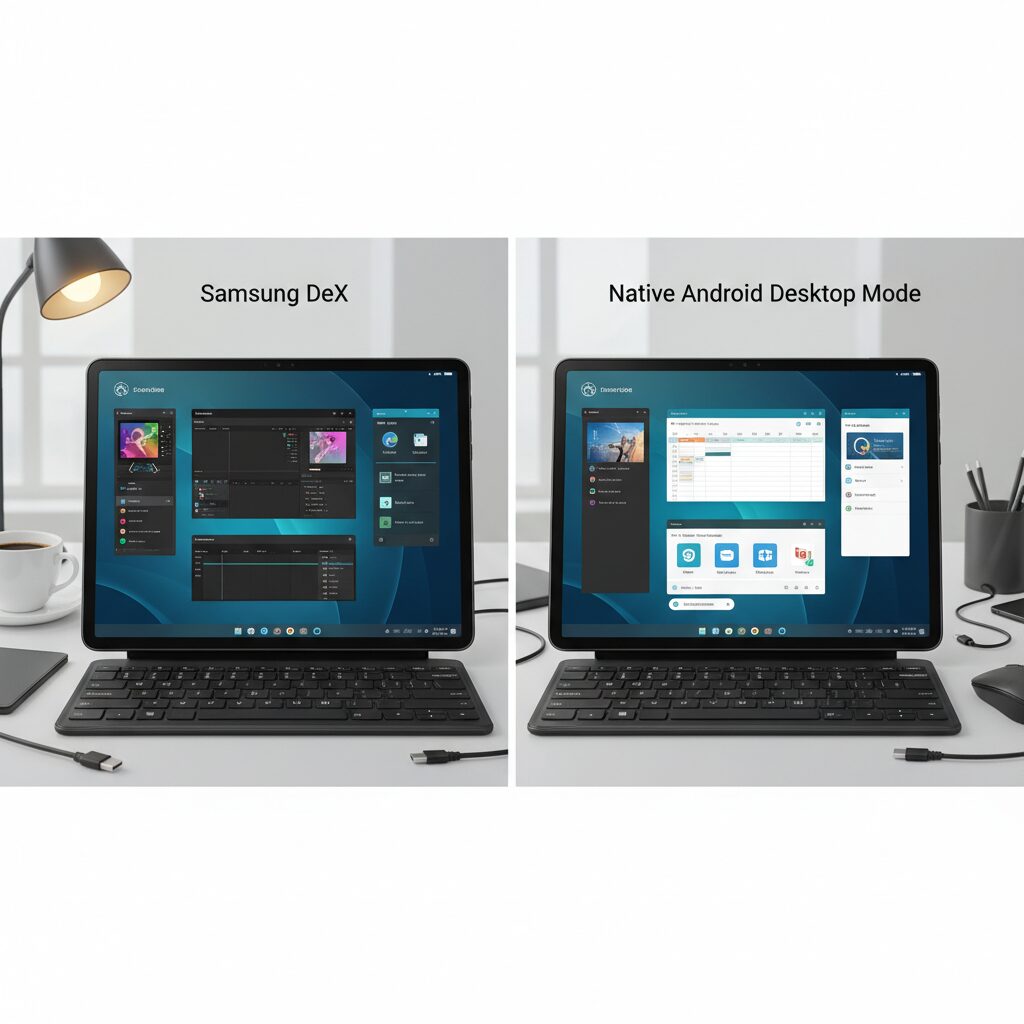
For years, Samsung DeX has functioned as the de facto desktop layer on Android tablets. Now, with Android 16 introducing native desktop windowing, the conversation has shifted from “Can Android replace a PC?” to “Which desktop implementation delivers the better integration?” The answer is more nuanced than many enthusiasts expect.
Google’s native desktop mode, previewed for connected displays in Android 16, focuses on system-level consistency. According to the Android Developers Blog, freeform resizable windows, a persistent taskbar, and standardized caption bars are now managed at the OS level. This means multi-instance support, drag-and-drop behavior via DropHelper, and window snapping can work uniformly across compliant apps.
Samsung, by contrast, historically engineered DeX as a vertically integrated experience. It controlled window memory, layout persistence, and UI density in a way that prioritized long-session productivity over platform neutrality.
| Aspect | Samsung DeX (Classic) | Android 16 Native Mode |
|---|---|---|
| Window memory | Remembers size and position per app | Often resets to centered default |
| UI density | Optimized for workspace efficiency | Follows Android design guidelines |
| App compatibility | Samsung-optimized ecosystem | System-wide standardization |
The integration of DeX into Android 16’s framework, reportedly reflected in One UI 8 builds, aims to reduce fragmentation and long-term maintenance overhead. From a platform strategy perspective, this is logical. A unified window manager lowers developer burden and improves third-party compatibility.
However, user reactions tell a more emotional story. As highlighted by coverage from PhoneArena and discussions on Reddit’s SamsungDeX community, power users have expressed frustration over three specific regressions: loss of strict window state persistence, enlarged title bars reducing usable workspace, and the removal of “pin to front” functionality. For professionals juggling reference images, file managers, and editing tools, these are not cosmetic changes—they affect workflow efficiency.
This is the core trade-off: consistency versus specialization. Google’s model optimizes for scalability across devices and OEMs. Samsung’s earlier DeX optimized for depth within its own ecosystem.
There is also an architectural difference in philosophy. Native Android desktop mode treats the tablet as an extension of mobile computing scaling upward. DeX historically treated the tablet as a lightweight PC scaling downward. That distinction influences decisions such as window chrome thickness, keyboard shortcut mapping, and multitasking aggression.
Encouragingly, Android 16 QPR updates have improved cursor transition behavior between displays, addressing one of desktop mode’s early friction points. Reports from Gadget Hacks indicate smoother universal cursor handling, narrowing the experiential gap with mature DeX setups.
For users invested in file-heavy workflows—external SSD transfers, multi-window file managers, cloud sync utilities—the practical question is less about branding and more about friction. If window resets slow you down, Classic DeX behavior feels superior. If cross-device consistency and future-proof app compatibility matter more, native Android desktop mode may prove the more sustainable bet.
In short, Samsung DeX represents refinement through iteration, while native Android desktop mode represents platform consolidation. The tension between the two is not a failure of vision—it is the inevitable convergence of a proprietary innovation with an operating system finally catching up.
Scoped Storage Deep Dive: Security Model, Limitations, and Practical Impact
Scoped Storage is the cornerstone of modern Android’s security architecture. Introduced in Android 10 and enforced from Android 11 onward, it fundamentally redefines how apps interact with shared storage. Instead of granting broad file system access through legacy permissions such as WRITE_EXTERNAL_STORAGE, the system now isolates each app into its own sandbox and strictly mediates access to shared collections like images, videos, and audio.
This shift is not cosmetic. It transforms Android from an open file system model into a privacy-centric, policy-driven storage framework. According to Google’s developer documentation, the primary goal is to minimize the risk of data exfiltration by malicious or poorly coded apps, a long-standing concern in earlier Android versions.
The evolution can be understood structurally as follows.
| Android Version | Storage Model | Access Scope |
|---|---|---|
| Android 9 and earlier | Legacy external storage | Broad file system access with permission |
| Android 10 | Scoped Storage (optional) | App sandbox + media collections |
| Android 11+ | Scoped Storage (enforced) | Strict isolation, limited shared access |
Under this model, each application can freely read and write within its private directory, typically located under /Android/data, but cannot browse other apps’ directories directly. Shared media files are accessed through the MediaStore API, while arbitrary file access must go through the Storage Access Framework, where users explicitly grant permission via a system file picker.
For end users, the security benefits are tangible. If a rogue app is installed, it cannot silently scan documents created by another app. Google’s broader security reports consistently emphasize sandboxing as a critical defense layer, and Scoped Storage extends this philosophy from process isolation to storage isolation.
However, the practical limitations are equally real. Power users accustomed to traditional directory trees encounter friction when attempting bulk operations, cross-app backups, or direct manipulation of configuration files. The once-visible /Android/data directory is now inaccessible to standard file managers without special mechanisms, which significantly impacts workflows such as manual game data backup or app-level troubleshooting.
The key trade-off is clear: stronger privacy guarantees in exchange for reduced filesystem transparency.
Developers also face architectural constraints. Apps must refactor legacy file APIs to comply with scoped access rules, often migrating to MediaStore or SAF-based flows. This introduces additional abstraction layers, which can affect performance and complicate large file operations, especially when handling non-media content.
In professional contexts, the impact depends on workflow design. Creators working within well-designed apps that natively support modern APIs may notice little difference. In contrast, users relying on cross-app file manipulation or automation tools experience measurable friction. The security model prioritizes user consent and compartmentalization over raw flexibility, and understanding this philosophy is essential for maximizing productivity within Android’s modern storage ecosystem.
Ultimately, Scoped Storage is not merely a restriction. It is a deliberate recalibration of Android’s trust boundaries, redefining what “file access” means on a mobile-first operating system that increasingly competes with desktop-class environments.
Accessing /Android/data in 2026: How Shizuku Changes the Game
Since Android 11, the /Android/data directory has been effectively sealed off from ordinary file managers. Even if you can see the folder, you often cannot open or modify its contents. According to Google’s official support threads and developer documentation, this restriction is a direct consequence of Scoped Storage, which isolates each app’s private data to protect user privacy.
For everyday users, this change improves security. For power users, however, it breaks long‑standing workflows such as backing up game save data, applying mods, or manually cleaning corrupted app files. In 2026, this tension between security and control remains one of Android’s most debated design decisions.
Why /Android/data Became Untouchable
| Android Version | /Android/data Access | Impact on Users |
|---|---|---|
| Android 9 and earlier | Broad file access with storage permission | Full manual backup and modification possible |
| Android 11+ | Restricted by Scoped Storage | Standard file managers blocked |
Under Scoped Storage, apps can freely access only their own sandbox and shared media collections. Direct browsing of other apps’ private directories is blocked at the system level. As discussed in analyses of Android’s file access evolution, this model significantly reduces the risk of data scraping by malicious apps.
However, this also means that even legitimate maintenance tasks become impossible without special tools. That is where Shizuku changes the game.
How Shizuku Works Without Root
Shizuku leverages Android’s wireless debugging feature to grant apps elevated privileges equivalent to ADB permissions, without requiring root access. Instead of modifying the system partition, it starts a local service that communicates through officially supported debugging channels.
The setup process involves enabling Developer Options, activating wireless debugging, pairing the device, and launching the Shizuku service. Once running, compatible apps can perform operations normally limited to ADB commands.
This distinction is crucial. Because it relies on official debugging mechanisms rather than rooting, users maintain OTA update compatibility and avoid tripping hardware security flags.
Real-World Use Cases in 2026
With a Shizuku-compatible file manager such as Solid Explorer, FV File Manager, or ZArchiver, users regain practical access to /Android/data and /Android/obb. This enables:
Game save backups before switching devices, manual removal of leftover cache files after uninstalling large apps, and mod file placement for supported titles. Community-curated repositories of Shizuku-enabled apps on GitHub demonstrate how rapidly this ecosystem has expanded.
For creators and advanced users, this restores a PC-like sense of file ownership. Instead of being confined to app-level export functions, you can directly inspect directory structures and verify file integrity.
That said, Shizuku sessions typically reset after reboot unless reactivated, and wireless debugging must remain enabled during use. This adds friction compared to the unrestricted access of pre-Android 10 systems.
Even so, in 2026, Shizuku represents the most practical middle ground between Google’s tightening privacy controls and the advanced user’s demand for transparency and control over their own storage.
If Scoped Storage closed the door to /Android/data, Shizuku quietly built a compliant side entrance.
External SSDs and SD Cards: exFAT, NTFS, APFS, and Real-World Compatibility
When you connect an external SSD or SD card to an Android tablet, the real question is not capacity but file system compatibility. The format you choose directly affects whether you can read, write, or even recognize the drive.
Different file systems were designed for different ecosystems. On Android, that design philosophy becomes immediately visible in day‑to‑day workflows such as 4K video editing, large project backups, or cross‑platform collaboration.
| File System | Max File Size | Android Support | Best Use Case |
|---|---|---|---|
| FAT32 | 4GB | Full (legacy) | Small files, legacy devices |
| exFAT | Practically unlimited | Native (Android 4.4+ on most devices) | Cross‑platform SSD/SD use |
| NTFS | Very large | Often read‑only | Windows-centric workflows |
| APFS / HFS+ | Very large | Generally unsupported | Mac-only environments |
exFAT is effectively the safest default for external SSDs and SD cards used with Android tablets. As discussed in long‑running Android developer community threads, exFAT support became broadly available starting with Android 4.4, and today it is natively recognized by most major manufacturers.
For creators handling multi‑gigabyte .clip files or 4K video footage, FAT32’s 4GB file limit is a deal breaker. Even a single ProRes or high‑bitrate MP4 file can exceed that threshold.
NTFS introduces a subtler limitation. Many Android devices mount NTFS drives as read‑only. That means you can copy files from the drive but cannot save work back to it without third‑party drivers such as the Paragon plugin for Total Commander.
APFS and HFS+ remain problematic. Community reports and cross‑platform tests consistently show that Android lacks native support for Apple’s file systems. A Mac‑formatted SSD will often fail to mount entirely.
Performance adds another layer. Notebookcheck’s storage benchmarks and user‑reported disk tests for devices like the Galaxy Tab S9 series show that high‑end tablets can sustain hundreds of MB/s when paired with fast UFS storage and USB 3.x controllers.
However, Android Authority’s testing of certain Pixel models highlights inconsistent real‑world transfer speeds over USB‑C, sometimes falling to tens of MB/s despite theoretical bandwidth headroom. The bottleneck is not only the cable or port version but controller tuning and protocol overhead.
In practical terms, professionals should align three variables: file system format, USB controller capability, and workflow scale. A 2TB exFAT SSD connected to a USB 2.0 Type‑C port will behave very differently from the same drive on a USB 3.2 Gen 2 interface.
Compatibility is a design decision, not an afterthought. Formatting external media strategically before deploying it into your production pipeline ensures your Android tablet performs like a serious workstation rather than a fragile intermediary device.
USB-C Transfer Speeds Explained: MTP Overhead, UFS Performance, and Benchmark Insights
When you plug an Android tablet into a PC, the number printed on the spec sheet—USB 3.2 Gen 2, 10Gbps, Thunderbolt—rarely matches the speed you actually experience. The reason lies in protocol overhead, internal storage limits, and software implementation details that are often invisible to users.
Understanding the gap between theoretical bandwidth and real-world throughput is essential for creators handling tens or hundreds of gigabytes.
The Hidden Cost of MTP
Most Android devices use MTP (Media Transfer Protocol) for file transfers over USB. Unlike traditional USB mass storage, MTP operates at the file level, not the block level. This adds processing overhead, especially when transferring thousands of small files such as RAW photos or project assets.
Testing reported by Android Authority on Pixel devices highlights this clearly. Even when connected via high-speed USB-C ports, real-world transfer rates often remain in the tens of MB/s range, far below theoretical limits. Community benchmarks on Reddit show similar behavior, particularly with large batches of small files.
MTP prioritizes safety and compatibility, but not raw performance.
Internal Storage: UFS as the Real Bottleneck—or Enabler
USB bandwidth is only one side of the equation. The internal storage standard—typically UFS 3.1 or UFS 4.0 on high-end tablets—directly determines sustained read/write speeds. According to user disk benchmarks shared for the Galaxy Tab S9 series, sequential speeds can reach several hundred MB/s, enabling high-speed transfers to external SSDs.
In contrast, if internal storage cannot sustain high sequential writes, even a 10Gbps USB controller will underperform. The slowest component in the pipeline dictates the final speed.
| Component | Theoretical Capability | Real-World Impact |
|---|---|---|
| USB 2.0 (Type-C) | 480 Mbps | ~30–40 MB/s typical ceiling |
| USB 3.2 Gen 2 | 10 Gbps | Depends on controller + storage |
| UFS 3.1/4.0 | Hundreds of MB/s sequential | Enables high sustained transfers |
Benchmark Reality vs. Marketing Claims
Notebookcheck and community disk benchmarks consistently show that mid-range tablets often plateau well below flagship models, even when ports look identical. Pixel series devices, for example, have been reported to exhibit unusually constrained USB transfer performance despite compliant hardware specifications.
Another overlooked variable is file structure. Large single video files transfer far faster than directories containing thousands of small assets. Each file incurs metadata negotiation under MTP, compounding latency.
For professional workflows, exporting projects as a single compressed archive before transfer can dramatically improve effective throughput.
In practical terms, creators using external SSDs on high-end Galaxy Tab models can maintain several hundred MB/s in optimal conditions, while others may see one-tenth of that speed under identical cables. The difference is not the cable—it is protocol overhead, controller optimization, and storage architecture working together.
Knowing these constraints allows you to design smarter workflows, reduce transfer bottlenecks, and choose hardware that aligns with your production scale.
The Big Four File Managers Compared: Solid Explorer, MiXplorer, X-plore, and Total Commander
When discussing serious file management on Android tablets in 2026, four names consistently dominate the conversation: Solid Explorer, MiXplorer, X-plore, and Total Commander. Each reflects a different philosophy of productivity, security, and power-user control.
The differences are not cosmetic. They shape how efficiently you can move terabytes across SSDs, access restricted directories, or manage network storage in a desktop-like Android 16 environment.
| App | Core Strength | Best For |
|---|---|---|
| Solid Explorer | Polished dual-pane UI + cloud integration | Balanced daily + professional use |
| MiXplorer | Extreme customization + built-in tools | Power users and modders |
| X-plore | Tree view + strong SMB speeds | Network-heavy workflows |
| Total Commander | Plugin ecosystem + keyboard control | External drives & NTFS workflows |
Solid Explorer: The Gold Standard of Balance
Solid Explorer remains the most “complete” experience for many professionals. Its Material Design-based interface feels native within Android 16’s windowed desktop mode, and its dual-pane layout is optimized for landscape tablet use.
It supports FTP, SFTP, SMB (v2/v3), and major cloud services via plugins, allowing Google Drive or Dropbox to behave almost like local folders. According to its Play Store documentation, security features such as folder encryption and biometric locking are built in.
If you want power without friction, Solid Explorer delivers the most refined equilibrium between usability and depth.
MiXplorer: The Power User’s Toolkit
Born from the XDA Developers community, MiXplorer (Silver) pushes customization further than any competitor. It integrates a code editor, PDF reader, media player, and archive manager directly inside the app.
This means fewer context switches in multi-window mode. You preview, edit, compress, and move files without leaving the interface. Community comparisons on Reddit frequently highlight its deep theme control and advanced file operation scripting.
It also supports extended filesystem handling and advanced storage access scenarios, making it especially attractive for users leveraging Shizuku or working around Scoped Storage limitations.
X-plore: Visibility and Network Muscle
X-plore’s distinctive twin tree-view layout may look old-school, but it excels in structural clarity. When navigating deeply nested directories such as /Android/data, always-visible hierarchies reduce orientation loss.
Community SMB transfer benchmarks shared on Reddit show X-plore achieving over 100MB/s in certain network conditions, suggesting strong protocol efficiency. For NAS-heavy workflows, that matters.
Its WiFi sharing server—accessible through a browser and QR code—also simplifies cross-device access without installing companion software.
Total Commander: Precision Through Plugins
Total Commander inherits its Windows legacy with a plugin-first architecture. Its integration with Paragon’s exFAT/NTFS for USB plugin enables stable read/write access to NTFS drives, a critical advantage for creators moving large Windows-formatted SSD archives.
Keyboard shortcut support is another differentiator. With a hardware keyboard attached, familiar commands like Ctrl+C and Ctrl+V behave predictably, reinforcing a PC-like workflow.
For users who treat their Android tablet as a portable workstation rather than a media device, Total Commander often becomes indispensable.
Ultimately, the “best” manager depends on your workflow: elegance, extensibility, network throughput, or filesystem control. In a post-Scoped Storage world, choosing the right file manager is no longer a preference—it is a strategic productivity decision.
Creator Workflows: Managing Large Clip Studio Paint Projects on Android
When managing large Clip Studio Paint projects on Android, the real challenge is not drawing performance but how you structure, store, and safeguard multi‑gigabyte .clip files across devices and storage layers.
Since Clip Studio Paint Ver. 3.2.0 allows flexible save locations on Galaxy, Android, and Chromebook devices, as confirmed by Clip Studio Support, creators can now define external SSDs or high-speed SD cards as active workspaces. This is critical when individual manga manuscripts exceed several gigabytes due to high DPI settings and dozens of layers.
Recommended Storage Architecture
| Storage Tier | Best Use | Why It Matters |
|---|---|---|
| Internal UFS Storage | Active project editing | Lowest latency and highest stability |
| External SSD (exFAT) | Large archives & backups | No 4GB file limit, cross-platform compatibility |
| Cloud/NAS | Automated redundancy | Protection against device failure |
High-end devices such as Galaxy Tab S series models use fast UFS storage, and benchmark discussions in enthusiast communities show sustained high write speeds compared to midrange tablets. For creators handling 600dpi comic pages, this directly reduces save-time friction.
A practical workflow is to edit on internal storage, mirror to SSD weekly, and sync nightly to cloud or NAS. Automation tools such as FolderSync or network-enabled file managers make differential backups possible without manual exports.
Scoped Storage restrictions in Android 11 and later mean that project folders should be placed in accessible directories rather than system-protected paths. According to Android’s documented storage evolution, app sandboxing is stricter than in earlier Android versions, so planning folder hierarchy at project start prevents migration headaches later.
For large anthology or doujin projects, version control discipline becomes essential. Instead of overwriting a master file, duplicate milestones such as “chapter01_v3.clip.” While Android lacks native Git workflows for binary art files, structured naming conventions provide similar rollback safety.
Submission workflows have also become fully mobile. Many Japanese printing services accept browser-based uploads, and Chrome on Android integrates with the system file picker. This enables direct ZIP upload without transferring to a PC first, provided your archive is properly structured and encoded.
Finally, consider transfer bottlenecks. Even with USB-C ports, real-world throughput depends on controller implementation and protocol overhead. Independent testing reported by Android-focused media has shown that some Pixel devices exhibit lower-than-expected transfer speeds, which can slow multi-gigabyte exports. For heavy creators, hardware I/O performance is not a luxury but a workflow determinant.
Managing large Clip Studio Paint projects on Android is therefore less about app capability and more about architecting a resilient, multi-layered storage strategy that respects Android’s security model while maximizing speed, redundancy, and long-term accessibility.
Mac and Cross-Platform Transfers: OpenMTP, Quick Share, and LocalSend
For Mac users and multi-OS creators, file transfer is often the last friction point in an otherwise polished Android tablet workflow. While Windows recognizes Android devices natively via MTP, macOS has historically required additional software, and the quality of that bridge directly affects productivity.
Today, three tools define the cross-platform experience: OpenMTP for wired Mac transfers, Quick Share for Windows integration, and LocalSend for true platform-agnostic wireless exchange.
OpenMTP: The Reliable Mac Bridge
Google’s official Android File Transfer has effectively stagnated, and compatibility issues with newer macOS versions have been widely reported in user communities. In response, OpenMTP emerged as an open-source alternative built specifically for macOS stability.
According to comparative testing referenced by Android-focused technical media, OpenMTP offers significantly more stable large-file transfers than the legacy tool, particularly with files exceeding 4GB. This matters when moving Clip Studio assets, 4K video, or multi-layer project archives.
The dual-pane interface is the key advantage. Mac storage appears on one side, Android storage on the other, enabling direct drag-and-drop operations without temporary staging folders.
| Feature | OpenMTP | Android File Transfer |
|---|---|---|
| Large File Stability | High | Often unstable |
| UI | Dual-pane | Single window |
| Active Development | Yes (open source) | No significant updates |
For Mac-based illustrators or video editors using Android tablets as portable production stations, OpenMTP is not optional—it is infrastructure.
Quick Share: Windows-Level Integration
Quick Share, formerly Nearby Share, has evolved into a practical AirDrop equivalent between Android and Windows. Google’s official documentation highlights native Windows app support, allowing direct PC-to-tablet transfers without cables.
Because it operates over local wireless connections, transfer speeds depend on Wi-Fi bandwidth, but for project drafts, PDFs, and compressed assets, the convenience outweighs raw throughput limitations.
Its true strength lies in frictionless authentication and device discovery, making it ideal for hybrid office environments where Android tablets complement Windows desktops.
LocalSend: Cross-Platform Without Ecosystem Lock-In
When Mac, Linux, and Windows coexist in one workspace, LocalSend becomes especially compelling. As noted in developer and user communities, it performs peer-to-peer transfers over the local network without routing files through cloud servers.
This architecture offers two advantages: privacy and independence from vendor ecosystems. Files never leave the local LAN, and no account login is required.
For photographers or designers moving hundreds of RAW previews between devices, this reduces upload latency and eliminates cloud storage bottlenecks.
Choosing the right tool depends on environment, not brand loyalty. Mac users benefit most from OpenMTP for wired reliability. Windows-centric workflows gain speed from Quick Share. Mixed-platform studios achieve maximum flexibility with LocalSend.
In 2026, seamless Android tablet productivity is no longer about the tablet alone. It depends on how intelligently you architect the bridges between operating systems.
Privacy Sandbox and Private Space: The Future of File Access on Android
Android’s file access model is entering a decisive phase. With Privacy Sandbox and the introduction of Private Space in Android 15, Google is clearly prioritizing stronger isolation, tighter permissions, and reduced cross-app visibility. For power users who rely on deep file control, this shift is not abstract policy—it directly affects how data can be stored, accessed, and moved.
According to Google’s official Android documentation and developer briefings, Privacy Sandbox on Android is designed to limit unnecessary data sharing between apps while still enabling essential functionality. Although much of the public discussion focuses on advertising APIs, the underlying philosophy is broader: apps should access only what they strictly need, and nothing more. That principle inevitably shapes the future of file management.
Private Space and Data Isolation
Android 15 introduced Private Space as a user-facing feature that allows selected apps to run in a completely separate, locked environment. When Private Space is enabled, apps inside it are hidden from the main profile and require additional authentication to access. From a file management perspective, this represents a new layer of compartmentalization.
| Feature | Standard Profile | Private Space |
|---|---|---|
| App Visibility | Visible in launcher | Hidden when locked |
| File Access | Scoped Storage rules | Isolated within Private Space |
| Cross-App Access | Controlled via SAF | Further restricted |
This separation means that even advanced file managers cannot freely browse into Private Space app data unless explicitly permitted by the system. In practical terms, user-level file exploration is no longer the default assumption. The operating system becomes the gatekeeper, not the file manager.
Impact on Professional Workflows
For creators, developers, and enterprise users, the implications are significant. Workflows that once relied on direct directory access—such as moving project assets between apps or backing up configuration files—must now operate through officially supported channels like the Storage Access Framework. As described in analyses of Android’s file security evolution on platforms such as DEV Community, each Android version since Android 10 has progressively narrowed raw path access.
Private Space extends this logic further. If sensitive client documents or proprietary design assets are stored within a protected app, they are shielded from other apps—even trusted file managers. This improves security posture but reduces flexibility. The trade-off is explicit: stronger privacy boundaries in exchange for diminished system-wide transparency.
The Future: Security vs. User Autonomy
Looking ahead, Privacy Sandbox signals that Google intends to formalize these boundaries rather than relax them. Workarounds that depend on elevated privileges or debugging bridges may become harder to sustain as the platform closes loopholes. At the same time, enterprise and professional demand for controlled but powerful file workflows is unlikely to disappear.
The future of file access on Android will likely center on granular, user-consented APIs instead of unrestricted directory browsing. Advanced users will need to adapt by designing workflows around permissions, document providers, and officially sanctioned data exchange mechanisms. In this evolving ecosystem, mastery will no longer mean bypassing restrictions—it will mean understanding and strategically leveraging them.
参考文献
- MM Research Institute:Tablet Shipment Volume Survey 2024
- Android Developers Blog:Developer preview: Enhanced Android desktop experiences with connected displays
- Android Developers:DropHelper for simplified drag and drop
- DEV Community:The Evolution of File Access Security in Android: Navigating Path Restrictions from Android 1.0 to Android 15
- Android Authority:Tested: The Google Pixel series has a strange USB-C transfer problem
- Google Play:Solid Explorer File Manager
- Clip Studio Support:Can I choose where to save files? (Tablet/PC version)
- Android:The New Quick Share App for Windows