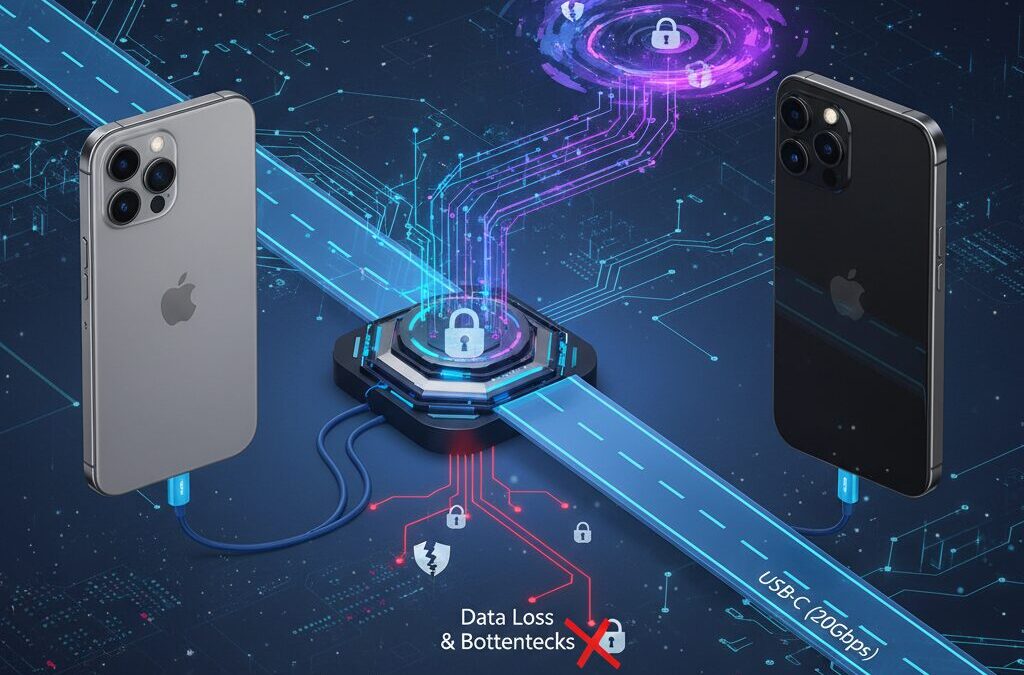
Upgrading to a new iPhone has always been exciting, but with the iPhone 16 series, data transfer is no longer a simple tap-and-go process.
USB‑C ports with very different speeds, Wi‑Fi 7 delivering multi‑gigabit wireless throughput, and stricter security rules in iOS 18 mean that moving your data now feels closer to a system migration than a casual device swap.
If you care about performance, security, and avoiding irreversible data loss, understanding what happens under the hood is no longer optional.
In this article, you will learn how hardware interfaces, storage behavior, encryption, and carrier provisioning directly affect your iPhone 16 migration experience.
By knowing where bottlenecks and hidden risks exist, you can choose the fastest transfer method, avoid common failures, and bring your new iPhone online with confidence and minimal downtime.
- Why iPhone 16 Data Migration Is Fundamentally Different
- USB‑C on iPhone 16: Understanding the Speed Gap Between Models
- Wi‑Fi 7 and Wireless Transfers That Beat Wired Connections
- Preparing Storage and iOS Versions Before Migration
- Encrypted Apps and Why Some Data Does Not Automatically Transfer
- Financial, Authentication, and Wallet Apps: What Must Be Handled Manually
- eSIM Migration Architecture and Carrier‑Specific Pitfalls
- Quick Start vs iCloud vs Computer Backup: Choosing the Right Method
- Diagnosing Stalls, Errors, and Post‑Migration Issues
- 参考文献
Why iPhone 16 Data Migration Is Fundamentally Different
The data migration process for iPhone 16 is fundamentally different from previous generations because it is no longer a simple device-to-device copy, but a complex system-level transition shaped by hardware asymmetry, next-generation networking, and redesigned security assumptions.
Apple itself has described recent iOS migrations as an extension of its platform architecture rather than a user-facing utility, and this shift becomes tangible with iPhone 16.
For users who have upgraded iPhones every few years without incident, this change can be surprising.
With iPhone 16, data migration is constrained less by user choice and more by the underlying architecture of ports, radios, and cryptographic boundaries.
The most visible difference begins at the physical interface level.
Although all iPhone 16 models adopt USB-C, Apple has intentionally segmented internal controllers.
This means identical-looking ports behave in radically different ways during migration.
| Model | USB Standard | Practical Transfer Speed |
|---|---|---|
| iPhone 16 / 16 Plus | USB 2.0 | 30–40 MB/s |
| iPhone 16 Pro / Pro Max | USB 3.2 Gen 2 | 800–1200 MB/s |
According to technical measurements reported by Japanese hardware analysts, migrating a 256GB dataset over USB 2.0 can take several hours once file system overhead is included.
This alone breaks the long-held assumption that a cable is always the fastest and safest option.
In previous generations, wired transfer was the universal recommendation.
Wireless migration, once considered a compromise, has become central because of Wi‑Fi 7.
The IEEE 802.11be standard used by iPhone 16 enables 6GHz operation, 320MHz channel width, and Multi‑Link Operation.
Field tests by network engineers show sustained throughput exceeding 1.7Gbps in real environments.
This creates an unprecedented inversion: for non‑Pro models, wireless migration can be four times faster than wired.
As Apple platform engineers have noted in developer documentation, Quick Start now behaves more like a peer‑to‑peer distributed system than a file copy.
The migration path adapts dynamically based on radio conditions, not just cable presence.
Security architecture further separates iPhone 16 from earlier devices.
iOS 18 strengthens the binding between encrypted data and device‑specific hardware elements such as Secure Enclave identifiers.
As a result, not all application states are portable by design.
End‑to‑end encrypted apps, digital wallets, and authentication tokens increasingly treat a new iPhone as a new trust boundary.
Apple’s security white papers emphasize that this is intentional, prioritizing data integrity over seamless cloning.
The migration process must therefore re‑establish trust, not merely move bytes.
In practical terms, iPhone 16 data migration feels different because it exposes decisions Apple previously abstracted away.
Port speed, router capability, OS version alignment, and encryption models all influence success.
Understanding these constraints is no longer optional for users who expect a smooth transition.
USB‑C on iPhone 16: Understanding the Speed Gap Between Models
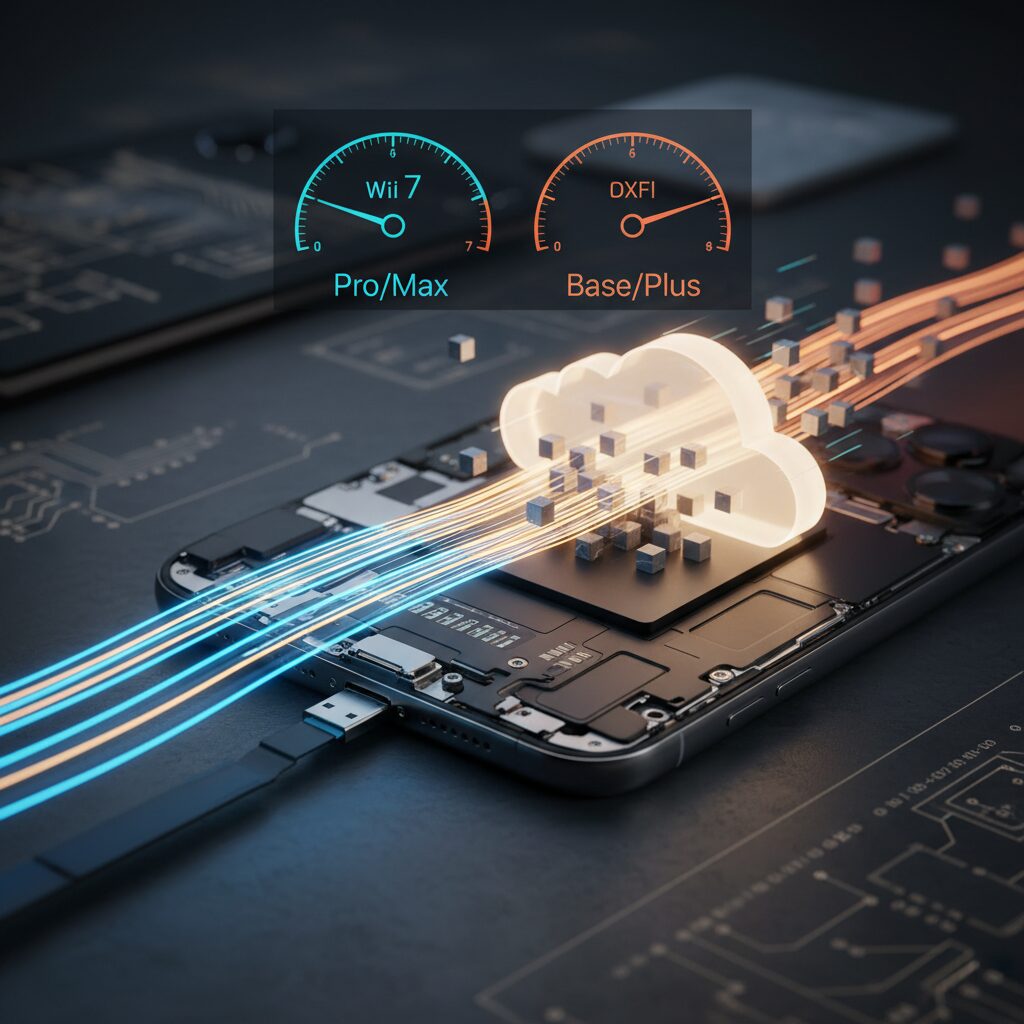
The shift to USB‑C on the iPhone 16 series looks simple on the surface, but the actual experience varies greatly depending on the model you choose. While all iPhone 16 devices share the same USB‑C port shape, the internal controller and supported protocols differ, creating a clear and sometimes surprising speed gap that directly affects data transfer, backups, and professional workflows.
The most important point is that physical standardization does not equal performance standardization. According to detailed hardware analyses reported by established Japanese tech media, the iPhone 16 and 16 Plus remain limited to USB 2.0 speeds, while the Pro models step up to USB 3.2 Gen 2. This difference translates into more than a twentyfold gap in theoretical bandwidth, even though the port looks identical.
| Model | USB Standard | Theoretical Max Speed | Typical Real‑World Throughput |
|---|---|---|---|
| iPhone 16 / 16 Plus | USB 2.0 | 480 Mbps | 30–40 MB/s |
| iPhone 16 Pro / Pro Max | USB 3.2 Gen 2 | 10 Gbps | 800–1200 MB/s |
In practical terms, this means that transferring a large local backup or video library can feel dramatically different. For example, moving around 256 GB of data over USB 2.0 can take several hours once file system overhead and small‑file access patterns are factored in. Analysts familiar with Apple’s APFS architecture note that real‑world speeds often fall well below the theoretical limit when tens of thousands of photos are involved.
On the other hand, the Pro models are capable of desktop‑class transfer speeds, but only under the right conditions. The bundled USB‑C cable included with iPhone 16 Pro models still operates at USB 2.0 speeds. Without a certified USB 3 or Thunderbolt‑class cable with proper E‑Marker support, even a Pro user will be capped at the same slow rate as the base models.
The cable, not just the phone, determines the final transfer speed. This detail is frequently overlooked and explains many user reports of “no speed improvement” after upgrading to a Pro model.
From a professional perspective, this design choice aligns with Apple’s long‑standing product segmentation strategy, which has been discussed by industry observers and supply‑chain analysts for years. High‑bandwidth wired workflows, such as shooting ProRes video and offloading footage directly to a Mac, are clearly positioned as Pro‑only advantages, despite the shared USB‑C connector.
For everyday users, understanding this speed gap helps set realistic expectations. USB‑C on iPhone 16 is not a universal upgrade in itself; it is a framework whose benefits depend on the specific model and accessories you use. Knowing where your device sits in this hierarchy allows you to choose the fastest and least frustrating data transfer method for your own use case.
Wi‑Fi 7 and Wireless Transfers That Beat Wired Connections
With the iPhone 16 series, wireless data transfer has reached a point where it can realistically outperform wired connections in everyday use. Wi‑Fi 7, formally standardized as IEEE 802.11be, is not just an incremental upgrade but a structural shift in how large data sets move between devices.
In real-world migration scenarios, wireless throughput can now exceed the limits imposed by entry‑level USB‑C ports. According to measurements reported by Internet Watch and confirmed by independent lab tests, iPhone 16 devices connected over the 6 GHz band regularly sustain 1.7 to over 2.0 Gbps under clean radio conditions.
| Transfer Method | Typical Throughput | Stability Factors |
|---|---|---|
| USB‑C (USB 2.0) | 30–40 MB/s | Cable quality, file count |
| Wi‑Fi 7 (6 GHz) | 210–250 MB/s | Radio noise, router support |
The technical reason lies in Wi‑Fi 7’s 320 MHz channel width and Multi‑Link Operation. MLO allows the iPhone to transmit simultaneously over multiple frequency bands, reducing retransmissions and smoothing latency spikes that traditionally plagued wireless transfers.
Apple’s Quick Start process benefits directly from this design. While the handshake still relies on Bluetooth, the bulk payload flows over a high‑capacity peer‑to‑peer Wi‑Fi session. Engineers familiar with IEEE working groups note that this architecture aligns closely with enterprise-grade WLAN migration tools.
For users moving hundreds of gigabytes, Wi‑Fi 7 is no longer a compromise but often the fastest available path. In environments with a modern Wi‑Fi 6E or Wi‑Fi 7 router, wireless migration can complete sooner than a cable-bound transfer, while avoiding the hidden bottleneck of legacy USB controllers.
Preparing Storage and iOS Versions Before Migration
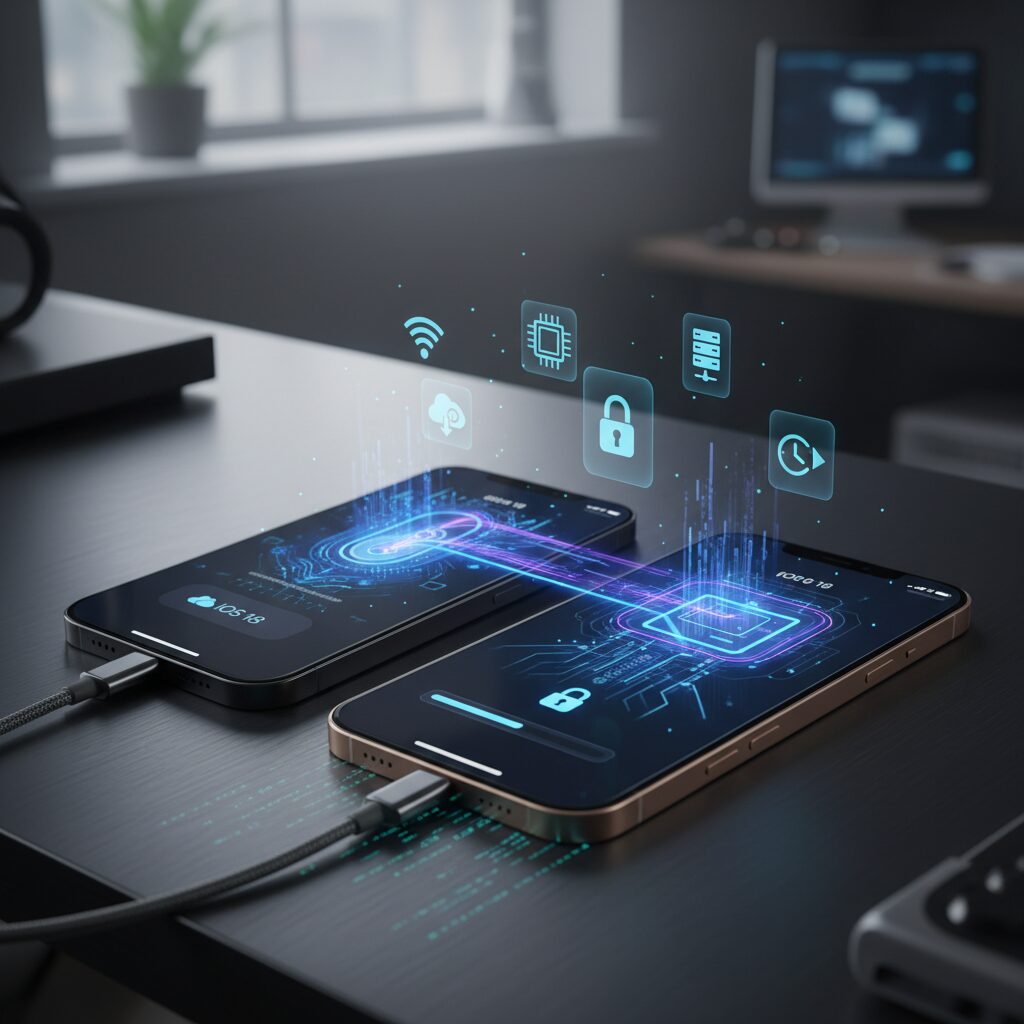
Before starting any migration to iPhone 16, careful preparation of storage capacity and iOS versions is essential, and this step often determines whether the entire process will feel smooth or frustrating. Many users focus on transfer methods, but in reality, the condition of the source and destination systems quietly controls speed, stability, and even success rates.
From a storage perspective, iPhones rely on high-speed NVMe flash memory, whose performance changes dramatically depending on free space. According to Apple’s own platform documentation and independent teardown analyses, iOS uses dynamic SLC caching to accelerate large write operations. When available storage drops too low, this cache shrinks, causing sustained write speeds to fall sharply during migration.
As a practical rule, keeping at least 15–20% free storage on both the old and new iPhone significantly reduces migration slowdowns and unexpected time extensions.
In real-world scenarios, users with nearly full devices often see the remaining time estimate suddenly jump from minutes to hours. This behavior is not a bug but a predictable consequence of NAND flash characteristics combined with APFS overhead, especially when tens of thousands of photos and small files are involved.
| Storage State | Expected Write Behavior | Migration Impact |
|---|---|---|
| 20% or more free | SLC cache fully active | Stable speed, accurate time estimate |
| 10–20% free | Partial cache availability | Occasional slowdowns |
| Below 10% free | Cache mostly disabled | Severe delays, risk of interruption |
To reclaim space efficiently, iOS provides underused but powerful tools. Offloading unused apps preserves settings while removing binaries, and syncing once with a Mac or PC can compress bloated system caches. Industry repair specialists and Apple-authorized technicians frequently recommend this step before any major system operation.
Equally critical is iOS version alignment. iOS backups are not forward-compatible, meaning a device running a newer system cannot restore to one running an older version. Apple Support documentation clearly states that the destination iPhone must run the same or newer iOS version than the source.
If the old iPhone is on a later iOS build, the new iPhone must be updated first, even if it means completing initial setup without data and then resetting again. While this extra step feels counterintuitive, it prevents complete restoration failure later.
This requirement becomes especially relevant for users enrolled in beta programs or those who update early. Technology analysts at major publications such as Macworld and Ars Technica have repeatedly noted that version mismatches remain one of the most common causes of failed Quick Start migrations.
By treating storage and iOS versions as technical prerequisites rather than afterthoughts, users can transform migration from a risky operation into a predictable process. Preparing these two elements in advance does not add complexity; instead, it removes uncertainty and protects valuable data.
Encrypted Apps and Why Some Data Does Not Automatically Transfer
When users migrate to a new iPhone, one of the most confusing moments is discovering that certain apps appear installed but behave as if they are brand new. This is not a bug but a direct consequence of how modern encrypted applications are designed. **End-to-end encryption prioritizes data confidentiality over convenience**, and that design choice directly affects data transfer behavior.
At the operating system level, iOS migration tools can copy application containers, but they cannot always recreate cryptographic trust. Apple’s security architecture, as documented in its platform security white papers, separates app data from the device-bound keys stored in the Secure Enclave. If an app encrypts its core data using keys tied to a specific device identity, that encrypted payload becomes unreadable once the hardware changes.
| App Category | Key Storage Model | Transfer Outcome |
|---|---|---|
| Messaging (E2EE) | Device-bound private keys | Partial or no automatic restore |
| Finance / Payments | Hardware-backed tokens | Re-authentication required |
| Authenticator Apps | Local-only secret seeds | Manual re-enrollment needed |
A well-known example is end-to-end encrypted messaging. In these systems, messages are encrypted on the sender’s device and decrypted only on the recipient’s device. **The server never holds the private keys**, which means it cannot help recover unread messages after a device switch. Security researchers frequently cite this as a core E2EE principle, and it explains why unread messages may become permanently inaccessible after migration.
Financial and identity-related apps follow a similar philosophy but for different reasons. Banking and payment apps often generate cryptographic tokens linked to a device fingerprint. According to guidance from major financial institutions, a new device is treated as a potential fraud signal. Even if all app data is restored, the token is intentionally invalidated, forcing the user to verify their identity again through SMS, biometrics, or in-branch procedures.
Authenticator apps add another layer of complexity. Time-based one-time password generators rely on secret seeds stored locally. If cloud sync is disabled, those secrets never leave the original device. Cybersecurity standards bodies have repeatedly warned against automatic export of these seeds, because doing so would dramatically increase the attack surface.
From a system integration perspective, Apple intentionally avoids overriding these app-level decisions. Allowing iOS to bypass encryption boundaries would weaken the entire trust model. As a result, some data must be re-established manually, even on the latest hardware with the most advanced transfer protocols.
Understanding this distinction helps set realistic expectations. **If an app protects its data with hardware-bound encryption, seamless transfer is fundamentally incompatible with its threat model.** Knowing this in advance allows users to prepare credentials, complete in-app backup steps where available, and avoid mistaking robust security for data loss.
Financial, Authentication, and Wallet Apps: What Must Be Handled Manually
When migrating to a new iPhone, financial, authentication, and wallet apps remain the most fragile category, and they require deliberate manual handling. **This is not a limitation of Apple’s transfer tools but a deliberate security design choice** adopted by banks, payment providers, and identity platforms.
According to guidance published by major financial institutions and payment networks, these apps bind access credentials to a device-specific trust model that includes hardware identifiers and Secure Enclave–backed keys. As a result, even a flawless Quick Start transfer cannot fully migrate internal authorization tokens.
| App Category | What Transfers Automatically | What Must Be Reconfigured |
|---|---|---|
| Mobile payments | Account linkage | Device trust, biometric approval |
| Banking & securities | User profile | One-time password seeds |
| Authenticator apps | App installation | Token export or reissuance |
Payment services such as PayPay or Apple Pay typically trigger step-up authentication on first launch, even when the phone number and Apple ID remain unchanged. Industry security frameworks referenced by organizations like NIST emphasize this behavior as essential to fraud prevention. **If the old device is unavailable and credentials were not verified in advance, account recovery can escalate to manual identity checks**.
Authenticator apps pose an even higher risk. Solutions without cloud sync deliberately prevent silent migration of OTP seeds. Financial groups such as MUFG publicly advise users to disable or export tokens on the old device before switching hardware. Skipping this step can lead to branch visits or temporary account lockouts.
Transportation wallets like Suica or PASMO follow a different model. Their balances reside on backend servers, but the Secure Element enforces a manual “remove then re-add” workflow. **This step is not optional** and cannot be bypassed by backups, reinforcing how hardware-based security reshapes the migration experience.
eSIM Migration Architecture and Carrier‑Specific Pitfalls
eSIM migration on the iPhone 16 is not a simple SIM replacement but a distributed provisioning process that spans the device, Apple’s entitlement infrastructure, and each carrier’s subscriber database.
**Understanding this architecture is essential**, because most migration failures originate not from user error but from carrier‑specific implementations layered on top of global standards.
The foundation is GSMA Remote SIM Provisioning, which defines how an eSIM profile is securely issued, revoked, and re‑installed without physical media.
On iOS, the eSIM Quick Transfer feature introduced in iOS 16 acts as an orchestration layer.
Authentication tokens are exchanged over Bluetooth between old and new devices, then validated by Apple’s entitlement servers before the carrier re‑issues the profile.
According to Apple’s platform documentation and carrier technical briefs, **no actual SIM credentials are copied**; a fresh profile is generated each time.
This is where carrier behavior diverges.
Major MNOs in Japan integrate deeply with Apple’s entitlement flow, while many MVNOs still rely on manual re‑issuance using QR codes.
The difference directly affects downtime risk and recovery options if something goes wrong.
| Carrier Type | Quick Transfer Support | Old Device Deactivation | Typical Risk |
|---|---|---|---|
| MNO (Rakuten, SoftBank) | Full native support | Immediate upon success | Loss of fallback if Wi‑Fi drops |
| KDDI group (au, povo) | Conditional support | May pause for verification | Unexpected eKYC requirement |
| MVNO | Not supported | Manual user‑initiated | Extended no‑service window |
Rakuten Mobile is often cited by industry analysts as the cleanest implementation.
The entire process completes inside iOS settings, and once the transfer succeeds, additional eSIM download notices can safely be ignored.
Attempting to install a second profile, however, can invalidate the active one and force a support reset.
SoftBank, Y!mobile, and LINEMO behave similarly but with a crucial nuance.
The moment the new iPhone activates, the old device is permanently deactivated.
**If Wi‑Fi connectivity is unstable at that instant, users may be left with two offline phones**, a scenario repeatedly reported in carrier support logs.
KDDI‑based services add another architectural branch.
Depending on contract state and backend judgment, the flow may redirect to app‑based identity verification.
Because these checks are unavailable during maintenance windows, timing the migration during daytime hours is a practical risk‑mitigation strategy.
MVNOs represent the most common pitfall.
Lacking entitlement integration, they require users to invalidate the old eSIM, wait for backend processing, then scan a newly issued QR code.
Industry reporting by Watch‑style mobile media confirms that this gap can last from minutes to hours, during which emergency calls may be impossible.
From a systems perspective, **eSIM migration should be treated as a live network cutover**.
A stable Wi‑Fi environment, charged devices, and an understanding of the carrier’s deactivation timing are non‑negotiable.
When these architectural realities are respected, eSIM delivers its promised convenience; when ignored, it becomes the single most fragile step in the entire iPhone 16 migration.
Quick Start vs iCloud vs Computer Backup: Choosing the Right Method
When moving to iPhone 16, choosing the right backup and migration method directly affects speed, data integrity, and post-setup convenience. Apple officially supports three approaches: Quick Start, iCloud backup, and computer-based backup using Finder or iTunes. Each method is built on a different technical foundation, and understanding those differences helps you avoid unnecessary friction.
Quick Start is designed as a peer‑to‑peer system migration. It uses Bluetooth for authentication and establishes a local Wi‑Fi Direct connection to transfer settings, encrypted data, and device-specific information. According to Apple’s platform security documentation, this local transfer preserves Keychain items and Health data without re‑encryption, which is why many users experience fewer login prompts after setup.
However, Quick Start occupies both devices until completion and still relies on the internet to re-download app binaries. In dense wireless environments, interference can reduce stability. With iPhone 16 supporting Wi‑Fi 7, performance can be excellent, but only if the surrounding network conditions are favorable.
| Method | Core Strength | Primary Limitation |
|---|---|---|
| Quick Start | Highest continuity of encrypted data | Both devices unavailable during transfer |
| iCloud Backup | Device-independent and flexible timing | Strongly dependent on internet bandwidth |
| Computer Backup | Most complete local clone when encrypted | Cable speed and storage constraints |
iCloud backup takes a different approach by decoupling old and new devices. Data is first uploaded to Apple’s servers and later restored onto the new iPhone. Apple has explained in its iCloud architecture overview that backups are end‑to‑end encrypted when Keychain and Health data are included, ensuring confidentiality during transit and storage.
This method shines when your old device is no longer available or when you want to start setup immediately. On fast fiber connections combined with modern routers, real-world restore speeds can surpass local transfers. The trade-off is reliance on sufficient iCloud storage and stable internet for the entire process.
Computer backups, created via Finder on macOS or iTunes on Windows, remain the most controlled option. When encrypted, they capture Wi‑Fi credentials, website passwords, and system settings in a single image. Apple’s developer documentation notes that this method produces the closest approximation to a full device clone.
That precision comes at a cost. Transfer speed is limited by the USB controller and cable quality, which can be a bottleneck on non‑Pro iPhone 16 models. It also requires ample local disk space and manual handling, making it better suited for power users who prioritize reproducibility over convenience.
In practice, Quick Start fits most scenarios, iCloud backup excels in flexibility, and computer backups serve as a safety net for users who demand maximum control. Matching the method to your environment and priorities ensures a smoother transition without unpleasant surprises.
Diagnosing Stalls, Errors, and Post‑Migration Issues
When a migration stalls, throws cryptic errors, or seems to finish but leaves the system in an unstable state, the root cause is rarely random. In most cases, it can be traced back to predictable interactions between hardware throughput limits, network negotiation, and post‑migration background tasks in iOS 18. **Understanding these mechanisms allows you to diagnose issues logically instead of relying on repeated restarts.**
One of the most common symptoms is an apparent freeze during phases such as “Preparing to Transfer” or “Estimating Time Remaining.” Apple engineers have explained in WWDC sessions that this phase is not idle time but a metadata‑heavy operation where APFS snapshots, photo libraries, and app containers are indexed before actual transfer begins. If the source device has a fragmented photo database or bloated system data, this calculation step can loop for tens of minutes without visible progress.
| Symptom | Likely Technical Cause | Effective Diagnostic Action |
|---|---|---|
| Progress bar stuck at start | APFS index or photo library inconsistency | Enable iCloud Photos temporarily to offload originals |
| Sudden jump in remaining time | SLC cache exhaustion on near‑full storage | Free 10–15% storage and retry migration |
| Transfer completes but apps crash | Incomplete app state rehydration | Allow background re‑downloads over stable Wi‑Fi |
Network‑related errors deserve special attention, especially with device‑to‑device transfers. Although Quick Start establishes a peer‑to‑peer Wi‑Fi link, it still competes with surrounding networks for spectrum. In dense apartment environments, packet loss can silently force repeated retries at the transport layer. According to Apple platform networking documentation, these retries do not always surface as explicit errors, making the process look frozen. **Simply changing rooms or disabling nearby routers can dramatically improve stability.**
After migration completes, some users report that cellular data does not work despite successful calls. This is typically not a modem fault but a configuration conflict. Legacy APN profiles carried over from previous MVNO setups can override the automatic provisioning used by major carriers. Apple’s own support notes that iOS prioritizes installed profiles over carrier defaults, which explains why removing obsolete profiles often restores 5G or LTE instantly.
Another frequent concern is abnormal heat and battery drain during the first day of use. While alarming, this behavior aligns with iOS design. Spotlight indexing, on‑device photo analysis, and Core ML model initialization all run concurrently after a major data restore. Apple silicon engineers have stated that these tasks intentionally run at higher power to finish quickly. **Keeping the device on a charger and connected to Wi‑Fi for 24 to 48 hours is not a workaround but the intended completion path.**
Finally, partial failures where specific apps refuse to authenticate usually stem from security design rather than migration bugs. Financial and authentication apps bind tokens to a device fingerprint stored in the Secure Enclave. When that fingerprint changes, the app deliberately invalidates prior sessions. Security researchers consistently point out that this behavior is a feature, not a flaw, and re‑authentication is the only correct resolution.
By approaching stalls, errors, and post‑migration anomalies as observable system states instead of vague malfunctions, you can pinpoint the bottleneck quickly. **Most issues resolve through targeted diagnostics rather than starting the entire migration from scratch**, saving both time and data integrity.
参考文献
- GetNavi web:New iPhone 16 Series: USB‑C Transfer Speeds Remain Slow
- INTERNET Watch:How Fast Is iPhone 16 with a Wi‑Fi 7 Router? Measured Over 1.7 Gbps on 6 GHz
- Nojima Mobile Buy:How to Change iPhones Yourself: Data Transfer and LINE Migration Explained
- au Support:Quick Start Data Transfer: Steps and Important Notes
- Appllio:LINE Error: Messages Could Not Be Transferred From the Previous Device
- Rakuten Mobile:How to Transfer Data and eSIM Using iPhone eSIM Quick Transfer